Item (new)
This page describes the data sources and filters that are available when exporting item and variation data with the catalogue tool. This page serves purely as a reference and it assumes that you already have a basic understanding of catalogues.
Format type: Item (new)
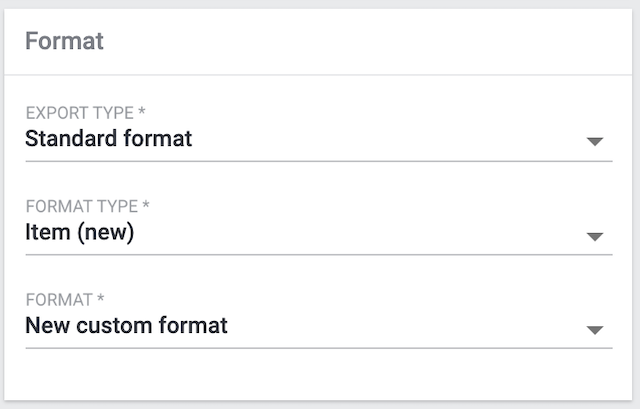
The format type described on this page is found in the menu Data & Plugins » Catalogues. When creating a new catalogue, first select a marketplace template in the Template type field. If the marketplace uses the Item (New) export type, then it will be selectable in the Export type field and will often even be selected automatically. You can find out on the setup page for each marketplace which export type(s) it supports.
1. Data sources
This chapter contains a list of all item data sources that can be exported via the catalogue tool.
1.1. Market Ident Number
Market Ident Numbers are a type of identifier exclusively used by specific marketplaces to identify products.
1.1.1. Moin
The "My OTTO Identification Number" is an alphanumeric product identification that is provided by OTTO Market. Since August 11th, 2021, every product on OTTO Market must have a MOIN.
Note: The MOIN is assigned by OTTO Market. You do not create it yourself. If you sell a product on OTTO Market and it’s also available through other sellers, then all of the offers will have the same MOIN.
1.1.2. ePID
The "eBay Product ID" is a product identification that is provided by eBay.
1.1.3. ASIN
The "Amazon Standard Identification Number" is a 10-digit, alphanumeric product identification that is provided by Amazon. The ASIN and ISBN are identical for books. The ASIN can be found on Amazon’s product page.
1.2. Barcode
| Data source | Explanation |
|---|---|
Barcode code |
The barcode itself. Corresponds to the option in the menu: Items & Stock » All items » [Open variation] » Tab: Product details » Section: Barcodes » Column: Code |
Barcode name |
The name of the barcode. Corresponds to the option in the menu: Items & Stock » All items » [Open variation] » Tab: Product details » Section: Barcodes » Column: Name |
Barcode ID |
The ID of the barcode. Corresponds to the option in the menu: Setup » Item » Barcode » Column: ID |
List of barcode types in the system |
Here you’ll see a list of the barcode types that you’ve already configured in the menu Setup » Item » Barcode. When you add a barcode type to the catalogue, the actual code that was saved for this barcode type in the variation data record will be exported. Corresponds to the option in the menu: Items & Stock » All items » [Open variation] » Tab: Product details » Section: Barcodes |
1.3. Default category
|
What is a default category?
Variations can be linked to any number of categories at once. However, one of those categories must be set as the default category. This category is used for a variety of purposes, such as determining the breadcrumb trail in your PlentyONE Shop. You can check and modify which categories are linked to an item and which one of them is set as the default category by going to Items & Stock » All items » [Open variation] » Tab: Product details » Section: Categories: 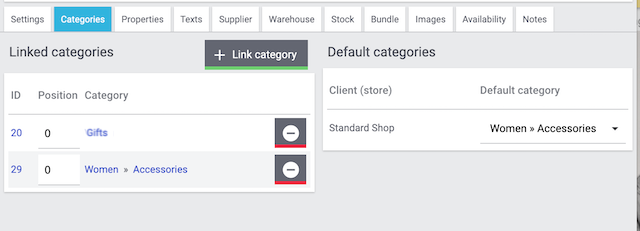
When you export data using a marketplace format the standard category as well as all other categories linked to each item are exported to the marketplace. |
| Data source | Explanation |
|---|---|
Category ID |
The ID of the category. |
Category name |
The name of the category. Corresponds to the option in the menu: Items & Stock » Categories » [Open category] » Tab: Settings » Entry field: Name Note: You can re-use category names as long as they are used in different categories or on different levels. Within one category, however, the names may only be used once per level. SEO tip: Enter different meta titles and meta descriptions for categories of the same name. |
Category description |
The text and HTML formatting saved to the variation. Corresponds to the option in the menu: Items & Stock » Categories » [Open category] » Tab: Description 1 |
URL name |
The category’s URL name. Corresponds to the option in the menu: Items & Stock » Categories » [Open category] » Tab: Settings » Entry field: URL name |
Meta title |
The category’s meta title. The meta title is displayed in the tab title of the browser and in search engine results. Corresponds to the option in the menu: Items & Stock » Categories » [Open category] » Tab: Settings » Entry field: Meta title |
Meta description |
The category’s meta description. The meta description is analysed by search engines. As such, it is especially important for the homepage. The meta description should contain the most important content in one sentence. Corresponds to the option in the menu: Items & Stock » Categories » [Open category] » Tab: Settings » Entry field: Meta description |
Meta keywords |
The category’s keywords. Corresponds to the option in the menu: Items & Stock » Categories » [Open category] » Tab: Settings » Entry field: Meta keywords |
Path |
This data souce corresponds to the category’s breadcrumbs path. Enter a separator. In other words, decide which symbol or character should appear between the individual category levels. Example: If you use the separator |
Branch 1; |
You can save up to 6 category levels in the PlentyONE back end. These data sources correspond to the individual levels of the category’s breadcrumbs path. Example: Your system includes the category: Shoes » Women » Boots » Uggs.
|
1.4. Item
| Data source | Explanation | ||||||||||||||||||||||
|---|---|---|---|---|---|---|---|---|---|---|---|---|---|---|---|---|---|---|---|---|---|---|---|
Age restriction |
The item’s age rating.
Corresponds to the option in the menu: Items & Stock » All items » [Open item] » Element: Settings » Drop-down list: Age restriction Note: Items with an 18+ age rating must be linked to a shipping profile for which the PostIdent option was activated. |
||||||||||||||||||||||
Amazon FBA platform |
Specifies the item’s Amazon marketplace, assuming that the item is sold via FBA.
Corresponds to the option in the menu: Items & Stock » All items » [Open item] » Element: Amazon » Drop-down list: FBA Fulfillment |
||||||||||||||||||||||
Amazon product type |
The Amazon product type that was selected for the item. Is specified by the product type ID. You can think of the product type as the Amazon category under which this item should appear. When you transmit your items to Amazon, you’ll transmit one product type at a time, i.e. one category at a time. Corresponds to the option in the menu: Items & Stock » All items » [Open item] » Element: Amazon » Drop-down list: Product type (deprecated) Note: You can download an overview of Amazon product types here. The table lists the product types and their corresponding IDs. |
||||||||||||||||||||||
Amazon product type (Deprecated) |
This option is no longer supported. Use the option Amazon product type instead |
||||||||||||||||||||||
Condition API ID |
The item’s API condition. Is specified by the condition ID.
Corresponds to the option in the menu: Items & Stock » All items » [Open item] » Element: Settings » Drop-down list: Condition for API |
||||||||||||||||||||||
Condition API name |
The item’s API condition. Is specified by the condition name. Corresponds to the option in the menu: Items & Stock » All items » [Open item] » Element: Settings » Drop-down list: Condition for API |
||||||||||||||||||||||
Condition ID |
The item’s condition. Is specified by the condition ID.
Corresponds to the option in the menu: Items & Stock » All items » [Open item] » Element: Settings » Drop-down list: Condition |
||||||||||||||||||||||
Condition name |
The item’s condition. Is specified by the condition name. Corresponds to the option in the menu: Items & Stock » All items » [Open item] » Element: Settings » Drop-down list: Condition |
||||||||||||||||||||||
Coupon restriction |
Specifies whether it is possible to redeem promotional coupons for this item.
Corresponds to the option in the menu: Items & Stock » All items » [Open item] » Element: Settings » Drop-down list: Promotional coupon/POS discount |
||||||||||||||||||||||
eBay category 1; |
The eBay category ID for this item. Corresponds to the option in the menu: Items & Stock » All items » [Open item] » Element: Multi-Channel » Entry field: eBay category 1 & 2 Use case: in the first step, you’ll create listing templates that apply to all categories. Then in the second step, you’ll specify the category ID for each individual item. |
||||||||||||||||||||||
eBay preset ID |
The listing template that this item is linked to. Is specified by the listing template ID. You can find the listing template IDs in the menu Sales channels » Listings. Corresponds to the option in the menu: Items & Stock » All items » [Open item] » Element: Multi-Channel » Drop-down list: Listing template |
||||||||||||||||||||||
eBay store category 1; |
The eBay store category ID for this item. Corresponds to the option in the menu: Items & Stock » All items » [Open item] » Element: Multi-Channel » Entry field: Store category 1 & 2 Use case: in the first step, you’ll create listing templates that apply to all store categories. Then in the second step, you’ll specify the store category for each individual item. |
||||||||||||||||||||||
eBay Title [1-9] |
Returns the respective eBay title saved to the item. Corresponds to the option in the menu: Items & Stock » All items » [Open item] » Tab: Sales channels » Section: Ebay titles |
||||||||||||||||||||||
EU Responsible Contact form |
The contact form of the manufacturer’s EU-responsible person. Corresponds to the option in the menu: Setup » Item » Manufacturers » Open manufacture » Entry field: Postcode Note:
|
||||||||||||||||||||||
EU Responsible Country Id |
The internal country ID of the manufacturer’s EU-responsible person. In other words, the PlentyONE ID for the country. Corresponds to the option in the menu: Setup » Item » Manufacturers » [Open manufacturer] » Entry field: EU Responsible Country Note:
|
||||||||||||||||||||||
EU Responsible Country ISO code |
The country of the manufacturer’s EU-responsible person. Is specified by the country ISO code. You can find a list of country ISO codes here. Corresponds to the option in the menu: Setup » Item » Manufacturers » [Open manufacturer] » Entry field: EU Responsible Country Note:
|
||||||||||||||||||||||
EU Responsible Country name |
The country of the manufacturer’s EU-responsible person. Is specified by the country name. You can find a list of country names here. Corresponds to the option in the menu: Setup » Item » Manufacturers » [Open manufacturer] » Entry field: EU Responsible Country Note:
|
||||||||||||||||||||||
EU Responsible Email |
The email address of the manufacturer’s EU-responsible person. Corresponds to the option in the menu: Setup » Item » Manufacturers » [Open manufacturer] » Entry field: EU Responsible Email Note:
|
||||||||||||||||||||||
EU Responsible House No |
The house number of the manufacturer’s EU-responsible person. Corresponds to the option in the menu: Setup » Item » Manufacturers » [Open manufacturer] » Entry field: EU Responsible House No. Note:
|
||||||||||||||||||||||
EU-Responsible Name |
The name of the EU-responsible person of the manufacturer. This can be a natural or legal person. Corresponds to the option in the menu: Setup » Item » Manufacturers » [Open manufacturer] » Entry field: EU Responsible Name Note:
|
||||||||||||||||||||||
EU Responsible Phone number |
The telephone number of the manufacturer’s EU-responsible person. Corresponds to the option in the menu: Setup » Item » Manufacturers » [Open manufacturer] » Entry field: EU Responsible Phone number Note:
|
||||||||||||||||||||||
EU Responsible Post Code |
The postcode of the manufacturer’s EU-responsible person. Corresponds to the option in the menu: Setup » Item » Manufacturers » [Open manufacturer] » Entry field: EU Responsible Postcode Note:
|
||||||||||||||||||||||
EU Responsible Street |
The street name of the manufacturer’s EU-responsible person. Corresponds to the option in the menu: Setup » Item » Manufacturers » [Open manufacturer] » Entry field: EU Responsible Street Note:
|
||||||||||||||||||||||
EU Responsible Town |
The town of the manufacturer’s EU-responsible person. Corresponds to the option in the menu: Setup » Item » Manufacturers » [Open manufacturer] » Entry field: EU Responsible Town Note:
|
||||||||||||||||||||||
External manufacturer name |
The manufacturer of the item. Is specified by the external manufacturer name. You can find the external manufacturer names in the menu Setup » Item » Manufacturers. Corresponds to the option in the menu: Items & Stock » All items » [Open item] » Tab: General » Section: Settings» Drop-down list: Manufacturer |
||||||||||||||||||||||
Flag 1; |
The item’s first or second flag. Is specified by the flag ID. |
||||||||||||||||||||||
Is shippable by amazon |
Specifies whether the FBA function is used for this item.
Corresponds to the option in the menu: Items & Stock » All items » [Open item] » Element: Amazon » Checkbox: Amazon FBA Note: By doing so, the FBA stock of this item can be imported into PlentyONE and Amazon Multi-Channel orders that are shipped with FBA can be booked. |
||||||||||||||||||||||
Is shipping package |
Specifies whether the item is a shipping package.
Corresponds to the option in the menu: Items & Stock » All items » [Open item] » Element: Settings » Drop-down list: Shipping package Note: Shipping packages have specific dimensions. If you enter dimensions for your variations, then the appropriate shipping package will automatically be assigned. |
||||||||||||||||||||||
Is subscribable |
Specifies whether a subscription is available for the item.
Corresponds to the option in the menu: Items & Stock » All items » [Open item] » Element: Settings » Drop-down list: Subscription Note: Subscriptions are set up in the scheduler. The scheduler is an individual module in PlentyONE that allows an item to be shipped in regular intervals. The scheduler menu is only visible in PlentyONE if you’ve booked the module. |
||||||||||||||||||||||
Item ID |
The item’s ID. The item ID is a unique, consecutive number that is used to identify each item in PlentyONE. |
||||||||||||||||||||||
Item type |
Indicates the type of the item:
|
||||||||||||||||||||||
Manufacturer Contact form |
The contact form of the manufacturer. Corresponds to the option in the menu: Setup » Item » Manufacturers » Open manufacture » Entry field: Contact form |
||||||||||||||||||||||
Manufacturer country ID |
The country where the item was manufactured. Is specified by the country ID. You can find a list of country IDs here. Corresponds to the option in the menu: Items & Stock » All items » [Open item] » Tab: General » Section: Settings » Drop-down list: Manufacturing country |
||||||||||||||||||||||
Manufacturer country ISO-Code |
The country where the item was manufactured. Is specified by the country ISO code. You can find a list of country ISO codes here. Corresponds to the option in the menu: Items & Stock » All items » [Open item] » Tab: General » Section: Settings » Drop-down list: Manufacturing country |
||||||||||||||||||||||
Manufacturer country name |
The country where the item was manufactured. Is specified by the country name. You can find a list of country names here. Corresponds to the option in the menu: Items & Stock » All items » [Open item] » Tab: General » Section: Settings » Drop-down list: Manufacturing country |
||||||||||||||||||||||
Manufacturer email |
The manufacturer’s email address. Corresponds to the option in the menu: Setup » Item » Manufacturers » [Open manufacturer] » Entry field: Email |
||||||||||||||||||||||
Manufacturer house no. |
The manufacturer’s house number. Corresponds to the option in the menu: Setup » Item » Manufacturers » [Open manufacturer] » Entry field: House no. |
||||||||||||||||||||||
Manufacturer ID |
The manufacturer of the item. Is specified by the manufacturer ID. You can find the manufacturer IDs in the menu Setup » Item » Manufacturers. Corresponds to the option in the menu: Items & Stock » All items » [Open item] » Tab: General » Section: Settings » Drop-down list: Manufacturer |
||||||||||||||||||||||
Manufacturer legal name |
The manufacturer’s company name. Corresponds to the option in the menu: Setup » Item » Manufacturers » [Open manufacturer] » Entry field: Name |
||||||||||||||||||||||
Manufacturer logo |
The URL that leads to the manufacturer’s homepage. The URL can have up to 2,000 characters. Corresponds to the option in the menu: Setup » Item » Manufacturers » [Open manufacturer] » Entry field: Homepage |
||||||||||||||||||||||
Manufacturer name |
The manufacturer of the item. Is specified by the manufacturer name. You can find the manufacturer names in the menu Setup » Item » Manufacturers. Corresponds to the option in the menu: Items & Stock » All items » [Open item] » Tab: General » Section: Settings » Drop-down list: Manufacturer |
||||||||||||||||||||||
Manufacturer phone number |
The manufacturer’s telephone number. Corresponds to the option in the menu: Setup » Item » Manufacturers » [Open manufacturer] » Entry field: Telephone number |
||||||||||||||||||||||
Manufacturer post code |
The post code where the manufacturer is located. Corresponds to the option in the menu: Setup » Item » Manufacturers » [Open manufacturer] » Entry field: Postcode |
||||||||||||||||||||||
Manufacturer street |
The street address of the manufacturer. Corresponds to the option in the menu: Setup » Item » Manufacturers » [Open manufacturer] » Entry field: Street |
||||||||||||||||||||||
Manufacturer town |
The town where the manufacturer is located. Corresponds to the option in the menu: Setup » Item » Manufacturers » [Open manufacturer] » Entry field: Town |
||||||||||||||||||||||
Manufacturing country ID |
The country where the item was manufactured. Is specified by the country ID. You can find a list of country IDs here. Corresponds to the option in the menu: Items & Stock » All items » [Open item] » Tab: General » Section: Settings » Drop-down list: Manufacturing country |
||||||||||||||||||||||
Manufacturing country ISO-Code |
The country where the item was manufactured. Is specified by the country ISO code. You can find a list of country ISO codes here. Corresponds to the option in the menu: Items & Stock » All items » [Open item] » Tab: General » Section: Settings » Drop-down list: Manufacturing country |
||||||||||||||||||||||
Manufacturing country name |
The country where the item was manufactured. Is specified by the country name. You can find a list of country names here. Corresponds to the option in the menu: Items & Stock » All items » [Open item] » Tab: General » Section: Settings » Drop-down list: Manufacturing country |
||||||||||||||||||||||
Max. order quantity |
The item’s maximum order quantity. This value limits how many copies of the item can be bought at once.
Corresponds to the option in the menu: Items & Stock » All items » [Open item] » Element: Settings » Entry field: Max. order quantity |
||||||||||||||||||||||
Revenue account |
The item’s revenue account. Corresponds to the option in the menu: Items & Stock » All items » [Open item] » Element: Settings » Entry field: Revenue account |
||||||||||||||||||||||
Serial number |
Exports the serial number saved to the item if it has the selected status. The following statuses can be selected:
|
||||||||||||||||||||||
Serial number (yes/no) |
Specifies whether it is possible to scan this item’s serial number during a process.
Corresponds to the option in the menu: Items & Stock » All items » [Open item] » Element: Settings » Drop-down list: Serial number |
||||||||||||||||||||||
Stock type |
The item’s stock type.
Corresponds to the option in the menu: Items & Stock » All items » [Open item] » Element: Settings » Drop-down list: Stock type |
||||||||||||||||||||||
Store special ID |
Specifies whether the item is part of a store special. Is specified by the store special ID.
Corresponds to the option in the menu: Items & Stock » All items » [Open item] » Element: Webshop » Drop-down list: Webshop |
||||||||||||||||||||||
Store special Name |
Specifies whether the item is part of a store special. Is specified by the store special name. Corresponds to the option in the menu: Items & Stock » All items » [Open item] » Element: Webshop » Drop-down list: Webshop |
1.5. Item text
| Data source | Explanation |
|---|---|
HTML title for Webshop |
The HTML title for the webshop. Corresponds with the settings in the menu: Items & Stock » All items » [Open item » Tab: Description » Field: HTML title for Webshop] Once you’ve added this data field, you can use the drop-down list to specify which language version of the text should be exported. |
Name 1 |
The item’s name 1. This is the item’s default name, which is used in the plentyShop and on marketplaces. Corresponds to the option in the menu: Items & Stock » All items » [Open item] » Tab: Description » Entry field: Name 1 Once you’ve added this data field, you can use the drop-down list to specify which language version of the text should be exported. |
Name 2 |
The item’s name 2. This is an alternative item name that can be used for example for markets. Corresponds to the option in the menu: Items & Stock » All items » [Open item] » Tab: Description » Entry field: Name 2 Once you’ve added this data field, you can use the drop-down list to specify which language version of the text should be exported. |
Name 3 |
The item’s name 3. This is an alternative item name that can be used for example for markets. Corresponds to the option in the menu: Items & Stock » All items » [Open item] » Tab: Description » Entry field: Name 3 Once you’ve added this data field, you can use the drop-down list to specify which language version of the text should be exported. |
Preview text |
The item’s preview text. Corresponds to the option in the menu: Items & Stock » All items » [Open item] » Tab: Description » Entry field: Preview text Once you’ve added this data field, you can use the drop-down list to specify which language version of the text should be exported. Note: The preview text is a short text which can be displayed in item lists. |
Meta description |
The item’s meta description. Corresponds to the option in the menu: Items & Stock » All items » [Open item] » Tab: Description » Entry field: Meta description Once you’ve added this data field, you can use the drop-down list to specify which language version of the text should be exported. Note: The meta description makes it easier for search engines to find the item. |
Meta keywords |
The item’s meta keywords. Corresponds to the option in the menu: Items & Stock » All items » [Open item] » Tab: Description » Entry field: Meta keywords Once you’ve added this data field, you can use the drop-down list to specify which language version of the text should be exported. Note: The meta keywords make it easier for search engines to find the item. |
Item text |
The item text is a detailed description, which is displayed in the item layout in the plentyShop. Corresponds to the option in the menu: Items & Stock » All items» [Open item] » Tab: Description » Entry field: Item text Once you’ve added this data field, you can use the drop-down list to specify which language version of the text should be exported. |
Technical data |
The item’s technical data. Corresponds to the option in the menu: Items & Stock » All items » [Open item] » Tab: Description » Entry field: Technical data Once you’ve added this data field, you can use the drop-down list to specify which language version of the text should be exported. |
URL path |
The item’s URL path in the plentyShop, composed of categories and item name. |
1.6. Attribute
Folder level
The data sources on the first folder level return data for the Attribute that is linked to the variation:
| Data source | Explanation |
|---|---|
Combination external name |
The external name of the attribute linked to the variation and the external name of the attribute’s value. You can find the names in the menu Setup » Item » Attributes. |
Attribute ID |
The attribute that’s linked to the variation. For example “Colour” or “Size”. Is specified by the attribute ID. You can find the attribute IDs in the menu Setup » Item » Attributes. |
Value ID |
The attribute value that’s linked to the variation. For example “blue”, “red” or “green”. Is specified by the attribute value ID. You can find the attribute value IDs in the menu Setup » Item » Attributes » [Open attribute] » Tab: Values. |
Attribute internal name |
The attribute that’s linked to the variation. For example “Colour” or “Size”. Is specified by the internal attribute name. You can find the internal attribute names in the menu Setup » Item » Attributes. |
Attribute external name |
The attribute that’s linked to the variation. For example “Colour” or “Size”. Is specified by the external attribute name. You can find the external attribute names in the menu Setup » Item » Attributes. |
Value internal name |
The attribute value that’s linked to the variation. For example “blue”, “red” or “green”. Is specified by the internal attribute value name. You can find the internal attribute value names in the menu Setup » Item » Attributes » [Open attribute] » Tab: Values. |
Value external name |
The attribute value that’s linked to the variation. For example “blue”, “red” or “green”. Is specified by the external attribute value name. You can find the internal attribute value names in the menu Setup » Item » Attributes » [Open attribute] » Tab: Values. |
Combination internal name |
The internal name of the attribute linked to the variation and the internal name of the attribute’s value. You can find the internal names in the menu Setup » Item » Attributes. |
Combination IDs |
The ID of the attribute linked to the variation and the ID of the attribute’s value. You can find the IDs in the menu Setup » Item » Attributes. |
The folders here correspond to the various attributes that you’ve already created in the menu Setup » Item » Attributes.
| If an attribute is not linked to a particular variation, then the data sources in the corresponding folder will not return a value for that variation. |
Open the folder of the attribute whose information you want to export.
Data source level
| Data source | Explanation |
|---|---|
Attribute ID |
The attribute that’s linked to the variation. For example “Colour” or “Size”. Is specified by the attribute ID. You can find the attribute IDs in the menu Setup » Item » Attributes. |
Attribute name |
The attribute that’s linked to the variation. For example “Colour” or “Size”. Is specified by the internal attribute name. You can find the internal attribute names in the menu Setup » Item » Attributes. |
Value ID |
The attribute value that’s linked to the variation. For example “blue”, “red” or “green”. Is specified by the attribute value ID. You can find the attribute value IDs in the menu Setup » Item » Attributes » [Open attribute] » Tab: Values. |
Value name |
The attribute value that’s linked to the variation. For example “blue”, “red” or “green”. Is specified by the internal attribute value name. You can find the internal attribute value names in the menu Setup » Item » Attributes » [Open attribute] » Tab: Values. |
1.7. SKU
The data sources in this folder require you to specify an account ID in their Account field. You can find the account IDs in different menus in your system, such as:
Amazon |
Setup » Markets » Amazon » Settings |
eBay |
Setup » Markets » eBay » Settings » Account settings |
Select the correct order referrer in the drop-down list and enter the account ID in the field below.
Note: Not every marketplace has its own account ID. In such cases, enter 0 as the account ID.
| Data source | Explanation |
|---|---|
SKU |
A specific SKU of the variation. Corresponds to the option in the menu: Items & Stock » All items » [Open variation] » Tab: Sales channels » Section: SKU |
Account ID |
The ID of the account associated with a specific SKU. Corresponds to the option in the menu: Items & Stock » All items » [Open variation] » Tab: Sales channels » Section: SKU |
Marketplace ID |
The internal ID of the marketplace associated with a specific SKU. |
Parent SKU |
The parent SKU of the variation. Corresponds to the option in the menu: Items & Stock » All items » [Open variation] » Tab: Sales channels » Section: SKU |
Status |
The status of the SKU. |
Additional information |
Additional information for the SKU. |
|
What is the difference between SKU and parent SKU?
The parent SKU is only necessary if you work with variation items.
You only need the SKU for items without variations. |
1.8. Stock
Folder level
Stock levels can be managed for every warehouse separately. The folders here correspond to the various warehouses that you’ve already configured in the menu Setup » Stock » Warehouse. Open the folder of whichever warehouse has stock information that you want to export.
|
What about the folder “Total virtual stock”?
This folder does not correspond to any physical warehouse. Instead, it returns combined stock numbers for all of your warehouses. Example:
|
Data source level
| Data source | Explanation |
|---|---|
Physical stock |
The quantity of items that are actually in the warehouse. Corresponds to the option in the menu: Items & Stock » All items » [Open item] » Tab: Stock » Section: Stock » Column: Physical stock |
Net stock |
The quantity of items that are available for sale. The net stock is a subset of the physical stock. Substract all reserved quantities from the physical stock and you will get the net stock. Corresponds to the option in the menu: Items & Stock » All items » [Open item] » Tab: Stock » Section: Stock » Column: Net stock |
Reserved stock |
The quantity of items that are reserved. A variation will be reserved as soon as an order or a warranty is created. The stock is reserved until either outgoing items are booked or until the order or the warranty is cancelled. The reserved stock is part of the physical stock because the reserved stock is still present in the warehouse. Corresponds to the option in the menu: Items & Stock » All items » [Open item] » Tab: Stock » Section: Stock » Column: Reserved stock |
Reorder level Delta |
The difference to the reorder level. The difference either tells you how many items still need to be sold in order to reach the reorder level or it tells you how many items you need to reorder to reach the reorder level. This means if the difference is negative your stock is still above the reorder level. If the difference is positive, your stock is below the reorder level. Corresponds to the option in the menu: Items & Stock » All items » [Open variation] » Tab: Stock » Section: Stock » Column: Reorder level Δ |
Reordered |
This replenishment value indicates how many units are currently being delivered to your warehouse. Corresponds to the option in the menu: Items & Stock » All items » [Open variation] » Tab: Stock » Section: Stock » Column: Reordered |
Purchase Price |
The average purchase price of the variation. This value is automatically calculated by the system when incoming items are received. Here, you can find more information on that. Corresponds to the option in the menu: Items & Stock » All items » [Open variation] » Tab: Stock » Section: Stock » Column: Average Purchase price |
Reorder level |
The reorder level of the variation. This value is best understood as a stock target value, i.e. what amount of the variation should ideally be stored in your warehouse. Corresponds to the option in the menu: Items & Stock » All items » [Open variation] » Tab: Stock » Section: Stock » Column: Reorder level |
Reserved Bundle |
The quantity of items that are reserved by item bundles in orders, but have not left the warehouse yet. Corresponds to the option in the menu: Items & Stock » Stock » Column: RSB |
Reserved Listing |
The quantity of items that are reserved by listings, but have not left the warehouse yet. Corresponds to the option in the menu: Items & Stock » Stock » Column: RSL |
Value of Goods |
The value of the variation stored in the warehouse. Corresponds to the option in the menu: Items & Stock » All items » [Open variation] » Tab: Stock » Section: Stock » Column: Value of goods |
Warehouse Id |
The ID of the warehouse. Corresponds to the option in the menu: Setup » Stock » Warehouse » [Open warehouse] » Settings » Warehouse ID |
Warehouse Name |
The name of the warehouse. Corresponds to the option in the menu: Items & Stock » All items » [Open variation] » Tab: Stock » Section: Stock » Column: Warehouse name |
1.9. Variation
| Data source | Explanation | ||||||||||||||||||||||||||||||||||||||||||||||||||||||||||||||||||||||||||||||
|---|---|---|---|---|---|---|---|---|---|---|---|---|---|---|---|---|---|---|---|---|---|---|---|---|---|---|---|---|---|---|---|---|---|---|---|---|---|---|---|---|---|---|---|---|---|---|---|---|---|---|---|---|---|---|---|---|---|---|---|---|---|---|---|---|---|---|---|---|---|---|---|---|---|---|---|---|---|---|---|
Active |
Specifies whether the variation is activated.
Corresponds with settings in the Items & Stock » All items » [Open variation] » Tab: General » Availability and visibility » Option: Active menu Background info: Variations only become visible in the plentyShop or on marketplaces once they have been activated. In other words, you can work on inactive variations without your customers noticing. |
||||||||||||||||||||||||||||||||||||||||||||||||||||||||||||||||||||||||||||||
Availability days |
Specifies the variation’s delivery time. Is specified by the average delivery time in days. Corresponds with settings in the Items & Stock » All items » [Open variation] » Tab: General » Section: Availability and Visibility » Drop-down list: Displayed delivery time menu Note: The availability levels are configured in the menu Setup » Item » Availability. There you can find the availability IDs, texts, symbols and average delivery times in days. Note: The availability is a static setting. In other words, the selected availability level does not change, regardless of the actual stock levels. The setting is only relevant if stock availability is not set automatically. |
||||||||||||||||||||||||||||||||||||||||||||||||||||||||||||||||||||||||||||||
Availability ID |
Specifies the variation’s delivery time. Is specified by the ID of the availability level (1-10). Corresponds with settings in the Items & Stock » All items » [Open variation] » Tab: General » Section: Availability and Visibility » Drop-down list: Displayed delivery time menu Note: The availability levels are configured in the menu Setup » Item » Availability. There you can find the availability IDs, texts, symbols and average delivery times in days. Note: The availability is a static setting. In other words, the selected availability level does not change, regardless of the actual stock levels. The setting is only relevant if stock availability is not set automatically. |
||||||||||||||||||||||||||||||||||||||||||||||||||||||||||||||||||||||||||||||
Availability name |
Specifies the variation’s delivery time. Is specified by the text of the availability level. Corresponds with settings in the Items & Stock » All items » [Open variation] » Tab: General » Section: Availability and Visibility » Drop-down list: Displayed delivery time menu Note: The availability levels are configured in the menu Setup » Item » Availability. There you can find the availability IDs, texts, symbols and average delivery times in days. Note: The availability is a static setting. In other words, the selected availability level does not change, regardless of the actual stock levels. The setting is only relevant if stock availability is not set automatically. |
||||||||||||||||||||||||||||||||||||||||||||||||||||||||||||||||||||||||||||||
Available if net stock is positive |
Specifies whether the variation is automatically available and purchasable in the plentyShop when it is in stock. Note: Both client availability automatics complement each other and only apply if the option stock limitation is set to To net stock.
|
||||||||||||||||||||||||||||||||||||||||||||||||||||||||||||||||||||||||||||||
Available until |
Specifies the last date when the variation is available.
The date is exported in the following format: Example: Corresponds with settings in the Items & Stock » All items » [Open variation] » Tab: General » Section: Availability and Visibility » Field: Available until menu |
||||||||||||||||||||||||||||||||||||||||||||||||||||||||||||||||||||||||||||||
Bundle type |
Indicates whether the variation is an item bundle or a bundle component.
|
||||||||||||||||||||||||||||||||||||||||||||||||||||||||||||||||||||||||||||||
Campaign ID |
The ID of the coupon campaign the variation takes part in. |
||||||||||||||||||||||||||||||||||||||||||||||||||||||||||||||||||||||||||||||
Ceres product URL |
The URL where this item can be found in the plentyShop. |
||||||||||||||||||||||||||||||||||||||||||||||||||||||||||||||||||||||||||||||
Ceres product URL Lang |
The URL where this item can be found in the plentyShop. The standard language of the shop is already selected. |
||||||||||||||||||||||||||||||||||||||||||||||||||||||||||||||||||||||||||||||
Content unit ISO |
The unit of the variation. Is specified by the unit’s ISO code. You can find a list of ISO codes here. Alternatively, you can find the ISO codes in the menu Setup » Item » Units. Corresponds with the settings in the menu: Items & Stock » All items » [Open variation] » Tab: Product details » Section: Dimensions and content » Drop-down list: Unit Note: Use this export field together with Content value. |
||||||||||||||||||||||||||||||||||||||||||||||||||||||||||||||||||||||||||||||
Content unit name |
The unit of the variation. Is specified by the unit name. You can find a list of unit names here. Alternatively, you can find the unit names in the menu Setup » Item » Units. Corresponds with the settings in the menu: Items & Stock » All items » [Open variation] » Tab: Product details » Section: Dimensions and content » Drop-down list: Unit Note: Use this export field together with Content value. |
||||||||||||||||||||||||||||||||||||||||||||||||||||||||||||||||||||||||||||||
Content value |
Specifies the variation’s numerical content. Corresponds with the settings in the menu: Items & Stock » All items » [Open variation] » Tab: Product details » Section: Dimensions and content » Field: Quantity Note: Use this export field together with Content unit ISO or Content unit name. |
||||||||||||||||||||||||||||||||||||||||||||||||||||||||||||||||||||||||||||||
Customs |
The customs value saved for the variation as a percentage. Corresponds with the option in the : Items & Stock » All items » [Open variation] » Tab: Pricing » Section: Costs » Customs in % menu |
||||||||||||||||||||||||||||||||||||||||||||||||||||||||||||||||||||||||||||||
Customs tariff number |
The variation’s customs tariff number. Corresponds with the option in the : Items & Stock » All items » [Open variation] » Tab: Pricing » Section: Costs » Customs tariff number menu Note: In PlentyONE, it’s possible to save a different customs tariff number for each variation. Example: In some countries, children’s clothing is taxed differently depending on the size. In this case, it makes sense to save the customs tariff number separately for each variation. Inheritance: The customs tariff number is automatically passed down from the main variation to the sub-variations. This means:
|
||||||||||||||||||||||||||||||||||||||||||||||||||||||||||||||||||||||||||||||
Default shipping costs |
The shipping costs that are calculated once per day. This data source is not very precise. We recommend using the data source Shipping costs » Net instead. |
||||||||||||||||||||||||||||||||||||||||||||||||||||||||||||||||||||||||||||||
Durability in years |
The durability guarantee in years. Corresponds to the option in the menu: Items & Stock » All items » [Open variation] » Tab: General » Section: Settings » Guarantee of durability |
||||||||||||||||||||||||||||||||||||||||||||||||||||||||||||||||||||||||||||||
Estimated available at |
The variation’s estimated available at date. |
||||||||||||||||||||||||||||||||||||||||||||||||||||||||||||||||||||||||||||||
External variation ID |
The external variation ID. Corresponds to the option in the menu: Items & Stock » All items » [Open variation] » Tab: General » Section: Settings » Entry field: External ID Use case: The external variation number facilitates importing items and variations from an external system. |
||||||||||||||||||||||||||||||||||||||||||||||||||||||||||||||||||||||||||||||
Extra shipping charge 1; |
The extra shipping charge, i.e. a fee that is charged in addition to the normal shipping costs. Extra shipping charges are useful for large or bulky items that are particularly expensive to ship.
Corresponds with the option in the : Items & Stock » All items » [Open variation] » Tab: Shipping » Field Extra shipping charge 1 or 2 menu Additional settings: In each of your shipping profiles, specify whether these extra charges should be added to the basic shipping costs. Note: The manual also includes several example calculations for extra shipping charges. |
||||||||||||||||||||||||||||||||||||||||||||||||||||||||||||||||||||||||||||||
Gross weight g |
The variation’s gross weight in grams. Corresponds with the settings in the menu: Items & Stock » All items » [Open variation] » Tab: Product details » Section: Dimensions and content » Field: Gross weight in grams Background info: For individually packaged variations, the gross weight is the weight of the variation including packaging. The value is used to calculate shipping packages and weight-based shipping costs. Item bundles: The gross weight can automatically be calculated based on the bundle components. |
||||||||||||||||||||||||||||||||||||||||||||||||||||||||||||||||||||||||||||||
Has calculated bundle moving average price |
Indicates whether the option Bundle moving average purchase price (net): Automatically calculate from bundle components is activated.
|
||||||||||||||||||||||||||||||||||||||||||||||||||||||||||||||||||||||||||||||
Has calculated bundle net weight |
Indicates whether the option Bundle net weight: Automatically calculate from bundle components is activated.
|
||||||||||||||||||||||||||||||||||||||||||||||||||||||||||||||||||||||||||||||
Has calculated bundle purchase price |
Indicates whether the option Bundle net purchase price: Automatically calculate from bundle components is activated.
|
||||||||||||||||||||||||||||||||||||||||||||||||||||||||||||||||||||||||||||||
Has calculated bundle weight |
Indicates whether the option Bundle gross weight: Automatically calculate from bundle components is activated.
|
||||||||||||||||||||||||||||||||||||||||||||||||||||||||||||||||||||||||||||||
Height |
The variation’s dimensions in millimetres. Corresponds with the settings in the menu: Items & Stock » All items » [Open variation] » Tab: Product details » Section: Dimensions and content » Field: Height/Length/Width |
||||||||||||||||||||||||||||||||||||||||||||||||||||||||||||||||||||||||||||||
ID of the main variation |
Specifies the ID of the corresponding main variation. |
||||||||||||||||||||||||||||||||||||||||||||||||||||||||||||||||||||||||||||||
Interval order quantity |
Specifies which quantity intervals the variation can be ordered in. Corresponds with settings in the Items & Stock » All items » [Open variation] » Tab: General » Section: Settings » Field: Interval order quantity menu Note: Decimal values are possible, e.g. allowing customers to order products by weight or length. |
||||||||||||||||||||||||||||||||||||||||||||||||||||||||||||||||||||||||||||||
Invisible in item list |
Specifies whether the variation is unlisted. Unlisted items do not appear in categories, search results, store specials, cross-selling lists and lists of last seen items. They are only accessible via a direct URL. Relationship to other settings: Both client visibility automatics have priority over the list visibility automatics. We recommend that you either control the visibility with the “client” option or the “list” option. They should not be combined.
|
||||||||||||||||||||||||||||||||||||||||||||||||||||||||||||||||||||||||||||||
Is invisible in list if net stock is not positive |
Specifies whether the variation is automatically invisible if it is out of stock. Note: Both client visibility automatics complement each other and only apply if the option stock limitation is set to To net stock. Relationship to other settings: Both client visibility automatics have priority over list automatic visibility. We recommend that you either control the visibility with the “client” option or the “list” option. They should not be combined.
|
||||||||||||||||||||||||||||||||||||||||||||||||||||||||||||||||||||||||||||||
Is main variation |
Indicates whether the variation is a main variation.
|
||||||||||||||||||||||||||||||||||||||||||||||||||||||||||||||||||||||||||||||
Is visible in list net stock is positive |
Specifies whether the variation is automatically visible in the plentyShop when the net stock is positive. Note: Both client visibility automatics complement each other and only apply if the option stock limitation is set to To net stock. Relationship to other settings: Both client visibility automatics have priority over list automatic visibility. We recommend that you either control the visibility with the “client” option or the “list” option. They should not be combined.
|
||||||||||||||||||||||||||||||||||||||||||||||||||||||||||||||||||||||||||||||
Length mm |
The variation’s dimensions in millimetres. Corresponds with the settings in the menu: Items & Stock » All items » [Open variation] » Tab: Product details » Section: Dimensions and content » Field: Height/Length/Width |
||||||||||||||||||||||||||||||||||||||||||||||||||||||||||||||||||||||||||||||
Main variation number |
Returns the variation number of the main variation that is associated with the variation. Corresponds to the option in the menu: Items & Stock » All items » [Open main variation] » Tab: General » Section: Settings » Variation number |
||||||||||||||||||||||||||||||||||||||||||||||||||||||||||||||||||||||||||||||
Main warehouse ID |
Specifies the variation’s main warehouse. Is specified by the warehouse ID. You can find the warehouse IDs in the menu Setup » Stock » Warehouse » [Open warehouse] » Settings. Corresponds with the option in the : Items & Stock » All items » [Open variation] » Tab: General » Section: Settings » Drop-down list: Main warehouse menu |
||||||||||||||||||||||||||||||||||||||||||||||||||||||||||||||||||||||||||||||
Main warehouse name |
Specifies the variation’s main warehouse. Corresponds with the option in the : Items & Stock » All items » [Open variation] » Tab: General » Section: Settings » Drop-down list: Main warehouse menu |
||||||||||||||||||||||||||||||||||||||||||||||||||||||||||||||||||||||||||||||
Max. order quantity |
Specifies the maximum quantity that is permitted per order. Corresponds with settings in the Items & Stock » All items » [Open variation] » Tab: General » Section: Settings » Field: Maximum order quantity menu Note: Decimal values are possible, e.g. allowing customers to order products by weight or length. Note: You can use the maximum order quantity in combination with pre-orders, for example to prevent competitors from completely buying out the variation at a reduced price. |
||||||||||||||||||||||||||||||||||||||||||||||||||||||||||||||||||||||||||||||
Min. order quantity |
Specifies the minimum quantity that is permitted per order. Corresponds with settings in the Items & Stock » All items » [Open variation] » Tab: General » Section: Settings » Field: Minimum order quantity menu Note: Decimal values are possible, e.g. allowing customers to order products by weight or length. |
||||||||||||||||||||||||||||||||||||||||||||||||||||||||||||||||||||||||||||||
Model |
The variation’s model name. Corresponds to the option in the menu: Items & Stock » All items » [Open variation] » Tab: General » Section: Settings » Entry field: Model |
||||||||||||||||||||||||||||||||||||||||||||||||||||||||||||||||||||||||||||||
Moving average price |
The net moving average purchase price. Corresponds to the option in the menu: Items & Stock » All items » [Open variation] » Element: Costs » Entry field: Net moving average purchase price Note: It is recalculated every time stock is booked in. It is calculated from the purchase prices of all stocks that are available for the variation in the warehouse. Go to Setup » Stock » Stock » Incoming items and see which warehouses were activated with the setting Warehouse for moving average price. The moving average purchase price only takes items into account that were booked into one of these warehouses. If no warehouse is active, then no moving average purchase price is calculated. Item bundles: the moving average purchase price can automatically be calculated based on the bundle components. |
||||||||||||||||||||||||||||||||||||||||||||||||||||||||||||||||||||||||||||||
Net purchase price |
The net purchase price. Corresponds to the option in the menu: Items & Stock » [Open variation] » Tab: Pricing » Section: Costs » Entry field: Net purchase price Note: The purchase price is either calculated automatically or managed manually depending on how the settings were saved in the menu Setup » Stock » Stock » Incoming items. Item bundles: the net purchase price can automatically be calculated based on the bundle components. |
||||||||||||||||||||||||||||||||||||||||||||||||||||||||||||||||||||||||||||||
Net storage costs |
The net storage costs for the variation. Corresponds with the option in the : Items & Stock » All items » [Open variation] » Tab: Pricing » Section: Costs » Storage costs menu |
||||||||||||||||||||||||||||||||||||||||||||||||||||||||||||||||||||||||||||||
Net transportation costs |
The net transportation costs for the variation. Corresponds with the option in the : Items & Stock » All items » [Open variation] » Tab: Pricing » Section: Costs » Transportation costs menu Note: This value is used for price calculations and for calculating the acquisition price. |
||||||||||||||||||||||||||||||||||||||||||||||||||||||||||||||||||||||||||||||
Net weight g |
The variation’s net weight in grams. Corresponds with the settings in the menu: Items & Stock » All items » [Open variation] » Tab: Product details » Section: Dimensions and content » Net weight in grams Background info: The net weight is the weight of the variation without packaging. Item bundles: The gross weight can automatically be calculated based on the bundle components. |
||||||||||||||||||||||||||||||||||||||||||||||||||||||||||||||||||||||||||||||
Not available if net stock is 0 or negative |
Specifies whether the variation is automatically unavailable when it is out of stock. Note: Both client availability automatics complement each other and only apply if the option stock limitation is set to To net stock.
|
||||||||||||||||||||||||||||||||||||||||||||||||||||||||||||||||||||||||||||||
Number of packing units |
Specifies the number of packing units if the item consists of multiple packages. Corresponds with the option in the : Items & Stock » All items » [Open variation] » Tab: Shipping » Field: Packing quantity menu Note: The value 0 means that an item should always be shipped in a single package, regardless of the quantity. This setting also applies to various items. This means that all items of an order that have the value 0 will be packed into one package. |
||||||||||||||||||||||||||||||||||||||||||||||||||||||||||||||||||||||||||||||
Online store: invisible if net stock is 0 or negative |
Specifies whether the variation is invisible in plentyShop item lists when it is out of stock. Background info: When this happens, the variation can only be accessed using the direct URL. The variation will not appear in the categories, search results, store specials, cross-selling lists and lists of last seen items. Note: The option visible in item list if net stock is positive and not visible in item list if net stock is negative complement each other and only apply if the option stock limitation is set to To net stock. Relationship to other settings: Both client visibility automatics have priority over the list visibility automatics. We recommend that you either control the visibility with the “client” option or the “list” option. They should not be combined.
|
||||||||||||||||||||||||||||||||||||||||||||||||||||||||||||||||||||||||||||||
Online store: visible if net stock is positive |
Specifies whether the variation is visible in plentyShop item lists when it is in stock. This means, whether the variation appears in the categories, search results, store specials, cross-selling lists and lists of last seen items. Note: The option visible in item list if net stock is positive and not visible in item list if net stock is negative complement each other and only apply if the option stock limitation is set to To net stock. Relationship to other settings: Both client visibility automatics have priority over the list visibility automatics. We recommend that you either control the visibility with the “client” option or the “list” option. They should not be combined.
|
||||||||||||||||||||||||||||||||||||||||||||||||||||||||||||||||||||||||||||||
Operating costs |
The operating costs saved for the variation as a percentage. Corresponds with the option in the : Items & Stock » All items » [Open variation] » Tab: Pricing » Section: Costs » Operating costs in % menu |
||||||||||||||||||||||||||||||||||||||||||||||||||||||||||||||||||||||||||||||
Order picking |
The type of picking.
Corresponds with the option in the : Items & Stock » All items » [Open variation] » Tab: Shipping » Drop-down list: Order picking menu |
||||||||||||||||||||||||||||||||||||||||||||||||||||||||||||||||||||||||||||||
Packing unit quantity |
Specifies the number of packing units if the item consists of multiple packages. Corresponds with the option in the : Items & Stock » All items » [Open variation] » Tab: Shipping » Field: Packing quantity menu Note: The value 0 means that an item should always be shipped in a single package, regardless of the quantity. This setting also applies to various items. This means that all items of an order that have the value 0 will be packed into one package. |
||||||||||||||||||||||||||||||||||||||||||||||||||||||||||||||||||||||||||||||
Packing unit type ID; |
Specifies the type of packaging if the item consists of multiple packages.
Corresponds with the option in the : Items & Stock » All items » [Open variation] » Tab: Shipping » Drop-down list: Packing unit menu |
||||||||||||||||||||||||||||||||||||||||||||||||||||||||||||||||||||||||||||||
Pallet type ID |
Specifies the variation’s pallet type. Is specified by the pallet type ID. You can find a list of pallet type IDs here. Corresponds with the option in the : Items & Stock » All items » [Open variation] » Tab: Shipping » Drop-down list: Pallet type menu |
||||||||||||||||||||||||||||||||||||||||||||||||||||||||||||||||||||||||||||||
Pallet type name |
Specifies the variation’s pallet type. Corresponds with the option in the : Items & Stock » All items » [Open variation] » Tab: Shipping » Drop-down list: Pallet type menu |
||||||||||||||||||||||||||||||||||||||||||||||||||||||||||||||||||||||||||||||
Position |
The variation’s position number. Corresponds to the option in the menu: Items & Stock » All items » [Open variation] » Tab: General » Section: Settings »» Entry field: Position Variations can be sorted by their position number in the back end and front end. Back end: Search for items in the menu Items & Stock » All items. Move your mouse cursor over the column header Position. Click on the small triangle () to display the items in ascending or descending order by their position number. Front end: Select the appropriate sorting option in the plentyShop LTS assistant. Note: Open the plentyShop LTS assistant and navigate to Pagination and sorting » Additional sorting options. If the option Calculate the variation position based on monthly sales is set to Yes, then manually entered position numbers will be overwritten. |
||||||||||||||||||||||||||||||||||||||||||||||||||||||||||||||||||||||||||||||
Price calculation UUID |
The UUID of the price calculation that is linked to the variation. |
||||||||||||||||||||||||||||||||||||||||||||||||||||||||||||||||||||||||||||||
Release date |
Specifies the date when the variation becomes available.
The date is exported in the following format: Example: Corresponds with settings in the Items & Stock » All items » [Open variation] » Tab: General » Section: Settings » Field: Release date menu Note: The variation can be visible in the plentyShop before this date, e.g. for preorders. |
||||||||||||||||||||||||||||||||||||||||||||||||||||||||||||||||||||||||||||||
Sales rank |
The variation’s sales rank. |
||||||||||||||||||||||||||||||||||||||||||||||||||||||||||||||||||||||||||||||
Show unit price |
Specifies whether the unit price is displayed in the online store.
Corresponds with the settings in the menu: Items & Stock » All items » [Open variation] » Tab: Product details » Section: Dimensions and content » Option: Show unit price Background info: The unit price tells you how much the item costs per pound, litre or other unit of measure. It’s calculated based on the item’s unit, content and price. The unit price allows consumers to compare prices. In some countries, the unit price must be specified for products that are sold by weight, volume, length or surface area. |
||||||||||||||||||||||||||||||||||||||||||||||||||||||||||||||||||||||||||||||
Stock limitation |
Specifies which stock limitation setting the variation has.
Corresponds with settings in the Items & Stock » All items » [Open variation] » Tab: General » Section: Availability and Visibility » Drop-down list: Stock limitation menu |
||||||||||||||||||||||||||||||||||||||||||||||||||||||||||||||||||||||||||||||
Unit combination ID |
Returns a Combination ID, which can be used to determine both the amount and the associated unit of the content of the item. |
||||||||||||||||||||||||||||||||||||||||||||||||||||||||||||||||||||||||||||||
Unit ID |
The unit of the variation. Is specified by the unit’s PlentyONE ID. You can find a list of unit IDs here. Alternatively, you can find the ISO codes in the menu Setup » Item » Units. Corresponds with the settings in the menu: Item » Items » [Open variation] » Tab: Product details » Section: Dimensions and content » Drop-down list: Unit |
||||||||||||||||||||||||||||||||||||||||||||||||||||||||||||||||||||||||||||||
Units contained |
Units contained describes several sales units combined in one package. Corresponds with the settings in the menu: Items & Stock » All items » [Open variation] » Tab: Product details » Section: Dimensions and content » Field: Units contained Note: This value does not influence how the unit price is calculated. |
||||||||||||||||||||||||||||||||||||||||||||||||||||||||||||||||||||||||||||||
Variation ID |
The ID of the variation. Note: Every “Export Key” needs to be unique. So if you use the item ID and the variation ID together, then make sure to give each “Export Key” a unique name. Further information. |
||||||||||||||||||||||||||||||||||||||||||||||||||||||||||||||||||||||||||||||
Variation name |
The name of the variation. Corresponds to the option in the menu: Items & Stock » All items » [Open variation] » Tab: General » Section: Settings » Entry field: Variation name |
||||||||||||||||||||||||||||||||||||||||||||||||||||||||||||||||||||||||||||||
Variation No. |
The variation’s number. Corresponds to the option in the menu: Items & Stock » All items » [Open variation] » Tab: General » Section: Settings » Entry field: Variation number |
||||||||||||||||||||||||||||||||||||||||||||||||||||||||||||||||||||||||||||||
Vat |
The variation’s VAT rate. Corresponds to the option in the menu: Items & Stock » All items » [Open variation] » Element: Costs » Drop-down list: VAT |
||||||||||||||||||||||||||||||||||||||||||||||||||||||||||||||||||||||||||||||
VAT ID |
The variation’s VAT rate. Is specified by a number that represents VAT rate A, B, C, D, E or F. You can find the VAT rates in the menu Setup » Client » [Select client] » Locations » [Select location] » Accounting » Tab: VAT rates » [Open configuration].
Corresponds to the option in the menu: Items & Stock » All items » [Open variation] » Element: Costs » Drop-down list: VAT |
||||||||||||||||||||||||||||||||||||||||||||||||||||||||||||||||||||||||||||||
Width |
The variation’s dimensions in millimetres. Corresponds with the settings in the menu: Items & Stock » All items » [Open variation] » Tab: Product details » Section: Dimensions and content » Field: Height/Length/Width |
1.10. Properties
Folder level
The folders here correspond to the various property groups that you’ve already created in the menu Setup » Settings » Properties » Groups. Open a group’s folder and then add whichever properties have values that you want to export. Addtionally, you can use the data sources available at the top level of this folder to export information about the properties themselves:
| Data source | Explanation |
|---|---|
Property ID |
Returns the ID of the selected property. |
Is Linked |
Returns whether the selected property is linked to the variation. |
Property name |
Returns the name of the selected property. |
Group name |
Returns the name of the group the selected property is included in. |
Group ID |
Returns the name of the group the selected property is included in. |
Surcharge |
Returns the surcharge from the selected property. |
Is Order Property |
Returns whether the selected property is an order property. |
Property type |
Returns the type of the selected property. |
Property Value Selections |
Returns the value of the property if it has one of the following types: Selection, Multi selection |
Property Value Others |
Returns the value of the property if it has one of the following types: None, Date, File, Whole number, Decimal number, HTML, Text, Character string |
Combination Multi Lingual |
Returns a character string containing the values of the selected property of the type HTML or Text. |
Combination Selection |
Returns a character string containing the values of the selected property of the type Selection or Multi selection. |
Combination Simple |
Returns a character string containing the values of the selected property of the type None, Date, File, Whole number, Decimal number, HTML, Text, or Character string. |
Data source level
The data sources here correspond to the various properties that you’ve already created in the menu Setup » Settings » Properties » Configuration. Add whichever properties have values that you want to export. The value that is saved for the property in the variation data record will be exported. Specifically, that means:
| Property type | Explanation |
|---|---|
None; |
Since no value is entered into the menu Items & Stock » All items » [Open variation] » Tab: Properties, no value is exported. The line will be empty in the export file. This means: It is currently not possible to differentiate between variations that are linked to this type of property and variations that are not linked to this type of property. This is a known issue and will be fixed in the future. |
Date; |
The value saved in the menu *Items & Stock » All items » [Open variation] » Tab: Properties » Column: Value*will be exported. |
HTML; |
The text saved in the menu Items & Stock » All items » [Open variation] » Tab: Properties will be exported. Note: Texts can be saved in multiple languages. Use the drop-down list to specify which language version of the text you want to export. If you want to export the text in multiple languages, then you need to add the data source multiple times. |
Multi selection |
If you export a file in CSV or TXT format, then you’ll only see the word "Array" instead of the actual export values. This means: It is currently not possible to determine which selection values were linked to the variation. This is a known issue and will be fixed in the future. Possible workaround 1: Would it be an option for you to download a JSON or XML file instead? With these file types, you can see which selection values were linked to the variation.
Possible workaround 2: Export the data with the tools FormatDesigner or Elastic Export instead. |
|
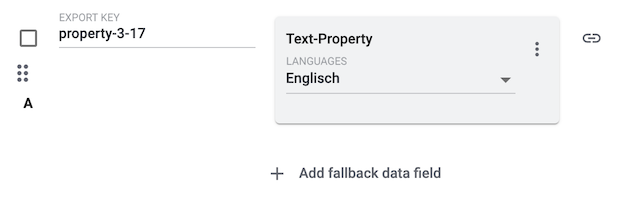
Default name of the “Export Key”
By default, the export file’s column header is given the name: "property-GroupID-PropertyID".
|
1.11. Image
Folder level
| Folder | Explanation |
|---|---|
All images |
All Item images and linked variation images. |
Item images |
Only images saved to the item. |
Variation images |
Only images saved to the individual variation. |
Data source level
| Data source | Explanation |
|---|---|
Image list |
Enter a number into the text field Maximum number of images. If you do not enter a number, then this field will be empty when it is exported. If you export a file in CSV or TXT format, then you might only see the word "Array" instead of the actual export values. This happens e.g. when exporting multiple images. This is a known issue and will be fixed in the future. Possible workaround 1: You can download a JSON or XML file instead. With these file types, you can see the actual export values.
Possible workaround 2: Export the data with the tools FormatDesigner and Elastic Export instead. |
Single image |
Enter a position number into the text field Image position.
This specifies which image should be exported.
If you do not enter a number, then the image with the lowest position number will be exported. Corresponds to the option in the menu: Items & Stock » All items » [Open item] » Tab: Images » Entry field: Position |
Name |
Exports the name of the image as descriptive text in compliance with the European Accessibility Act. Can be exported as a separate value or in combination with Complete image information. |
Alternative text |
Exports the alternative text describing the image in compliance with the European Accessibility Act. Can be exported as a separate value or in combination with Complete image information. |
1.12. Shipping costs
| Data source | Explanation |
|---|---|
Gross |
The item’s gross shipping costs. This data source gives you a precise live-calculation of the shipping costs. Use the drop-down lists to select how the shipping cost should be calculated. Example use case: You could use this field to compare an item’s shipping costs within the UK and abroad. Add the field twice and decide which countries should be used when calculating the shipping costs. Make sure that the “Export Keys” have unique names. |
1.13. Sales price
| Data source | Explanation |
|---|---|
Sales price |
Select a currency and one of the the sales prices that you’ve already configured in the menu Setup » Item » Sales prices. This causes the actual monetary price, which is saved in the variation data record, to be exported. Corresponds to the option in the menu: Items & Stock » All items » [Open variation] » Tab: Pricing » Section: Sales prices Example: Catalogue data source and variation data field
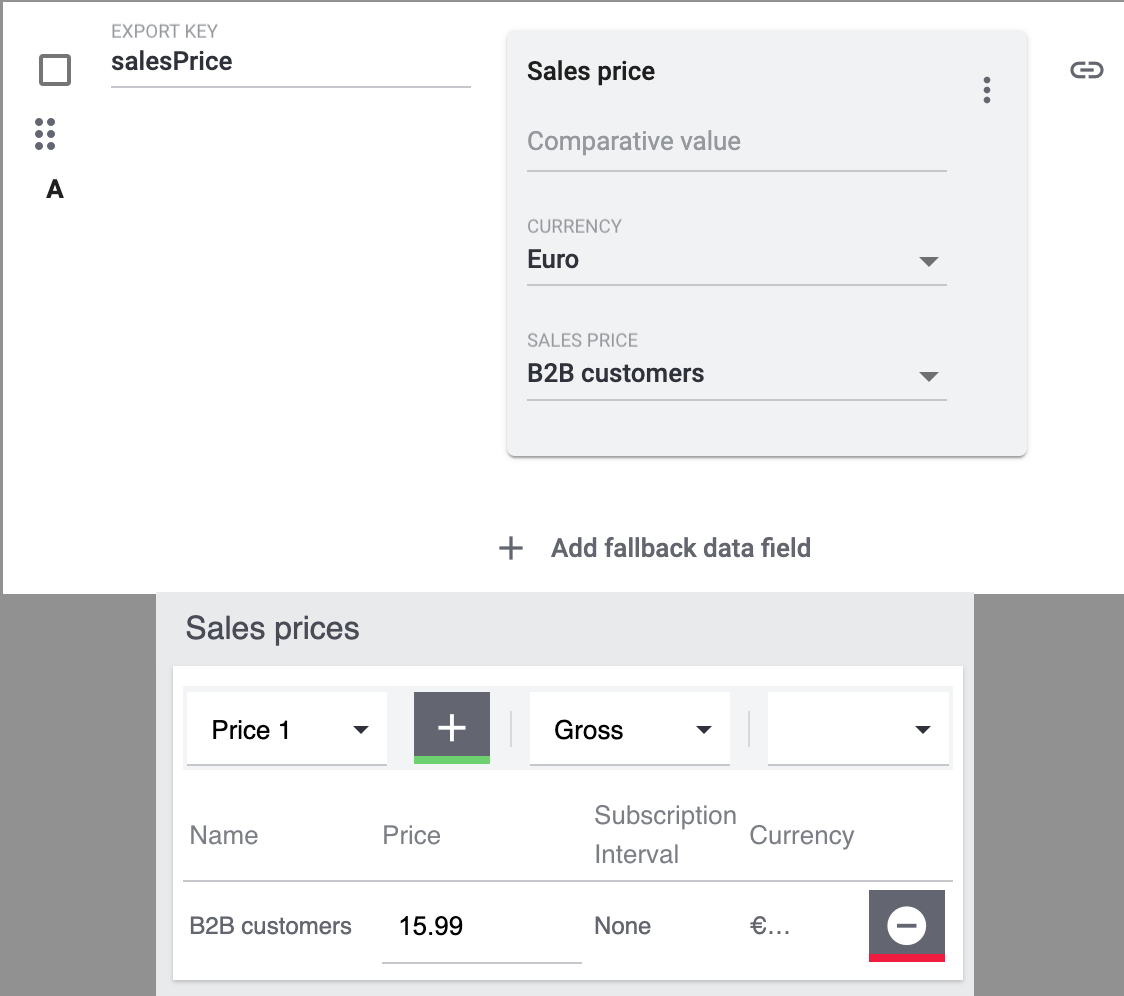
Note: Add the field multiple times if you want to export multiple sales prices. In this case, make sure that the “Export Keys” have unique names. |
Lowest price during the last 30 days |
The value that is saved as the lowest price during the last 30 days. Corresponds to the option in the menu: Items & Stock » All items » [Open variation] » Tab: Pricing » Section: Sales prices » Column: Lowest price during the last 30 days |
Lowest price automatically detected |
Indicates whether the lowest price of the last 30 days was automatically calculated.
Note: If you export the information in JSON format, then you will receive the values "true" and "false" rather than an empty line and "1". |
Sales price name |
Returns the name of the selected sales price. Corresponds to the option in the menu: Items & Stock » All items » [Open variation] » Element: Pricing » Column: Sales price |
Sales price ID |
Returns the internal ID of the selected sales price. Corresponds to the option in the menu: Items & Stock » All items » [Open variation] » Element: Pricing » Column: Sales price ID |
1.14. Unit price
| Data source | Explanation |
|---|---|
Price |
The item’s unit price. The unit price tells you how much the item costs per pound, litre or other unit of measurement. It’s calculated based on the item’s content, unit and price. Additional step: Select the appropriate sales price from the drop-down list. |
Unit ISO |
The unit of the variation. Is specified by the unit’s ISO code. You can find a list of ISO codes here. Alternatively, you can find the ISO codes in the menu Setup » Item » Units. Corresponds with the settings in the menu: Items & Stock » All items » [Open variation] » Tab: Product details » Section: Dimensions and content » Drop-down list: Unit Additional step: Select the appropriate sales price from the drop-down list. |
Unit Name |
The unit of the variation. Is specified by the unit name. You can find a list of unit names here. Alternatively, you can find the unit names in the menu Setup » Item » Units. Corresponds with the settings in the menu: Items & Stock » All items » [Open variation] » Tab: Product details » Section: Dimensions and content » Drop-down list: Unit Additional step: Select the appropriate sales price from the drop-down list. |
Quantity |
The price per [quantity] unit.
Additional step: Select the appropriate sales price from the drop-down list. |
1.15. Referrer
| Data source | Explanation |
|---|---|
Referrer ID |
Specifies the IDs of the sales channels that the variation is linked to. You can find the list of order referrer IDs in the menu Settings » Orders » Order referrer. Corresponds to the option in the menu: Items & Stock » All items » [Open variation] » Tab: Sales channels » Section: Sales channels » Column: ID |
Referrer Name |
Specifies the names of the sales channels that the variation is linked to. You can find the list of order referrer names in the menu Settings » Orders » Order referrer. Corresponds to the option in the menu: Items & Stock » All items » [Open variation] » Tab: Sales channels » Section: Sales channels » Column: External name |
1.16. Timestamps
The timestamps indicate when specific events occurred. For example:
-
When the item was created or last modified.
-
When the variation was created or last modified.
-
When the barcode, property, manufacturer, category etc. was last modified.
1.17. Tags
| Data source | Explanation |
|---|---|
Tag Id |
Specifies the IDs of the tags that are linked to the variation. You can find the list of tag IDs in the menu Setup » Settings » Tags. Corresponds to the option in the menu: Items & Stock » All items » [Open variation] » Tab: General » Section: Tags |
Tag Name |
Specifies the names of the tags that are linked to the variation. Corresponds to the option in the menu: Items & Stock » All items » [Open variation] » Tab: General » Section: Tags |
1.18. Inheritance
Specifies whether the data is inherited from the main variation.
-
0= Inheritance is deactivated. -
1= Inheritance is activated.
You can learn more about what inheritance is and how it works here.
1.19. Item CrossSelling
The data sources in this folder return data from the menu Items & Stock » All items » [Open item] » Tab: Cross-Selling. You can find an explanation of Cross-Selling here.
| Data source | Explanation |
|---|---|
Linked CrossSeller IDs |
A comma-separated list of the IDs of any other items that are linked to the item. Corresponds to the option in the menu: Items & Stock » All items » [Open item] » Tab: Cross-selling » Section: Selected cross-selling items » Column: Item ID |
Linked CrossSeller Names |
A comma-separated list of the names of any other items that are linked to the item. Corresponds to the option in the menu: Items & Stock » All items » [Open item] » Tab: Cross-selling » Section: Selected cross-selling items » Column: Item name |
Relationship |
A comma-separated list of any cross-selling relationships the item has to other items. Corresponds to the option in the menu: Items & Stock » All items » [Open item] » Tab: Cross-selling » Section: Selected cross-selling items » Column: Relationship |
Import/Export ItemId:Relation |
A comma-separated list of the Item IDs and corresponding relationships of any other items linked to the item. Corresponds to the option in the menu: Items & Stock » All items » [Open item] » Tab: Cross-selling » Section: Selected cross-selling items |
1.20. Shipping profiles
| Data source | Explanation |
|---|---|
Shipping profile Id |
The IDs of all shipping profiles linked to the item. Corresponds to the option in the menu: Items & Stock » All items » [Open item] » Tab: Shipping profiles » Column: Profile ID |
Shipping profile name |
The names of all shipping profiles linked to the item. Corresponds to the option in the menu: Items & Stock » All items » [Open item] » Tab: Shipping profiles » Column: Name |
1.21. Additional SKU
| Data source | Explanation |
|---|---|
Account Id |
The IDs of the accounts for which an additional SKU is associated with the variation. Corresponds to the option in the menu: Items & Stock » All items » [Open variation] » Tab: Sales channels » Section: Additional SKUs » Column: Account |
Market Id |
The internal IDs of the sales channels for which an additional SKU is associated with the variation. Corresponds to the option in the menu: Items & Stock » All items » [Open variation] » Tab: Sales channels » Section: Additional SKUs » Column: Referrer |
SKU |
The additional SKUs associated with the variation. Corresponds to the option in the menu: Items & Stock » All items » [Open variation] » Tab: Sales channels » Section: Additional SKUs » Column: SKU |
SKU Id |
The IDs of the additional SKUs associated with the variation. |
Additional Sku List |
The referrer ID, account ID, SKU ID and the value of each SKU associated with the variation, in the format of a comma-separated list. |
1.22. Bundles
| Data source | Explanation |
|---|---|
Bundle Component Ids |
The variation IDs of all components of the variation. Corresponds to the option in the menu: Items & Stock » All items » [Open variation] » Tab: Bundles » Section: Selected bundle components » Column: Variation ID |
Bundle Component Names |
The names of all components of the variation in the selected language. Corresponds to the option in the menu: Items & Stock » All items » [Open variation] » Tab: Bundles » Section: Selected bundle components » Column: Item name (Default) |
Is Bundle In Variation |
The variation IDs of all items which the variation is a component of. Corresponds to the option in the menu: Items & Stock » All items » [Open variation] » Tab: Bundles » Section: Bundles including this variation » Column: Variation ID |
Bundle Quantity |
The quantity of all components of the variation. Corresponds to the option in the menu: Items & Stock » All items » [Open variation] » Tab: Bundles » Section: Selected bundle components » Column: Quantity |
Bundle Component Combination (variationIds:Quantity) |
The variation IDs and the respective quantities of the components of the variation, combined into a single value each with the format [Variation ID]:[Quantity]. |
Bundle Component Combination (variationNumbers:Quantity) |
The variation numbers and the respective quantities of the components of the variation, combined into a single value each with the format [Variation number]:[Quantity]. |
Bundle Component Numbers |
The variation numbers of all components of the variation. Corresponds to the option in the menu: Items & Stock » All items » [Open variation] » Tab: Bundles » Section: Selected bundle components » Column: Variation number |
Bundle Component Combination (Itemname:Quantity) |
The names and the respective quantities of the components of the variation, combined into a single value each with the format [Item name]:[Quantity]. |
1.23. Clients
| Data source | Explanation |
|---|---|
Linked Client Ids |
The IDs of the clients linked to the variation. |
Linked Client Names |
The names of the clients linked to the variation. Corresponds to the option in the menu: Items & Stock » All items » [Open variation] » Tab: General » Section: Client (Store) » Column: Client (store) |
Is linked |
Returns 1 if the selected client is linked to the variation. |
1.24. Variation Supplier
| Data source | Explanation |
|---|---|
Combinations |
A custom combination of the data saved in the menu Items & Stock » All items » [Open variation] » Tab: Product details » Section: Supplier. In the field Combination, select what data should be included in the combination returned by this data source. |
Company Name |
The supplier’s company name, as it was saved in the contact data record. Corresponds to the option in the menu: Items & Stock » All items » [Open variation] » Tab: Product details » Section: Supplier » Column: Company |
Currency purchase price |
The variation’s purchase price in the supplier’s currency. Note: Which currency is displayed here depends on which currency was saved in the contact data record. This currency will be used for reorders if it’s available. Corresponds to the option in the menu: Items & Stock » All items » [Open variation] » Tab: Product details » Section: Supplier » Column: Purchase price from account |
Delivery time in days |
The number of days that the selected supplier usually needs to deliver the variation. Corresponds to the option in the menu: Items & Stock » All items » [Open variation] » Tab: Product details » Section: Supplier » Column: Delivery time in days |
Discount |
The price reduction in percent that is applied if the selected supplier gives you a discount on the variation. |
Is Discountable |
Returns whether the Discountable option is activated for selected supplier of the variation. Corresponds to the option in the menu: Items & Stock » All items » [Open variation] » Tab: Product details » Section: Supplier » Column: Discountable |
Item description |
The name under which the supplier carries the variation. Corresponds to the option in the menu: Items & Stock » All items » [Open variation] » Tab: Product details » Section: Supplier » Column: Supplier item description |
Item number |
The item number under which the supplier carries the variation. Corresponds to the option in the menu: Items & Stock » All items » [Open variation] » Tab: Product details » Section: Supplier » Column: Supplier item number |
Last price query |
The date on which the price of the variation was queried last. Corresponds to the option in the menu: Items & Stock » All items » [Open variation] » Tab: Product details » Section: Supplier » Column: Last price query |
Minimum purchase |
The minimum quantity that you have to order from the selected supplier. Corresponds to the option in the menu: Items & Stock » All items » [Open variation] » Tab: Product details » Section: Supplier » Column: Minimum purchase |
Packing Unit |
The packing unit used by the selected supplier. Corresponds to the option in the menu: Items & Stock » All items » [Open variation] » Tab: Product details » Section: Supplier » Column: Packaging unit |
Purchase price |
The variation’s purchase price in the default currency of your system. Corresponds to the option in the menu: Items & Stock » All items » [Open variation] » Tab: Product details » Section: Supplier » Column: Purchase price system currency |
Supplier Id |
The supplier ID. You can find the supplier IDs in the menu CRM » Contacts. |
Supplier Name |
The supplier’s first and last name, as it was saved in the contact data record. |
Supplier Row Id |
The ID of the link between variation and supplier. This ID is automatically generated by PlentyONE. The ID is visible in the menu Items & Stock » All items » [Open variation] » Element: Suppliers » Column: ID. |
1.25. Category
| Data source | Explanation |
|---|---|
Category ID |
The ID of the category. |
Category name |
The name of the category. |
Parent Category ID |
The ID of the parent category. |
Parent Category Name |
The name of the parent category. |
Parent Category Path |
The path of the parent category. |
Path |
The path of the category. |
1.26. Variation Comment
| Data source | Explanation |
|---|---|
Comment Id |
The ID of the comment. |
Comment User Id |
The ID of the user that left the comment on the variation. |
Comment User Name |
The name of the user that left the comment on the variation. |
Comment Value |
The value of the comment. |
1.27. Warehouse Configuration
| Data source | Explanation |
|---|---|
Is Batch |
States, if the batch is activated or deactivated at the warehouse of the item. Values are 1 (activated) and 0 (deactivated). All: exports if the batch is activated or deactivated for all warehouses. The values are separated by commas. Selected warehouse: Only exports if the batch is activated or deactivated for the selected warehouse. Corresponds with the booking of the item. |
Is Best Before Date |
States, if the best before date is activated or deactivated at the warehouse of the item. Values are 1 (activated) and 0 (deactivated). All: exports if the best before date is activated or deactivated for all warehouses. The values are separated by commas. Selected warehouse: Only exports if the best before date is activated or deactivated for the selected warehouse. Corresponds with the booking of the item. |
Maximum stock |
The maximum stock of the variation for the selected warehouse. The maximum stock influences the suggested reorder quantity by limiting the reorder quantity. Or in other words the reorder quantity will not exceed the quantity entered here. |
Reorder level |
The stored quantity below which a reorder of the variation should be carried out for the selected warehouse. If the variation’s stock level falls below this reorder level, then PlentyONE will automatically suggest that you reorder it. In other words, the variation is only reordered once it has reached the reorder level. |
Stock buffer |
The stock buffer of the variation for the selected warehouse. |
Stock turnover (in days) |
The number of days that the stock of the variation in the selected warehouse should suffice until the next reorder. This value is relevant for calculating the reorder quantity. |
Storage Location Suggestion Id |
The ID of the storage location in the selected warehouse that is suggested automatically for reorders. |
Storage Location Suggestion Name |
The name of the storage location in the selected warehouse that is suggested automatically for reorders. |
Storage location type |
The type of the storage location in the selected warehouse where the variation is stored. |
Warehouse Zone Id |
The ID of the zone in the selected warehouse where the variation is being stored, if the warehouse is divided into zones. |
Warehouse ID |
The ID of the selected warehouse the variation is stored at. |
Warehouse Name |
The name of the selected warehouse the variation is stored at. |
Warehouse Keeper Name |
The name of the warehouse keeper of the selected warehouse. |
…
2. Filters
This chapter lists all of the filters that you can use to limit which items are included in the export file.
| Filter | Explanation | ||||||||||||||||||||
|---|---|---|---|---|---|---|---|---|---|---|---|---|---|---|---|---|---|---|---|---|---|
Has a SKU |
Limits the export to variations that have a SKU for a specific marketplace. |
||||||||||||||||||||
Item IDs |
Limits the export to items with a specific ID. Note: Use commas without spaces to separate multiple IDs.
Example: |
||||||||||||||||||||
Variation is active |
Limits the export to variations that are either active or inactive. |
||||||||||||||||||||
Visible for at least one market |
Select one or more marketplaces from the drop-down list. Limits the export to items that are available for at least one of these markets. This is an “or” filter
Example: If you select the markets eBay, Amazon and Zalando, then the export file will include items that are available on eBay OR Amazon OR Zalando. Differentiation: There is also an “and” filter. Further information. |
||||||||||||||||||||
Has Tags |
Select one or more tags from the drop-down list. Limits the export to items that are linked to all of the selected tags. This is an “and” filter
Example: If you select the tags “Signed copy”, “Collector’s item” and “Antique”, then the export file will include items that are linked to the tag “Signed copy” AND “Collector’s item” AND “Antique”. Differentiation: There is also an “or” filter. Further information. |
||||||||||||||||||||
Linked to at least one property selection value |
Enter the IDs of one or more selection values into the text field. You can find the IDs in the menu Setup » Settings » Properties » Configuration » [Open property of type “Selection” or “Multi selection”] » Area: Selection values. Note: Use commas without spaces to separate multiple IDs.
Example: Limits the export to variations for which at least one of these selection values was activated. This is an “or” filter
Example: If you enter the IDs for Value1, Value2 and Value3, then the export file will include variations for which Value1 OR Value2 OR Value3 was activated. Differentiation: There is also an “and” filter. Further information. |
||||||||||||||||||||
At least one availability |
Select one or more availability IDs from the drop-down list. Limits the export to variations with one of these availability levels. Note: You can find a list of availability IDs, texts, symbols and average delivery times in days in the menu Setup » Item » Availability. |
||||||||||||||||||||
Has flag 1; |
Select one or more flags from the drop-down list. Limits the export to items with one of these flags. |
||||||||||||||||||||
Item created at |
Limits the export to items that were created on a specific date. Formatting:
Enter the date in the format Operators in the left drop-down list
|
||||||||||||||||||||
Item updated at |
Limits the export to items that were last modified on a specific date. Formatting:
Enter the date in the format Operators in the left drop-down list
|
||||||||||||||||||||
Variation created at |
Limits the export to variations that were created on a specific date. Formatting:
Enter the date in the format Operators in the left drop-down list
|
||||||||||||||||||||
Variation updated at |
Limits the export to variations that were last modified on a specific date. Formatting:
Enter the date in the format Operators in the left drop-down list
|
||||||||||||||||||||
Belongs to at least one Amazon product category |
Select one or more Amazon product categories from the drop-down list. Limits the export to items with this Amazon product type. |
||||||||||||||||||||
Item type |
Limits the export to a specific type of item. |
||||||||||||||||||||
Variation is main variation |
Limits the export to variations that are either the main variation or a sub-variation. |
||||||||||||||||||||
Variation has an image |
Limits the export to variations, which have an image saved for them. |
||||||||||||||||||||
Variation is in categories |
Enter the IDs of one or more categories into the text field. You can find the category IDs in the menu Items & Stock » Categories (ID appears when you move your mouse over a category). Note: Use commas without spaces to separate multiple IDs.
Example: Limits the export to variations that are linked to all of these categories. This is an “and” filter
Example: If you enter the category IDs 14, 15 and 16, then the export file will include variations that were linked to the categories 14 AND 15 AND 16. Differentiation: There is also an “or” filter. Further information. |
||||||||||||||||||||
Variation is in one of these categories |
Enter the IDs of one or more categories into the text field. You can find the category IDs in the menu Items & Stock » Categories (ID appears when you move your mouse over a category). Note: Use commas without spaces to separate multiple IDs.
Example: Limits the export to variations that are linked to at least one of these categories. This is an “or” filter
Example: If you enter the category IDs 14, 15 and 16, then the export file will include variations that were linked to the category 14 OR 15 OR 16. Differentiation: There is also an “and” filter. Further information. |
||||||||||||||||||||
Item has manufacturers |
Select one or more manufacturers from the drop-down list. Limits the export to items that were manufactured by one of these companies. |
||||||||||||||||||||
Visible for markets |
Select one or more marketplaces from the drop-down list. Limits the export to items that are available for all of these markets. This is an “and” filter
Example: If you select the markets eBay, Amazon and Zalando, then the export file will include items that are available on eBay AND Amazon AND Zalando. Differentiation: There is also an “or” filter. Further information. |
||||||||||||||||||||
Bundle type |
Select one or more options from the drop-down list.
|
||||||||||||||||||||
Visible for a client |
Select one or more clients from the drop-down list. Limits the export to variations that are available for at least one of the selected clients. This is an “or” filter
Example: If you select the clients "Standard Shop", "Shop2" and "Shop3", then the export file will include variations that are available for the clients "Standard Shop" OR "Shop2" OR "Shop3". Differentiation: There is also an “and” filter. Further information. |
||||||||||||||||||||
Visible for clients |
Select one or more clients from the drop-down list. Limits the export to variations that are available for all of these clients. This is an “and” filter
Example: If you select the clients "Standard Shop", "Shop2" and "Shop3", then the export file will include variations that are available for the clients "Standard Shop" AND "Shop2" AND "Shop3". Differentiation: There is also an “or” filter. Further information. |
||||||||||||||||||||
Linked to property selection values |
Enter the IDs of one or more selection values into the text field. You can find the IDs in the menu Setup » Settings » Properties » Configuration » [Open property of type “Selection” or “Multi selection”] » Area: Selection values. Note: Use commas without spaces to separate multiple IDs.
Example: Limits the export to variations for which all of these selection values were activated. This is an “and” filter
Example: If you enter the IDs for Value1, Value2 and Value3, then the export file will include variations for which Value1 AND Value2 AND Value3 were activated. Differentiation: There is also an “or” filter. Further information. |
||||||||||||||||||||
Has at least one tag |
Select one or more tags from the drop-down list. Limits the export to items that are linked to at least one of the selected tags. This is an “or” filter
Example: If you select the tags “Signed copy”, “Collector’s item” and “Antique”, then the export file will include items that are linked to the tag “Signed copy” OR “Collector’s item” OR “Antique”. Differentiation: There is also an “and” filter. Further information. |
||||||||||||||||||||
Variation has child variations |
Limits the export to variations that either have sub-variations or that do not have sub-variations. |
||||||||||||||||||||
Sales price updated at |
Limits the export to variations whose sales price was last modified on a specific date. Formatting:
Enter the date in the format Operators in the left drop-down list
|
||||||||||||||||||||
Stock updated at |
Limits the export to variations whose stock was last modified on a specific date. Formatting:
Enter the date in the format Operators in the left drop-down list
|
3. FAQ
The “Export Keys” are the names of the column headers, as they will appear in your export file. Every “Export Key” needs to be unique.
-
Negative example: You use the data sources Item ID and Variation ID. You give both “Export Keys” the name “id”. As a result, the export file only includes one of the two IDs. A column is missing in the export file.
-
Positive example: You use the data sources Item ID and Variation ID. You give one “Export Key” the name “VariationID” and the other “ItemID”.
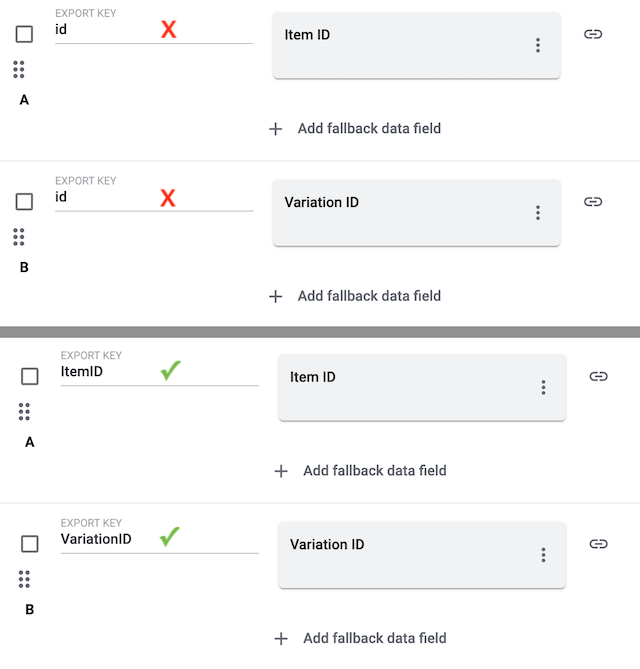
When you add a data source, you’ll see the option “Comparative value”. This option is accidentally displayed here. It is not intended for standard formats, but rather for other use-cases. This is a known issue and it will be fixed in the future. Until then, simply leave the “Comparative value” option blank since it doesn’t affect the standard format.
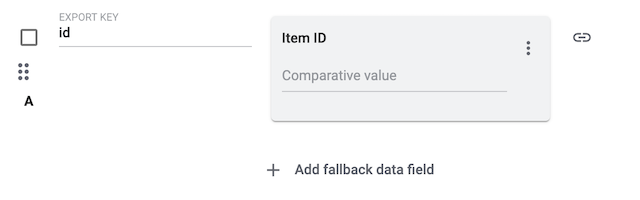
-
Click on file_download in the toolbar up top.
→ The export will start and it runs in the background. You can continue working during the export process. -
After a while (ca. 30-60 minutes), a message will appear in the notification centre (notifications_none).
-
Click on link Download within the notification.

Variations can be linked to multiple categories:
-
Category: Imagine you sell a personalised bracelet. You want the bracelet to appear in the category “Gifts” and in the category “Women’s accessories”.
-
Default category: Decide which one of these categories should be the variation’s default category. The default category is the breadcrumb path displayed in the plentyShop. If a variation appears in multiple categories, then the breadcrumb bar will always display the default category path.
-
What is exported?:
-
If you use “Item (new)” as a standard format, then it will only be possible to export information about the default category. It is not currently possible to export information about other linked categories. Possible workaround: Export the data with the tools FormatDesigner and Elastic Export instead.
-
If you use “Item (new)” as a marketplace format (e.g. to transmit your product data to a sales platform), then you can export information about the default category and other linked categories.
-
You might have data sources with the same “Export Key”. Every “Export Key” needs to be unique.
-
Negative example: You use the data sources Item ID and Variation ID. You give both “Export Keys” the name “id”. As a result, the export file only includes one of the two IDs. A column is missing in the export file.
-
Positive example: You use the data sources Item ID and Variation ID. You give one “Export Key” the name “VariationID” and the other “ItemID”.
If you export a file in CSV or TXT format, then you might only see the word "Array" instead of the actual export values. This happens e.g. when exporting multiple images or when exporting multi-selection properties. This is a known issue and it will be fixed in the future.
Possible workaround 1: Would it be an option for you to download a JSON or XML file instead? With these file types, you can see the actual export values.
-
Click on Settings.
-
Scroll down to the section Format settings.
-
Select CSV - Array to JSON, JSON or XML from the drop-down list Format.
-
Save () the settings and download the file (file_download).
-
Caution: If you want to revise the file and import it again. Note that the import tool only accepts the file types CSV and TXT.
-
Possible workaround 2: Export the data with the tools FormatDesigner and Elastic Export instead.
Yes. Export the file in CSV or TXT format. Then revise the file and import it again. Note that the import tool only accepts the file types CSV and TXT.