Directory of data fields
This page serves purely as a reference. It explains the various tabs and data fields within an item data record. Links direct you to further information and step-by-step instructions for using the individual data fields in a larger context.
|
Settings differ for each item type
Depending on which type of item you’re working with, you might see some of the settings described on this page and not others. Don’t worry! PlentyONE automatically displays the settings that are relevant to your item type and hides the rest. |
Tab: Item ID
When you open an item, the item’s ID is displayed in the tab by default. But you can decide if you’d rather see the item’s name or number in the tab. Of course you can change this setting again any time.
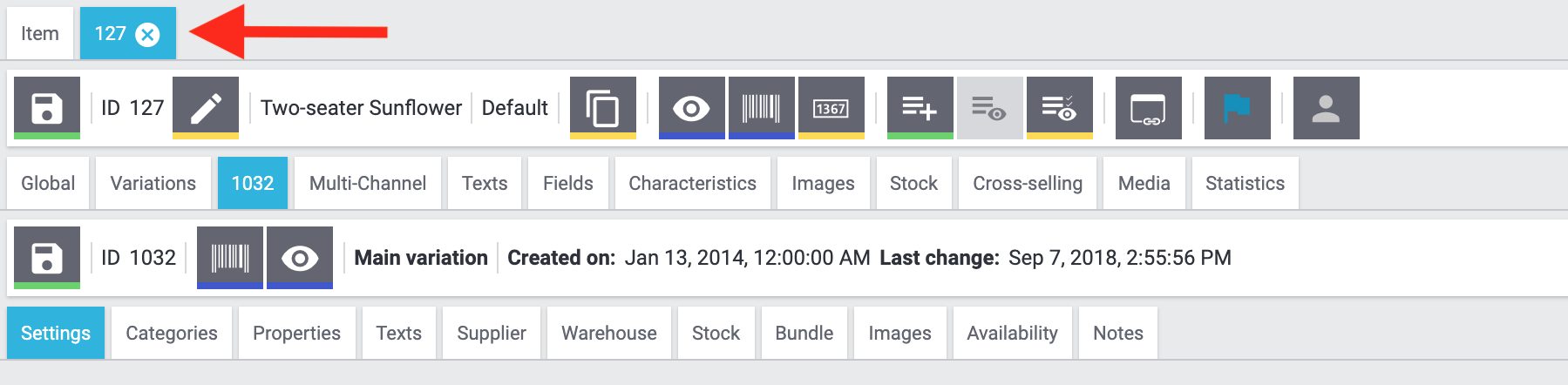
Customising the item tab:
-
Go to Item » Edit item.
-
Search for and open an item.
→ The item data record opens in a new tab. -
Right-click on the item tab.
→ A drop-down list opens. -
Click on Rename.
→ The Select tab title window opens. -
Decide which data should be displayed.
-
Click on Save.
| If you select the setting Variation name of main variation or Variation number of main variation and this information is not saved for an item, then the Item ID will be shown instead. |
| The item’s tab title only changes once you have reloaded the item. |
1. Upper row of tabs
An item is a complete data record that always includes one more more variations. An item is composed of general data that applies to all of the item variations (item data) as well as data that is managed separately for each variation (variation data).
In the item data record, you’ll find the item data displayed in the upper row of tabs and variation data displayed in the lower row of tabs. In other words, the upper row of tabs includes general data that applies to all of the item’s variations.
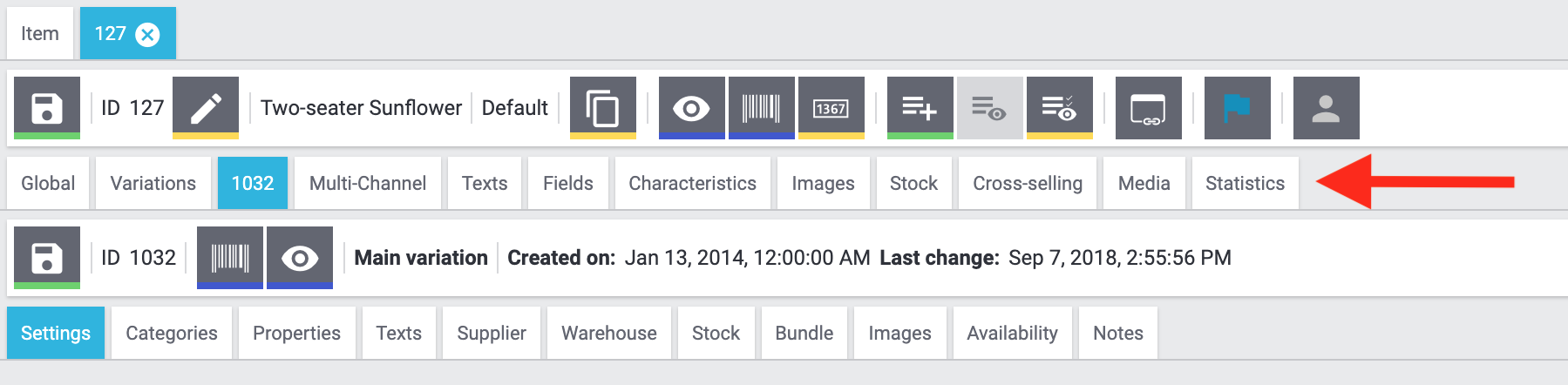
1.1. Global
This tab includes a wide range of basic item options. Here you’ll also find a timestamp, which tells you when the item data record was created and when it was last modified.
Saving global item data:
-
Go to Item » Edit item.
-
Search for and open the item.
-
Click on the Global tab in the upper row. This tab is divided into several areas.
-
Carry out the settings.
-
Save () the settings.
1.1.1. Basic settings
| Setting | Explanation | ||||||
|---|---|---|---|---|---|---|---|
Condition |
Select the item’s condition from the drop-down list. New is set by default. |
||||||
Condition for API |
Select the item’s API condition from the drop-down list. New is set by default. Note: The API condition is used for the market Amazon. |
||||||
Type |
Select the appropriate stock type from the drop-down list.
Note: You are limited to these four stock types. It is not possible to create additional stock types. |
||||||
Manufacturer |
Who makes this item? Select the appropriate manufacturer from the drop-down list. Note: This list only includes the manufacturer data records that you’ve already saved in PlentyONE. |
||||||
Manufacturing country |
Which country was the item manufactured in? Select the appropriate country from the drop-down list. |
||||||
Revenue account |
Enter up to 11 digits for the revenue account. |
||||||
Max. order quantity |
Enter a value to limit how many copies of the item can be bought at once.
|
||||||
Age rating |
Select the appropriate age rating from the drop-down list. Note: Items with an 18+ age rating must be linked to a shipping profile for which the PostIdent option was activated. |
||||||
Promotional coupon/POS discount |
Should it be possible to redeem promotional coupons for this item? Select the appropriate answer from the drop-down list.
|
||||||
Subscription |
Is a subscription available for the item? Select the appropriate answer from the drop-down list. Note: Subscriptions are set up in the scheduler. The scheduler is an individual module in PlentyONE that allows an item to be shipped in regular intervals. The scheduler menu is only visible in PlentyONE if you’ve booked the module. |
||||||
Shipping package |
Do you want to use shipping packages for this item? Select the appropriate answer from the drop-down list. Note: Shipping packages have specific dimensions. If you enter dimensions for your variations, then the appropriate shipping package will automatically be assigned. |
||||||
Serial number |
Should it be possible to scan this item’s serial number during a process? Select the appropriate answer from the drop-down list. |
1.1.2. Item image
Click on the image to access the Images tab.
1.1.3. Shipping profiles
Select () at least one shipping profile per item. Otherwise the shipping costs may not be calculated correctly. No shipping profile is selected by default. If an order contains items without a shipping profile, then the items will be given the default shipping profile for the default online store. If no default shipping profile was specified, then the shipping profile with the highest priority will be used.
1.1.4. Online store
| Setting | Explanation |
|---|---|
Store special |
Should this item be highlighted with a store special? If so, then select the appropriate type of store special from the drop-down list. In other words, decide whether you want to call this item a special offer, a new item or a top item. |
Item feedback |
Enter an initial rating for the item. Note: When using the item feedback function, the number entered here will be displayed as the item’s initial rating. Every time new feedback is submitted, an average value will be calculated automatically from these numbers. Go to Setup » Client » Settings » Feedback » Tab: Item if you want to change the Maximum rating. |
1.2. Variations
Open this tab to:
-
Search for variations within the item data record.
-
Apply the group function to several of the item’s variations.
-
Create new variations for the item.
1.3. Tab: Variation ID
When you open a variation, the variation’s ID is displayed in the tab by default. But you can decide if you’d rather see the variation’s name or number in the tab. Of course you can change this setting again any time.
Customising the variation tab:
-
Go to Item » Edit item.
-
Search for and open an item.
→ The main variation automatically opens too. -
Right-click on the main variation tab.
→ A drop-down list opens. -
Click on Rename.
→ The Select tab title window opens. -
Decide which data should be displayed.
-
Click on Save.
| If you select the setting Variation name or Variation number and this information is not saved for a variation, then the Variation ID will be shown instead. |
| The variation’s tab title only changes once you have reloaded the item. |
| If the drop-down list doesn’t appear when you right-click, then switch to the tab of the main variation. |
1.4. Set
| This tab is only visible for items of the type Set. |
Open this tab to:
-
Edit various settings for the set.
1.5. Multi-Channel
You’ll need to save settings in this tab if you’re preparing items to be sold on marketplaces like Amazon, eBay or Neckermann.at.
Saving settings for marketplaces:
-
Go to Item » Edit item.
-
Search for and open the item.
-
Click on the Multi-Channel tab in the upper row. This tab is divided into several areas.
-
Carry out the settings.
-
Save () the settings.
1.5.1. Amazon
These settings are only relevant if you want to sell on Amazon.
| Setting | Explanation |
|---|---|
Product type (Deprecated) |
Select the appropriate Amazon product type from the drop-down list. You can think of the product type as the Amazon category under which this item should appear. When you transmit your items to Amazon, you’ll transmit one product type at a time, i.e. one category at a time. Note: You can download an overview of Amazon product types here. The table lists the product types and their corresponding IDs. |
Product type |
Select the appropriate Amazon product type from the drop-down list.
The product type is the Amazon category under which this item should appear. These product types are used for the new connection to Amazon. Note: There are only active values in the drop down list. In the Setup » Markets » Amazon » Add catalogue templates menu you can activate and deactivate values. |
FBA Fulfillment |
Should the item be sold via FBA? If so, then select the appropriate Amazon marketplace from the drop-down list.
|
Amazon FBA |
Should the item be sold via FBA? If so, then select this option (). Note: By doing so, the FBA stock of this item can be imported into PlentyONE and Amazon Multi-Channel orders that are shipped with FBA can be booked. |
1.5.2. Listing default settings
These settings relate to listing templates. The basic idea is simple. Rather than individually configuring the settings for every single eBay offer, you create a template, which includes the typical offer settings.
| Setting | Explanation |
|---|---|
Listing template |
Choose a previously created listing template to link it with this item. |
Category 1; |
Enter the eBay category IDs for this item. Use case: in the first step, you’ll create listing templates that apply to all categories. Then in the second step, you’ll specify the category ID for each individual item. |
Store category 1; |
Enter the eBay store category for this item. Use case: in the first step, you’ll create listing templates that apply to all store categories. Then in the second step, you’ll specify the store category for each individual item. |
1.5.3. eBay title
Enter the eBay listing’s title here. This links the listing title to the item.
Background info: Listings are retrieved on an hourly basis. While being retrieved, the listing is assigned to an item. Listings and items are matched smoothly if the listing was created with PlentyONE or if the item has the same name as the listing title.
If the item name differs, you can enter the listing title. This improves the matching accuracy. This link also makes it possible to import listings that were set up with other tools into PlentyONE and have them automatically assigned to the correct item.
1.5.4. Category link
This setting is only relevant if you sell on Rakuten. Here you’ll link the item with a Rakuten category.
Either enter the category ID directly into the text field. Or choose a main category from the drop-down list and then use the pop-up window to figure out the category ID.
1.5.5. Neckermann.at Enterprise
These settings are only relevant if you want to sell on Neckermann.at.
1.6. Texts
In this tab, you’ll save item texts like a preview text, technical data and keywords.
|
Would you rather save variation-specific texts?
The texts in this tab apply to the entire item. In other words, the texts apply to all of the variations. It’s also possible to save variation-specific texts.
|
Saving item texts:
-
Go to Item » Edit item.
-
Search for and open the item.
-
Click on the Texts tab in the upper row.
-
Choose the appropriate language from the left drop-down list.
-
Enter the item texts in this language.
-
Save () the settings.
| Setting | Explanation |
|---|---|
Language |
Select a language from the drop-down list Open language. This allows you to see and edit the item texts for this language. The same language is automatically selected under Save as. Alternative workflow: While translating, you may find it helpful to initially see the source text and then overwrite it with your translation. To do so, proceed as follows.
|
Delete language texts |
Deletes all of the text fields for whichever language was selected under Open language. You will be asked to confirm your decision. |
Name 1 |
Enter a name for the item. This is the item’s default name, which is used in the plentyShop and on marketplaces. Note: The item name is used to create the item URL. Open the plentyShop LTS assistant and navigate to the step SEO if you want to decide whether name 1, 2 or 3 should be used for the meta title and the item URL. |
Name 2 |
Enter a name for the item. This is an alternative item name that can be used for example for markets. Note: The item name is used to create the item URL. Open the plentyShop LTS assistant and navigate to the step SEO if you want to decide whether name 1, 2 or 3 should be used for the meta title and the item URL. |
Name 3 |
Enter a name for the item. This is an alternative item name that can be used for example for markets. Note: The item name is used to create the item URL. Open the plentyShop LTS assistant and navigate to the step SEO if you want to decide whether name 1, 2 or 3 should be used for the meta title and the item URL. |
Preview text |
Enter a preview text for the item. The preview text can be entered in HTML format or as plain text. Note: The preview text is a short text which can be displayed in item lists. |
Item text |
Enter an item text. The item text is a detailed description, which is displayed in the item layout in the plentyShop. Note: Click on the drop-down list in the upper right corner and select your preferred editor for entering text or HTML. |
Technical data |
Enter technical data for the item. Note: Click on the drop-down list in the upper right corner and select your preferred editor for entering text or HTML. |
URL path |
The item’s URL path in the plentyShop. By default, the URL path consists of the categories and the item name. PlentyONE automatically assigns the path when the item is created. The path is displayed as part of the URL when the item is viewed in the plentyShop. |
Meta description |
Enter a meta description for the item. Note: The meta description makes it easier for search engines to find the item. |
Meta keywords |
Enter keywords for the item. Note: The meta keywords make it easier for search engines to find the item. |
Item template |
Not recommended. It’s technically possible to select a template to alter the design of the detail view of an item. However, we don’t recommend doing so for two reasons:
|
1.7. Fields
Add free text fields to the detailed view of an item. Customers can then enter values into the free text fields, such as an additional request or dimensions.
Once you’ve defined free text fields, you’ll activate them here for the appropriate items.
Activating free text fields:
-
Go to Item » Edit item.
-
Search for and open the item.
-
Click on the Fields tab in the upper row.
-
Enter the values into the required free text fields.
-
Save () the settings.
1.8. Characteristics
Have you finished creating your characteristics and sorting them into groups? Then you’re ready to link your characteristics to items.
For example, if you created a characteristic called “Bluetooth”, then next you would specify which of your products are equipped with Bluetooth.
Linking a characteristic with an item:
-
Go to Item » Items.
-
Search for and open the item.
-
Click the Characteristics tab. The tab is divided into the Characteristics and Order characteristics sections.
-
Click add Add characteristics or add Add order characteristics, depending on which type of characteristic you want to add.
→ The Add characteristics window opens. -
Select all the characteristics you want to link to the item.
-
Click Apply.
-
Click Save (save).
→ The characteristics are now linked to the item and displayed in the respective section.
|
Linking a characteristic with multiple items
Use the item group function if you want to link several items at once. |
Saving additional information
Depending on the scenario, it might be necessary to save additional information. For example, if the characteristic is something like a weight or a length, then it will be necessary to enter a numeric value.
-
Carry out additional settings in the Characteristics tab. Note Table 2.
-
Save () the settings.
| Setting | Explanation | ||||||||||||
|---|---|---|---|---|---|---|---|---|---|---|---|---|---|
Name |
Here you’ll see the characteristic’s name and, if applicable, the group that it was sorted into. This is purely informative and cannot be changed here. |
||||||||||||
Type |
Here you’ll see the characteristic type. This is purely informative and cannot be changed here. Note: The characteristic type determines how you will interact with the Default language column and with the drop-down list of language abbreviations. |
||||||||||||
Default language |
How you interact with this column depends on the characteristic type.
|
||||||||||||
Cross-selling |
Select this option () to enable cross-selling between this item and other items that have the same characteristic and value. |
||||||||||||
Surcharge |
You might have already saved a surcharge while creating the characteristic. But what should you do if not every item should be given the same surcharge? Enter a different surcharge here. This will overwrite the surcharge that was saved for the characteristic as a whole. Note: The entry field only appears for order characteristics. |
|
Modifying the additional information for multiple items
Use the group function in the menu Setup » Item » Characteristics » Tab: Group function if you want to edit this information for several items at once.
|
1.9. Images
First, you’ll upload images of the item and its variations here. For example, you could upload images of a t-shirt in red, blue and green. Then you’ll assign the images to the appropriate variations. This causes customers e.g. to automatically see an image of the green t-shirt when selecting this variation in the plentyShop.
|
100 images can be uploaded per item
You can upload up to 100 images per item, i.e. per item ID. This is a hard limit in the user interface. If you were to upload e.g. 150 images, then only the first 100 would appear in the user interface. Note that the limit applies to the entire item, i.e. to all of the variations together. |
Uploading images
-
Go to Item » Edit item » [Open item] » Tab: Images.
-
Drag & drop images into the appropriate area or click on Select files and upload the images.
-
Carry out the additional settings. Note Table 3.
-
Save () the settings.
| Setting | Explanation |
|---|---|
0 |
The first image automatically receives the position number 0. Additional images are then given the position numbers 1, 2, 3 etc. Enter different position numbers if you want to sort the images in your plentyShop. Alternatively, click on the symbols Down or Up to change the order of the images. |
Availability |
Which sales channels should this image appear on? Select () the appropriate clients and/or markets. |
Market attribute link |
Select an attribute value to link the item image for marketplaces with this attribute value. The image will only be transferred to marketplaces where item variations have this attribute value. Note: This option is only shown if: |
Alternative text |
Enter an alternative text for the image. If an image can not be displayed (e.g. due to the browser settings, firewall, etc.), then the customer will see the alternative text instead. The alternative text is not relevant for SEO. It is simply displayed as an alternative to the image. Note: The alternative text is limited to 256 characters. |
Name |
Enter a name for the image. The name is relevant for SEO, i.e. it helps search engines index the item. Use appropriate keywords in the image names to make the images more relevant to search engines. This also increases traffic on the page, for example if the image is found with the Google image search. Note: The image name is limited to 256 characters. |
Size |
Displays the image size in pixels and kilo bytes. |
Technical specifications
File formats |
The file formats supported for images are: PNG, JPG, GIF, SVG |
File names |
Image file names may contain the following characters:
Spaces and special characters such as umlauts are not permitted. When you upload images, spaces and special characters are replaced by hyphens (-). |
Image sizes |
Every time an item image is uploaded, PlentyONE creates the following versions:
Since PlentyONE does not scale up images, the source image must have at least the size and quality specified in the Sizes area. Larger images will be scaled down to the specified size. |
Original images |
Original images are no longer accessible after they have been uploaded. When you upload an image, PlentyONE uses it to generate the image sizes that are accessible via URL. The original image will no longer be accessible - also not via URL. |
Linking images with variations
Once you’ve uploaded the images, you’ll match them with the appropriate variations. This causes customers e.g. to automatically see an image of a green t-shirt when selecting the green variation in the plentyShop.
Linking images with variations:
-
Go to Item » Edit item » [Open item] » Tab: Images.
→ You’ll see a list of all the images saved for the item. -
Select the images () that you want to link.
-
Click on Variation link.
→ A pop-up window will open. -
If needed, use the filters on the left to find specific variations.
-
Select whichever variations () you want to link to the chosen images.
-
Click on Link.
→ The images will be linked to the selected variations. -
Save () the settings.
→ If a customer selects the variation in the plentyShop, then he will automatically see the appropriate item image.
|
Removing the link again
Underneath an image, click on Variation link to see which variations were linked to the image. Select the variations () that should no longer be linked and click on Unlink. |
|
Alternative: upload images in the lower row of tabs
Search for and open a variation. Then click on Images in the lower row of tabs. Here you can upload an image for the currently opened variation. In other words, the image is simultaneously uploaded and linked to the variation. |
1.10. Stock
In this tab:
-
you’ll see an overview of the item’s stock levels. In other words, you’ll see how many copies of each variation are in stock.
-
you can reorder items that are running out of stock.
-
you can redistribute stock, i.e. move stock to a different storage location.
1.11. Cross-selling
In the Cross-Selling tab, you can link items to any number of similar items from your assortment.
1.12. Media
|
Tab is outdated
This tab is no longer supported. Files that you upload in this tab can not be used for the plentyShop. Instead of uploading files in this tab, create a property of the type "File". |
This tab is only relevant for the outdated Callisto webshop. Here you can upload files such as product information or brochures. Your customers can then download these files from the product page or from the "my account" area. The files that you upload in this tab must meet the following requirements:
-
The file must be intended for the old Callisto webshop
-
Permitted file formats: PDF, EXCEL, X_EXCEL, DOC, DOCX, MSWORD, RTF, TEXT, RICHTEXT, ZIP, HTML, SWF
-
Maximum file size: 10 MB per file
-
Maximum number of files: 10 files per item (of which a maximum of 1 file in SWF format)
Uploading files
Proceed as described below to upload files in the Media tab. Then decide where the files should be available.
Uploading a file:
-
Go to Item » Edit item.
-
Search for and open the item.
-
Click on the Media tab in the upper row.
-
Drag & drop files into the appropriate area or click on Select files and upload the files.
-
Carry out the additional settings. Note Table 4.
-
Save () the settings.
| Setting | Explanation |
|---|---|
Title |
Edit the title, if needed. |
Size |
The file size is displayed here. |
This setting does not serve any function. |
|
My account |
Activate to make the file available for download in the My Account area. |
CMS |
Activate to make the file available in the old online store Callisto. |
Inserting a download link into the online shop
Use the template function GetDocumentLinks() of the Callisto design to add download links to the files saved in the Media tab to the old online store Callisto. This template function can be used in all templates in the ItemView folder. The function returns a list of links that customers can use to download the saved documents.
Inserting the template function:
-
Go to Shop » Web design.
-
Open a template in the Layout » ItemView folder.
-
Insert the code example into the template.
-
Save () the settings.
→ A list of download links is displayed at the respective position in the online store.
{%
    for ($_link in GetDocumentLinks())
    {
        print($_link."<br/>");
    }
%}|
Limiting the list of download links to specific data types
Limit the list of download links to specific data types by specifying a file ending. The template function GetDocumentLinks(".pdf"), for example, displays only the download links to saved PDF files. |
1.13. Statistics
In the tab Statistics, you can analyse statistical data about the item. For example, there are statistics that let you analyse the item’s revenue according to various criteria.
2. Lower row of tabs
An item is a complete data record that always includes one more more variations. An item is composed of general data that applies to all of the item variations (item data) as well as data that is managed separately for each variation (variation data).
In the item data record, you’ll find the item data displayed in the upper row of tabs and variation data displayed in the lower row of tabs. In other words, the lower row of tabs contains data that applies to a specific variation. Namely, the variation whose ID is currently displayed in the upper tab row.
Keep in mind that the main variation can pass data onto its sub-variations, i.e. they can inherit its data. You can deactivate the inheritance function if you would prefer to modify the variations individually.
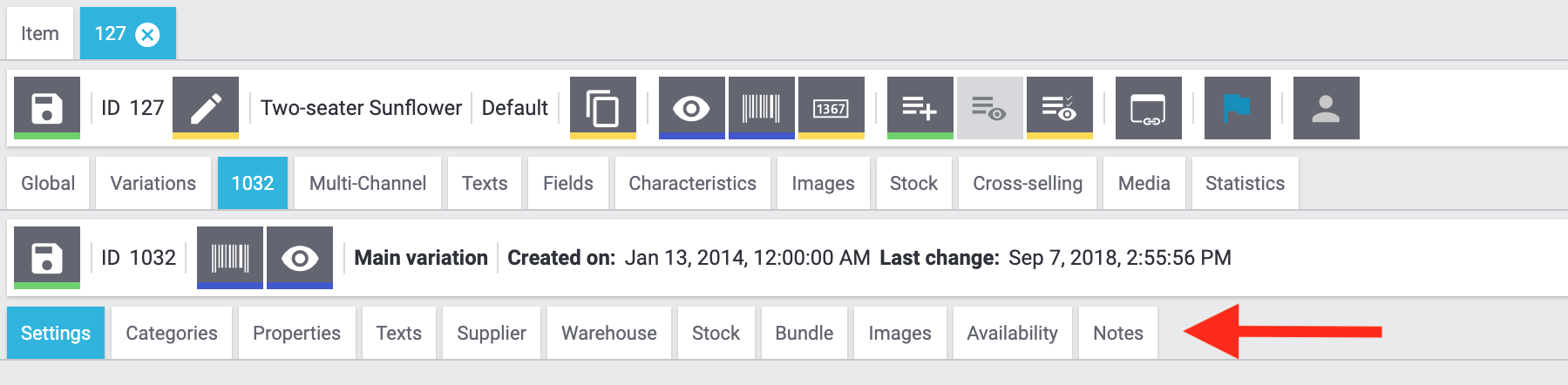
2.1. Settings
This tab includes a wide range of basic options for the variation. Here you’ll also find a timestamp, which tells you when the variation was created and when it was last modified.
Saving settings for the variation:
-
Go to Item » Edit item.
-
Search for and open the variation.
-
Click on the Settings tab in the lower row. This tab is divided into several areas.
-
Carry out the settings.
-
Save () the settings.
2.1.1. Basic settings
| Setting | Explanation |
|---|---|
Variation name |
Enter a name for the variation. |
Variation No. |
Enter a number for the variation. Recommendation: If you leave this field blank, then PlentyONE will automatically assign the next available variation number. The number will be assigned according to the pattern saved in the menu Setup » Item » Settings. |
External variation ID |
Enter an external variation ID. Use case: The external variation number facilitates importing items and variations from an external system. |
Model |
Enter a model name for the variation. |
Position |
Enter a position number for the variation. Variations can be sorted by their position number in the back end and front end. Back end: Search for items in the menu Item » Edit items. Move your mouse cursor over the column header Position. Click on the small triangle () to display the items in ascending or descending order by their position number. Front end: Select the appropriate sorting option in the plentyShop LTS assistant. Note: Open the plentyShop LTS assistant and navigate to Pagination and sorting » Additional sorting options. If the option Calculate the variation position based on monthly sales is set to Yes, then manually entered position numbers will be overwritten. |
2.1.2. Availability
This area relates to the item availability. In other words, when the variation is visible or purchasable.
Note that there is also the Tab: Availability, which you’ll use to specify where the variation is available.
| Setting | Explanation | ||||||
|---|---|---|---|---|---|---|---|
Active |
Activate the variation () when you’re ready for it to go live. Background info: Variations only become visible in the plentyShop or on marketplaces once they have been activated. In other words, you can work on inactive variations without your customers noticing. |
||||||
Availability |
|||||||
Symbols 1-10 |
How long is the variation’s delivery time? Select the appropriate availability level from the drop-down list. Note: The availability levels are configured in the menu Setup » Item » Availability. There you can find the availability IDs, texts, symbols and average delivery times in days. Note: The availability is a static setting. In other words, the selected availability level does not change, regardless of the actual stock levels. The setting is only relevant if stock availability is not set automatically. |
||||||
Show in online store:
|
Should customers be able to buy the product in the online shop if it is in stock? Note: Both functions complement each other and are only applied if the Limitation option is set to To net stock.
|
||||||
Visibility |
|||||||
Client:
|
Should customers be able to see the product in the online shop if it is in stock? Note: Both functions complement each other and are only applied if the Limitation option is set to To net stock.
Relationship to other settings: These options take priority over the item list options further below. We recommend that you either control the visibility with the “client” option or the “item list” option. They should not be combined. |
||||||
Item list |
Should customers only be able to access the product via the direct URL? Or should customers be able to see the product in your shop’s categories, search results and item lists if it is in stock?
Relationship to other settings: Both of the client visibility options take priority over the "item list" options. We recommend that you either control the visibility with the “client” option or the “item list” option. They should not be combined. |
||||||
Availability in supply |
|||||||
Limitation |
Should PlentyONE monitor this product’s stock levels?
|
||||||
Max. order quantity |
Enter a number. This is the maximum quantity that is permitted per order. Note: Decimal values are possible, e.g. allowing customers to order products by weight or length. Note: You can use the maximum order quantity in combination with pre-orders, for example to prevent competitors from completely buying out the variation at a reduced price. |
||||||
Min. order quantity |
Enter a number. This is the minimum quantity that is permitted per order. Note: Decimal values are possible, e.g. allowing customers to order products by weight or length. |
||||||
Interval order quantity |
Enter a number. This specifies which quantity intervals the variation can be ordered in. Note: Decimal values are possible, e.g. allowing customers to order products by weight or length. |
||||||
Release date |
When should the variation become available? Select the date from the calendar. If you would rather directly enter the date into the field, then use the following format:
Note: The variation can be visible in the plentyShop before this date, e.g. for preorders. |
||||||
Available until |
When is the last day that the variation should be available? Select the date from the calendar. If you would rather directly enter the date into the field, then use the following format:
|
||||||
2.1.3. Sales prices
Here you can link existing sales prices to the variation and enter monetary prices. The monetary prices can be:
-
manually entered for the variation.
-
automatically calculated with the help of an existing price calculation.
-
Go to Item » Edit item » [Open variation] » Tab: Settings » Area: Sales prices.
-
Select the previously created sales price from the left drop-down list.
-
Click on Add ().
→ The sales price is added and displayed in the list. -
Enter the monetary price into the Price field.
-
Save () the settings.
-
Go to Item » Edit item » [Open variation] » Tab: Settings » Area: Sales prices.
-
Choose a previously created price calculation from the right drop-down list.
-
Save () the settings.
-
Reload the item data record if needed. To do so, right-click on the item tab and then click on Reload.
→ The sales price and the automatically calculated monetary price will be displayed in the list.
|
PlentyONE works with gross prices
Behind the scenes, PlentyONE works with gross prices. Technically, you can use the middle drop-down list to decide whether you want gross prices or net prices to be displayed in the item data record. But this only affects how the prices are displayed. Only gross prices are saved internally in the database. |
|
Deleting the link again
Open the variation and click on Delete () in the line of a sales price. This deletes the link between the sales price and the variation. The sales price itself is not deleted. The sales price is simply removed from the variation. Afterwards, the sales price will be available in the left drop-down list again. |
|
Inheritance behaviour
If inheritance is active, then combinations of sales price and monetary price will be passed down from the main variation to the sub-variations. If you want to maintain individual prices for the sub-variations, deactivate the inheritance and then add the sales price. |
2.1.4. Barcode
Barcodes such as GTIN, ISBN, UPC and QR are used to identify items in PlentyONE. Link barcodes with your item variations.
Manually linking barcodes with variations:
-
Go to Item » Edit item.
-
Search for and open the variation.
-
Click on the Settings tab in the lower row.
-
In the Barcode area, select the previously saved barcode configuration from the drop-down list.
-
Click on Add ().
→ The barcode type is added and displayed in the list. -
Enter the code into the Code field.
-
Save () the settings.
|
Automatically assigning barcodes from the number range
If you bought a range of GTIN 13 barcodes, then PlentyONE can automatically assign the next available barcode to your item. To do so, proceed as described above. Rather than manually entering the barcode into the Code field, click on Generate GTIN (). |
2.1.5. ASIN/ePID/MOIN
| ID | Explanation |
|---|---|
ASIN |
The "Amazon Standard Identification Number" is a 10-digit, alphanumeric product identification that is provided by Amazon. The ASIN and ISBN are identical for books. The ASIN can be found on Amazon’s product page. |
ePID |
The "eBay Product ID" is a product identification that is provided by eBay. |
MOIN |
The "My OTTO Identification Number" is an alphanumeric product identification that is provided by OTTO Market. Starting August 11th, 2021, every product on OTTO Market must have a MOIN. Note: The MOIN is assigned by OTTO Market. You do not create it yourself. If you sell a product on OTTO Market and it’s also available through other sellers, then all of the offers will have the same MOIN. |
Manually linking the ASIN, ePID or MOIN with a variation:
-
Go to Item » Edit item » [Open variation] » Tab: Settings » Area: ASIN/ePID/MOIN.
-
Click on Add ().
→ A new entry is added to the list. -
Select ASIN, ePID or MOIN from the right drop-down list.
-
If needed, select the country platform from the left drop-down list.
-
Enter the ASIN, ePID or MOIN into the field.
-
Save () the settings.
2.1.6. Bundle
| This area is only visible for item bundles. |
Choose settings in this area to have the weight and purchase price automatically calculated for item bundles.
2.1.7. Item image
Click on the image to access the Images tab.
2.1.8. Tags
Here you can link the variation to any number of tags.
-
Click in the text field.
-
Select the tag from the drop-down list or enter the first few letters of the tag’s name and then use the auto-complete function.
-
The tag will be linked to the variation when you save your changes.
→ Use the tag filter to search for all of the variations that have this tag.
Note: Here you can only link the tags that were made available for the Variation area.
|
Inheritance behaviour
Tags that you link to the main variation are passed on to the item’s other variations. To save other tags for a variation, deactivate inheritance and save different tags. If you remove all tags from a variation, inheritance is not activated. This behaviour differs from other inheritance settings in the system. Instead, the variation is saved without any tags. |
2.1.9. Dimensions
| Setting | Explanation | ||||
|---|---|---|---|---|---|
Content |
|
||||
Length/Width/Height |
Enter the variation’s dimensions. Make sure you enter the dimensions in millimetres. |
||||
Gross weight |
Enter the variation gross weight in grams. Background info: For individually packaged variations, the gross weight is the weight of the variation including packaging. The value is used to calculate shipping packages and weight-based shipping costs. Item bundles: The gross weight can automatically be calculated based on the bundle components. |
||||
Net weight |
Enter the variation’s net weight in grams. Background info: The net weight is the weight of the variation without packaging. Item bundles: The gross weight can automatically be calculated based on the bundle components. |
||||
Units contained |
Units contained describes several sales units combined in one package. Default setting: 1. Note: This value does not influence how the unit price is calculated. |
||||
Show unit price |
Select this option (toggle_on) if you want the unit price to be displayed in the plentyShop. Background info: The unit price tells you how much the item costs per pound, litre or other unit of measure. It’s calculated based on the item’s unit, content and price. The unit price allows consumers to compare prices. In some countries, the unit price must be specified for products that are sold by weight, volume, length or surface area. |
2.1.10. Costs
| This data is used to calculate your sales prices. |
| Setting | Explanation |
|---|---|
Acquisition price |
Click on this button to see the acquisition price in gross and net. The acquisition price results from the procurement calculation. It is calculated based on the price requested by the supplier minus discounts and bonuses. Plus procurement costs for transportation, insurance and packaging. |
VAT |
Select the variation’s VAT rate from the drop-down list. |
Net purchase price |
Enter the net purchase price. Note: The purchase price is either calculated automatically or managed manually depending on how the settings were saved in the menu Setup » Stock » Stock » Incoming items. Item bundles: the net purchase price can automatically be calculated based on the bundle components. |
Moving average purchase price (net) |
Enter the net moving average purchase price. Note: It is recalculated every time stock is booked in. It is calculated from the purchase prices of all stocks that are available for the variation in the warehouse. Go to Setup » Stock » Stock » Incoming items and see which warehouses were activated with the setting Warehouse for moving average price. The moving average purchase price only takes items into account that were booked into one of these warehouses. If no warehouse is active, then no moving average purchase price is calculated. Item bundles: the moving average purchase price can automatically be calculated based on the bundle components. |
Net transportation costs |
Enter the net transportation costs for the variation. Note: This value is used for price calculations and for calculating the acquisition price. |
Net storage costs |
Enter the net storage costs for the variation. |
Customs |
Enter the customs value as a percentage. |
Customs tariff number |
Enter the customs tariff number. Note: In PlentyONE, it’s possible to save a different customs tariff number for each variation. Example: In some countries, children’s clothing is taxed differently depending on the size. In this case, it makes sense to save the customs tariff number separately for each variation. Inheritance: The customs tariff number is automatically passed down from the main variation to the sub-variations. This means:
|
Operating costs |
Enter the operating costs as a percentage. |
2.1.11. Shipping
| Setting | Explanation | ||||
|---|---|---|---|---|---|
Order picking |
Select the type of picking from the drop-down list. Or select the empty option if you do not want to specify the order picking type.
|
||||
Main warehouse |
Select the variation’s main warehouse from the drop-down list. |
||||
Pallet type |
Select the pallet type from the drop-down list. |
||||
Packing units |
|
||||
Extra shipping charge 1; |
Enter a fee that should be charged in addition to the normal shipping costs. Such extra shipping charges are useful for large or bulky items that are particularly expensive to ship.
Additional settings: In each of your shipping profiles, specify whether these extra charges should be added to the basic shipping costs. Note: The manual also includes several example calculations for extra shipping charges. |
2.2. Categories
While creating the variation, you already specified which category the variation should be sorted into. Here in this tab, you can link additional categories to the variation. The variation will be displayed in all of the selected categories in the plentyShop.
Linking additional categories:
-
Go to Item » Edit item.
-
Search for and open the variation.
-
Click on the Categories tab in the lower row.
-
Click on Link category.
→ The Link category window opens. -
Select the appropriate category or sub-category.
-
Click on Link category.
→ The category is linked and displayed in the Linked categories area.
|
Inheritance behaviour
By default, the main variation passes category links on to its sub-variations. However, you can deactivate the inheritance function if you want to configure differing settings for a sub-variation.
|
2.2.1. Linked categories
| Setting | Explanation |
|---|---|
Link category |
Click on this button if you want to link the variation to another category or sub-category. |
ID |
Here you can see the linked category’s ID. Click on the ID number to open the category settings. |
Position |
Currently not in use. This field neither controls the sorting in the back end nor the front end. |
Category |
Here you can see the linked category’s name. If it is a sub-category, then you can see the complete breadcrumb path. Click on the name to open the category settings. |
Deletes the link between the category and the variation. Only the link will be deleted. This button neither deletes the category nor the variation. Note: This button is deactivated if the variation is only linked to one category. This is because each variation must belong to at least one category. |
2.2.2. Default categories
| Setting | Explanation |
|---|---|
Client (store) |
If you work with multiple clients, then you will see them displayed here. You can set the default category for each client individually. |
Default category |
Choose the default category for the variation. The default category is the breadcrumb path displayed in the plentyShop. If a variation appears in multiple categories, then the breadcrumb bar will always display the default category path. |
2.3. Properties
In this tab, you can link previously created properties with the variation.
|
Why don’t I see the property?
Depending on their type, properties are either linked in the tab Properties or in the tab Texts. |
| Property type | Where is the property linked? |
|---|---|
Text |
|
None |
Linking properties to a variation:
-
Go to Item » Edit item.
-
Search for and open the variation.
-
Click on the tab Properties or Texts in the lower row. Which tab depends on the property type.
-
Click on the Properties field.
→ A drop-down list of available variation properties opens. -
Select the appropriate properties ().
-
Click on Add ().
→ The properties will be added. -
If necessary, add additional information about the property.
-
Save () the settings.
|
Inheritance
By default, the main variation’s properties and values are passed down to the sub-variations. If you want to use other properties for the sub-variations, then deactivate the inheritance function and then link the property. Properties and values are inherited all together. In other words, you can either have all or none of the values be inherited. |
Saving additional information
In some cases, it might be necessary to save additional information. For example:
-
If the property is something like a weight or a length, then it will be necessary to enter a numeric value.
| Setting | Explanation | ||||||||||||||||||
|---|---|---|---|---|---|---|---|---|---|---|---|---|---|---|---|---|---|---|---|
Name |
Here you’ll see the property name. This is purely informative and cannot be changed here. |
||||||||||||||||||
Type |
Here you’ll see the property type. This is purely informative and cannot be changed here.
Note: How you will interact with the Value column depends on the property type. |
||||||||||||||||||
Value |
How you interact with this column depends on the property type.
|
||||||||||||||||||
Procedures |
Click on Delete () to delete the property link. The property itself will not be deleted. It will simply be removed from the variation. Inheritance logic: The following logic applies when you delete a property link:
|
2.4. Texts
In this tab, you can link previously created properties with the variation.
|
Why don’t I see the property?
Depending on their type, properties are either linked in the tab Properties or in the tab Texts. |
| Property type | Where is the property linked? |
|---|---|
Text |
|
None |
Linking properties to a variation:
-
Go to Item » Edit item.
-
Search for and open the variation.
-
Click on the tab Properties or Texts in the lower row. Which tab depends on the property type.
-
Click on the Properties field.
→ A drop-down list of available variation properties opens. -
Select the appropriate properties ().
-
Click on Add ().
→ The properties will be added. -
If necessary, add additional information about the property.
-
Save () the settings.
|
Inheritance
By default, the main variation’s properties and values are passed down to the sub-variations. If you want to use other properties for the sub-variations, then deactivate the inheritance function and then link the property. Properties and values are inherited all together. In other words, you can either have all or none of the values be inherited. |
Saving additional information
In some cases, it might be necessary to save additional information. For example:
-
If the property is a product description for a specific variation, then the text will need to be entered.
| Setting | Explanation |
|---|---|
Text |
Enter up to 65,535 characters of plain text. Note: Your system’s default language is pre-selected. If you want to save the text in a different language, then choose this language from the drop-down list up top. |
HTML |
Enter up to 65,535 characters of text. Format the text as needed. Choose your preferred editor from the drop-down list in the top right corner. Note: Your system’s default language is pre-selected. If you want to save the text in a different language, then choose this language from the drop-down list up top. |
Procedures |
Click on Delete () to delete the property link. The property itself will not be deleted. It will simply be removed from the variation. Inheritance logic: The following logic applies when you delete a property link:
|
2.5. Supplier
-
Go to Item » Edit item » [Open variation] » Tab: Supplier.
-
Select a supplier from the drop-down list.
-
Click on Add ().
→ The supplier is linked to the variation. -
Enter further data as needed. See the table below.
-
Save () the settings.
| Setting | Explanation |
|---|---|
Supplier |
The supplier’s company name, as it was saved in the contact data record. |
Supplier name |
The supplier’s first and last name, as it was saved in the contact data record. |
Supplier item No. |
Enter the number under which your supplier manages the variation. Note: You can use this number to search for incoming items in the menu Stock » New incoming items. |
Supplier item name |
Enter the name under which your supplier manages the variation. |
Purchase price system currency |
Enter the variation’s purchase price in your own currency. Note: Depending on how the settings were configured in the menu Setup » Stock » Stock » Incoming items, this price may be overwritten when goods are received. |
Purchase price from account |
Is your supplier located in a different country and uses a different currency? Enter the variation’s purchase price in your supplier’s currency. Note: Which currency is displayed here depends on which currency was saved in the contact data record. This currency will be used for reorders if it’s available. |
Minimum purchase |
The minimum quantity that you have to order from the supplier. Note: This value also serves as the minimum suggested reorder quantity. |
Delivery time in days |
Enter the number of days that your supplier usually needs to deliver reordered variations. Note: The delivery time can affect the suggested reorder quantity and the delivery date for the reorder. |
Last price query |
Select the date from the calendar when you last queried the price from your supplier. This date helps you plan price negotiations. |
Discount |
Enter the discount as a percentage if the supplier gives you a discount on the variation. When reordering items, the discount will only be taken into consideration if you selected the option Discountable (). |
Discountable |
Select this option () to activate the discount that was entered into the Discount column. The discount entered will not be used in reorders if this check mark is not saved. |
Packaging unit |
Do you and your supplier use different packaging units? Enter the supplier’s packaging unit if it differs from the number of “units contained” in the item settings. |
2.6. Warehouse
In the Warehouse tab of a variation, you select warehouses for the product and enter warehouse information, i.e. reorder level and maximum stock.
2.7. Stock
In this tab:
-
you’ll see an overview of the variation’s stock levels. In other words, you’ll see how many copies of this variation are in stock.
-
you can reorder the variation.
-
you can redistribute stock, i.e. move stock to a different storage location.
-
you can book new incoming items.
-
you can correct the stock.
-
you can see an overview of the supply and item movements.
2.8. Bundle
An item bundle consists of multiple products. The bundle price may be lower than the sum of the individual prices.
2.9. Images
Here you’ll upload images for a specific variation. For example, imagine you sell a t-shirt in red, green and blue. You would open each variation and save variation-specific images. This causes customers e.g. to automatically see an image of the green t-shirt when selecting this variation in the plentyShop.
|
100 images can be uploaded per item
You can upload up to 100 images per item, i.e. per item ID. This is a hard limit in the user interface. If you were to upload e.g. 150 images, then only the first 100 would appear in the user interface. Note that the limit applies to the entire item, i.e. to all of the variations together. |
Uploading an image for a specific variation:
-
Go to Item » Edit item.
-
Search for and open the variation.
-
Click on the Images tab in the lower row.
-
Drag & drop images into the appropriate area or click on Upload files and upload the images.
→ The green frame indicates that the image is linked to the variation. Images that are not linked with the variation are greyed out.
Move your mouse cursor over an image to see additional editing options.
-
Edit () = Opens the upper Images tab. Here you can edit the image further.
-
Delete () = Deletes the image.
-
Link () = Links the image to whichever variation is currently open. This symbol only appears for images that are not framed in green.
-
Unlink () = Deletes the link between the image and the variation that is currently open. This symbol only appears for images that are framed in green.
Technical specifications
File formats |
The file formats supported for images are: PNG, JPG, GIF, SVG |
File names |
Image file names may contain the following characters:
Spaces and special characters such as umlauts are not permitted. When you upload images, spaces and special characters are replaced by hyphens (-). |
Image sizes |
Every time an item image is uploaded, PlentyONE creates the following versions:
Since PlentyONE does not scale up images, the source image must have at least the size and quality specified in the Sizes area. Larger images will be scaled down to the specified size. |
Original images |
Original images are no longer accessible after they have been uploaded. When you upload an image, PlentyONE uses it to generate the image sizes that are accessible via URL. The original image will no longer be accessible - also not via URL. |
2.10. Availability
Where do you want to sell this variation? Answer the question by selecting the corresponding marketplaces and plentyShops.
Choosing sales channels for the variation:
-
Go to Item » Edit item.
-
Search for and open the variation.
-
Click on the Availability tab in the lower row. This tab is divided into several areas.
-
Carry out the settings.
-
Save () the settings.
|
Additional availability settings
Note that there is also the Tab: Settings » Area: Availability, which you’ll use to specify when the variation should be visible or purchasable. |
2.10.1. Markets
Which marketplaces do you want to sell the variation on?
-
Click in the text field and select () the appropriate marketplaces from the drop-down list.
-
Click on Add ().
|
Your market isn’t in the list?
The drop-down list only includes active referrers. So if you can’t find a specific market in the list, then open the menu Setup » Orders » Order referrer and make sure the market was activated (). |
|
The markets do not affect the online store.
The markets control the visibility on the marketplaces themselves. They do not affect the visibility in the plentyShop. There are a few different settings that control the visibility of an item in the plentyShop. You can learn more about these settings in our checklist for item visibility in the plentyShop. |
2.10.2. Client (store)
With PlentyONE, you can manage several online stores, i.e. several clients, with only one software. Consequently, it is possible to manage several different areas of business with one system. That’s a great advantage. But it also means that you’ll always need to tell PlentyONE which online store a variation should appear in.
Linking a client to the variation:
-
Go to Item » Edit item.
-
Search for and open the variation.
-
Click on the Availability tab.
-
Choose whichever store () the variation should appear in.
-
Save () the settings.
|
Setting is greyed out? Check the stock level!
PlentyONE can automatically remove items from the plentyShop if they are no longer in stock. This automatic process is controlled by the settings in Tab: Settings » Area: Availability. More specifically, it’s controlled by the settings Show in online store: Not available automatically if net stock is 0 or negativ and Client: Invisible automatically if net stock is 0 or negative. If one of these options is activated and the variation is no longer in stock, then the client setting here will be greyed out. Reorder the variation to get it back in stock. Alternatively, click on the lock symbol () if you want to manually make the variation visible in the plentyShop despite the fact that it’s not in stock. This setting remains valid until new stock is booked for the variation. Once net stock for the variation becomes positive, the availability and visibility settings if net stock is 0 or negative take effect again. |
2.10.3. SKU
Here you’ll add market-specific SKUs as needed.
-
Click on Add ().
→ The New SKU window opens. -
Select the referrer and the account if needed.
Note: Not every marketplace has an account. In this case, the setting is greyed out. -
Enter the SKU.
-
Click on Add.
|
What’s the difference between the SKU and parent SKU?
The parent SKU is only necessary if you work with variation items.
You only need the SKU for items without variations. |
2.11. Notes
In the Notes tab, you can save notes about a variation. Notes are only visible in your PlentyONE back end. In other words, notes are not displayed in the plentyShop.
Saving a note:
-
Go to Item » Edit item.
-
Search for and open the variation.
-
Click on the Notes tab in the lower row.
-
Enter the note and format the text.
-
Save () the note.
|
Notes can be deleted
If you no longer need a note, then you can remove it by clicking on the delete icon (). |
|
Notes are visible in the item overview
The symbols in the item overview help you quickly see whether a note was saved for the variation. The symbols are found in the Procedures column:
Depending on how you configured the Table type filter, this symbol either refers to the main variation or to a specific sub-variation. In other words:
|