Octopia: Cdiscount Integration
Cdiscount was the first online market in France. Today, it is still one of the most popular and most widely used French online sales platforms. In order to sell items on Cdiscount, you need to make your catalogue of items completely available in French.
1. Registering with Octopia
Cdiscount has cancelled its existing SOAP API connection and is now available via the Octopia sales channel in PlentyONE. The setup of Cdiscount in PlentyONE differs depending on whether you are already registered with Octopia and selling on Cdiscount or whether you want to start selling on Cdiscount for the first time.
Are you already registered with Octopia and selling on Cdiscount?
You do not need to register again with Cdiscount or Octopia.
To connect to Octopia and set up your sales channel, carry out the following steps:
-
Grant PlentyONE in Octopia the permission to communicate with the Octopia REST-API.
→ You will receive a SellerID that is needed for the setup. -
Add Cdiscount as a sales channel to your system.
-
Carry out the channel settings for Octopia.
-
Activate the data exchange.
-
Activate the order referrer for Cdiscount.
You can then continue with preparing your items and variations.
Are you not registered with Cdiscount or Octopia yet?
To register and set up your sales channel, carry out the following steps:
-
Register with Octopia for the Cdiscount sales channel.
-
Grant PlentyONE in Octopia the permission to communicate with the Octopia REST-API.
→ You will receive a SellerID that is needed for the setup. -
Add Cdiscount as a sales channel to your system.
-
Carry out the channel settings for Octopia.
-
Activate the data exchange.
-
Activate the order referrer for Cdiscount.
You can then continue with preparing your items and variations.
1.1. Registering with Octopia as a new customer
If you are not yet registered with Octopia and have not yet sold on Cdiscount, you first need to create a Seller account for Cdiscount at Octopia.
Note: If you register via this link, the first 3 months of Octopia subscription fees are free.
1.2. Authorise PlentyONE to communicate with the Octopia REST-API
Cdiscount has cancelled its existing SOAP API connection and is now available via the Octopia sales channel in PlentyONE. Before you can set up Cdiscount in PlentyONE, you need to grant PlentyONE the permission to communicate with the Octopia REST API at Octopia. You will receive a SellerID from Octopia. This SellerID is required to set up Cdiscount in PlentyONE.
Receiving a SellerID from Octopia:
-
Click here.
Note: This page is only available in English. -
In the I’M USING A FEED AGREGATOR section, select the option My agregator only requests my SellerId.
→ The screen for selecting the agregator opens. -
In the Pick your agregator drop-down list, select the option plentysystems.
-
Activate the option Using the API requires acceptation of the platform’s Terms & Conditions to agree to the Terms & Conditions.
Note: To use the API, the terms and conditions have to be accepted. -
Click Grant Access to "plentysystems" to grant access to PlentyONE.
→ The Seller Authentication window opens. -
Click Proceed with seller authentication to continue with the authentication process.
→ The Octopia login window opens. -
Enter the Email address corresponding to your Octopia SellerZone login details.
-
Enter the Password corresponding to your Octopia SellerZone login details.
-
Click Log In.
→ A seller authentication is performed.
→ PlentyONE is granted permission to communicate with the Octopia REST API.
→ You receive your SellerID.
2. Frequency of data exchange
After you have set up Cdiscount in PlentyONE, data is exchanged with the sales channel in the intervals described in Table 1:
| Data | Interval |
|---|---|
Item export |
daily |
Offer export |
every 15 minutes |
Stock synchronisation |
every 15 minutes |
Price synchronisation |
every 15 minutes |
Order import |
every 15 minutes |
Import of cancellations |
hourly |
3. Setting up the data exchange
In order for the interface to successfully carry out the item export, the order import and the stock synchronisation, certain settings are mandatory. Pay attention to the following list.
|
Product creation on Octopia
The product creation serves as a query to add a new product to Octopia’s product database. As soon as Octopia approves and adds your item to its database, you cannot make any further changes to the item data. Therefore, check if you have saved all the necessary data. The check list serves as list for all mandatory settings for the product creation. Further settings can be carried out as desired. |
|
Offer creation on Cdiscount
Every created item is saved in a database on Cdiscount. Every item can be identified by at least one EAN. Marking products with EANs enables sellers to create offers for these products. The setup is simpler in comparison to the previous product creation and makes it easy to get started on Cdiscount. |
| Settings section | Settings |
|---|---|
Offer creation / Stock synchronisation |
|
Basic settings for the sales channel |
|
Catalogue settings |
|
Listing settings |
|
Variation settings |
|
Product creation |
|
Basic settings for the sales channel |
|
Item settings |
|
Variation settings for single items |
|
Further variation settings for variation items |
|
Catalogue settings |
|
Listing settings |
|
Order import |
|
Basic settings for the sales channel |
|
Variation settings |
|
Import of cancellations |
|
Basic settings for the sales channel |
|
4. Setting up Octopia in PlentyONE
First, add Cdiscount as a sales channel and carry out the basic settings to set up the sales channel in PlentyONE. To do so, proceed as described below.
4.1. The Channel Control Centre
In the Channel Control Centre you can find an overview of the sales channels set up in your system.
Table 3 explains the different tiles visible in the Sales channels » Channel Control Centre menu.
| Component | Explanation | ||||||
|---|---|---|---|---|---|---|---|
Name |
The name of the sales channel. |
||||||
more_vert More |
Click here to display more actions for a sales channel.
|
4.2. Adding the sales channel Octopia
Add Octopia as a sales channel in the Channel Control Centre.
Adding a sales channel:
-
Open the Sales channels » Channel Control Centre menu.
-
Click Add sales channel (add).
→ The menu Add sales channel opens. -
Click Continue in the tile of Octopia.
-
Enter a name for the sales channel.
-
If asked to, select the Client (Shop) from the drop-down list.
-
Click add Add Octopia.
→ The sales channel for Octopia is added.
4.3. Carrying out the channel settings for Octopia
Next, carry out the channel settings for Octopia.
Carrying out the channel settings for Octopia:
-
Open the Sales channels » Channel Control Centre menu.
-
Click on the tile for Octopia.
→ The tab Channel settings opens. -
Carry out the settings. Pay attention to the explanations given in Table 4.
-
Save () the settings.
| Setting | Explanation |
|---|---|
General |
|
SellerID |
Enter the SellerID that you received from Octopia. |
Select language |
Select the language the products should be displayed in. |
Create cron for product data export |
Activate the toggle button if you want to create a cron for the product data export. |
Update cron for product data |
Activate the toggle button if you want to update a cron for the product data export. |
Trigger cron |
|
Cron for product creation |
Click Trigger to trigger the cron for product creation. |
Cron for product update |
Click Trigger to trigger the cron for product update. |
Full export for Cdiscount |
Click Trigger to trigger the full export for Cdiscount. |
Cdiscount Settings |
|
Order import for fulfilment by Cdiscount |
Activate the toggle to automatically import orders for fulfilment by Cdiscount into PlentyONE every 15 minutes. |
Order import for fulfilment by seller |
Activate the toggle to automatically import orders for fulfilment by seller into PlentyONE every 15 minutes. |
Import cancelled orders |
Activate the toggle to automatically import cancelled orders into PlentyONE every hour. |
Cdiscount C Logistique order warehouse |
Select which warehouse is to be assigned to C Logistique orders. |
Cdiscount C Logistique order status |
Select the status for Cdiscount C Logistique orders. Status [7] outgoing items booked is set by default. However, no stock is booked from the warehouse. The status can be edited as desired for future order imports. Once an order entered status [7], the order cannot enter a smaller status. |
Status for blocked cancellation request |
Select the status for cancellation requests that have been rejected by Cdiscount. |
Status for cancelled orders |
Select the status for cancelled orders that are imported into PlentyONE. |
Installment fee variation ID |
Select the variation ID that you have created for the installment fee. This variation ID is automatically assigned to the installment fee order item. |
ECO Tax variation ID |
Select the variation ID that you have created for the ECO tax. This variation ID is automatically assigned to the ECO tax order item. |
4.4. Modifying the general settings
In the menu General settings you may adjust how the sales channel appears and behaves in your system. The functions in this menu are explained in detail in this chapter.
4.4.1. Renaming the sales channel
You can rename the sales channel at any time via the general settings. To do so, proceed as follows.
Renaming a sales channel:
-
Go to Sales channels » Channel Control Centre.
-
Open the sales channel for Octopia.
→ The General settings menu opens. -
Enter a new Channel name.
-
Click Save (save).
→ The new channel name is saved.
4.4.2. (De)activating the data exchange
You can completely activate or deactivate the data exchange of a sales channel with its respective marketplace via a single toggle in the general settings. To do so, proceed as follows.
(De)activating the data exchange:
-
Go to Sales channels » Channel Control Centre.
-
Open the sales channel for Octopia.
-
Switch to the menu settings General settings.
-
Activate the Data exchange active toggle to activate the data exchange between your PlentyONE system and the marketplace.
OR: Deactivate the Data exchange active toggle to deactivate the data exchange between your PlentyONE system and the marketplace. -
Click Save (save) to save your settings.
5. Activating order referrer and order validation for Cdiscount
Once you have created an account for Octopia and carried out the channel settings, activate the order referrer for Cdiscount in PlentyONE and the automatic order validation in the Cdiscount back end.
5.1. Activating the order referrer
Go to Setup » Orders » Order referrer to activate the order referrer. This ensures that orders are assigned to the correct sales channel.
An order referrer tags an order with the sales channel on which the order was generated. Sales channels can be e.g. your online shop or markets on which you sell your items. Each sales channel has an individual order referrer. Some order referrers are available by default in your PlentyONE system. Further order referrers are added e.g. if you install a new plugin. For further information about the order referrer, see the page Order referrer of the PlentyONE manual.
Activating the order referrer for Cdiscount:
-
Go to Setup » Orders » Order referrer.
-
Click Search (search).
-
In the list, navigate to the option Cdiscount with ID 143.
-
On the right of the referrer’s line, click Edit (edit).
→ The window Edit referrer opens. -
Activate the option Visible in selection (toggle_on).
-
Click SAVE (save).
→ The referrer is active.
Note: If you use Cdiscount C-Logistics, you also have to activate the referrer for Cdiscount C-Logistics (143.02 Cdiscount.com C Logistique).
5.2. Activating order validation in the Cdiscount back end
To import orders from Cdiscount into PlentyONE, the orders must be validated in the Cdiscount back end. Therefore, activate the Automatically validate orders option in the Cdiscount back end.
Note: If this option is not activated, you have to manually validate each order in the Cdiscount back end to have it imported into PlentyONE.
6. Distinction of single items and variation items
Only specific product types, such as clothing, can be offered as variation items on Cdiscount. Therefore, all variations will be exported to Cdiscount as single items by default.
Variations can only be listed as variation items on Cdiscount if the following settings were made:
-
The variation is linked with attributes for clothing size or clothing colour.
|
Characteristics
Characteristics are no longer supported. Existing characteristics must be replaced by properties. |
Product names of single items
Attributes are added to the product names of variations which are listed as single items on Cdiscount. The attributes are shown in square brackets behind the product name on Cdiscount.
For variations which are listed as variation items on Cdiscount, attributes will not be added to the product name.
| Name of the single item | The attribute’s name | Product name on Cdiscount |
|---|---|---|
Ladies’ bicycle, 18 inch, mountain bike |
blue |
Ladies’ bicycle, 18 inch, mountain bike [blue] |
7. Exporting Product Data
Item data is exported to Octopia using catalogues. Catalogues are usually managed via the Data » Catalogues menu. However, you can create catalogues for Octopia via the Channel Control Centre as well.
Catalogues are used to export data from your PlentyONE system. There are two different catalogue formats:
-
Marketplace formats are used to export item data to markets.
-
Standard formats are used to export data from your PlentyONE system into a file.
Catalogues with marketplace formats allow you to tailor your item information exactly to the needs of the market. Because here, you assign a suitable PlentyONE data field to each of the data fields of the market. When your variation data is exported to the market, the market’s data fields are then filled with the correct PlentyONE data.
-
Is this your first time working with catalogues? Then read up on the basic concept of catalogues first.
7.1. Creating a product catalogue
Item data is exported to Octopia using catalogues. Go to the Channel Control Centre to create product catalogues for Octopia. Afterwards, link the Octopia data fields with product data saved in PlentyONE in the catalogue you created.
If you have activated the catalogue, the data exchange, the listing and the variations, the product data is automatically exported to Octopia once a day.
Note: You need to create a separate product catalogue for each Octopia product category that you want to sell your items in.
Creating a catalogue:
-
Go to Sales channels » Channel Control Centre.
-
Click on the Octopia tile.
-
Go to Mapping » Product mapping.
-
Click Create catalogue (add).
-
Enter a name for the catalogue.
-
In the drop-down list Marketplace, select the option Octopia.
-
In the drop-down list Export type, select the option Listing.
-
In the drop-down list Category, select a category of the sales channel for which you want to create a catalogue.
-
Save () the settings.
→ The catalogue is created.
→ The catalogue is opened for editing.
Other catalogue settings
Other catalogue settings are optional. Once you carried out the settings described on this page, your catalogue is automatically exported to Octopia. That means you can ignore the catalogue settings for Format settings, Export settings and Download settings.
The Format settings, Export settings, and Download settings allow you to create a file with the variation data contained in the catalogue. However, this file does not contain information about whether the data export to Octopia was successful.
|
Do not change the format in the catalogue’s Format settings. To ensure that the export to the sales channel works, all required settings are already configured when you create a catalogue. If you change the settings, errors might occur during the export. |
7.1.1. Mapping data fields in the catalogue
After you have created a catalogue, map the sales channel’s data fields to item data saved in PlentyONE. This chapter describes how you map data fields and what particularities apply for item exports to Octopia.
-
The market expects product data that cannot be saved in the PlentyONE item menu? Then create a property for this data. Link this property with your variations. The actual values are saved as property values for this property. Is this your first time working with properties? Then read up on the principles of properties first.
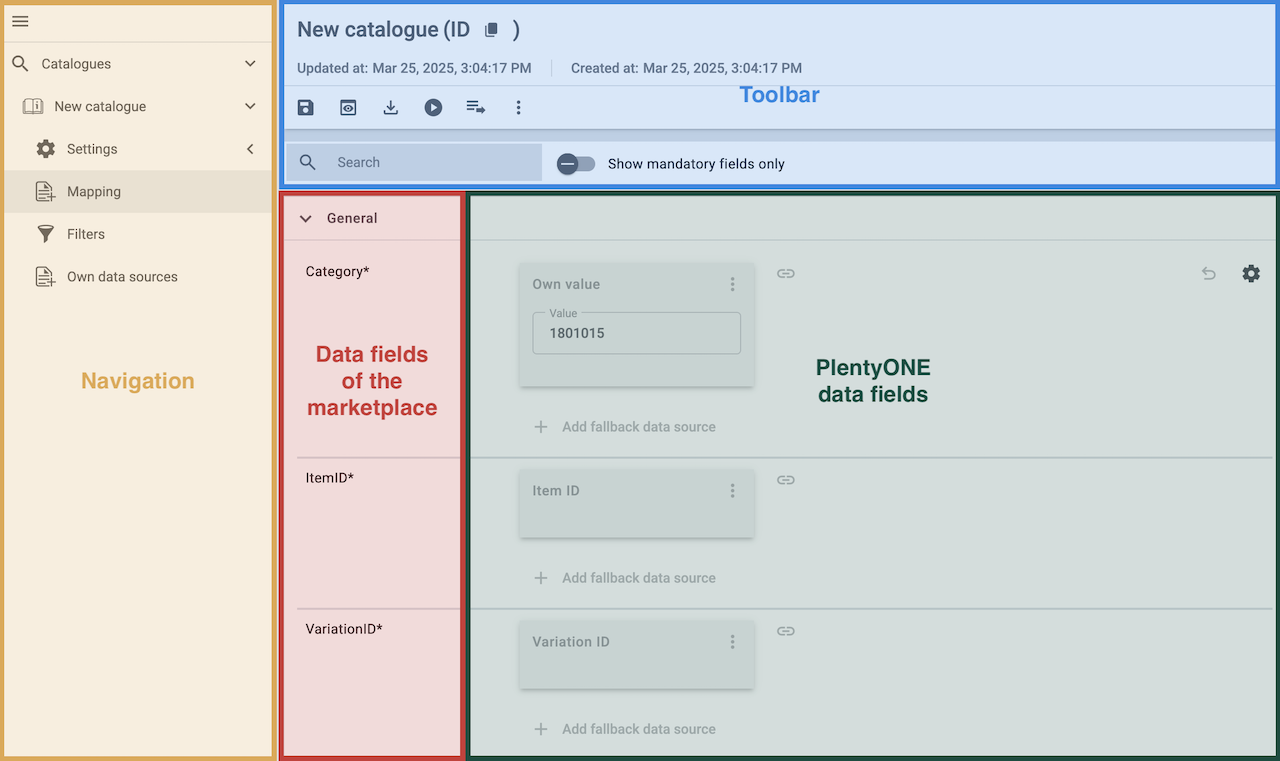
| Availability | Explanation |
|---|---|
Navigation |
When you open a catalogue, the view Mapping is shown. On the very left is the navigation.
|
Toolbar |
The toolbar provides actions for the catalogue. For example, save your mappings, restore an older version of the catalogue or hide or show optional marketplace data fields. |
Marketplace data field |
To the right of the navigation, all data fields available for the market are listed. Mandatory fields are marked with an asterisk (✱). |
PlentyONE data fields |
On the right side of the catalogue, you map the marketplace data fields to appropriate PlentyONE data fields. In the screenshot above, a few of the fields are already mapped. |
Mapping catalogue fields:
-
Go to Sales channels » Channel Control Centre.
-
Click on the tile of your Octopia sales channel.
-
Click on the catalogue you want to edit.
→ The Mapping tab opens.
→ In the left-hand column, the market’s data fields are listed.
Tip: Mandatory fields are flagged with an asterisk (*).
→ In the right column, you map the PlentyONE data fields. Any PlentyONE data fields that you already mapped are also shown in this column. -
Map suitable PlentyONE data fields to the market data fields.
For each marketplace data field, you have a number of mapping options. Expand the info boxes below to get more information about each of these mapping options.-
Simple 1:1 mapping
-
Simple 1:1 mapping with properties
-
Complex 1:1 mapping
-
1:1 mapping with fallback data fields
-
1:n mapping
-
Own value mapping
-
Mapping with mathematical calculations
-
-
Save () the catalogue.
→ The mappings are saved.
In a simple 1:1 mapping, you map a PlentyONE data field to the marketplace data field. If no suitable setting exists in PlentyONE, you can map a property instead.
As such, simple 1:1 mappings allow you to:
-
I want to fill this marketplace data field with the data from this PlentyONE setting.
-
If the data field is empty for a variation, no value is exported for this variation.
Creating a simple 1:1 mapping:
-
Next to the marketplace data field, click on + Add data field.
→ To the left, the list of available PlentyONE data fields are shown in groups. -
Click on the group you need.
→ The PlentyONE data fields of the group are shown. -
Click on the plus to the right of the PlentyONE data field you want to select.
→ The PlentyONE data field is added to the right. -
Click on Confirm.
Example: Sales price and RRP for Otto Market
This gif shows you how to map the marketplace data fields Sales price and RRP for Otto Market to PlentyONE data fields:
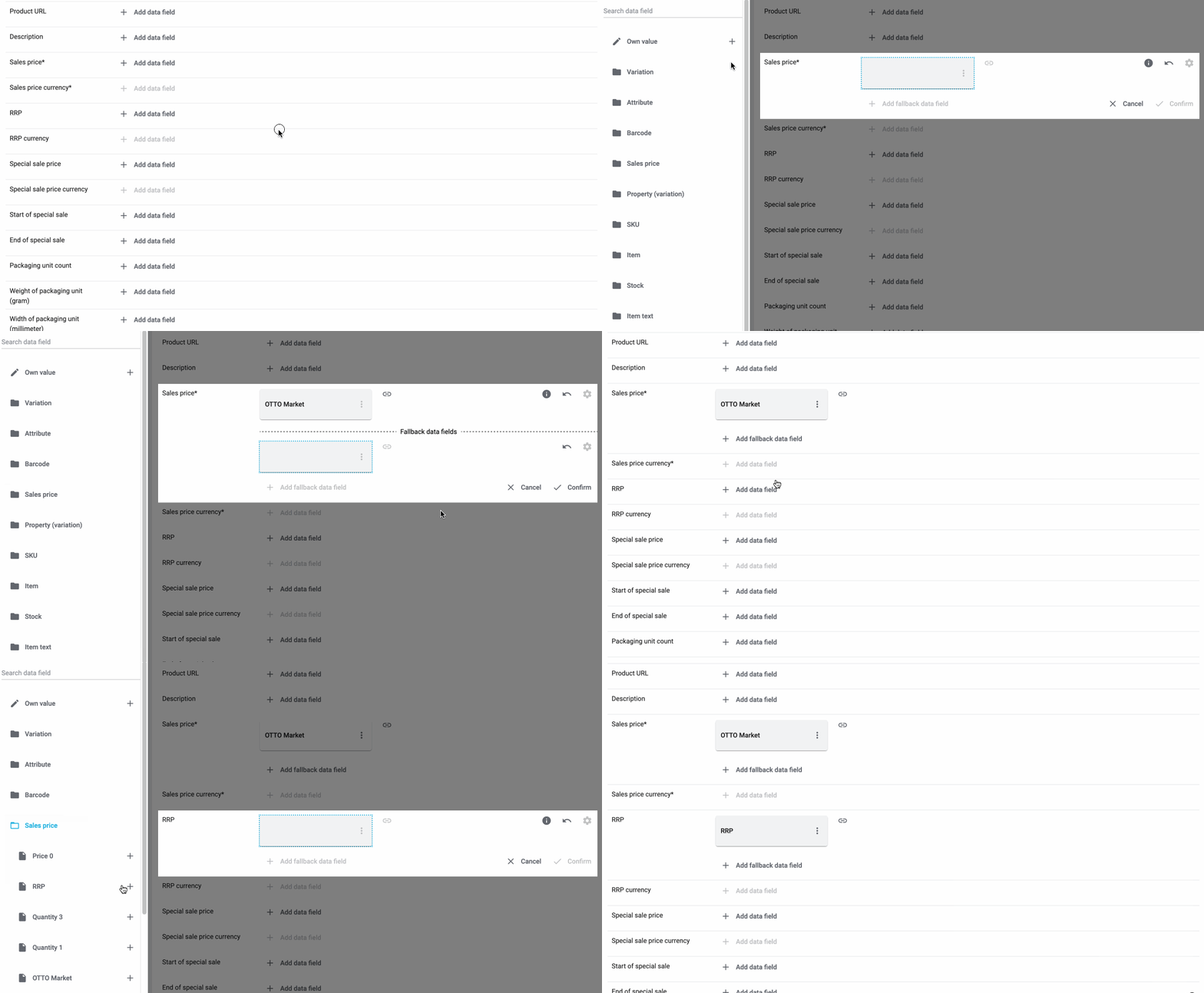
Reminder: In a simple 1:1 mapping, you map a PlentyONE data field to the marketplace data field. However, what can you do if PlentyONE does not offer a suitable data field? Then it’s the properties' moment to shine. Properties allow you to save any kind of information in your properties.
-
Is this your first time working with properties? Then read up on the principles of properties first.
Creating a property:
-
Create a property with the necessary values.
Tip: Find out how to do that here.
Creating a simple 1:1 mapping with properties:
-
Next to the marketplace data field, click on + Add data field.
→ To the left, the list of available PlentyONE data fields are shown in groups. -
Expand the group Property.
→ The property groups are shown. -
Expand the group you need.
-
Click on the Plus sign on the right of the property you want.
-
From the drop-down list Language, select the language in which you send the data to the market.
-
Click on Confirm.
→ The property is mapped to the marketplace data field.
Like with the simple 1:1 mappings, you map a PlentyONE setting or property to a marketplace data field. Complex mappings are necessary whenever a marketplace data field has more than one possible value. Instead of mapping data fields, for complex mappings you map individual values of these data fields. For example, you cannot simply map the PlentyONE data field Shipping profile to the marketplace data field Shipping method. Why? The market cannot know which of your shipping profiles in PlentyONE corresponds to which of their shipping methods.
| Do not enter own values for complex mappings. All values that you enter must be saved for the variations, either in a setting or as a property value. This also applies if the value Comparative value is shown. You still need to enter exactly the value of the setting or property that you mapped. |
In complex mappings, the value of the market is always exported. Only when you map an own value, the own value that you enter is exported.
You can recognise complex mappings from the field that is shown below the name of the marketplace data field. Click on the field to show the values available for the marketplace data field.

Examples for complex 1:1 mappings are:
-
Categories
-
Brands
-
Shipping setting
Important: For complex mappings, do not map own values or properties of the type None.
Creating a complex 1:1:n mapping:
-
Click on the field for the marketplace data field.
→ A list of the available values is shown. -
Select the value that you want to map a PlentyONE data field to.
→ The value is mapped. -
Next to the marketplace data field, click on + Add data field.
→ To the left, the available PlentyONE data fields are listed in groups. -
Click on a group.
→ The PlentyONE data fields of the group are shown. -
Click on the PlentyONE data field for which you want to map values.
Important: Do not map own values or properties of the type None. -
Your next steps depend on the PlentyONE data field you selected:
-
Alternative 1: The available values for the PlentyONE data value are shown on the left.
-
Next to the value you want to select, click on the plus.
→ The value is added to the field on the right. -
Click on Confirm.
-
-
Alternative 2: The PlentyONE data field is inserted and the field Comparative value is shown.
-
In the field Comparative value, enter a value that is saved in the setting or the property of the mapped PlentyONE data field.
-
Click on Confirm.
-
-
Alternative 3: The PlentyONE data field is inserted and a drop-down list is shown.
-
Select a value from the drop-down list.
-
Click on Confirm.
→ The value of the marketplace data field is exported, not the value of the PlentyONE data field.
Exception: Only when you map an own value, the own value that you enter is exported.
-
-
Example: Delivery time in days for Otto Market
This gif shows you how to map suitable PlentyONE values to the values of the marketplace data fields Delivery time in days for Otto Market:
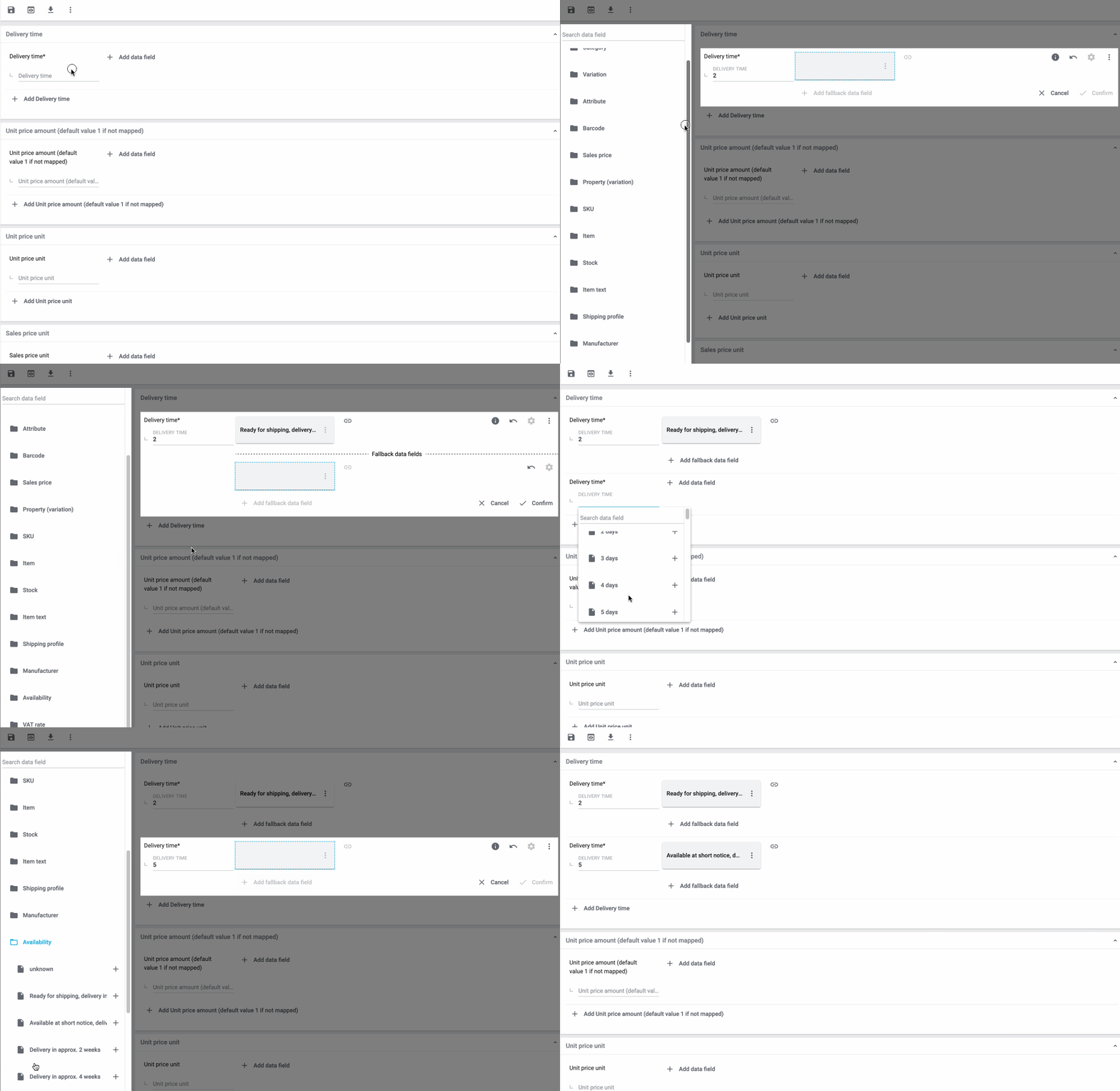
In a 1:1 mapping with one or more fallback data fields, you map a PlentyONE data field to the marketplace data field. In addition, you specify one or more fallback data fields. This ensures that the system keeps looking if the first PlentyONE data field is missing or empty.
So this mapping specifies:
-
I want to fill the marketplace data field with the data from the selected PlentyONE setting.
-
If that data field is missing or empty for a variation, the first fallback data field is checked. The value of that fallback data field is exported instead.
-
If the first fallback data field is also missing or empty for the variation, the second fallback data field is checked. If a value is found, the value of the second fallback data field is exported for the variation etc.
Two separate fallback conditions are available:
Null (default) |
The fallback data field is used if the data field above is mapped in the catalogue but not linked to the variation. The condition "Null" is useful when you want to map fallback data fields for the following types of PlentyONE data fields:
Important: When you add a fallback data field, the fallback condition "null" is selected automatically. To apply the fallback condition "leer", you need to change the default setting. |
Empty |
The fallback data field is used if the data field above is mapped in the catalogue and linked to the variation, but is empty. The condition "Empty" is useful when you want to map fallback data fields for the following type of PlentyONE data fields:
Important: When you add a fallback data field, the fallback condition "null" is selected automatically. To apply the fallback condition "leer", you need to change the default setting. |
Note: Even if you assign one or more fallback data fields, the value of only one of those fields is exported. For each variation, the mapped PlentyONE data fields are checked in the order in which you mapped them. This means that if the first data field does not provide a value for a variation, the first fallback data field is exported etc.
Creating a 1:1 mapping with fallback data fields:
-
Next to the marketplace data field, click on + Add data field.
→ To the left, the list of available PlentyONE data fields are shown in groups. -
Click on the group you need.
→ The PlentyONE data fields of the group are shown. -
Click on the plus to the right of the PlentyONE data field you want to select.
→ The PlentyONE data field is added to the right. -
In the list of PlentyONE data fields, click on the plus icon next to the PlentyONE data field that you want to map.
→ The fallback data field is added with the fallback condition "null". -
Alternative 1: To add the fallback data field with the fallback condition "null":
-
Click on Confirm.
→ The fallback data field is exported if the data field above is not linked to the variation.
-
-
Alternative 2: To add the fallback data field with the fallback condition "empty":
-
To the left of the fallback data field, click on the cog ().
→ The window Data column settings is shown. -
For the setting Fallback condition, select the option Empty.
-
Click on Save.
→ The fallback data field is added with the fallback condition "empty". -
Click on Confirm.
→ The fallback data field is exported if the data field above is empty for the variation.
-
Example: Fallback data field for SKU for Otto Market
This GIF shows you the mapping for the OTTO Market marketplace data field SKU. The PlentyONE data field SKU is mapped to this marketplace data field. The PlentyONE data field Variation ID is mapped as the fallback data field. The fallback condition "null" is applied automatically.
Result: The fallback data field Variation ID is exported if the data field SKU is not linked to the variation.
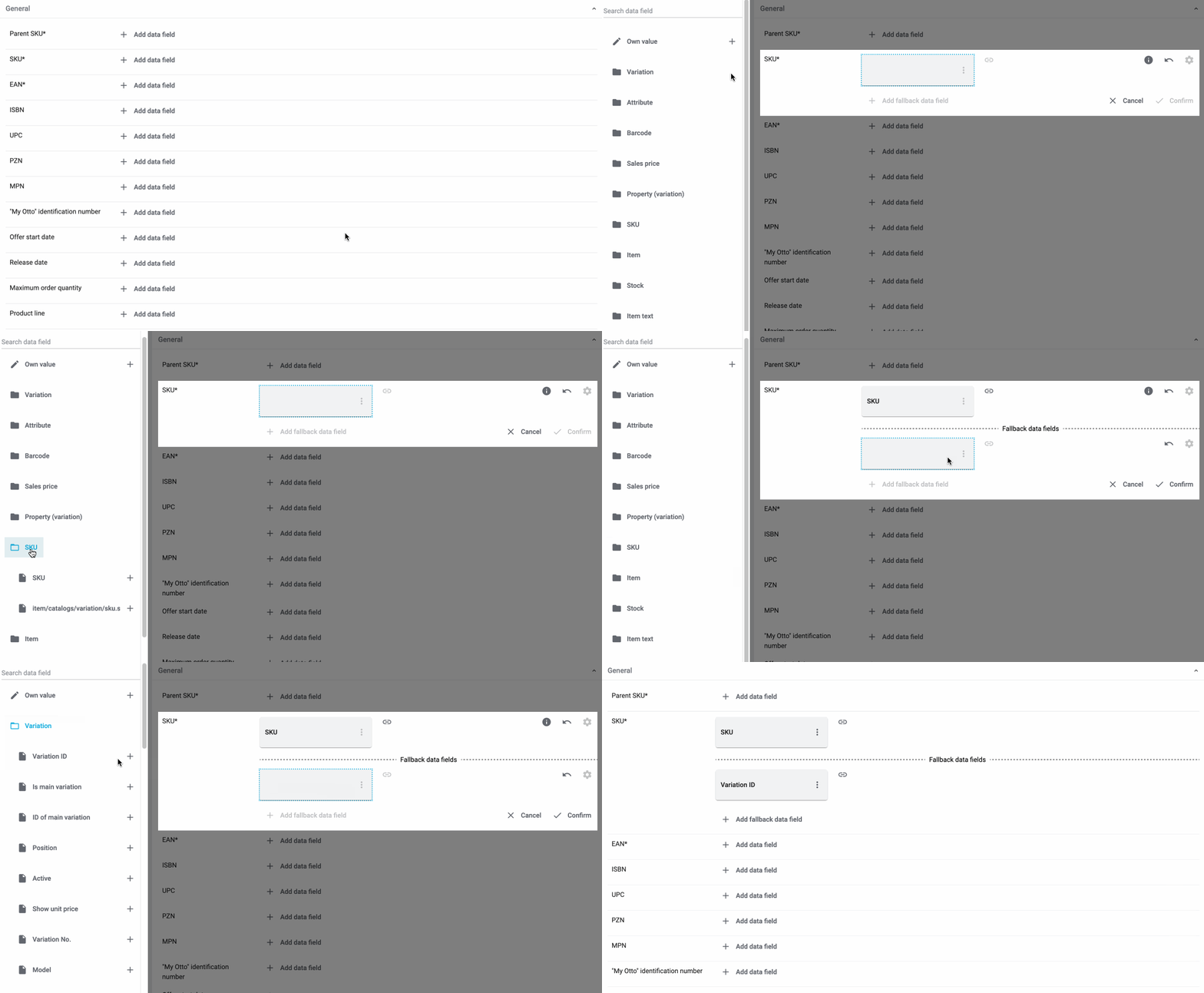
In a 1:n mapping, you map several PlentyONE data fields to the marketplace data field. You can link these data fields with a separator.
So this mapping specifies:
-
I want to combine these PlentyONE data fields during export so that the marketplace data field is filled with the data of these two or more PlentyONE settings.
Creating a 1:n mapping:
-
Next to the marketplace data field, click on + Add data field.
→ To the left, the list of available PlentyONE data fields are shown in groups. -
Click on the group you need.
→ The PlentyONE data fields of the group are shown. -
Click on the plus to the right of the PlentyONE data field you want to select.
→ The PlentyONE data field is added to the right. -
Click on Confirm.
-
To the right of the mapped PlentyONE data field, click on Add data field ().
→ To the left, the list of available PlentyONE data fields again are shown in groups. -
Map one or several additional PlentyONE data fields to the marketplace data field as described above.
-
Click on Confirm.
-
To the very right of the row, click on Settings ().
-
Select a separator from the drop-down list Separator or add a custom separator.
-
Click on Save.
-
Save () the catalogue.
→ The mappings are saved.
→ During the export, the content of the PlentyONE data fields is combined and exported as one field.
You are sure that you want to export the same value for all variations of a catalogue for a marketplace data field? Then specify an own value. This own value is then exported for all variations.
So this mapping specifies:
-
For this marketplace data field, I want to export the value that I entered in the field Own value for all variations of this catalogue. The value you enter is always exported. The value overwrites the market value also in complex mappings where usually the value of the market is exported. As such, make sure you enter an own value that the market accepts for this marketplace data field.
Creating an own value mapping:
-
Next to the marketplace data field, click on + Add data field.
→ To the left, the list of available PlentyONE data fields are shown in groups. -
Click on the plus next to Own value at the top of the list.
→ The field for the own value is added to the view. -
Enter a value into the input field.
→ This value is exported for all variations.
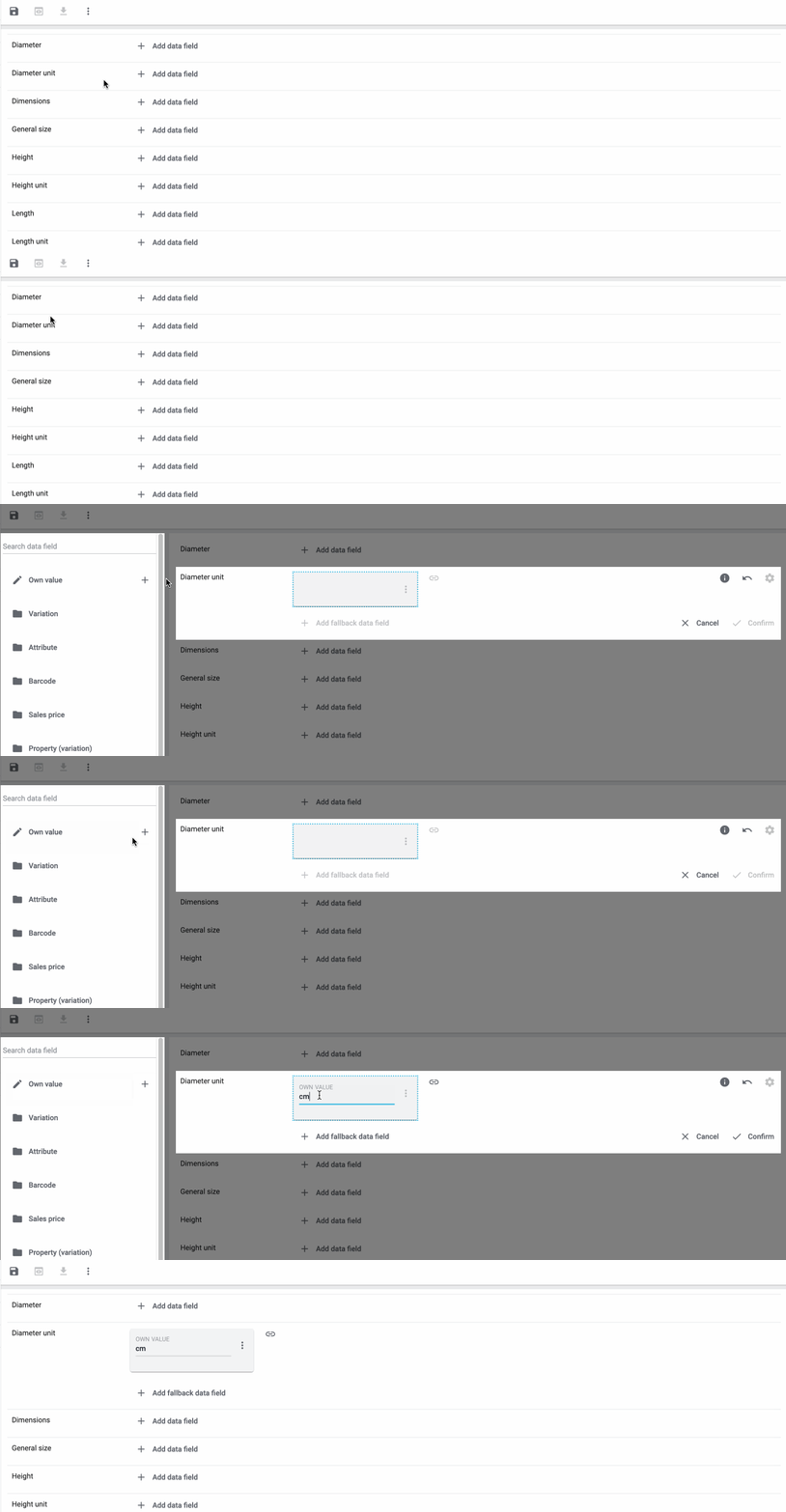
Example: Diameter information
You want to export diameter information for some of your variations. The diameter is saved in centimetres for all your variations. Instead of creating a property for the unit and linking this property to the variations, you can enter the own value cm.
This is an example of how you can map an own value for the diameter unit:
Mathematical calculations allow you to change numerical values automatically during the export.
-
This function only works for data fields that contain numerical values.
-
This functionality is new and not available for all catalogue formats.
So this mapping specifies:
-
I want the numerical value of a PlentyONE data field to be recalculated during the export. Basic arithmetic operations are available for the formulas.
Recalculating numerical values:
-
Next to the marketplace data field, click on + Add data field.
→ To the left, the list of available PlentyONE data fields are shown in groups. -
At the very top of the list, click on the plus icon next to Formula (calculate).
→ The data field Formula is added to the field on the right. -
Click into the data field.
→ The window Modify value is shown. -
Enter a numerical value or select a PlentyONE data field at the bottom right of the window to add it to the calculation (add).
Tip: Use the search function. This helps you to find data fields quickly. -
Optional: If the symbol more_vert is shown in the data field, select the correct assignment for the data field.
Tip: A number tells you how many assignments are necessary for the data field.-
Click on the icon more_vert.
-
In the window shown, select the assignments from the drop-down list.
-
Save the settings.
-
-
Enter numbers and mathematical operators with the on-screen calculator or the keyboard.
-
Save the settings.
→ The entered formula is displayed in the overview.
→ The calculation will be carried out in the next export.
7.1.2. Recommendations for data field mappings
To help you with mapping your data fields for the catalogue, we have created a list of recommended data field mappings. Note that these mappings are recommendations only. Depending on how you manage your item data, other mappings may be more appropriate than the recommendation given here.
-
Need more information about the PlentyONE data fields? All data fields are described on the manual page for the export type Listing.
| Marketplace field | Mandatory? | Recommended PlentyONE mapping |
|---|---|---|
General |
||
Category |
yes |
This data field is assigned automatically. It reflects the catalog ID on Octopia. |
GTIN |
yes |
The barcode.
|
Title |
yes |
The title in its long version is required.
or
or
or
|
Description |
yes |
The product description.
or
|
Image-URLs |
yes |
HTTPS-URLs. The size must be between 500×500 and 3000×3000.
or
|
Mark |
no |
The brand.
|
Marketing description |
no |
Marketing description to highlight the product features. HTML is allowed.
or
|
Maximum size |
no |
The maximum size of the product in cm.
|
Medium size |
no |
The medium size of the product in cm.
|
Minimum size |
no |
The minimum size of the product in cm.
|
Packed weight |
no |
The weight of the packed product.
or
|
Item ID |
yes |
This data field is assigned automatically. |
Internal |
||
variationID |
yes |
This data field is assigned automatically. |
7.1.3. Transmitting shipping costs to Cdiscount
In order to transmit the shipping costs to Cdiscount, carry out the respective mapping in the catalogue. To do so, proceed as follows.
Transmitting shipping costs to Cdiscount:
-
Go to Sales channels » Channel Control Centre.
-
Click on the tile of your Octopia sales channel.
-
Navigate to Mapping » Product mapping. → The product catalogue overview opens.
-
Click on the catalogue for which you want to add the shipping costs.
→ The catalogue opens. -
Assign the desired data source to the Default shipping costs data field.
Optional: Use the data fields Additional charges 1 and Additional charges 2 to add any additional costs. -
Save (save) the changes.
→ During catalogue export, the shipping costs are transmitted to Cdiscount according to the defined mapping.
7.1.4. Transmitting shipping preparation time to Cdiscount
In order to transmit the shipping preparation time to Cdiscount, carry out the respective mapping in the catalogue. To do so, proceed as follows.
Transmitting shipping preparation time to Cdiscount:
-
Go to Sales channels » Channel Control Centre.
-
Click on the tile of your Octopia sales channel.
-
Navigate to Mapping » Product mapping. → The product catalogue overview opens.
-
Click on the catalogue for which you want to add the shipping preparation time.
→ The catalogue opens. -
The data field Preparation time is already mapped to the data source Availability days. This value is taken from the Setup » Item » Availability menu.
Tip: If required, use the Own value to transmit any desired value. -
Save (save) the changes.
→ During catalogue export, the shipping preparation time is transmitted to Cdiscount according to the defined mapping.
7.1.5. Activating the catalogue export
You have set up Octopia in PlentyONE and created a catalogue for exporting your item data? Then activate the catalogues you want to export to Octopia in the Data » Catalogues menu and continue with creating product listings.
Once you have activated the product catalogue, the data exchange, the product listing and the variations, the product data will be automatically exported to Octopia every 15 minutes.
Activating the catalogue export to Octopia:
-
Go to Data » Catalogues.
→ The catalogues are listed. -
Scroll to the Octopia catalogue.
-
In the Active column, move the toggle button to the right ().
→ The catalogue is active.
→ The catalogue data is exported to Octopia every 15 minutes.
Tip: Go to Data & Plugins » Catalogue export status for information about the status of the export.
8. Exporting offer data
Offer data is exported to Cdiscount using catalogues. Catalogues are usually managed via the Data » Catalogues menu. However, you can create catalogues for Octopia via the Channel Control Centre as well.
Catalogues are used to export data from your PlentyONE system. There are two different catalogue formats:
-
Marketplace formats are used to export item data to markets.
-
Standard formats are used to export data from your PlentyONE system into a file.
Catalogues with marketplace formats allow you to tailor your item information exactly to the needs of the market. Because here, you assign a suitable PlentyONE data field to each of the data fields of the market. When your variation data is exported to the market, the market’s data fields are then filled with the correct PlentyONE data.
-
Is this your first time working with catalogues? Then read up on the basic concept of catalogues first.
8.1. Creating an offer catalogue
Offer data is exported to Cdiscount via a catalogue. Go to the Channel Control Centre to create offer catalogues for Octopia. Afterwards, link the Octopia data fields with offer data saved in PlentyONE in the catalogue you created.
If you have activated the catalogue, the data exchange, the listing and the variations, the offer data is automatically exported to Cdiscount every 15 minutes.
Note: You need to create a separate offer catalogue for each Cdiscount product category that you want to sell your items in.
|
Do I always have to create a product catalogue and an offer catalogue?
If you only want to offer products that already exist on Octopia, you do not need to create a product catalogue beforehand. You can directly create an offer catalogue. |
Creating a catalogue:
-
Go to Sales channels » Channel Control Centre.
-
Click on the Octopia tile.
-
Go to Mapping » Offer mapping.
-
Click Create catalogue (add).
-
Enter a name for the catalogue.
-
In the drop-down list Marketplace, select the option cdiscount.
-
In the drop-down list Export type, select the option Listing.
-
In the drop-down list Category, select the option Offer CDiscount.
-
Save () the settings.
→ The catalogue is created.
→ The catalogue is opened for editing.
Other catalogue settings
Other catalogue settings are optional. Once you carried out the settings described on this page, your catalogue is automatically exported to Octopia. That means you can ignore the catalogue settings for Format settings, Export settings and Download settings.
The Format settings, Export settings, and Download settings allow you to create a file with the variation data contained in the catalogue. However, this file does not contain information about whether the data export to Octopia was successful.
|
Do not change the format in the catalogue’s Format settings. To ensure that the export to the sales channel works, all required settings are already configured when you create a catalogue. If you change the settings, errors might occur during the export. |
8.1.1. Mapping data fields in the catalogue
After you have created a catalogue, map the sales channel’s data fields to item data saved in PlentyONE. This chapter describes how you map data fields and what particularities apply for item exports to Octopia.
-
The market expects product data that cannot be saved in the PlentyONE item menu? Then create a property for this data. Link this property with your variations. The actual values are saved as property values for this property. Is this your first time working with properties? Then read up on the principles of properties first.
| Availability | Explanation |
|---|---|
Navigation |
When you open a catalogue, the view Mapping is shown. On the very left is the navigation.
|
Toolbar |
The toolbar provides actions for the catalogue. For example, save your mappings, restore an older version of the catalogue or hide or show optional marketplace data fields. |
Marketplace data field |
To the right of the navigation, all data fields available for the market are listed. Mandatory fields are marked with an asterisk (✱). |
PlentyONE data fields |
On the right side of the catalogue, you map the marketplace data fields to appropriate PlentyONE data fields. In the screenshot above, a few of the fields are already mapped. |
Mapping catalogue fields:
-
Go to Sales channels » Channel Control Centre.
-
Click on the tile of your Octopia sales channel.
-
Click on the catalogue you want to edit.
→ The Mapping tab opens.
→ In the left-hand column, the market’s data fields are listed.
Tip: Mandatory fields are flagged with an asterisk (*).
→ In the right column, you map the PlentyONE data fields. Any PlentyONE data fields that you already mapped are also shown in this column. -
Map suitable PlentyONE data fields to the market data fields.
For each marketplace data field, you have a number of mapping options. Expand the info boxes below to get more information about each of these mapping options.-
Simple 1:1 mapping
-
Simple 1:1 mapping with properties
-
Complex 1:1 mapping
-
1:1 mapping with fallback data fields
-
1:n mapping
-
Own value mapping
-
Mapping with mathematical calculations
-
-
Save () the catalogue.
→ The mappings are saved.
In a simple 1:1 mapping, you map a PlentyONE data field to the marketplace data field. If no suitable setting exists in PlentyONE, you can map a property instead.
As such, simple 1:1 mappings allow you to:
-
I want to fill this marketplace data field with the data from this PlentyONE setting.
-
If the data field is empty for a variation, no value is exported for this variation.
Creating a simple 1:1 mapping:
-
Next to the marketplace data field, click on + Add data field.
→ To the left, the list of available PlentyONE data fields are shown in groups. -
Click on the group you need.
→ The PlentyONE data fields of the group are shown. -
Click on the plus to the right of the PlentyONE data field you want to select.
→ The PlentyONE data field is added to the right. -
Click on Confirm.
Example: Sales price and RRP for Otto Market
This gif shows you how to map the marketplace data fields Sales price and RRP for Otto Market to PlentyONE data fields:
Reminder: In a simple 1:1 mapping, you map a PlentyONE data field to the marketplace data field. However, what can you do if PlentyONE does not offer a suitable data field? Then it’s the properties' moment to shine. Properties allow you to save any kind of information in your properties.
-
Is this your first time working with properties? Then read up on the principles of properties first.
Creating a property:
-
Create a property with the necessary values.
Tip: Find out how to do that here.
Creating a simple 1:1 mapping with properties:
-
Next to the marketplace data field, click on + Add data field.
→ To the left, the list of available PlentyONE data fields are shown in groups. -
Expand the group Property.
→ The property groups are shown. -
Expand the group you need.
-
Click on the Plus sign on the right of the property you want.
-
From the drop-down list Language, select the language in which you send the data to the market.
-
Click on Confirm.
→ The property is mapped to the marketplace data field.
Like with the simple 1:1 mappings, you map a PlentyONE setting or property to a marketplace data field. Complex mappings are necessary whenever a marketplace data field has more than one possible value. Instead of mapping data fields, for complex mappings you map individual values of these data fields. For example, you cannot simply map the PlentyONE data field Shipping profile to the marketplace data field Shipping method. Why? The market cannot know which of your shipping profiles in PlentyONE corresponds to which of their shipping methods.
| Do not enter own values for complex mappings. All values that you enter must be saved for the variations, either in a setting or as a property value. This also applies if the value Comparative value is shown. You still need to enter exactly the value of the setting or property that you mapped. |
In complex mappings, the value of the market is always exported. Only when you map an own value, the own value that you enter is exported.
You can recognise complex mappings from the field that is shown below the name of the marketplace data field. Click on the field to show the values available for the marketplace data field.
Examples for complex 1:1 mappings are:
-
Categories
-
Brands
-
Shipping setting
Important: For complex mappings, do not map own values or properties of the type None.
Creating a complex 1:1:n mapping:
-
Click on the field for the marketplace data field.
→ A list of the available values is shown. -
Select the value that you want to map a PlentyONE data field to.
→ The value is mapped. -
Next to the marketplace data field, click on + Add data field.
→ To the left, the available PlentyONE data fields are listed in groups. -
Click on a group.
→ The PlentyONE data fields of the group are shown. -
Click on the PlentyONE data field for which you want to map values.
Important: Do not map own values or properties of the type None. -
Your next steps depend on the PlentyONE data field you selected:
-
Alternative 1: The available values for the PlentyONE data value are shown on the left.
-
Next to the value you want to select, click on the plus.
→ The value is added to the field on the right. -
Click on Confirm.
-
-
Alternative 2: The PlentyONE data field is inserted and the field Comparative value is shown.
-
In the field Comparative value, enter a value that is saved in the setting or the property of the mapped PlentyONE data field.
-
Click on Confirm.
-
-
Alternative 3: The PlentyONE data field is inserted and a drop-down list is shown.
-
Select a value from the drop-down list.
-
Click on Confirm.
→ The value of the marketplace data field is exported, not the value of the PlentyONE data field.
Exception: Only when you map an own value, the own value that you enter is exported.
-
-
Example: Delivery time in days for Otto Market
This gif shows you how to map suitable PlentyONE values to the values of the marketplace data fields Delivery time in days for Otto Market:
In a 1:1 mapping with one or more fallback data fields, you map a PlentyONE data field to the marketplace data field. In addition, you specify one or more fallback data fields. This ensures that the system keeps looking if the first PlentyONE data field is missing or empty.
So this mapping specifies:
-
I want to fill the marketplace data field with the data from the selected PlentyONE setting.
-
If that data field is missing or empty for a variation, the first fallback data field is checked. The value of that fallback data field is exported instead.
-
If the first fallback data field is also missing or empty for the variation, the second fallback data field is checked. If a value is found, the value of the second fallback data field is exported for the variation etc.
Two separate fallback conditions are available:
Null (default) |
The fallback data field is used if the data field above is mapped in the catalogue but not linked to the variation. The condition "Null" is useful when you want to map fallback data fields for the following types of PlentyONE data fields:
Important: When you add a fallback data field, the fallback condition "null" is selected automatically. To apply the fallback condition "leer", you need to change the default setting. |
Empty |
The fallback data field is used if the data field above is mapped in the catalogue and linked to the variation, but is empty. The condition "Empty" is useful when you want to map fallback data fields for the following type of PlentyONE data fields:
Important: When you add a fallback data field, the fallback condition "null" is selected automatically. To apply the fallback condition "leer", you need to change the default setting. |
Note: Even if you assign one or more fallback data fields, the value of only one of those fields is exported. For each variation, the mapped PlentyONE data fields are checked in the order in which you mapped them. This means that if the first data field does not provide a value for a variation, the first fallback data field is exported etc.
Creating a 1:1 mapping with fallback data fields:
-
Next to the marketplace data field, click on + Add data field.
→ To the left, the list of available PlentyONE data fields are shown in groups. -
Click on the group you need.
→ The PlentyONE data fields of the group are shown. -
Click on the plus to the right of the PlentyONE data field you want to select.
→ The PlentyONE data field is added to the right. -
In the list of PlentyONE data fields, click on the plus icon next to the PlentyONE data field that you want to map.
→ The fallback data field is added with the fallback condition "null". -
Alternative 1: To add the fallback data field with the fallback condition "null":
-
Click on Confirm.
→ The fallback data field is exported if the data field above is not linked to the variation.
-
-
Alternative 2: To add the fallback data field with the fallback condition "empty":
-
To the left of the fallback data field, click on the cog ().
→ The window Data column settings is shown. -
For the setting Fallback condition, select the option Empty.
-
Click on Save.
→ The fallback data field is added with the fallback condition "empty". -
Click on Confirm.
→ The fallback data field is exported if the data field above is empty for the variation.
-
Example: Fallback data field for SKU for Otto Market
This GIF shows you the mapping for the OTTO Market marketplace data field SKU. The PlentyONE data field SKU is mapped to this marketplace data field. The PlentyONE data field Variation ID is mapped as the fallback data field. The fallback condition "null" is applied automatically.
Result: The fallback data field Variation ID is exported if the data field SKU is not linked to the variation.
In a 1:n mapping, you map several PlentyONE data fields to the marketplace data field. You can link these data fields with a separator.
So this mapping specifies:
-
I want to combine these PlentyONE data fields during export so that the marketplace data field is filled with the data of these two or more PlentyONE settings.
Creating a 1:n mapping:
-
Next to the marketplace data field, click on + Add data field.
→ To the left, the list of available PlentyONE data fields are shown in groups. -
Click on the group you need.
→ The PlentyONE data fields of the group are shown. -
Click on the plus to the right of the PlentyONE data field you want to select.
→ The PlentyONE data field is added to the right. -
Click on Confirm.
-
To the right of the mapped PlentyONE data field, click on Add data field ().
→ To the left, the list of available PlentyONE data fields again are shown in groups. -
Map one or several additional PlentyONE data fields to the marketplace data field as described above.
-
Click on Confirm.
-
To the very right of the row, click on Settings ().
-
Select a separator from the drop-down list Separator or add a custom separator.
-
Click on Save.
-
Save () the catalogue.
→ The mappings are saved.
→ During the export, the content of the PlentyONE data fields is combined and exported as one field.
You are sure that you want to export the same value for all variations of a catalogue for a marketplace data field? Then specify an own value. This own value is then exported for all variations.
So this mapping specifies:
-
For this marketplace data field, I want to export the value that I entered in the field Own value for all variations of this catalogue. The value you enter is always exported. The value overwrites the market value also in complex mappings where usually the value of the market is exported. As such, make sure you enter an own value that the market accepts for this marketplace data field.
Creating an own value mapping:
-
Next to the marketplace data field, click on + Add data field.
→ To the left, the list of available PlentyONE data fields are shown in groups. -
Click on the plus next to Own value at the top of the list.
→ The field for the own value is added to the view. -
Enter a value into the input field.
→ This value is exported for all variations.
Example: Diameter information
You want to export diameter information for some of your variations. The diameter is saved in centimetres for all your variations. Instead of creating a property for the unit and linking this property to the variations, you can enter the own value cm.
This is an example of how you can map an own value for the diameter unit:
Mathematical calculations allow you to change numerical values automatically during the export.
-
This function only works for data fields that contain numerical values.
-
This functionality is new and not available for all catalogue formats.
So this mapping specifies:
-
I want the numerical value of a PlentyONE data field to be recalculated during the export. Basic arithmetic operations are available for the formulas.
Recalculating numerical values:
-
Next to the marketplace data field, click on + Add data field.
→ To the left, the list of available PlentyONE data fields are shown in groups. -
At the very top of the list, click on the plus icon next to Formula (calculate).
→ The data field Formula is added to the field on the right. -
Click into the data field.
→ The window Modify value is shown. -
Enter a numerical value or select a PlentyONE data field at the bottom right of the window to add it to the calculation (add).
Tip: Use the search function. This helps you to find data fields quickly. -
Optional: If the symbol more_vert is shown in the data field, select the correct assignment for the data field.
Tip: A number tells you how many assignments are necessary for the data field.-
Click on the icon more_vert.
-
In the window shown, select the assignments from the drop-down list.
-
Save the settings.
-
-
Enter numbers and mathematical operators with the on-screen calculator or the keyboard.
-
Save the settings.
→ The entered formula is displayed in the overview.
→ The calculation will be carried out in the next export.
8.1.2. Recommendations for data field mappings
To help you with mapping your data fields for the catalogue, we have created a list of recommended data field mappings. Note that these mappings are recommendations only. Depending on how you manage your item data, other mappings may be more appropriate than the recommendation given here.
-
Need more information about the PlentyONE data fields? All data fields are described on the manual page for the export type Listing.
| Marketplace field | Mandatory? | Recommended PlentyONE mapping |
|---|---|---|
Product GTIN |
yes |
The barcode.
|
Condition |
yes |
Describes the condition of a product. It is a hard-coded mapping to the PlentyONE field, which you find on the "global" tab of an item. |
Price |
yes |
The sales price of the item.
|
Striked price |
no |
Market price observed for the product, also referred to as a "strikethrough price". This price must always be higher than the sales price field.
|
VAT |
yes |
The VAT for the sales price.
|
Eco tax |
no |
Eco participation fee for new products. Even if this tax is not applicable for the product, it must be filled in with the value 0.
|
Dea tax |
yes |
Eco furniture tax applied to furniture products. Even if this tax is not applicable for the product, it must be filled in with the value 0.
|
Stock |
yes |
The stock of the variation.
Tip: Use the data fields in the group Virtual warehouse to export the stock quantity sum of all sales warehouses. |
Preparation time |
yes |
Maximum number of working days between your order confirmation and the handover of the package to the shipping provider. |
Minimum price for align |
no |
If the price adjustment attribute is activated, this data field is used to set the minimum price to which Cdiscount can lower the price of your product.
|
Item ID |
yes |
This data field is assigned automatically. |
Condition group |
||
Condition |
no |
Indicates the condition of the item. This data field contains a complex mapping. This means that you can select from different values of the marketplace data field. In this case, the values are the Cdiscount item conditions. The values are then assigned to a PlentyONE data field. recommended mapping:
Note: Enter a PlentyONE condition ID in the Comparative value field. |
Delivery Mode |
||
Default shipping costs |
no |
|
Additional charges 1 |
no |
Additional shipping charges for an item. The sum of both fields will then be exported as additional shipping costs to Octopia:
|
Additional charges 2 |
no |
Additional shipping charges for an item. The sum of both fields will then be exported as additional shipping costs to Octopia:
|
Discount Group |
||
Discounted price |
no |
The offer price. |
Start date |
no |
When will the discount start? |
End date |
no |
When will the discount end? |
Internal |
||
variationID |
yes |
This data field is assigned automatically. |
8.1.3. Adding several item conditions
Via a complex mapping, you can add several item conditions to your Cdiscount catalogue. To do so, proceed as follows.
Adding several item conditions:
-
Go to Sales channels » Channel Control Centre.
-
Click on the tile of your Octopia sales channel.
-
Navigate to Mapping » Offer mapping.
→ The offer catalogue overview opens. -
Open the Cdiscount catalogue with the export type Listing for which you want to add item conditions.
-
Go to the Condition group section.
-
Click in the Condition field and select the desired condition from the dropdown list.
-
Afterwards, map a data source.
Tip: Under Item, several PlentyONE data sources are available for item conditions. -
Click below on + Add condition to add another condition.
-
Repeat these steps until all item conditions have been added.
-
Save (save) the settings.
→ The selected item conditions are added.
Note: If you did not select a mapping in the Condition group section, the default mapping in the Condition field will still be valid.
8.1.4. Adding a discount campaign for items
In the Cdiscount offer catalogue you can add discounts for specific items. Note that the discounted price of the item needs to be at least 5% lower than the lowest price of the last 30 days.
Adding a discount campaign for items:
-
Go to Sales channels » Channel Control Centre.
-
Click on the tile of your Octopia sales channel.
-
Navigate to Mapping » Offer mapping.
→ The offer catalogue overview opens. -
Open the Cdiscount catalogue for which you want to add the discount.
→ The Mapping tab opens. -
Carry out the settings. Pay attention to the explanations given in Table 6.
-
Save () the settings.
→ The discount is applied.
| Setting | Explanation |
|---|---|
Discounted price |
Map the discounted price that should be used for the item. |
Start date |
Add the start date from which the discounted price should apply. |
End date |
Add the end date until which the discounted price should apply. |
8.1.5. Activating the catalogue export
You have set up Octopia in PlentyONE and created a catalogue for exporting your offer data? Then activate the catalogues you want to export to Octopia in the Data » Catalogues menu and continue with creating offer listings.
Once you have activated the offer catalogue, the data exchange, the offer listing and the variations, the offer data will be automatically exported to Octopia every 15 minutes.
Activating the catalogue export to Octopia:
-
Go to Data » Catalogues.
→ The catalogues are listed. -
Scroll to the Octopia catalogue.
-
In the Active column, move the toggle button to the right ().
→ The catalogue is active.
→ The catalogue data is exported to Octopia every 15 minutes.
Tip: Go to Data & Plugins » Catalogue export status for information about the status of the export.
9. Managing listings
You create and manage offers for Octopia/Cdiscount via listings. You can access the product and offer listings for Octopia/Cdiscount by navigating to Sales channels » Channel Control Centre » [Open Octopia/Cdiscount sales channel] and then opening the Offer listings or Product listings menu.
9.1. Offer listings
In the list Offer listings menu of the account you gain an overview of your offer listings.
Tip: You can switch between specific views of offers and the listing group view via the menu button and folder.
-
menu gives you an overview of all the offer listings.
-
folder shows you the listing groups of the offer listings. Extend a listing group by clicking chevron_right, to see all listings within the group.
| If you only want to take a look at certain offer listings, apply filters and narrow down the listings which are displayed. To do so, click on Filters (tune) at the top of the menu. |
Applying filters:
-
Go to Sales channels » Channel Control Centre » [Open sales channel] » Offer listings.
-
Click Filters (tune) at the top of the menu.
-
Select one or multiple filters.
-
Click Search (search).
→ The selected filters are applied and the appropriate offer listings are displayed.
→ The filters that were applied are displayed at the top of the menu.
Tip: You can also reset (refresh) the selected filters. Then all offer listings will be displayed again.
Table 7 offers an overview of the single listing view of offer listings.
| Column | Explanation | ||||||
|---|---|---|---|---|---|---|---|
Data sync |
This column indicates whether data exchange for the offer listing is active or paused. |
||||||
Group ID |
The ID of the listing group to which the offer listing is assigned. By clicking on the ID, you can open the listing group view. |
||||||
Listing Name |
Name of the offer listing. |
||||||
SKU |
SKU of the offer listing. |
||||||
Variation ID |
ID of the variation. |
||||||
Channel |
The sales channel to which the listing is exported. |
||||||
Status on Channel |
Displays the listing status on the sales channel, for example if the listing is already listed on the sales channel. Possible status are:
Note: For platforms with multiple sales channels, the number after the status icon indicates on how many sales channels the offer listing has this status. |
||||||
List on |
The sales channels on which the offer listing is to be offered are displayed here. |
||||||
Errors |
Indicates whether the listing is incorrect. Click to open the overview of listing errors. |
||||||
Template |
The template selected for the listing. |
||||||
Catalogue |
The catalogue selected for the listing. |
||||||
Creation date |
The date and time on which the listing was created. |
||||||
more_vert |
Click here to display more actions.
|
Table 8 offers an overview of the group view of offer listings.
| Column | Explanation | ||||||
|---|---|---|---|---|---|---|---|
Data sync |
This column indicates whether data exchange for the listing group is active or paused. |
||||||
Group name |
Name of the listing group |
||||||
SKU |
SKU of the listing group. |
||||||
Channel |
The sales channel to which the listing group is exported. |
||||||
Errors |
The error overview. |
||||||
Template |
The template selected for the listing group. |
||||||
Catalogue |
The catalogue selected for the listing group. |
||||||
Creation date |
The date and time on which the listing group was created. |
||||||
more_vert |
Click here to display more actions.
|
9.2. Product listings
In the list Product listings menu of the account you gain an overview of your product listings.
Tip: You can switch between specific views of product listings and the listing group view via menu and folder.
-
menu gives you an overview of all the product listings.
-
folder shows you the listing groups of the product listings. Extend a listing group by clicking chevron_right, to see all listings within the group.
| If you only want to take a look at certain product listings, apply filters and narrow down the listings which are displayed. To do so, click on Filters (tune) at the top of the menu. |
Applying filters:
-
Go to Sales channels » Channel Control Centre » [Open sales channel] »Product listings.
-
Click Filters (tune) at the top of the menu.
-
Select one or multiple filters.
-
Click Search (search).
→ The selected filters are applied and the appropriate product listings are displayed.
→ The filters that were applied are displayed at the top of the menu.
Tip: You can also reset (refresh) the selected filters. Then all product listings will be displayed again.
Table 9 offers an overview of the single listing view of product listings.
| Column | Explanation | ||||||
|---|---|---|---|---|---|---|---|
Data sync |
This column indicates whether data exchange for the product listing is active or paused. |
||||||
Group ID |
The ID of the listing group to which the product listing is assigned. By clicking on the ID, you can open the listing group view. |
||||||
Listing Name |
Name of the listing. |
||||||
Variation ID |
ID of the variation. |
||||||
Channel |
The sales channel to which the listing is exported. |
||||||
Status on Channel |
Displays the listing status on the sales channel, for example if the listing is already listed on the sales channel. Possible statuses are:
Note: For platforms with multiple sales channels, the number after the status icon indicates on how many sales channels the offer listing has this status. |
||||||
List on |
The sales channels on which the product listing is to be offered are displayed here. |
||||||
Errors |
Indicates whether the listing is incorrect. Click to open the overview of listing errors. |
||||||
Template |
The template selected for the listing. |
||||||
Catalogue |
The catalogue selected for the listing. |
||||||
Creation date |
The date and time on which the listing was created. |
||||||
more_vert |
Click here to display more actions.
|
Table 10 offers an overview of the group view of product listings.
| Column | Explanation | ||||||
|---|---|---|---|---|---|---|---|
Data sync |
This column indicates whether data exchange for the listing group is active or paused. |
||||||
Group name |
Name of the listing group |
||||||
Channel |
The sales channel to which the listing group is exported. |
||||||
Errors |
The error overview. |
||||||
Template |
The template selected for the listing group. |
||||||
Catalogue |
The catalogue selected for the listing group. |
||||||
Creation date |
The date and time on which the listing group was created. |
||||||
more_vert |
Click here to display more actions.
|
9.3. Creating listings
You create and manage products on Octopia as well as offers on Cdiscount via listings. Carry out the following steps to create listings for Octopia/Cdiscount.
-
If the item you want to sell is not listed on the sales channel yet you will need to create a product listing for it first. Creating a product listing sends the product data to the sales channel and allows for the item to be listed.
In order to actually be able to sell the item on the sales channel you will need to additionally create an offer listing. The offer listing contains data related to the sale of the item, such as its price and stock. In other words, a product listing allows you to list an item on a sales channel that did not previously exist on that sales channel, but in order to sell that item on that sales channel you also need an offer listing for that item. -
If the item you want to sell is already listed on the sales channel you only need to create an offer listing. Offer listings send the data related to your offer, such as the price, stock, shipping costs etc., to the sales channel.
In most cases you will only need an offer listing in order to offer a product on a sales channel. Many sales channels do not differentiate between product and offer listings. You only need to send offer listings to these kinds of sales channels.
9.3.1. Creating offer listings
| Select the template Offer CDiscount for offers. |
Offer listings are created in three steps:
-
First, you enter listing details, meaning you select the platform, template, and catalogue for the listing.
-
Next, you select the variations from which the offer listings are created.
-
Lastly, check and confirm your selection and create the listings.
| You can also create offer listings directly from your product listings. Here you can learn how to do that. |
Step 1: Specify listing details:
-
Go to Sales channels » Channel Control Centre.
-
Open the sales channel for Octopia.
→ The General settings menu opens. -
Open the menu format_list_bulleted Offer listings.
-
Click add arrow_drop_down and select Create offers.
→ The Create offers view opens. -
Select the platform Octopia.
-
Select the template for the catalogue.
Tip: Only templates that are available for the platform Octopia are displayed. -
Select a catalogue with your mappings for offer data.
Tip: If you have no fitting catalogue yet, click on add Create catalogue. You will be forwarded to the Data » Catalogues menu and can create a catalogue. -
Optional: Activate Automatically activate listings after creation, if listing data should be automatically transferred to Octopia/Cdiscount after the listing is created.
-
Click arrow_forward NEXT.
→ The Select variations view opens. Next, select the variations you want to add to the listing.
Step 2: Select variations:
-
Select the variations you want to create the offer listing for.
Tip: Use the search to filter for variations.
Note: Only variations that are linked to Octopia/Cdiscount in the Item » Items » [Open item] » [Open variation] menu are displayed.
Tip: If you want to create offer listings for all available variations, click on Click here to create listings for all [] variations above. You will be automatically redirected to the Preview and confirmation step. Offer listings can be created for a maximum of 50,000 variations at a time. -
Click add ADD TO SELECTED VARIATIONS.
→ The selected variations are displayed in the Selected variations section.
Note: If you check a variation in the Selected variations section, you can remove the variation from the selection by clicking Remove from list. -
Click arrow_forward NEXT.
→ The selected variations will be displayed in a new view. In the last step, you preview and confirm your selection.
Step 3: Preview and confirm selection:
-
Preview your settings in the Listing details section.
-
Preview your selected variations in the Listing preview section. The listings are grouped by items. Extend a listing group (chevron_right) to see which variations are contained in the respective listing group.
-
If everything is set and done, click save CREATE OFFER LISTINGS.
Note: If you activated Automatically activate listings after creation a window with a summary of your settings opens. Click check CONFIRM to create the offer listings.
9.3.2. Activating offer listings
After you have created the offer listings, you have to activate the listings so that they can be transferred to Octopia/Cdiscount.
To do so, activate the individual listings and the listing group. The listing can only be transferred to the sales channel if both the listing and the listing group are activated.
Note: You can also activate listings immediately after creation by activating the option Automatically activate listings after creation. If you activate the option to automatically activate listings after creation, you still have to activate the data exchange for the listing group.
Activating offer listings:
-
Go to Sales channels » Channel Control Centre » [Open Octopia/Cdiscount].
→ The General settings menu opens. -
Open the Offer listings menu.
-
In the line of the offer listing you want to activate, click more_vert.
-
Click toggle_on Activate data sync.
Tip: If you want to activate multiple offer listings at once, place a check mark next to the desired offer listings and click toggle_on arrow_drop_down » Activate data sync at the top of the toolbar.
→ The data exchange for the listing is activated. The listing can only be transferred to the sales channel if the listing group is also activated.
Activating a listing group:
-
Go to Sales channels » Channel Control Centre » [Open Octopia/Cdiscount].
→ The General settings menu opens. -
Open the Offer listings menu.
-
Open the listing group view (folder).
-
In the line of the listing group you want to activate, click more_vert.
-
Click toggle_on Activate data sync.
Tip: If you want to activate multiple listing groups at once, place a check mark next to the desired listing groups and click toggle_on arrow_drop_down » Activate data sync at the top of the toolbar.
→ The data exchange for the listing group is activated.
9.3.3. Creating product listings
| Select the respective product category as template for products. |
Product listings are created in three steps:
-
First, you enter listing details, meaning you select the platform, template, and catalogue for the listing.
-
Next, you select the variations from which the product listings are created.
-
Lastly, check and confirm your selection and create the listings.
|
Create product listings using the group function
You can also create product listings directly in the Items menu using the variation group function. You can find more information about the variation group function here. |
Step 1: Specify listing details:
-
Go to Sales channels » Channel Control Centre.
-
Open the sales channel for Octopia.
→ The General settings menu opens. -
Open the menu format_list_bulleted Product listings.
-
Click on add Create products.
→ The view Create products opens. -
Select the platform Octopia.
-
Select the template for the catalogue.
-
Select a catalogue with your mapping for item data.
Tip: If you have no fitting catalogue yet, click on add Create catalogue. You will be forwarded to the Data » Catalogues menu and can create a catalogue. -
Optional: Activate Automatically activate listings after creation, if listing data should be automatically transferred to Octopia/Cdiscount after the listing is created.
-
Click arrow_forward NEXT.
→ The Select variations view opens. Next, select the variations you want to add to the listing.
Step 2: Select variations:
-
Select the variations you want to create the product listing for.
Tip: Use the search to filter for variations.
Note: Only variations that are linked to Octopia/Cdiscount in the Item » Items » [Open item] » [Open variation] menu are displayed.
Tip: If you want to create a product listing for all available variations, click on Click here to create listings for all [] variations above. You will be automatically redirected to the Preview and confirmation step. Product listings can be created for a maximum of 50,000 variations at a time. -
Click add ADD TO SELECTED VARIATIONS.
→ The selected variations are displayed in the Selected variations section.
Note: If you check a variation in the Selected variations section, you can remove the variation from the selection by clicking Remove from list. -
Click arrow_forward NEXT.
→ The selected variations will be displayed in a new view. In the last step, you preview and confirm your selection.
Step 3: Preview and confirm selection:
-
Preview your settings in the Listing details section.
-
Preview your selected variations in the Listing preview section. The listings are grouped by items. Extend a listing group (chevron_right) to see which variations are contained in the respective listing group.
-
If everything is set and done, click save CREATE PRODUCT LISTINGS.
Note: If you activated Automatically activate listings after creation a window with a summary of your settings opens. Click check CONFIRM to create the product listings.
9.3.4. Activating product listings
After you have created the product listings, you have to activate the listings so that they can be transferred to Octopia/Cdiscount.
To do so, activate the individual listings and the listing group. The listing can only be transferred to the sales channel if both the listing and the listing group are activated.
Note: You can also activate listings immediately after creation by activating the option Automatically activate listings after creation. If you activate the option to automatically activate listings after creation, you still have to activate the data exchange for the listing group.
Activating product listings:
-
Go to Sales channels » Channel Control Centre » [Open Octopia/Cdiscount].
→ The General settings menu opens. -
Open the Product listings menu.
-
In the line of the product listing you want to activate, click more_vert.
-
Click toggle_on Activate data sync.
Tip: If you want to activate multiple product listings at once, place a check mark next to the desired product listings and click toggle_on arrow_drop_down » Activate data sync at the top of the toolbar.
→ The data exchange for the listing is activated. The listing can only be transferred to the sales channel if the listing group is also activated.
Activating a listing group:
-
Go to Sales channels » Channel Control Centre » [Open Octopia/Cdiscount].
→ The General settings menu opens. -
Open the Product listings menu.
-
Open the listing group view (folder).
-
In the line of the listing group you want to activate, click more_vert.
-
Click toggle_on Activate data sync.
Tip: If you want to activate multiple listing groups at once, place a check mark next to the desired listing groups and click toggle_on arrow_drop_down » Activate data sync at the top of the toolbar.
→ The data exchange for the listing group is activated.
9.4. Viewing listing errors
The Errors tab of the Sales channels » Channel Control Centre » [Open sales channel] » Offer listings / Product listings menu provides an overview of all errors that occurred in PlentyONE when exporting your product and offer listings.
Tip: The overview of listing errors is only displayed if at least one error has occurred when exporting the listings.
Here you can see:
-
the affected listings
-
error details
For each error, you can download a CSV file containing the affected listings by clicking the download button. You can correct the errors directly in the CSV file. You can then re-import the corrected CSV file.
Table 11 contains an overview of listing errors.
| Column | Explanation |
|---|---|
keyboard_arrow_down [Information about the error] |
Information about the error is provided here. It contains the affected field of the data record, a brief description of the error and the number of listings for which this error has occurred. |
download Download data as CSV |
The CSV file with the data records is downloaded. |
Listing name |
The name of the listing. |
Parent SKU |
The parent SKU of the main variation. |
SKU |
The SKU of the sub-variation. |
Variation ID |
The ID of the variation. |
Channel |
The sales channel to which the listing is exported. |
Export activity |
Shows whether the variation is being exported.
|
Status |
The listing’s status on the sales channel. Possible statuses are:
|
Errors |
The error overview. |
Template |
The template selected for the listing. |
Catalogue |
The catalogue selected for the listing. |
10. Creating properties
Next, create properties and link the properties to variations. Then link the properties you have created to Cdiscount properties. Properties have to be created in French.
Creating a new property:
-
Go to Setup » Settings » Properties » Configuration.
-
Click on Create property.
-
Customise the settings to meet your needs.
-
Save () the settings.
11. Permitting payment method in customer classes
The payment method Cdiscount is automatically available in your PlentyONE system as soon as an active Cdiscount account exists. No separate configurations are needed for this. You just need to permit the payment method in one or more customer classes.
Customer classes allow you to divide your customer base according to specific criteria. Examples of use for customer classes are:
-
Create two separate customer classes for end customers (B2C) and business customers (B2B) respectively. Depending on the customer class, customers either see net prices or gross prices in your plentyShop.
-
Give discounts to specific customer classes.
For more information about customer classes, head over to the to the Managing contacts page.
Permitting the payment method in a customer class:
-
Go to Setup » CRM » Customer classes.
-
Open the customer class for which you want to permit the payment method.
-
For the setting Allowed payment methods, activate the option Cdiscount.
-
Save () the settings.
12. Automating order processing
You can create event-based flows to automatically inform Cdiscount about changes to the order status. The following actions are available for Cdiscount in the PlentyONE Flow Studio:
With PlentyONE Flow (short: "Flow"), you can automate workflows for your business processes. Flow provides you with two functions in the Automation menu:
-
In Flow Studio, you create and configure automated workflows. Depending on the trigger type, there are three flow types: event-based, time-based or manual.
-
In the Flow Tracker, you can monitor ongoing or finished workflows.
The central element in both functions is the Canvas – a graphical interface on which the workflows are visualised with Actions and Controls. In Flow Studio the canvas can be edited, in Flow Tracker it is only used for visualisation and is therefore read-only.
-
Is this your first time working with PlentyONE Flow? Then read up on the basic concept of Flow first.
12.1. Send shipping confirmation to Cdiscount
Create an event-based flow to automatically inform Cdiscount when you have shipped the items of an order.
In order to successfully transfer a shipping confirmation, the following data must be saved for the order.
-
Shipping service provider
-
Outgoing items must be booked
-
external order number
-
Go to Automation » Flow Studio.
-
Click Create flow (add).
→ A stepper opens and guides you through the following three steps.-
General
-
Enter a unique name and, if necessary, a description for the new flow.
-
Click Next.
-
-
Trigger
-
Select Event-based as the trigger.
-
Click Next.
-
-
Settings
-
If desired, select a UI from the optional drop-down list Flow available in.
→ The option to manually trigger the flow directly from the selected UI is added to the group functions in that UI.
Note: UIs currently selectable: Order UI. -
From the drop-down list Trigger selection, select the event according to Table 12.
Note: If the trigger event has additional settings, then these are invariably mandatory. Without performing these settings, you will not be able to save the flow. -
Save () the settings.
→ The flow is created.
→ The Flow Studio Canvas appears, on which two elements are already displayed: The trigger type and the placeholder for the next step.
Note: With some event-based flows you cannot save the flow if it consists of only a trigger. In such cases, you need to add at least one further step.
-
-
-
Configure the new flow according to Table 12.
-
Save () the settings.
Note: The selected statuses, controls and filters in Table 12 only serve as an example. Select the status, controls and filters for the flow which best suit your workflow.
| Setting | Option | Selection | ||||||
|---|---|---|---|---|---|---|---|---|
Trigger selection |
Select a trigger, for example:
or
|
Select an order status, for example:
|
||||||
Controls |
Branch |
|
||||||
Actions |
Plugin (Legacy) > Octopia |
Octopia: Send fulfillment notification to Octopia |
12.2. Automatically sending cancellations
Create an event-based flow to automatically inform Cdiscount about cancellations.
Different flows can be created, depending on the reason for the cancellation. The following actions are available for Cdiscount to report a cancellation:
-
Octopia: Send cancellation request to Octopia - Customer Cancellation
-
Octopia: Send cancellation request to Octopia - Customer Claim
-
Octopia: Send cancellation request to Octopia - Seller refusal
-
Octopia: Send cancellation request to Octopia - Customer Withdrawal
-
Go to Automation » Flow Studio.
-
Click Create flow (add).
→ A stepper opens and guides you through the following three steps.-
General
-
Enter a unique name and, if necessary, a description for the new flow.
-
Click Next.
-
-
Trigger
-
Select Event-based as the trigger.
-
Click Next.
-
-
Settings
-
If desired, select a UI from the optional drop-down list Flow available in.
→ The option to manually trigger the flow directly from the selected UI is added to the group functions in that UI.
Note: UIs currently selectable: Order UI. -
From the drop-down list Trigger selection, select the event according to Table 13.
Note: If the trigger event has additional settings, then these are invariably mandatory. Without performing these settings, you will not be able to save the flow. -
Save () the settings.
→ The flow is created.
→ The Flow Studio Canvas appears, on which two elements are already displayed: The trigger type and the placeholder for the next step.
Note: With some event-based flows you cannot save the flow if it consists of only a trigger. In such cases, you need to add at least one further step.
-
-
-
Configure the new flow according to Table 13.
-
Save () the settings.
Note: The selected statuses, controls and filters in Table 13 only serve as an example. Select the status, controls and filters for the flow which best suit your workflow.
| Setting | Option | Selection | |||||||||
|---|---|---|---|---|---|---|---|---|---|---|---|
Trigger selection |
Select a trigger, for example:
|
Select a status, for example:
or
|
|||||||||
Controls |
Branch |
|
|||||||||
Actions |
Plugin (Legacy) > Octopia |
Select an action for Octopia: Send cancellation request to Octopia with the appropriate reason. |
13. Viewing the data log
Events in your system are logged in the menu Data » Log. This allows you to check the data log for errors without relying on our support.
For Cdiscount, you can download and view log files for offers here.
Viewing the data log and downloading the log file:
-
Go to Data » Log.
-
Click Filters (tune) at the top of the menu.
-
Enter the option REPORT in the Level field.
-
Optional: Select a date if you only want to see entries for a specific day.
-
Click Search () to display the results.
-
Click Download (download) at the very right of the row with the desired log file.
→ The log file is downloaded in JSON format.
The downloaded log file contains entries for each offer per EAN. In each of these entries you will find the current integration status under offer_integration_status. Under property_list you will see the error or info message if a corresponding event has occurred.
Note: If you have any questions about the error messages, you can view them in the Octopia backend.
14. Data export logs
In the menu Sales Channels » Channel Control Centre » [Open your Octopia sales channel] » Data export logs, you can find the data export logs. The overview shows whether data was successfully transferred from PlentyONE to Octopia (Cdiscount) or whether errors occurred during the data export. For Octopia (Cdiscount), logs for product listings as well as price and stock updates are displayed. You can use Filters (tune) to search the log specifically for a certain time period, a specific transmission type (e.g. listing, price or stock), entries with errors or a specific SKU.
Unlike the data log in the Data » Log menu, this overview not only shows whether the processes in PlentyONE were executed successfully. It also directly displays the price and stock values transferred to Octopia (Cdiscount), as well as additional information about the data transfer. This means you don’t need to open the log files and extract the information from the JSON file.
Important: The data export log only shows whether the data was transferred to Octopia (Cdiscount). The log does not contain any information on whether Octopia (Cdiscount) accepted the transferred data or has already applied it to your offers or listings.
Table 14 contains an overview of the data export logs.
| Column | Explanation |
|---|---|
Platform |
The Octopia (Cdiscount) platform to which the data was transferred. |
Account |
The ID of your Octopia seller account. |
Export type |
The type of data export. Possible values:
|
Transmission ID |
The unique ID of the data transmission. A separate transmission ID is generated for each data transmission to Octopia (Cdiscount). |
Transmission type |
The type of transferred data. Possible values:
|
SKU |
The SKU of the variation for which data was transferred. |
Value |
The value transferred to Octopia (Cdiscount) for the stock or price. |
Error response |
The error message, if an error occurred during data transmission. |
Transmitted at |
Date and time of the data transmission. |
Retrieving the data export log:
-
Go to Sales Channels » Channel Control Centre » [Open your Octopia sales channel] » Data export logs.
-
Optional: Narrow down the search using Filters (tune).
-
Click Search (search).
→ The log entries are displayed.