Order item label
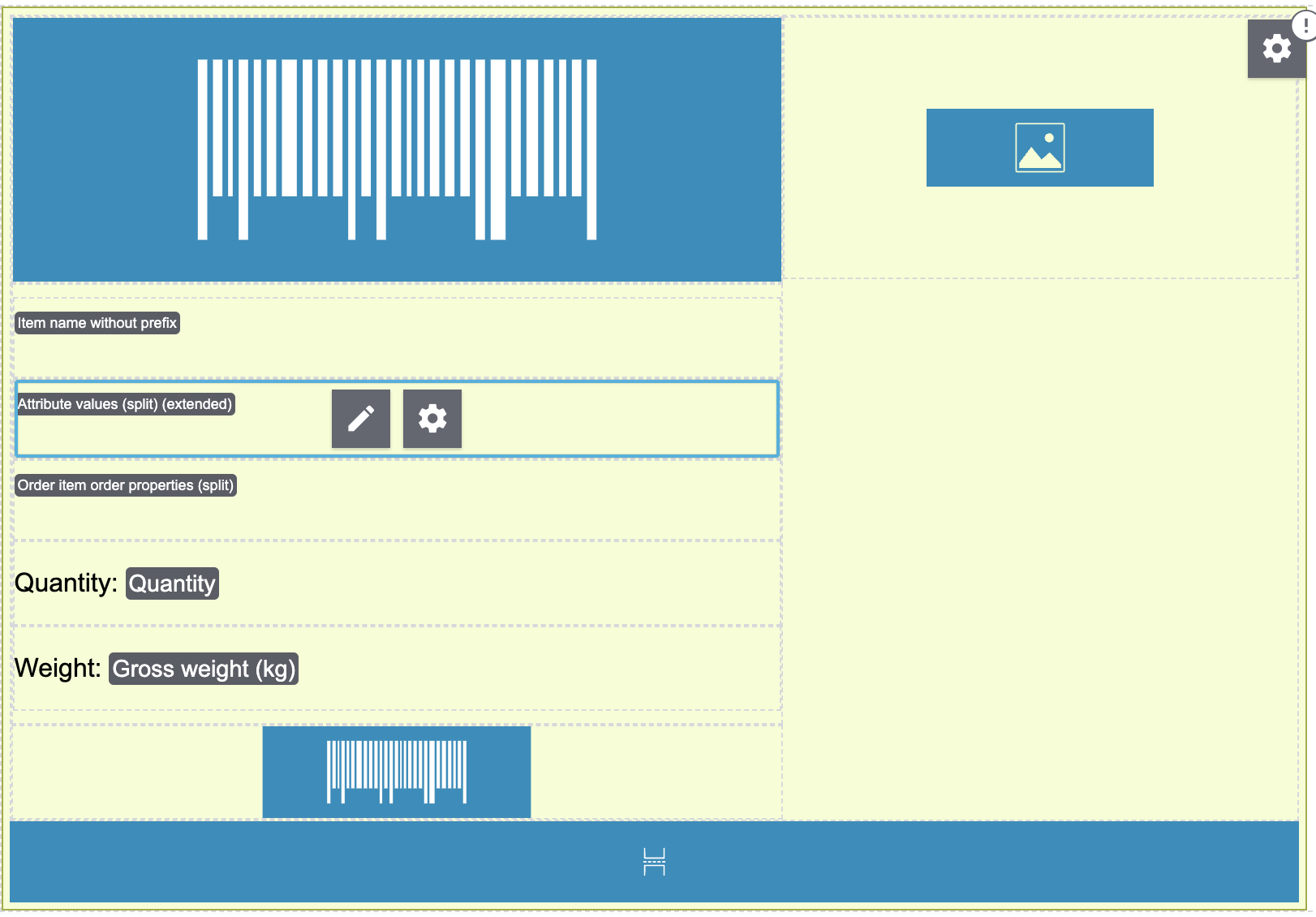
The order item label is like a note tag and usually contains names of the order item as well as barcode.
1. Setting up document templates in DocumentBuilder
We recommend that you set up document templates in DocumentBuilder (menu: Setup » Documents » DocumentBuilder).
For more information on how to use DocumentBuilder, refer to the manual page DocumentBuilder.
Use the repeatable container Order items (repeated) when creating order item labels. It is sufficient to fill out the widget once. When creating order item labels the widget is used for every order item.
|
One order item label per page
If you want to print one label per page, you have to add a page break. You find the page break widget in the editor under Structure. |
Do you have questions about the variables? All variables are described on the page Using variables.
You decide if you print a label for every order item or a label for every quantity of the order item. In other words: if order item 1 has three units and order item 2 has one unit, you can decide to either print one label per order item (so 2 in this case) or for each unit (or 4).
Proceed as follows to create order item labels for single quantities:
-
Go to Setup » Documents » DocumentBuilder.
-
Open the order item label template.
-
Click Open Editor (edit).
Note: The template has to be deactivated to open the editor.
→ The editor opens. -
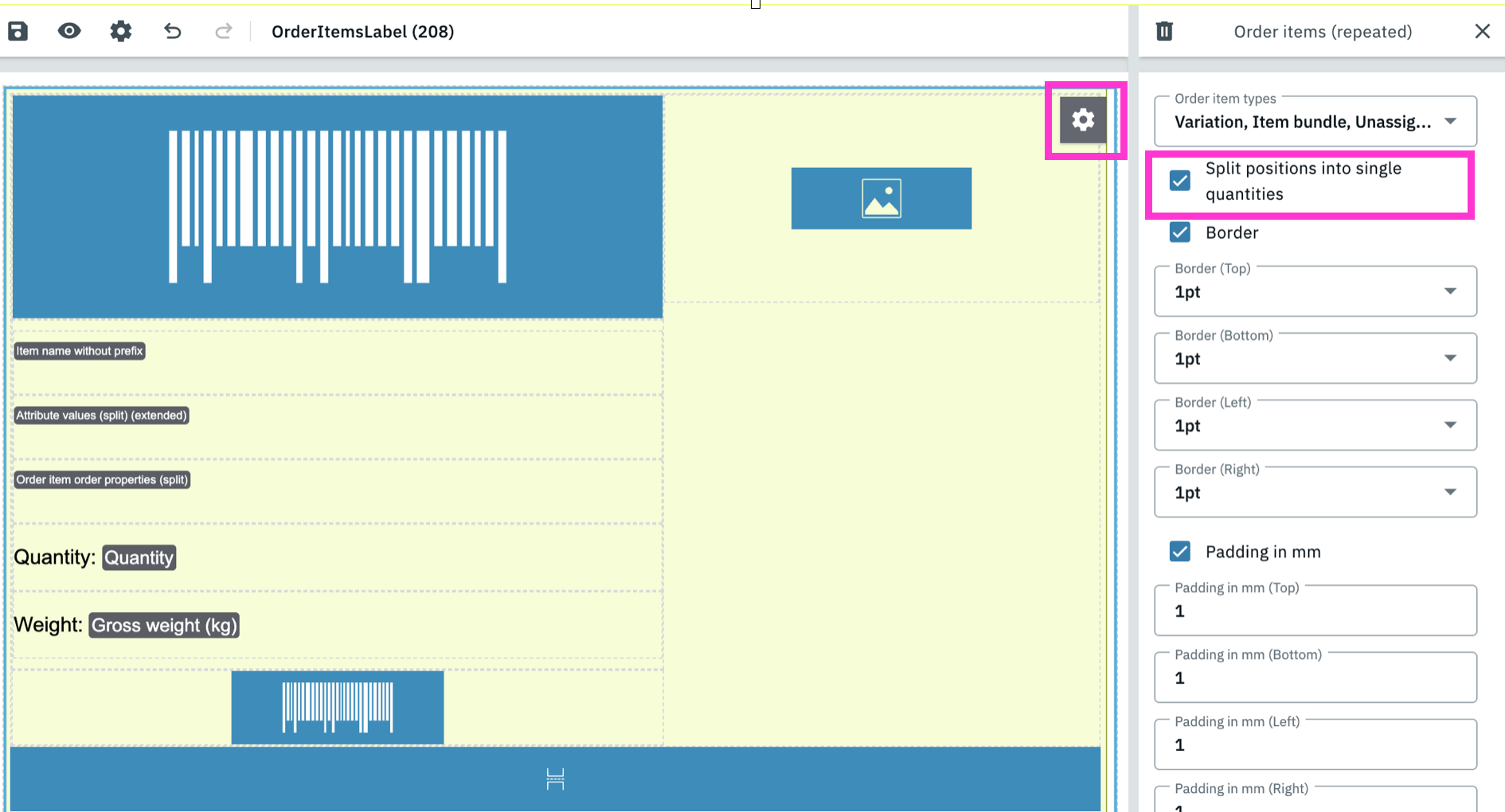
Click on the settings of the Order items (repeated) container Container (settings).
→ The settings open on the right. -
Check check) the setting Split positions into single quantities.
-
Save (save) the settings.
2. Generating order item labels
Order item labels are generated in the respective order or via group function in the Order menu.
Proceed as follows to create labels in the order:
-
Open the order.
-
In the Documents section, click on add Create document.
→ A drop-down list opens. -
Select Order item label from the drop-down list.
The Create document: Order item label window opens. -
Select a date under Date.
-
Select an active template for the label in the Document template to be used field.
-
Click add Create.
Proceed as follows to create labels via group function:
-
Go to Orders » Orders.
-
Select all orders you want to create order item labels for.
-
Click Create document (add) under the three dot menu.
→ The Create document menu opens. -
Select Order item label in the document type field.
-
Select a date.
-
Select a sorting.
-
Click add Create.