Netto Marken-Discount and Marktkauf
Netto Marken-Discount features the largest catalogue of discount groceries in Germany with around 5,000 items and focuses on offering locally produced, environmentally friendly produce in 4,400 stores across the country. In addition, Netto Marken-Discount also offers an online marketplace with a broad offering of products.
Marktkauf is a discount supermarket chain with 112 stores across Germany. In addition to groceries it also offers a selection of nonfood items such as home and garden products or medical supplies. Marktkauf is also available as an online marketplace.
Both Netto and Marktkauf are part of the Edeka Group, which is why they can be set up using similar processes. On this page you can learn how to set up either or both of these marketplaces in PlentyONE.
|
Now available: The Channel Control Centre
The Channel Control Centre is a centralised solution for managing all of your sales channels in a single location in your system. It is recommended that you set up this sales channel there instead by following this setup guide. If you already set up this sales channel using the method described on this page, then you now have the option to move it to the CCC directly. |
|
Netto eStores
For simplicity’s sake this manual page uses the term Netto eStores to refer to both Netto Marken-Discount and Marktkauf. Unless additional instructions for Marktkauf are included any explanations on this page that use this term are relevant to both marketplaces. |
1. Registering with Netto eStores
In order to be able to offer your items on Netto eStores you first need to be approved as a seller on the respective marketplace.
You can apply to become a seller on both Netto Marken-Discount and Marktkauf here. (Currently only available in German.)
If you want to exclusively offer your products on Marktkauf you can apply to become a seller there directly here. (Currently only available in German.)
2. Frequency of data exchange
After you have set up Netto eStores in PlentyONE, the automatic processes described in Table 1 become available.
| Data | Interval |
|---|---|
Item and price export |
once a day during the night |
Stock synchronisation |
hourly |
Order import |
hourly |
3. Setting up the sales channel in PlentyONE
To sell products on Netto eStores, start by carrying out the basic settings in PlentyONE.
Carrying out the basic settings for Netto eStores in PlentyONE:
-
Go to Setup » Markets » Netto eStores.
→ The tab Settings opens. -
Carry out the settings. Pay attention to the explanations given in Table 2.
-
Save () the settings.
| Setting | Explanation | ||||
|---|---|---|---|---|---|
Activate the automatic data exchange |
Select Yes to activate the automatic data exchange or No to deactivate the data exchange. |
||||
Activate test mode |
Do you want to exchange test data or real data with Netto eStores when the option Activate the automatic data exchange is active? Recommendation: Only activate this option if Netto or Marktkauf specifically asked you to activate the test mode.
|
||||
Activate item export |
Select whether and via which method items are exported to Netto eStores:
|
||||
Activate stock update |
Select whether and via which method stock data should be synchronised with Netto eStores:
|
||||
Sales partner information |
|||||
Supplier number |
Enter the supplier number that you received from Netto eStores. |
||||
Item settings |
|||||
|
|||||
Item name |
Select the item name that is transferred to Netto eStores. |
||||
Variation name |
Select the variation name that is transferred to Netto eStores.
|
||||
Short item description |
Select the short item description that is transferred to Netto eStores. |
||||
Item description |
Select the item description that is transferred to Netto eStores. |
||||
Image position for energy label |
Enter the image’s position number if the energy label was not uploaded to the energy label characteristic but saved as an item image instead. For further information about the energy label, refer to the Creating energy efficiency characteristics chapter. |
||||
Quantity for items that are not limited to the stock |
For items with the setting no limitation, the maximum amount of the real stock and the quantity defined here is transferred. |
||||
Quantity for items not limited to stock, if stock is 0 |
Enter a number that you would like to transfer as the stock quantity for items that are not limited to stock, if the stock is 0. |
||||
Standard delivery time |
Enter the average delivery time in days. |
||||
Item delivery time 1 - 10 |
Enter the average delivery time in days for the item availabilities 1-10. |
||||
Standard commission in percent |
Enter the commission value that you agreed on with Netto eStores. |
||||
Default shipping costs |
Enter the shipping costs in Euro. The value entered is used as default shipping costs for all items. |
||||
Price for purchase price/sales price model |
Select a price for the purchase price/sales price model. You can select all prices that are released for Plus.de. If the selected price is saved for all variations of an item, then the price is exported as purchase price for Netto eStores. Otherwise, the commission rate that is saved for the Standard commission in percent setting is exported. |
||||
Order settings |
|||||
|
|||||
Minimum order quantity |
Enter a number of items if you want to define a minimum order quantity. |
||||
Maximum order quantity |
Enter a number of items if you want to define a maximum order quantity. |
||||
Item names in order items |
Select whether the item name in the order items should be taken from Netto eStores or from your plentyShop. |
||||
Mapping for shipping service providers |
Map your shipping service providers in PlentyONE to the shipping service providers from Netto eStores. Your PlentyONE shipping service providers are listed as options on the left-hand side. For each PlentyONE shipping service provider, select a Netto eStores shipping service provider from the drop-down list. |
||||
SFTP settings |
|||||
User name |
Enter the user name that you received from Netto eStores. |
||||
3.1. Activating the order referrer
Go to Setup » Orders » Order referrer to activate the order referrer. This ensures that orders are assigned to the correct sales channel.
An order referrer tags an order with the sales channel on which the order was generated. Sales channels can be e.g. your online shop or markets on which you sell your items. Each sales channel has an individual order referrer. Some order referrers are available by default in your PlentyONE system. Further order referrers are added e.g. if you install a new plugin. For further information about the order referrer, see the page Order referrer of the PlentyONE manual.
Activating the order referrer for Netto Marken-Discount:
-
Go to Setup » Orders » Order referrer.
-
Click Search (search).
-
In the list, navigate to the option Netto with the ID 154.00.
-
On the right of the referrer’s line, click Edit (edit).
→ The window Edit referrer opens. -
Activate the option Visible in selection (toggle_on).
-
Click SAVE (save).
→ The referrer is active.
Tip: If you also want to offer your items on the market Marktkauf, then the referrer Marktkauf with the ID 171.00 must also be active.
Note: The referrer 171.00 for Marktkauf is activated automatically when you activate the referrer for Netto.
3.2. Defining a sales price
Proceed as described below to select a sales price for the order referrer Netto.
Note: It is currently not possible to use different sales prices for Netto and Marktkauf. The sales price for Netto will be transferred to Marktkauf even if you activate the referrer Marktkauf for a sales price.
Defining a sales price for Netto:
-
Go to Setup » Item » Sales price » [Open sales price] » Area: Referrers.
-
Activate the referrer Netto.
-
Save () the settings.
3.3. Activating the referrer in shipping profiles
Now activate Netto Marken-Discount in the shipping profiles that you want to offer for this market.
Activating referrer Netto in the shipping profile:
-
Go to Setup » Orders » Shipping » Settings.
-
Click on the Shipping profiles tab.
-
Click on the shipping profile.
Tip: No shipping profiles? Learn how to create shipping profiles here. -
For the setting Order referrer, activate the option Netto.
-
Save () the settings.
→ The shipping profile is available for orders with the referrer Netto. -
If desired, activate the referrer in additional shipping profiles.
→ Tip: If you also want to offer your items on the market Marktkauf, then also activate the order referrer Marktkauf in the shipping profiles that you want to use for Marktkauf.
3.4. Permitting the payment method in a customer class
The payment method Netto is automatically available in your PlentyONE system as soon as an active Netto Marken-Discount account exists. No separate configurations are needed for this. You just need to permit the payment method in one or more customer classes.
Customer classes allow you to divide your customer base according to specific criteria. Examples of use for customer classes are:
-
Create two separate customer classes for end customers (B2C) and business customers (B2B) respectively. Depending on the customer class, customers either see net prices or gross prices in your plentyShop.
-
Give discounts to specific customer classes.
For more information about customer classes, head over to the to the Managing contacts page.
Permitting the payment method in a customer class:
-
Go to Setup » CRM » Customer classes.
-
Open the customer class for which you want to permit the payment method.
-
For the setting Allowed payment methods, activate the option Netto.
Tip: If you also want to offer your items on the market Marktkauf, then repeat the settings and select the option Marktkauf. -
Save () the settings.
4. Preparing variations
4.1. Preparing variations
Check Netto’s product checklist prior to listing items on Netto. This list is provided by Netto eStores and refers to Netto’s product data terminology.
You can download the checklist as PDF file here: Checkliste Produktpflege (Currently only available in German.)
4.2. Activating variations for the market
You need to activate the variations you want to sell on Netto and enable them for the relevant sales channel. This is done in the Items & Stock » All items » [Open variation] menu.
Making a variation available for Netto:
-
Go to Items & Stock » All items » [Open variation].
Tip: To sell all variations of an item on Netto, carry out the settings for the item’s main variation. If the inheritance function is active for the variations, then this activates the availability of all variations of the item. -
In the Availability and visibility section, enable the option Active (toggle_on).
-
Click the Sales channels tab.
-
In the Sales channels section, activate the sales channel Netto in the Status column (toggle_on).
Tip: You can activate multiple sales channels at once. To do so, activate the checkboxes to the left of the desired sales channels. Then activate the toggle above the checkbox column (toggle_on). Click ACTIVATE to confirm the activation. -
Activate WEB-API.
Tip: If you also want to sell your items on Marktkauf, also activate the sales channel Marktkauf. -
Save (save) the settings.
→ The variation is available for Netto.
Use the variation group function to edit multiple variations at once. You select the variations that you want to edit.
Making several variations available for Netto using the variation group function:
-
Go to Items & Stock » All items.
-
Select () the variations to be edited.
-
In the toolbar, click on layers » layers Variation group function.
→ The Variation group function window opens. -
Select the action Sales channels from the drop-down list Actions.
→ The action is added to the lower part of the window. -
Select (check_box) the option Netto from the drop-down list Sales channels.
→ The sales channel is added below the drop-down list Sales channels. -
Select (check_box) WEB-API.
Tip: If you also want to sell your items on Marktkauf, also activate the sales channel Marktkauf. -
Activate (toggle_on) the toggles to the left of the sales channels.
-
Click EXECUTE & CLOSE to apply the settings.
Batch processing allows you to edit several variations at once. You use filters to limit which variations are edited.
Making several variations available for Netto using batch processing:
-
Navigate to the area Market availability.
-
Activate the checkbox to the left of the option Netto.
-
Activate the checkbox to the right of the option Netto.
-
Activate the checkbox to the left of the option Web API.
-
Activate the checkbox to the right of the option Web API.
Tip: If you also want to offer your items on the market Marktkauf, then also activate the checkboxes right and left of the option Marktkauf. -
Navigate to the area Availability.
-
Activate the checkbox to the left of the option Active.
-
Activate the checkbox to the right of the option Active.
-
Click on Apply to apply the settings to the variations.
4.3. Optional: Saving SKU
SKU are generated automatically when your variations are exported. However, you can also save market specific SKU for variations that you want to sell on this market instead.
-
Go to Items & Stock » All items » [Open variation].
→ The General tab opens. -
Switch to the Sales channels tab.
-
Expand the section SKU (chevron_right).
-
Click Add SKU (add).
→ The Add SKU window opens. -
Select the referrer Netto from the drop-down list.
Tip: The referrer Plus.de also covers the market Netto Marken-Discount when you add SKUs.
Note: If you want to export the SKUs to Marktkauf, then select the referrer Marktkauf instead. -
Select the corresponding Account.
-
Click Apply.
-
Enter the SKU.
-
Enter the Parent SKU, if necessary.
-
Click Save (save).
| Only the most important settings for the import are described here. Is this your first time working with the import tool? Then get familiar with how data imports work in PlentyONE first. |
| Column in CSV file | Explanation | PlentyONE data field for mapping |
|---|---|---|
Variation ID |
Enter the variation ID in this column. |
Variation ID |
Marketplace ID |
Enter the referrer ID 154 in this column. |
SKU > Marketplace ID |
Account ID |
This market does not require a marketplace account. As such, enter the number 0 in this column. |
SKU > Account-ID |
SKU |
Enter the SKU that you want to save for the variation for this market in this column. |
SKU > SKU |
4.4. Activating the Show unit price-option
You need to specify if the variation has a unit price. Go to Items & Stock » All items » [Open variation] » Tab: Product details » Section: Content / Dimensions and activate the Show unit price toggle to indicate that a variation needs to have a unit price. If you do not activate the Show unit price option, then nein (no) is transferred. This indicates that the variation does not need an obligatory unit price.
Activating the Show unit price-option for a variation:
-
Go to Items & Stock » All items » [Open variation] » Tab: product details » Section: Content / Dimensions.
-
Activate the toggle Show unit price.
-
Save () the settings.
→ The filter attribute Mandatory unit price is set to yes in the export.
5. Exporting item data
5.1. Catalogue export
Item data is exported to Netto eStores using catalogues.
Catalogues are used to export data from your PlentyONE system. There are two different catalogue formats:
-
Marketplace formats are used to export item data to markets.
-
Standard formats are used to export data from your PlentyONE system into a file.
Catalogues with marketplace formats allow you to tailor your item information exactly to the needs of the market. Because here, you assign a suitable PlentyONE data field to each of the data fields of the market. When your variation data is exported to the market, the market’s data fields are then filled with the correct PlentyONE data.
-
Is this your first time working with catalogues? Then read up on the basic concept of catalogues first.
5.1.1. Creating a catalogue
Item data is exported to Netto eStores using a marketplace format. To export your items to Netto eStores, create a catalogue in the Data & Plugins » Catalogues menu. Link the Netto eStores data fields with item data saved in PlentyONE in the marketplace format afterwards. After you activate the catalogue, the catalogue data is automatically exported to Netto eStores in regular intervals.
Creating a catalogue:
-
Go to Data & Plugins » Catalogues.
-
Click Create catalogue (add).
-
Enter a name for the catalogue.
-
In the drop-down list Marketplace, select the option Netto / Marktkauf.
-
In the drop-down list Export type, select the option Item (new).
-
In the drop-down list Category, select the option Product export.
Tip: You can only create one catalogue for this sales channel, which is why only one category is selectable. -
Save () the settings.
→ The catalogue is created.
→ The catalogue is opened for editing.
Other catalogue settings
Other catalogue settings are optional. Once you carried out the settings described on this page, your catalogue is automatically exported to Netto / Marktkauf. That means you can ignore the catalogue settings for Format settings, Export settings and Download settings.
The Format settings, Export settings, and Download settings allow you to create a file with the variation data contained in the catalogue. However, this file does not contain information about whether the data export to Netto / Marktkauf was successful.
|
Do not change the format in the catalogue’s Format settings. To ensure that the export to the sales channel works, all required settings are already configured when you create a catalogue. If you change the settings, errors might occur during the export. |
5.1.2. Mapping data fields in the catalogue
After you have created a catalogue, map the market’s data fields to item data saved in PlentyONE. This chapter describes how you map data fields and what particularities apply for item exports to Netto eStores.
-
The market expects product data that cannot be saved in the PlentyONE item menu? Then create a property for this data. Link this property with your variations. The actual values are saved as property values for this property. Is this your first time working with properties? Then read up on the principles of properties first.
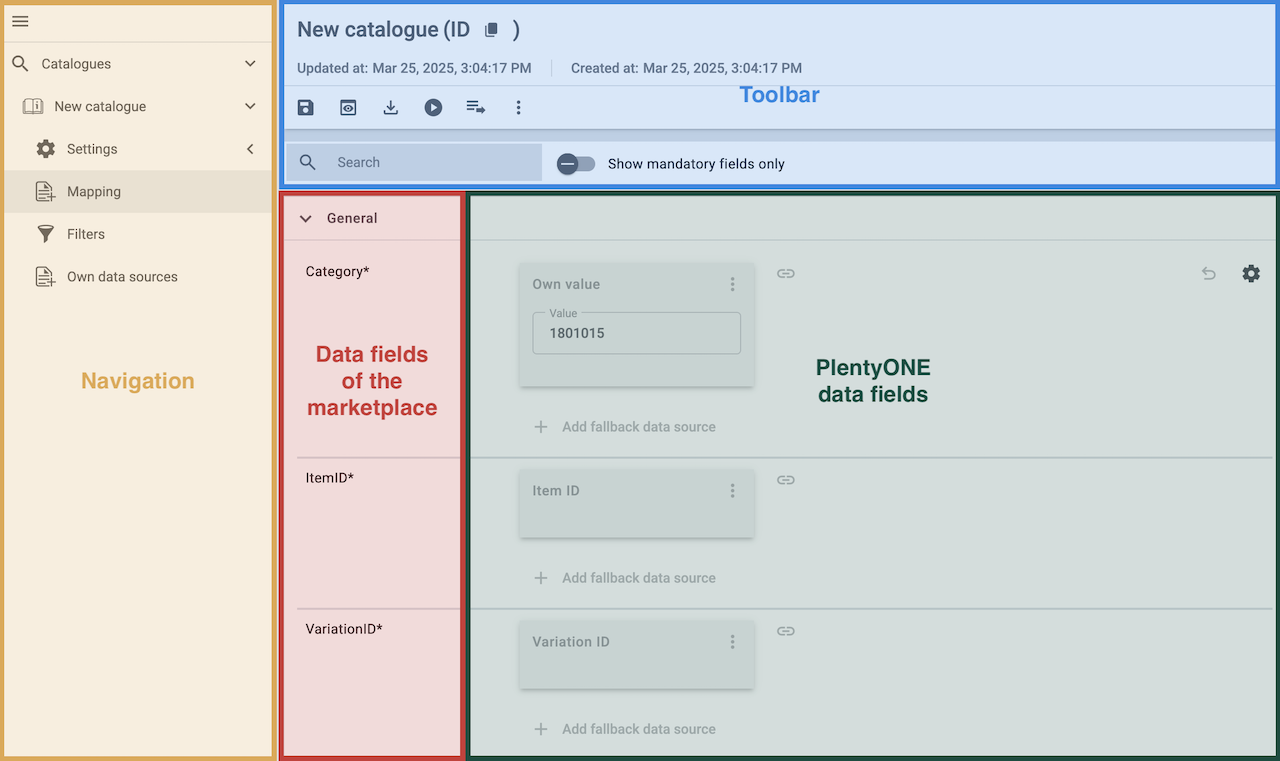
| Availability | Explanation |
|---|---|
Navigation |
When you open a catalogue, the view Mapping is shown. On the very left is the navigation.
|
Toolbar |
The toolbar provides actions for the catalogue. For example, save your mappings, restore an older version of the catalogue or hide or show optional marketplace data fields. |
Live preview |
You can use the Live preview feature to display which values of a given variation would be exported to the marketplace by each mapping. Simply activate the toggle and enter the ID of the variation you want to use in order to show live previews for that variation. |
Marketplace data field |
To the right of the navigation, all data fields available for the market are listed. Mandatory fields are marked with an asterisk (✱). |
PlentyONE data sources |
On the right side of the catalogue, you map the marketplace data fields to appropriate PlentyONE data sources. In the screenshot above, a few of the fields are already mapped. |
Mapping catalogue fields:
-
Go to Data & Plugins » Catalogues.
-
Click on the catalogue.
→ The Mapping tab opens.
→ In the left-hand column, the market’s data fields are listed.
Tip: Mandatory fields are flagged with an asterisk (*).
→ In the right-hand column, you can map your PlentyONE data sources. Any PlentyONE data sources that you already mapped are also shown in this column. -
Map suitable PlentyONE data sources to the market data fields.
For each marketplace data field, you have a number of mapping options. Expand the info boxes below to get more information about each of these mapping options.-
Simple 1:1 mapping
-
Simple 1:1 mapping with properties
-
Complex 1:1 mapping
-
1:1 mapping with fallback data sources
-
1:n mapping
-
Own value mapping
-
Mapping with mathematical calculations
-
Mapping own data fields
-
-
Save () the catalogue.
→ The mappings are saved.
In a simple 1:1 mapping, you map a PlentyONE data source to the marketplace data field. If no suitable setting exists in PlentyONE, you can map a property instead.
As such, simple 1:1 mappings are useful if you want to achieve the following:
-
I want to fill this marketplace data field with the data from this PlentyONE setting.
-
If the data field is empty for a variation, no value is exported for this variation.
Creating a simple 1:1 mapping:
-
Next to the marketplace data field, click on + Add data source.
→ To the left, the list of available PlentyONE data sources are shown in groups. -
Select a PlentyONE data source in the list.
→ The data source is added to the right, but not yet confirmed or saved. -
Click on Confirm.
In a simple 1:1 mapping, you map a PlentyONE data source to the marketplace data field. But PlentyONE does not always offer a suitable data source. In such cases you can create the data source in your system yourself by setting up a property. Properties allow you to save any kind of information in your properties.
-
Is this your first time working with properties? Then read up on the principles of properties first.
Creating a simple 1:1 mapping with properties:
-
Next to the marketplace data field, click on + Add data source.
→ To the left, the list of available PlentyONE data sources are shown in groups. -
Expand the group Property.
→ The property groups are shown. -
Expand the group you need.
-
Click on the Plus sign on the right of the property you want. → The property is added as a data source, but not yet confirmed or saved.
-
From the drop-down list Language, select the language in which you send the data to the market.
-
Click on Confirm.
→ The property is mapped to the marketplace data field.
Complex mappings are necessary whenever a marketplace data field only has a select number of possible values. Like the name implies, they cannot be resolved by simply mapping the whole data field to one of your PlentyONE data sources. Instead, you map the individual values that can be entered in the data field to PlentyONE data sources.
For example, a marketplace may only allow for the color of an item to be described using a limited selection of terms such as "Blue", while the variations saved in your system may use more distinct terms such as "Sky blue" or "Royal blue". In such cases the marketplace data field for item colors will be a complex mapping that allows you to map the colors "Sky blue" and "Royal blue" saved in your variations to the value "Blue" used by the marketplace.
| Do not enter own values for complex mappings. All values that you enter must be saved for the variations, either in a setting or as a property value. This also applies if the value Comparative value is shown. You still need to enter exactly the value of the setting or property that you mapped. |
A complex mapping will always export the value selected for the marketplace data field, regardless of what kind of data source you mapped it to. The only exception are own values, which will be exported as-is.
You can recognise complex mappings from the field that is shown below the name of the marketplace data field. Click on the field to show the values available for the marketplace data field.

Examples for complex 1:1 mappings are:
-
Categories
-
Brands
-
Shipping settings
Important: For complex mappings, do not map own values or properties of the type None.
Creating a complex 1:1:n mapping:
-
Click on the field for the marketplace data field.
→ A list of the available values is shown. -
Select the value that you want to map a PlentyONE data source to.
→ The value is added as a mappable field. -
Next to the added field, click on + Add data source.
→ To the left, the available PlentyONE data sources are listed in groups. -
Select the PlentyONE data source you want to map tho the marketplace value.
Important: Do not map own values or properties of the type None. -
Your next steps depend on the PlentyONE data source you selected:
-
Alternative 1: The available values for the PlentyONE data value are shown on the left.
-
Next to the value you want to select, click on the plus.
→ The value is added to the field on the right. -
Click on Confirm.
-
-
Alternative 2: The PlentyONE data source is inserted and the field Comparative value is shown.
-
In the field Comparative value, enter a value that is saved in the setting or the property of the mapped PlentyONE data source.
-
Click on Confirm.
-
-
Alternative 3: The PlentyONE data source is inserted and a drop-down list is shown.
-
Select a value from the drop-down list.
-
Click on Confirm.
→ The value of the marketplace data field is exported, not the value of the PlentyONE data source.
Exception: If you map an own value to a marketplace data field, the own value that you enter is exported directly.
-
-
You can use fallback data sources in a 1:1 mapping to ensure that a value is provided for a marketplace data field even when the preferred data source is missing or empty.
In other words, this mapping specifies:
-
I want to fill the marketplace data field with the data from the selected primary PlentyONE data source.
-
If that data source is missing or empty for a variation, then the first fallback data source for this field is checked. If this fallback data source contains usable data, then that data is used to fill the marketplace data field.
-
If the first fallback data source is also missing or empty and other fallback data sources are mapped to this data field, then this process is repeated for the other fallback data sources in sequence until either usable data is found or all fallback data sources have been checked.
Two separate fallback conditions are available:
Null (default) |
The fallback data source is used if the data field above is mapped in the catalogue but not linked to the variation. The condition "Null" is useful when you want to map fallback data sources for the following types of PlentyONE data sources:
|
Empty |
The fallback data source is used if the data field above is mapped in the catalogue and linked to the variation, but is empty. The condition "Empty" is useful when you want to map fallback data sources for the following type of PlentyONE data sources:
Important: When you add a fallback data source, the fallback condition "Null" is selected automatically. To apply the fallback condition "Empty", you need to change the default setting. |
Note: If you assign multiple fallback data sources to a single data field, the value of only one of those fallback data sources is exported, i.e. the first mapped fallback data source that provides a usable value.
Creating a 1:1 mapping with fallback data sources:
-
Next to the marketplace data field, click on + Add data source.
→ To the left, the list of available PlentyONE data sources are shown in groups. -
Click on the plus to the right of the PlentyONE data source you want to use as the primary data source.
→ The PlentyONE data source is added to the right. -
Click on + Add fallback data source below the primary data source.
→ The fallback data source is added with the fallback condition Null. -
(Optional) If you want to use the fallback condition Empty instead:
-
Hover over the fallback data source with your cursor and click on the Settings () option that appears to the right.
→ The window Data column settings is shown. -
For the setting Fallback condition, select the option Empty.
-
Click on Save.
→ The fallback data source’s fallback condition is changed to Empty.
-
-
Click on Confirm.
→ The fallback data source is exported if the fallback condition is fulfilled.
In a 1:n mapping, you map several PlentyONE data sources to the same marketplace data field. Unlike fallback data sources, these data sources are combined using a specified separator and used as a single value.
In other words, this mapping specifies:
-
I want to combine these PlentyONE data sources during export so that the marketplace data field is filled with the data of these two or more PlentyONE settings.
Creating a 1:n mapping:
-
Next to the marketplace data field, click on + Add data source.
→ To the left, the list of available PlentyONE data sources are shown in groups. -
Click on the plus to the right of the PlentyONE data source you want to select.
→ The PlentyONE data source is added to the right. -
Click on Confirm.
-
To the right of the mapped PlentyONE data source, click on Add data source ().
→ To the left, the list of available PlentyONE data sources again are shown in groups. -
Map the desired number of additional PlentyONE data sources to the marketplace data field as described above.
-
Click on Confirm.
-
To the very right of the row, click on Settings ().
-
Select a separator from the drop-down list Separator or add a custom separator.
-
Click on Save.
-
Save () the catalogue.
→ The mappings are saved.
→ During the export, the content of the PlentyONE data sources is combined and exported as one field.
If you want to export the exact same value for all of your variations to a particular marketplace data field, then you can map this value to the data field using the Own value data source.
This kind of mapping specifies:
-
For this marketplace data field, I want to export the value that I entered in the data source Own value for all variations of this catalogue.
Creating an own value mapping:
-
Next to the marketplace data field, click on + Add data source.
→ To the left, the list of available PlentyONE data sources are shown in groups. -
Select the Own value option at the top of the list.
→ The data source Own value is mapped to the data field. -
Enter a value into the input field in the Own value.
-
Click on Confirm.
→ The entered value is exported for all variations.
|
Be especially careful when using Own value mappings!
The value you enter in an Own value mapping is always exported for every variation tied to the catalogue. The value also overwrites the market value in complex mappings where usually the value of the market would be exported. As such, only use an Own value mapping for a marketplace data field when you are certain that the value you entered will be accepted for that data field by the marketplace for all of your variations in order to ensure that your variations are exported to the marketplace successfully. |
Mathematical formulas allow you to change numerical values automatically during the export. In other words, this mapping specifies:
-
I want the numerical value of a PlentyONE data source to be recalculated during the export. Basic arithmetic operations are available for the formulas.
Recalculating numerical values:
-
Next to the marketplace data field, click on + Add data source.
→ To the left, the list of available PlentyONE data sources are shown in groups. -
At the very top of the list, click on the + icon next to Formula (calculate).
→ The data field Formula is added to the field on the right. -
Click into the data field.
→ The window Modify value is shown. -
Enter a numerical value or select a PlentyONE data source at the bottom right of the window to add it to the calculation (add).
Tip: Use the search function. This helps you to find data fields quickly. -
Optional: If the symbol more_vert is shown in the data field, select the correct assignment for the data field.
Tip: A number tells you how many assignments are necessary for the data field.-
Click on the icon more_vert.
-
In the window shown, select the assignments from the drop-down list.
-
Save the settings.
-
-
Enter numbers and mathematical operators with the on-screen calculator or the keyboard.
-
Save the settings.
→ The entered formula is displayed in the overview.
→ When an export is carried out, the formula is used to calculate the value that is exported for each variation.
Keep in mind that this mapping type only works with PlentyONE data sources that provide numerical values and for marketplace data fields that accept numerical values. Additionally, this mapping type is relatively new and not available for all catalogue formats yet.
You want to export item data that does not have a designated data field in the market’s catalogue? Then you have the possibility to create own data fields and assign them to item data saved in PlentyONE.
Note: Own data fields are not automatically transferred to the market. During the export, the market itself decides whether the data field should be included in the product catalogue.
Creating an own data field:
-
In the navigation, click on Own data fields ().
→ To the left, the list of available PlentyONE data sources are shown in groups. -
Click on the PlentyONE data source that you want to assign.
→ Tip: It is possible to assign more than one data field. The data fields assigned here will then be combined during the export. -
Enter a name for the own data field into the Export key field.
→ The data field will be exported to the market with this name. -
Optional: Enter a value for Comparative value.
→ Comparative values can be entered for most, but not for all PlentyONE data sources. Comparative values are only required in specific cases. However, in most cases, you can leave the field empty.
Example: If you map a property Brand, you could for example enter the brand name as Comparative value. -
*Optional: Select a fallback data sources, if desired.
→ The fallback data sources is exported when the first data field does not exist or is empty. -
Save () the settings after you have created your own data fields.
5.1.3. Recommendations for data field mappings
To help you with mapping your data fields for the catalogue, we have created a list of recommended data field mappings. Note that these mappings are recommendations only. Depending on how you manage your item data, other mappings may be more appropriate than the recommendations given here.
-
Need more information about the PlentyONE data fields? All data fields are described on the manual page for the standard format Item (new).
| Marketplace data field | Mandatory? | Recommended PlentyONE mapping |
|---|---|---|
Variation |
||
SKU |
yes |
Already mapped by default |
SKU base |
yes |
Already mapped by default |
Parent SKU |
yes |
Already mapped by default |
Parent SKU base |
yes |
Already mapped by default |
Product name |
yes |
or
or
or
|
Short description |
no |
or
|
Description |
yes |
or
|
Variation name |
yes |
|
Minimum order quantity |
yes |
|
Quantity steps |
yes |
or
|
Maximum order quantity |
|
|
RRP |
|
|
Purchase price |
|
|
Shipping |
|
|
Packages |
|
|
Length |
|
|
Width |
|
|
Height |
|
|
Manufacturer |
yes |
|
Manufacturer ID |
|
|
Manufacturer product ID |
Variation » External variation ID |
|
EAN |
yes |
|
Images URL list |
yes |
|
Energy label URL |
|
|
Product data sheet URL |
|
|
Stock |
yes |
|
Item ID |
yes |
|
Variation ID |
yes |
|
The street name of the manufacturer’s EU-responsible person. |
no |
|
The house number of the manufacturer’s EU-responsible person. |
no |
|
The postcode of the manufacturer’s EU-responsible person. |
no |
|
The town of the manufacturer’s EU-responsible person. |
no |
|
The country of the manufacturer’s EU-responsible person. |
no |
|
The name of the EU-responsible person of the manufacturer. |
no |
|
The email address of the manufacturer’s EU-responsible person. |
no |
|
The telephone number of the manufacturer’s EU-responsible person. |
no |
|
Minimum charging power |
no |
The required minimum power in watts. You don’t need to enter the measurement unit.
|
Maximum charging power |
no |
The required power for maximum charging speed in watts. You don’t need to enter the measurement unit.
|
NETTO |
||
Price |
yes |
|
Commission (%) |
yes |
or
|
Delivery time |
yes |
|
Unit price: sales price (EUR) |
yes |
|
Unit price: unit |
yes |
|
Unit price: quantity |
yes |
|
Old price |
|
|
Marktkauf |
||
Price |
yes |
|
Commission (%) |
yes |
or
|
Delivery time |
yes |
|
Unit price: sales price (EUR) |
yes |
|
Unit price: unit |
yes |
|
Unit price: quantity |
yes |
|
Old price |
|
|
Netto-Kategorien |
||
Netto-Kategorien |
yes |
|
Marktkauf-Kategorien |
||
Marktkauf-Kategorien |
yes |
|
Tax class |
||
Tax class |
yes |
|
Mandatory unit price |
||
Mandatory unit price |
no |
|
Connector |
no |
|
radioEquipmentActObligation |
||
radioEquipmentActObligation |
no |
Allowed values: |
chargingAdapterAccordingToRadioEquipmentAct |
||
chargingAdapterAccordingToRadioEquipmentAct |
no |
Allowed values: |
chargingFunctionPowerDelivery |
||
chargingFunctionPowerDelivery |
no |
Allowed values: |
5.1.4. Providing information on manufacturer and EU-responsible person (GPSR)
The General Product Safety Regulation of the EU (GPSR) requires manufacturers and sellers to ensure the product safety of certain goods and to provide certain information for this purpose. This information includes details about the manufacturer and, in the case of manufacturers without an establishment in the EU, details about the responsible person within the EU. The GPSR regulation ensures that products are safe and comply with consumer protection requirements before being placed on the market.
In this chapter, you will learn how to add information on the manufacturer and the responsible person within the EU in PlentyONE to comply with the GPSR regulation.
If you export your items to Netto eStores via catalogues, you can add the information on the manufacturer and the EU-responsible person directly via the data field mappings.
5.1.5. Providing information and images for chargers for electrical appliances with radio frequency (FuAG)
On 23rd November2022 the EU directive 2022/2380 on the harmonisation of charger interfaces of radio equipment was passed.
This directive was realized in German law on the 6thMay 2024 by changing the Funkanlagengesetz (FuAG). The new FuAG is in effect since the 28thDecember 2024 and contains new labeling requirements for electrical appliances with radio frequency and chargers, such as:
-
Mobile phones
-
Tablets
-
Digital cameras (all digital cameras except: security cameras and digital cameras that are exclusively used in the audiovisual sector)
-
Headphones
-
Headsets
-
Handheld gaming consoles
-
Portable speakers
-
E-readers
-
Keyboards
-
Mice
-
Portable navigation systems
-
Earbuds
-
Laptops
The following information has to be indicated in the product details for the mentioned electrical appliances that are put into circulation from28th December 2024(for laptops starting 28th April 2026) on:
-
Pictogram for charger included in the scope delivery:
-
The pictogram indicates if a charger is included (charger plug is not crossed out) or not (charger plug is crossed out).
-
The mandatory pictogram is described and displayed in Appendix I Part 3 of the directive 2022/2380
-
-
Label about charging properties of compatible chargers:
-
The label offers all necessary charging properties of the charger that are compatible with the electrical appliance.
-
The mandatory label is described and displayed in Appendix I Part 4 of the directive 2022/2380
-
Note: The labelling requirement applies to the B2B and B2C section.
In this chapter you learn how to provide the mandatory information and images for chargers to comply with the FuAG requirements.
If you export your items to Netto eStores via catalogues, you can add the information on chargers directly via the data field mappings. Netto eStores automatically generate the required images from your details in the following data fields and provide them on the product detail page:
-
Minimum charging power
-
Maximum charging power
-
radioEquipmentActObligation
-
chargingAdapterAccordingToRadioEquipmentAct
-
chargingFunctionPowerDelivery
You can find more information about these data fields in the recommended item mappings.
5.1.6. Activating the catalogue export
You have set up Netto eStores in PlentyONE and created a catalogue for exporting your item data? Then start the export of your item data. To do so, activate the catalogues which should be exported to Netto eStores in the Data & Plugins » Catalogues menu.
Activating the catalogue export to Netto eStores:
-
Go to Data & Plugins » Catalogues.
→ The catalogues are listed. -
Scroll to the Netto eStores catalogue.
-
In the Active column, move the toggle button to the right (toggle_on).
→ The catalogue is active.
→ The catalogue data is exported to Netto eStores once a day during the night.
Tip: Go to Data & Plugins » Catalogue export status for information about the status of the export.
6. Automating order processing
You can automatically notify Netto eStores about changes to the order status. Two options are available for this purpose:
-
Option 1: PlentyONE Flow (recommended)
-
Option 2: Event procedures (old method)
6.1. Option 1: PlentyONE Flow (recommended)
Create event-based flows to automatically inform Netto eStores about changes to the order status. The following actions are available for Netto eStores in the PlentyONE Flow Studio:
With PlentyONE Flow (short: "Flow"), you can automate workflows for your business processes. Flow provides you with two functions in the Automation menu:
-
In Flow Studio, you create and configure automated workflows. Depending on the trigger type, there are three types of flows: event-based, time-based or manual.
-
In the Flow Tracker, you can monitor running or completed workflows.
The central element in both functions is the Canvas – a graphical interface on which the workflows are visualised with Actions and Controls. In Flow Studio the canvas can be edited, in Flow Tracker it is only used for visualisation and is therefore read-only.
-
Is this your first time working with PlentyONE Flow? Then read up on the basic concept of Flow first.
6.1.1. Sending shipping confirmation to Netto eStores
Create an event-based flow to automatically inform Netto eStores that an order has been cancelled.
-
Go to Automation » Flow Studio.
-
Click Create flow (add).
→ A stepper opens and guides you through the following three steps.-
General
-
Enter a unique name and, if necessary, a description for the new flow.
-
Click Next.
-
-
Trigger
-
Select Event-based as the trigger.
-
Click Next.
-
-
Settings
-
If desired, select a UI from the optional drop-down list Flow available in.
→ The option to manually trigger the flow directly from the selected UI is added to the group functions in that UI.
Note: UIs currently selectable: Order UI. -
From the drop-down list Trigger selection, select the event according to Table 4.
Note: If the trigger event has additional settings, then these are invariably mandatory. Without performing these settings, you will not be able to save the flow. -
Save () the settings.
→ The flow is created.
→ The Flow Studio Canvas appears, on which two elements are already displayed: The trigger type and the placeholder for the next step.
Note: With some event-based flows you cannot save the flow if it consists of only a trigger. In such cases, you need to add at least one further step.
-
-
-
Configure the new flow according to Table 4.
-
Save () the settings.
Note: The selected statuses, controls and filters in Table 4 only serve as an example. Select the statuses, controls and filters for the flow which best suit your workflow.
| Setting | Option | Selection | |||||||||
|---|---|---|---|---|---|---|---|---|---|---|---|
Trigger selection |
Select a trigger, for example:
|
Outgoing items booked |
|||||||||
Controls |
Branch |
|
|||||||||
Actions |
Multichannel > ManoMano |
Sending shipping confirmation to Netto eStores |
6.1.2. Reporting cancellations to Netto eStores
Create an event-based flow to automatically inform Netto eStores that an order has been cancelled.
-
Go to Automation » Flow Studio.
-
Click Create flow (add).
→ A stepper opens and guides you through the following three steps.-
General
-
Enter a unique name and, if necessary, a description for the new flow.
-
Click Next.
-
-
Trigger
-
Select Event-based as the trigger.
-
Click Next.
-
-
Settings
-
If desired, select a UI from the optional drop-down list Flow available in.
→ The option to manually trigger the flow directly from the selected UI is added to the group functions in that UI.
Note: UIs currently selectable: Order UI. -
From the drop-down list Trigger selection, select the event according to Table 5.
Note: If the trigger event has additional settings, then these are invariably mandatory. Without performing these settings, you will not be able to save the flow. -
Save () the settings.
→ The flow is created.
→ The Flow Studio Canvas appears, on which two elements are already displayed: The trigger type and the placeholder for the next step.
Note: With some event-based flows you cannot save the flow if it consists of only a trigger. In such cases, you need to add at least one further step.
-
-
-
Configure the new flow according to Table 5.
-
Save () the settings.
Note: The selected statuses, controls and filters in Table 5 only serve as an example. Select the statuses, controls and filters for the flow which best suit your workflow.
| Setting | Option | Selection | |||||||||
|---|---|---|---|---|---|---|---|---|---|---|---|
Trigger selection |
Select a trigger, for example:
|
Cancelled |
|||||||||
Controls |
Branch |
|
|||||||||
Actions |
Multichannel > ManoMano |
Send cancellation to Netto eStores |
6.1.3. Reporting returns to Netto eStores
Create an event-based flow to automatically inform Netto eStores that a return for an order has been initiated.
-
Go to Automation » Flow Studio.
-
Click Create flow (add).
→ A stepper opens and guides you through the following three steps.-
General
-
Enter a unique name and, if necessary, a description for the new flow.
-
Click Next.
-
-
Trigger
-
Select Event-based as the trigger.
-
Click Next.
-
-
Settings
-
If desired, select a UI from the optional drop-down list Flow available in.
→ The option to manually trigger the flow directly from the selected UI is added to the group functions in that UI.
Note: UIs currently selectable: Order UI. -
From the drop-down list Trigger selection, select the event according to Table 6.
Note: If the trigger event has additional settings, then these are invariably mandatory. Without performing these settings, you will not be able to save the flow. -
Save () the settings.
→ The flow is created.
→ The Flow Studio Canvas appears, on which two elements are already displayed: The trigger type and the placeholder for the next step.
Note: With some event-based flows you cannot save the flow if it consists of only a trigger. In such cases, you need to add at least one further step.
-
-
-
Configure the new flow according to Table 6.
-
Save () the settings.
Note: The selected statuses, controls and filters in Table 6 only serve as an example. Select the statuses, controls and filters for the flow which best suit your workflow.
| Setting | Option | Selection | |||||||||
|---|---|---|---|---|---|---|---|---|---|---|---|
Trigger selection |
Select a trigger, for example:
|
Return |
|||||||||
Controls |
Branch |
|
|||||||||
Actions |
Multichannel > ManoMano |
Send return to Netto eStores |
6.2. Option 2: Event procedures (old method)
Set up event procedures to automatically inform Netto eStores about changes to the order status. The following event procedures are available for Netto eStores:
The following event procedures are available for automating order processing:
You can also use the Procedure Manager to cancel unpaid orders after 30 days. (How?)
6.2.1. Automatically sending shipping confirmations
Set up an event procedure to automatically send shipping confirmations to Netto eStores when the outgoing items have been booked. The shipping confirmation is automatically sent to Netto eStores and Marktkauf when the order changes its status to [7] Outgoing items booked. After that, Netto eStores informs the buyer about the shipment of the item.
-
Go to Setup » Orders » Events.
-
Click on Add event procedure ().
→ The Create new event procedure window opens. -
Enter a distinct name for the event procedure.
-
Select the event according to Table 7.
-
Save () the settings.
-
Carry out the additional settings according to Table 7.
-
Select the setting Active ().
-
Save () the settings.
| Setting | Option | Selection |
|---|---|---|
Event |
Order change: Outgoing items booked |
|
Filter 1 |
Order > Order type |
Order |
Filter 2 |
Order > Referrer |
Netto and Marktkauf |
Procedure |
Shipping > Send shipping confirmation to Netto eStores |
6.2.2. Automatically sending cancellations
Set up an event procedure to automatically send cancellations to Netto eStores.
-
Go to Setup » Orders » Events.
-
Click on Add event procedure ().
→ The Create new event procedure window opens. -
Enter a distinct name for the event procedure.
-
Select the event according to Table 8.
-
Save () the settings.
-
Carry out the additional settings according to Table 8.
-
Select the setting Active ().
-
Save () the settings.
| Setting | Option | Selection |
|---|---|---|
Event |
Order change: Status change |
[8] Cancelled |
Filter 1 |
Order > Order type |
Order |
Filter 2 |
Order > Referrer |
Netto and Marktkauf |
Procedure |
Payment methods > Send cancellation to Netto eStores |
6.2.3. Automatically sending returns
Set up an event procedure to automatically send returns to Netto eStores and Marktkauf.
-
Go to Setup » Orders » Events.
-
Click on Add event procedure ().
→ The Create new event procedure window opens. -
Enter a distinct name for the event procedure.
-
Select the event according to Table 9.
-
Save () the settings.
-
Carry out the additional settings according to Table 9.
-
Select the setting Active ().
-
Save () the settings.
| Setting | Option | Selection |
|---|---|---|
Event |
Order generation: New return |
|
Filter 1 |
Order > Order type |
Return |
Filter 2 |
Order > Referrer |
Netto and Marktkauf |
Procedure |
Return > Send return to Netto eStores |
6.2.4. Automatically cancelling unpaid orders after 30 days
Orders which have not been paid are automatically cancelled at Netto Marken-Discount after 30 days. Use the procedure manager to set up a procedure in order to automatically cancel unpaid Netto Marken-Discount orders in your PlentyONE system after 30 days. This way, reserved stock is released again.
Setting up a procedure:
-
Go to Setup » Orders » Procedures » Tab: New procedure.
-
Click on the Settings tab.
-
Select the option Active.
-
Select a time at which the procedure is to be carried out from the Execute every day at drop-down list.
Tip: We recommend selecting 24:00 o’clock for this procedure. -
Enter a name.
-
Switch to the tab Filters.
-
Select the filters according to Table 10.
-
Switch to the tab Action.
-
Select a status from the Change order status drop-down list, for example [8.1] Cancelled by customer.
Tip: Select a status for the Change order status procedure that you saved within Setup » Orders » Settings for the Status of cancelled orders (No reservation of stocks) option to cancel reservations. Neither select a status that triggers an event procedure which reports cancellations to Netto eStores. -
Save () the settings.
→ The procedure is created and displayed in the Procedures tab.
| Filter | Selection |
|---|---|
Status |
[1] Incomplete data |
Order type |
Order |
Order received |
30 days ago |
Order referrer |
Net |
7. Setting up order documents
The following information only applies to delivery notes and return labels for Netto Marken-Discount and Marktkauf. It does not apply to other markets.
-
Invoices are sent by Netto:
-
Netto Marken-Discount sends the invoice to the customer. You will receive the customer’s delivery address from Netto but not the customer’s invoice address. The delivery address supplied by Netto Marken-Discount is saved as the delivery and invoice address in PlentyONE. You send the items to this address.
-
-
External order number and external customer number are shown by default:
-
The external order number and the external customer number are mandatory on documents that belong to orders with the referrer Netto.
-
Netto Marken-Discount and Marktkauf have special requirements for order documents. As such, you will need to prepare separate document templates for these marketplaces. Check the following chapters to find out how:
Tip: Are you new to order documents? Then read up on order documents first.
7.1. Preparing delivery notes
The layout of delivery notes for Netto eStores should be similar to the following example:
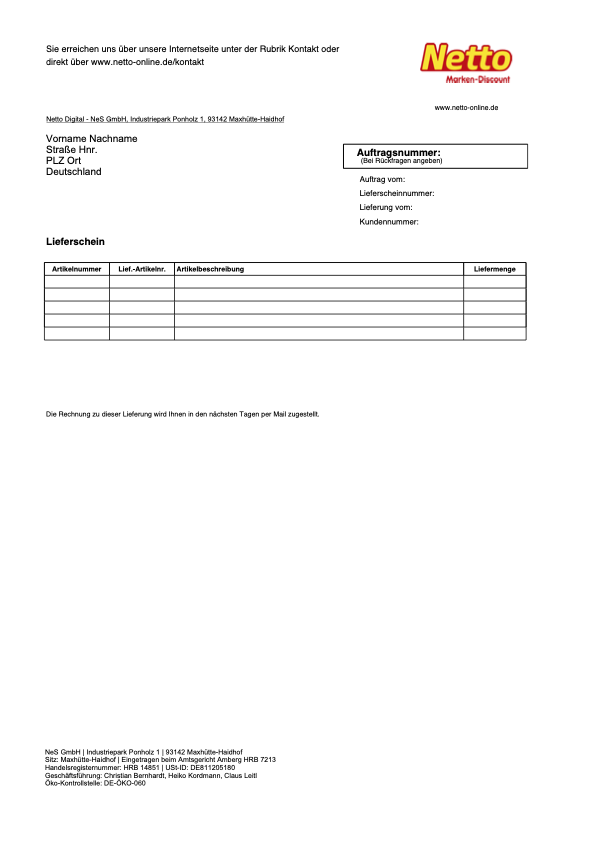
Note: For Marktkauf, only the marketplace logo visible in the top right should be different.
We recommend to create a separate invoice template for Netto eStores in the DocumentBuilder. Copy a default template or an existing invoice template and adjust it as described in the following chapters.
7.1.1. Step 1: Adjusting the delivery note template
Adjust the delivery note template so that it fulfils the formatting requirements set by Netto eStores, such as:
-
Usage of the appropriate PDF as the template background
Note: The following example uses a copy of the default template for delivery notes. If you have already created your own template for Netto eStores delivery notes, you may need to add the required widgets via drag-and-drop.
Adjusting template for delivery notes:
-
Go to Setup » Documents » DocumentBuilder.
-
Open the template you use for Netto eStores delivery notes.
-
Click Open Editor (edit).
→ The editor opens and the widgets are loaded. -
Carry out the settings described in Table 11.
-
Compare your template with the example layout and make further adjustments if necessary.
-
Save (save) the settings.
→ The necessary adjustments are shown on delivery notes.
| Setting | Option |
|---|---|
Upload PDF background |
Note: Take care not to cover any part of the background with template elements while adjusting the template further. |
7.1.2. Step 2: Setting Netto eStores as the referrer for the template
To ensure the delivery note template is only used for Netto eStores orders, enable it for the Netto eStores order referrer only.
Setting Netto eStores as the referrer for the template:
-
Go to Setup » Documents » DocumentBuilder.
-
Open the template you use for Netto eStores delivery notes.
-
Click Referrer in the Order settings section.
→ A drop-down list with all active referrers opens. -
Deselect all referrers except Netto or Marktkauf.
-
Save () the settings.
→ The delivery note template will only be used for delivery notes with the selected order referrer.
7.1.3. Optional: Step 3: Checking the preview
Before activation, check whether all information is displayed correctly on the delivery note.
Displaying the preview:
-
Go to Setup » Documents » DocumentBuilder.
-
Open the template you use for Netto eStores delivery notes.
-
Click Show preview (visibility) at the top.
7.1.4. Step 4: Activating the template
Activate the template so that it can be used for Netto eStores orders.
Activating the template:
-
Go to Setup » Documents » DocumentBuilder.
-
Click the context menu (more_vert) on the far right side in the row of your Netto eStores delivery note template.
-
Click task Activate template.
-
Confirm your decision.
Or: Open the template and click the Activate Template toggle (toggle_off) at the top.
→ The template is activated.
Note: You can only activate a template if no other template in DocumentBuilder has exactly the same settings. Moreover, if a template is in an activated state, you cannot make changes to it (except to the name).
7.2. Return slips
The layout of return slips for Netto eStores should be similar to the following example:
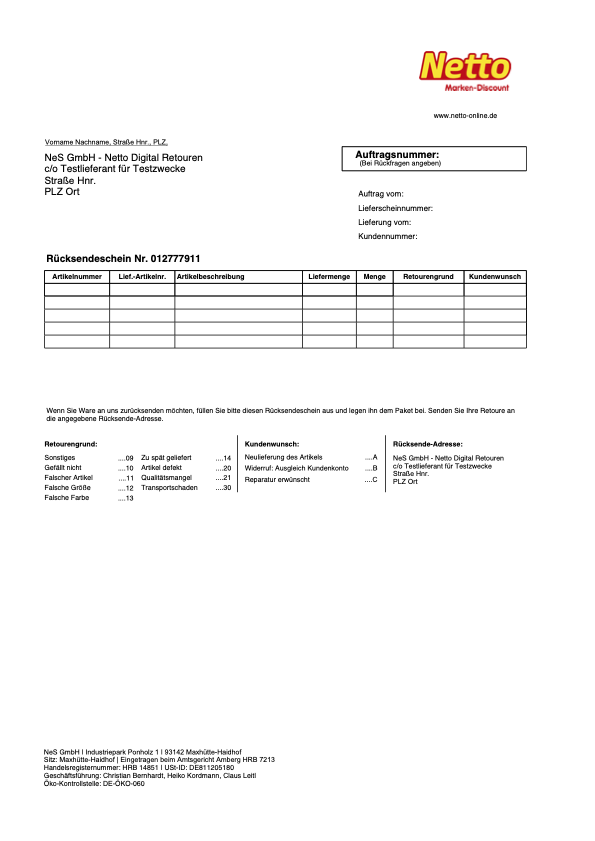
Note: For Marktkauf, only the marketplace logo visible in the top right should be different.
We recommend to create a separate return slip template for Netto eStores in the DocumentBuilder. Copy a default template or an existing invoice template and adjust it as described in the following chapters.
7.2.1. Step 1: Adjusting the return slip template
Adjust the return slip template so that it fulfils the formatting requirements set by Netto eStores, such as:
-
Usage of the appropriate PDF as the template background
-
Return instructions
Note: The following example uses a copy of the default template for return slips. If you have already created your own template for Netto eStores return slips, you may need to add the required widgets via drag-and-drop.
Adjusting template for return slips:
-
Go to Setup » Documents » DocumentBuilder.
-
Open the template you use for Netto eStores return slips.
-
Click Open Editor (edit).
→ The editor opens and the widgets are loaded. -
Carry out the settings described in Table 12.
-
Compare your template with the example layout and make further adjustments if necessary.
-
Save (save) the settings.
→ The required adjustments are shown on return slips.
| Setting | Option |
|---|---|
Upload PDF background |
Note: Take care not to cover any part of the background with template elements while adjusting the template further. |
Return instructions |
Text: Return instructions for return slips
Wenn Sie Ware an uns zurücksenden möchten, füllen Sie bitte diesen Rücksendeschein aus und legen ihn dem Paket bei. Senden Sie Ihre Retoure an die angegebene Rücksende-Adresse. Retourengrund: Sonstiges ….09 Kundenwunsch: Neulieferung des Artikels ….A Rücksende-Adresse: NeS GmbH - Netto Digital Retouren |
7.2.2. Step 2: Setting Netto eStores as the referrer for the template
To ensure the return slip template is only used for Netto eStores orders, enable it for the Netto eStores order referrer only.
Setting Netto eStores as the referrer for the template:
-
Go to Setup » Documents » DocumentBuilder.
-
Open the template you use for Netto eStores return slips.
-
Click Referrer in the Order settings section.
→ A drop-down list with all active referrers opens. -
Deselect all referrers except Netto or Marktkauf.
-
Save () the settings.
→ The return slip template will only be used for return slips with the selected order referrer.
7.2.3. Optional: Step 3: Checking the preview
Before activation, check whether all information is displayed correctly on the return slip.
Displaying the preview:
-
Go to Setup » Documents » DocumentBuilder.
-
Open the template you use for Netto eStores return slips.
-
Click Show preview (visibility) at the top.
7.2.4. Step 4: Activating the template
Activate the template so that it can be used for Netto eStores orders.
Activating the template:
-
Go to Setup » Documents » DocumentBuilder.
-
Click the context menu (more_vert) on the far right side in the row of your Netto eStores delivery note template.
-
Click task Activate template.
-
Confirm your decision.
Or: Open the template and click the Activate Template toggle (toggle_off) at the top.
→ The template is activated.
Note: You can only activate a template if no other template in DocumentBuilder has exactly the same settings. Moreover, if a template is in an activated state, you cannot make changes to it (except to the name).
8. Viewing the data log
Events in your system are logged in the menu Data » Log. This allows you to check the data log for errors without relying on our support.
Viewing the data log:
-
Go to Data » Log.
-
Click Filters (tune) at the top of the menu.
-
In the Identifier field, enter the option Netto.
-
Optional: Select a date if you only want to see entries for a specific day.
-
Click SEARCH to display the results.