The Item menu
1. Menu structure
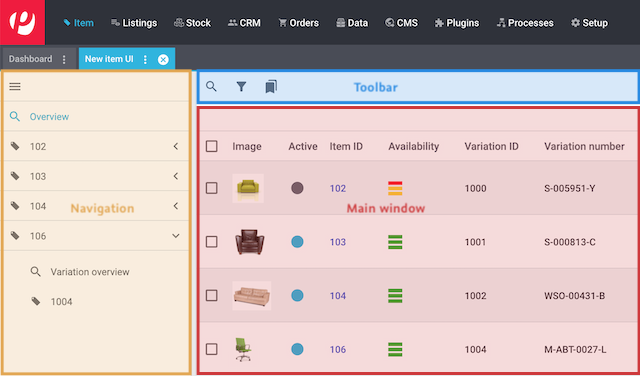
The menu Item » Items is structured as follows:
-
Navigation: Here you can navigate through different parts of the menu. The currently selected section is displayed in the main window on the right. If you open several items or variations at once, then they will be displayed underneath each other. Click on to expand or collapse the navigation bar.
-
Toolbar: Here you can perform relevant actions. For example:
-
Main window: Here you can see whichever area is currently open.
-
Overview: When you start a search, you’ll see the results in an overview. The overview provides information about the items at a glance. For example, you can see an image of the item, whether the item is active or inactive, its IDs, prices, tags and timestamps.
-
Detail view: When you open an item, its details are displayed in the main window on the right. But what if the main window is empty? Or what if you’re not happy with how the item details are arranged? You can create a new detail view and customise it to meet your needs.
-