Fruugo (Setup via Setup » Assistants)
Fruugo is a global market which allows customers to shop in their own country’s language and currency. Item descriptions are automatically translated into the target language and prices are converted into the local currency. This strengthens your international presence without major expenditure in terms of time or money.
|
Now available: The Channel Control Centre
The Channel Control Centre is a centralised solution for managing all of your sales channels in a single location in your system. It is recommended that you set up this sales channel there instead by following this setup guide. If you already set up this sales channel using the method described on this page, then you now have the option to move it to the CCC directly. |
|
Plugin required
To set up Fruugo in your system, you must first download and install the required plugin. |
1. Registering with Fruugo
First, register as a seller with Fruugo in order to be able to offer your products there.
After registering, you will receive login details from Fruugo. You need these login details to set up Fruugo in PlentyONE.
2. Data exchange
Connecting to this market allows for the following automatic functions to take place:
-
Item data is picked up by Fruugo from a feed where the plugin posts CSV files that have been generated by a specialised PlentyONE catalogue template. Stock details are synchronised using a separate Fruugo Inventory Status API.
-
Hourly order import
-
Automatically create a new customer data record during the order import. This is assuming no customer data record has yet been saved in the database
-
The plugin processes item data and stock. The order interface is part of the PlentyONE back end and is independent of the plugin.
|
No interface for stock and price synchronisation
Fruugo does currently not provide an interface for automatically synchronising stock and prices. Instead, Fruugo exports data from PlentyONE via the data export URL which has to be transferred to Fruugo after registration and setup. Fruugo decides how often the data export takes place depending on the data Fruugo receives from your sales on the market. Only items with stock are exported to Fruugo. |
3. Installing the plugin
To connect to Fruugo in PlentyONE, first install the Fruugo plugin in your PlentyONE system. You can download this and other plugins in the plentyMarketplace.
Important: Install the plugin in the plugin set of the main client.
Adding plugin to the system:
-
Go to Data & Plugins » plentyMarketplace.
→ The marketplace opens in a new tab. -
Navigate to the plugin Fruugo.
Tip: Either use the search function or open the category Data & Plugins » Sales » Marketplaces. -
Open the detail view of the plugin.
-
In the column to the right, click Go to checkout.
→ The Checkout window opens. -
Read and accept the General Terms and Conditions.
-
Click Order now.
→ Wait a few minutes before installing the plugin.
Installing plugins:
-
Go to Data & Plugins » Plugin set overview.
-
Click on the plugin set of your main client.
Important: In other words: The plugin set must be linked to the main client.
→ The plugin set opens. -
Click add Add plugin.
-
Select Fruugo from the plugin list.
-
Click Install.
→ The plugin is installed.
→ The plugin set is shown. -
Switch the plugin to active (toggle_on).
-
Save (save) the plugin set.
Tip: Problems saving the plugin set? Click Open details to show additional information.
4. Setting up the sales channel in PlentyONE
Installed the Fruugo plugin? Great. Now, set up the market in PlentyONE.
4.1. Activating the order referrer
Go to Setup » Orders » Order referrer to activate the order referrer. This ensures that orders are assigned to the correct sales channel.
An order referrer tags an order with the sales channel on which the order was generated. Sales channels can be e.g. your online shop or markets on which you sell your items. Each sales channel has an individual order referrer. Some order referrers are available by default in your PlentyONE system. Further order referrers are added e.g. if you install a new plugin. For further information about the order referrer, see the page Order referrer of the PlentyONE manual.
Activating the order referrer for Fruugo:
-
Go to Setup » Orders » Order referrer.
-
Click Search (search).
-
In the list, navigate to the option Fruugo with the ID 145.
-
On the right of the referrer’s line, click Edit (edit).
→ The window Edit referrer opens. -
Activate the option Visible in selection (toggle_on).
-
Click SAVE (save).
→ The referrer is active.
4.2. Defining a sales price
|
The currency may differ for import and export
The store’s standard currency is transferred to Fruugo when exporting the item’s information. However, when orders are imported, the amount will be in whichever currency the customer paid with. |
To sell variations on Fruugo, you need a sales price in which the order referrer Fruugo is activated. The price that you save for this sales price is the price that will be shown on Fruugo.
Sales prices define the conditions under which a variation is sold at a specific price and on a specific sales channel. For example, you can sell your items at a lower price in your webshop than on Amazon. Or you can sell products cheaper to B2B customers than to B2C customers.
Two default sales prices are already configured in your PlentyONE system. However, you can also create new sales prices and edit them individually. In addition to default sales prices, you can also create RRPs, special offers, and set prices.
Defining a sales price for Fruugo:
-
Go to Setup » Item » Sales prices » [Open sales price].
Tip: No sales prices? Then create a sales price first. -
Activate the referrer Fruugo.
-
Save () the settings.
4.3. Permitting the payment method in a customer class
The payment method Fruugo is automatically available in your PlentyONE system as soon as an active Fruugo account exists. No separate configurations are needed for this. You just need to permit the payment method in one or more customer classes.
Customer classes allow you to divide your customer base according to specific criteria. Examples of use for customer classes are:
-
Create two separate customer classes for end customers (B2C) and business customers (B2B) respectively. Depending on the customer class, customers either see net prices or gross prices in your plentyShop.
-
Give discounts to specific customer classes.
For more information about customer classes, head over to the to the Managing contacts page.
Permitting the payment method in a customer class:
-
Go to Setup » CRM » Customer classes.
-
Open the customer class for which you want to permit the payment method.
-
For the setting Allowed payment methods, activate the option Fruugo.
-
Save () the settings.
4.4. Linking attributes
If you created the attributes colour and/or size in your PlentyONE system, you have to link these attributes with Fruugo. Proceed as described below to link the attribute colour with Fruugo. Then link the attribute size the same way.
Linking attribute "Colour":
-
Go to Setup » Item » Attributes.
→ An overview of all existing attributes opens. -
Open the attribute Colour.
-
Click on the Attribute link tab.
-
From the list of markets, select the option Fruugo.
→ The area for linking attributes is shown. -
Save () the settings.
-
Repeat this process for the remaining attributes.
4.5. Sending shipping costs
Fruugo requires a list of shipping costs from every seller. This list cannot be transferred via the API. Therefore, upload a file which includes this shipping information directly on Fruugo. Further information and a file template are available from Fruugo.
4.6. Completing the plugin assistant
To configure the plugin settings, go to Setup » Assistants » Plugins » [Open plugin set] » Fruugo plugin assistant. The following table contains a list of the plugin functions:
Carrying out settings in the assistant:
-
Go to Setup » Assistants » Plugins » [Open plugin set] » Fruugo plugin assistant.
-
Click on the assistant Fruugo plugin assistant.
-
Follow the instructions on the screen. If you need additional information about one of the options, expand the info boxes below this description ().
-
In the Summary step, check your settings to make sure they are correct.
Tip: In the Summary step, click on the arrow () to show the settings.
Tip: You can run through the assistant again at any time to update settings.
| Setting | Explanation |
|---|---|
Would you like to regularly export items? |
|
Activate Items Export |
Activate (check_box) to regularly export items to Fruugo. |
Use catalog with new export type |
|
Which source should be used for export of the Fruugo category path? |
|
From items default category |
Also take note of the following information about the category path:
|
Items data feed for Fruugo. Generating a new security token will invalidate the previous token. |
|
GENERATE |
Click GENERATE to generate a new token. |
| Setting | Explanation |
|---|---|
Credentials for inventory status API |
The Fruugo Inventory Status API enables faster inventory synchronisation. Enter the user name and password you received during the Fruugo registration process. |
4.7. Carrying out the backend settings
Now go to Setup » Markets » Fruugo to carry out the back end settings.
Carrying out the backend settings:
-
Go to Setup » Markets » Fruugo.
-
Carry out the settings as described in Table 1.
-
Save () the settings.
| Setting | Explanation |
|---|---|
Active |
Activate the data exchange. If the data exchange is activated, then an order import is carried out hourly. |
User name |
Enter the access data that you received from Fruugo. |
Language |
Select the language in which texts should be transferred to Fruugo. |
Item name |
Select Name 1, Name 2, or Name 3. This item name is transferred to Fruugo. |
Item description |
Select the Item text, Preview text or Technical data saved in the item’s Texts tab or select one of the free text fields saved in the item’s Fields tab. This item description is transferred to Fruugo. |
Warehouse selection |
Select one of the following options:
|
Barcode exemption |
Select one of the following options:
|
Data export URL |
Is automatically generated after the user name and password have been saved. Email this URL to Fruugo. |
5. Setting up item data export
Item data is exported to Fruugo via a catalogue format. Go to Data & Plugins » Catalogues to create catalogues.
5.1. Creating a catalogue
Item data is exported to Fruugo via catalogue using the marketplace format Fruugo. Create a catalogue in the Data & Plugins » Catalogues menu to export your items to Fruugo. Map the Fruugo data fields to item data saved in PlentyONE in the marketplace format afterwards.
Creating a catalogue:
-
Go to Data & Plugins » Catalogues.
-
Click Create catalogue (add).
-
Enter a name for the catalogue.
-
In the drop-down list Marketplace, select the option Fruugo (new) if you are using the export type Item (new).
or
Select the option Fruugo if you are using the export type Item.
Note: If you are using the option Fruugo (new), you must enable the Use catalog with new export type option in the Items Export Section step of the Plugin Assistant. -
In the drop-down list Export type, select the option Item (new) if you have selected Fruugo (new) under Marketplace.
or
Select the option Item if you have selected Fruugo under Marketplace. -
In the drop-down list Category, select the option Items export.
Tip: You can only create one catalogue for this sales channel. Thus, the only category you can select is Items export.
Note: The category Items export is only shown if the plugin Fruugo is installed. -
Save () the settings.
→ The catalogue is created.
→ The catalogue is opened for editing.
Other catalogue settings
Other catalogue settings are optional. Once you carried out the settings described on this page, your catalogue is automatically exported to Fruugo. That means you can ignore the catalogue settings for Format settings, Export settings and Download settings.
The Format settings, Export settings, and Download settings allow you to create a file with the variation data contained in the catalogue. However, this file does not contain information about whether the data export to Fruugo was successful.
|
Do not change the format in the catalogue’s Format settings. To ensure that the export to the sales channel works, all required settings are already configured when you create a catalogue. If you change the settings, errors might occur during the export. |
5.2. Mapping catalogue fields
After you have created a catalogue, map the market’s data fields to item data saved in PlentyONE. This chapter describes how you map data fields and what particularities apply for item exports to Fruugo. In addition, we provide recommendations for suitable mappings. This information is structured like this:
5.2.1. Mapping data fields in the catalogue
Now, map the Fruugo data fields to the item data saved in PlentyONE.
-
The market expects product data that cannot be saved in the PlentyONE item menu? Then create a property for this data. Link this property with your variations. The actual values are saved as property values for this property. Is this your first time working with properties? Then read up on the principles of properties first.
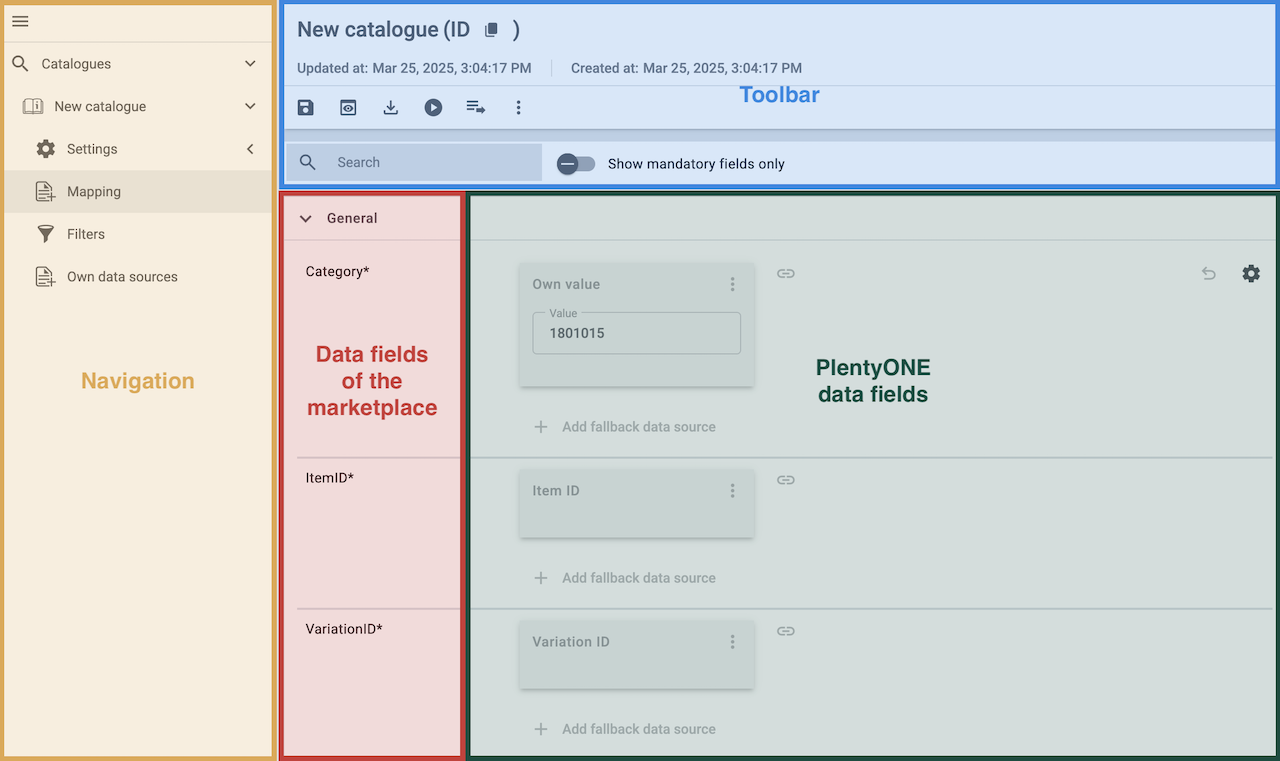
| Availability | Explanation |
|---|---|
Navigation |
When you open a catalogue, the view Mapping is shown. On the very left is the navigation.
|
Toolbar |
The toolbar provides actions for the catalogue. For example, save your mappings, restore an older version of the catalogue or hide or show optional marketplace data fields. |
Live preview |
You can use the Live preview feature to display which values of a given variation would be exported to the marketplace by each mapping. Simply activate the toggle and enter the ID of the variation you want to use in order to show live previews for that variation. |
Marketplace data field |
To the right of the navigation, all data fields available for the market are listed. Mandatory fields are marked with an asterisk (✱). |
PlentyONE data sources |
On the right side of the catalogue, you map the marketplace data fields to appropriate PlentyONE data sources. In the screenshot above, a few of the fields are already mapped. |
Mapping catalogue fields:
-
Go to Data & Plugins » Catalogues.
-
Click on the catalogue.
→ The Mapping tab opens.
→ In the left-hand column, the market’s data fields are listed.
Tip: Mandatory fields are flagged with an asterisk (*).
→ In the right-hand column, you can map your PlentyONE data sources. Any PlentyONE data sources that you already mapped are also shown in this column. -
Map suitable PlentyONE data sources to the market data fields.
For each marketplace data field, you have a number of mapping options. Expand the info boxes below to get more information about each of these mapping options.-
Simple 1:1 mapping
-
Simple 1:1 mapping with properties
-
Complex 1:1 mapping
-
1:1 mapping with fallback data sources
-
1:n mapping
-
Own value mapping
-
Mapping with mathematical calculations
-
-
Save () the catalogue.
→ The mappings are saved.
In a simple 1:1 mapping, you map a PlentyONE data source to the marketplace data field. If no suitable setting exists in PlentyONE, you can map a property instead.
As such, simple 1:1 mappings are useful if you want to achieve the following:
-
I want to fill this marketplace data field with the data from this PlentyONE setting.
-
If the data field is empty for a variation, no value is exported for this variation.
Creating a simple 1:1 mapping:
-
Next to the marketplace data field, click on + Add data source.
→ To the left, the list of available PlentyONE data sources are shown in groups. -
Select a PlentyONE data source in the list.
→ The data source is added to the right, but not yet confirmed or saved. -
Click on Confirm.
In a simple 1:1 mapping, you map a PlentyONE data source to the marketplace data field. But PlentyONE does not always offer a suitable data source. In such cases you can create the data source in your system yourself by setting up a property. Properties allow you to save any kind of information in your properties.
-
Is this your first time working with properties? Then read up on the principles of properties first.
Creating a simple 1:1 mapping with properties:
-
Next to the marketplace data field, click on + Add data source.
→ To the left, the list of available PlentyONE data sources are shown in groups. -
Expand the group Property.
→ The property groups are shown. -
Expand the group you need.
-
Click on the Plus sign on the right of the property you want. → The property is added as a data source, but not yet confirmed or saved.
-
From the drop-down list Language, select the language in which you send the data to the market.
-
Click on Confirm.
→ The property is mapped to the marketplace data field.
Complex mappings are necessary whenever a marketplace data field only has a select number of possible values. Like the name implies, they cannot be resolved by simply mapping the whole data field to one of your PlentyONE data sources. Instead, you map the individual values that can be entered in the data field to PlentyONE data sources.
For example, a marketplace may only allow for the color of an item to be described using a limited selection of terms such as "Blue", while the variations saved in your system may use more distinct terms such as "Sky blue" or "Royal blue". In such cases the marketplace data field for item colors will be a complex mapping that allows you to map the colors "Sky blue" and "Royal blue" saved in your variations to the value "Blue" used by the marketplace.
| Do not enter own values for complex mappings. All values that you enter must be saved for the variations, either in a setting or as a property value. This also applies if the value Comparative value is shown. You still need to enter exactly the value of the setting or property that you mapped. |
A complex mapping will always export the value selected for the marketplace data field, regardless of what kind of data source you mapped it to. The only exception are own values, which will be exported as-is.
You can recognise complex mappings from the field that is shown below the name of the marketplace data field. Click on the field to show the values available for the marketplace data field.

Examples for complex 1:1 mappings are:
-
Categories
-
Brands
-
Shipping settings
Important: For complex mappings, do not map own values or properties of the type None.
Creating a complex 1:1:n mapping:
-
Click on the field for the marketplace data field.
→ A list of the available values is shown. -
Select the value that you want to map a PlentyONE data source to.
→ The value is added as a mappable field. -
Next to the added field, click on + Add data source.
→ To the left, the available PlentyONE data sources are listed in groups. -
Select the PlentyONE data source you want to map tho the marketplace value.
Important: Do not map own values or properties of the type None. -
Your next steps depend on the PlentyONE data source you selected:
-
Alternative 1: The available values for the PlentyONE data value are shown on the left.
-
Next to the value you want to select, click on the plus.
→ The value is added to the field on the right. -
Click on Confirm.
-
-
Alternative 2: The PlentyONE data source is inserted and the field Comparative value is shown.
-
In the field Comparative value, enter a value that is saved in the setting or the property of the mapped PlentyONE data source.
-
Click on Confirm.
-
-
Alternative 3: The PlentyONE data source is inserted and a drop-down list is shown.
-
Select a value from the drop-down list.
-
Click on Confirm.
→ The value of the marketplace data field is exported, not the value of the PlentyONE data source.
Exception: If you map an own value to a marketplace data field, the own value that you enter is exported directly.
-
-
You can use fallback data sources in a 1:1 mapping to ensure that a value is provided for a marketplace data field even when the preferred data source is missing or empty.
In other words, this mapping specifies:
-
I want to fill the marketplace data field with the data from the selected primary PlentyONE data source.
-
If that data source is missing or empty for a variation, then the first fallback data source for this field is checked. If this fallback data source contains usable data, then that data is used to fill the marketplace data field.
-
If the first fallback data source is also missing or empty and other fallback data sources are mapped to this data field, then this process is repeated for the other fallback data sources in sequence until either usable data is found or all fallback data sources have been checked.
Two separate fallback conditions are available:
Null (default) |
The fallback data source is used if the data field above is mapped in the catalogue but not linked to the variation. The condition "Null" is useful when you want to map fallback data sources for the following types of PlentyONE data sources:
|
Empty |
The fallback data source is used if the data field above is mapped in the catalogue and linked to the variation, but is empty. The condition "Empty" is useful when you want to map fallback data sources for the following type of PlentyONE data sources:
Important: When you add a fallback data source, the fallback condition "Null" is selected automatically. To apply the fallback condition "Empty", you need to change the default setting. |
Note: If you assign multiple fallback data sources to a single data field, the value of only one of those fallback data sources is exported, i.e. the first mapped fallback data source that provides a usable value.
Creating a 1:1 mapping with fallback data sources:
-
Next to the marketplace data field, click on + Add data source.
→ To the left, the list of available PlentyONE data sources are shown in groups. -
Click on the plus to the right of the PlentyONE data source you want to use as the primary data source.
→ The PlentyONE data source is added to the right. -
Click on + Add fallback data source below the primary data source.
→ The fallback data source is added with the fallback condition Null. -
(Optional) If you want to use the fallback condition Empty instead:
-
Hover over the fallback data source with your cursor and click on the Settings () option that appears to the right.
→ The window Data column settings is shown. -
For the setting Fallback condition, select the option Empty.
-
Click on Save.
→ The fallback data source’s fallback condition is changed to Empty.
-
-
Click on Confirm.
→ The fallback data source is exported if the fallback condition is fulfilled.
In a 1:n mapping, you map several PlentyONE data sources to the same marketplace data field. Unlike fallback data sources, these data sources are combined using a specified separator and used as a single value.
In other words, this mapping specifies:
-
I want to combine these PlentyONE data sources during export so that the marketplace data field is filled with the data of these two or more PlentyONE settings.
Creating a 1:n mapping:
-
Next to the marketplace data field, click on + Add data source.
→ To the left, the list of available PlentyONE data sources are shown in groups. -
Click on the plus to the right of the PlentyONE data source you want to select.
→ The PlentyONE data source is added to the right. -
Click on Confirm.
-
To the right of the mapped PlentyONE data source, click on Add data source ().
→ To the left, the list of available PlentyONE data sources again are shown in groups. -
Map the desired number of additional PlentyONE data sources to the marketplace data field as described above.
-
Click on Confirm.
-
To the very right of the row, click on Settings ().
-
Select a separator from the drop-down list Separator or add a custom separator.
-
Click on Save.
-
Save () the catalogue.
→ The mappings are saved.
→ During the export, the content of the PlentyONE data sources is combined and exported as one field.
If you want to export the exact same value for all of your variations to a particular marketplace data field, then you can map this value to the data field using the Own value data source.
This kind of mapping specifies:
-
For this marketplace data field, I want to export the value that I entered in the data source Own value for all variations of this catalogue.
Creating an own value mapping:
-
Next to the marketplace data field, click on + Add data source.
→ To the left, the list of available PlentyONE data sources are shown in groups. -
Select the Own value option at the top of the list.
→ The data source Own value is mapped to the data field. -
Enter a value into the input field in the Own value.
-
Click on Confirm.
→ The entered value is exported for all variations.
|
Be especially careful when using Own value mappings!
The value you enter in an Own value mapping is always exported for every variation tied to the catalogue. The value also overwrites the market value in complex mappings where usually the value of the market would be exported. As such, only use an Own value mapping for a marketplace data field when you are certain that the value you entered will be accepted for that data field by the marketplace for all of your variations in order to ensure that your variations are exported to the marketplace successfully. |
Mathematical formulas allow you to change numerical values automatically during the export. In other words, this mapping specifies:
-
I want the numerical value of a PlentyONE data source to be recalculated during the export. Basic arithmetic operations are available for the formulas.
Recalculating numerical values:
-
Next to the marketplace data field, click on + Add data source.
→ To the left, the list of available PlentyONE data sources are shown in groups. -
At the very top of the list, click on the + icon next to Formula (calculate).
→ The data field Formula is added to the field on the right. -
Click into the data field.
→ The window Modify value is shown. -
Enter a numerical value or select a PlentyONE data source at the bottom right of the window to add it to the calculation (add).
Tip: Use the search function. This helps you to find data fields quickly. -
Optional: If the symbol more_vert is shown in the data field, select the correct assignment for the data field.
Tip: A number tells you how many assignments are necessary for the data field.-
Click on the icon more_vert.
-
In the window shown, select the assignments from the drop-down list.
-
Save the settings.
-
-
Enter numbers and mathematical operators with the on-screen calculator or the keyboard.
-
Save the settings.
→ The entered formula is displayed in the overview.
→ When an export is carried out, the formula is used to calculate the value that is exported for each variation.
Keep in mind that this mapping type only works with PlentyONE data sources that provide numerical values and for marketplace data fields that accept numerical values. Additionally, this mapping type is relatively new and not available for all catalogue formats yet.
5.2.2. Recommendations for data field mappings
To help you with mapping your data fields for the catalogue, we have created a list of recommended data field mappings. Note that these mappings are recommendations only. Depending on how you manage your item data, other mappings may be more appropriate than the recommendations given here.
-
Need more information about the PlentyONE data fields? All data fields are described on the manual page for the standard format Item (new).
Setting |
Explanation |
Language |
Assign the export language for your translatable fields. To do so, use the PlentyONE data field Own value. The default language set for the back end is exported automatically. Only ISO language codes are accepted, for example DE, EN, ES. |
EAN |
A barcode for the item export GTIN / EAN or UPC.
|
Brand |
Sends the brand name to Fruugo. |
Category |
If the assistant option From items Default Category is selected, the plugin ignores this catalogue mapping. Otherwise, the PlentyONE data field that you mapped is exported. |
Stock quantity |
Sends the stock to Fruugo. |
Normal price incl. VAT |
Sends the sales prices of your Fruugo items. |
Vat Rate (optional) |
If no own value is assigned, the plugin defaults to assigning the default VAT rate saved at the variant level. |
Attribute Size |
Fruugo recommends that you set up the attribute Size for creating item variations. Also, ensure that the relevant attribute values are saved in the attribute. |
Attribute Color |
Fruugo recommends that you set up the attribute Color for creating item variations. Also, ensure that the relevant attribute values are saved in the attribute. |
Discount Price incl. VAT |
Sends the discount price to Fruugo. |
Manufacturer |
Sends the manufacturer name to Fruugo. |
Restock date |
Sends the restock date to Fruugo.
|
Package weight |
Sends the gross weight to Fruugo. |
Attributes 1 through 10 |
Sends additional attributes to Fruugo. |
Country |
This value is used to limit a product to the listed countries only, if they have a different restriction than your default account settings. For additional information, see Country+Restrictions. |
Discount price start date |
In case of discount prices it sends the start date for the set discount price to Fruugo. |
Discount price end date |
In case of discount prices it sends the end date for the set discount price to Fruugo. |
6. Providing information on manufacturer and EU-responsible person (GPSR)
The General Product Safety Regulation of the EU (GPSR) requires manufacturers and sellers to ensure the product safety of certain goods and to provide certain information for this purpose. This information includes details about the manufacturer and, in the case of manufacturers without an establishment in the EU, details about the responsible person within the EU. The GPSR regulation ensures that products are safe and comply with consumer protection requirements before being placed on the market.
In the following chapters, you will learn how to add information on the manufacturer and the responsible person within the EU in PlentyONE to comply with the GPSR regulation.
6.1. Requirements
-
In the Setup » Item » Manufacturers menu, fill in the required fields for the EU responsible person for each of your manufacturers.
-
Select the manufacturer at item level to transfer the manufacturer data to Fruugo.
6.2. Fruugo fields for EU responsible person
The following table lists the required fields for information on the EU responsible person. Once you have saved these fields for your manufacturers, you can map them to the attribute fields in the catalogue in order to transfer them to Fruugo.
| Field name | Description |
|---|---|
EU Responsible Name |
Enter the name of the EU-responsible person. |
EU Responsible Street |
Enter the street of the EU-responsible person. |
EU Responsible House No |
Enter the house number of the EU-responsible person. |
EU Responsible Post Code |
Enter the postcode of the EU-responsible person. |
EU Responsible Town |
Enter the town of the EU-responsible person. |
EU Responsible Country |
Enter the country of the EU-responsible person. |
EU Responsible Email |
Enter the email address of the EU-responsible person. |
EU Responsible Phone number |
Enter the telephone number of the EU-responsible person. |
6.3. Mapping GPSR data fields in the Fruugo catalogue
The Fruugo catalogue contains 10 attribute fields that are used for transferring the GPSR data fields to Fruugo. In order to map these data fields, proceed as follows.
Mapping GPSR data fields in the Fruugo catalogue:
-
Go to Data & Plugins » Catalogues.
→ The catalogue overview opens. -
Click on the Fruugo catalogue for which you want to transfer GPSR data.
→ The Mapping tab of the catalogue opens. -
Scroll to the attribute fields (Attribute 1 - Attribute 10).
-
On the right of an attribute field, click + Add data source.
-
From the Item folder on the left, select the desired data field (add).
-
Click Confirm.
→ The data field is mapped to the attribute field. -
Repeat these steps for all GPSR data fields that you want to transfer.
-
Save () the settings.
→ The GPSR data fields will be transferred to Fruugo as attributes.
7. Preparing variations
Now, prepare your variations.
7.1. Setting the client visibility
Important: Deactivate the following variation options:
-
Visible if net stock is positive
-
Not visible if net stock is negative
These options can be found in the Items & Stock » All items » [Open variation] menu in the Availability and visibility section. If you decide to use these options and the stock goes down to 0, the variation becomes invisible to the plugin.
7.2. Setting the variation availability
You need to activate the variations you want to sell on Fruugo and enable them for the relevant sales channel. This is done in the Items & Stock » All items » [Open variation] menu.
Making a variation available for Fruugo:
-
Go to Items & Stock » All items » [Open variation].
Tip: To sell all variations of an item on Fruugo, carry out the settings for the item’s main variation. If the inheritance function is active for the variations, then this activates the availability of all variations of the item. -
In the Availability and visibility section, enable the option Active (toggle_on).
-
Click the Sales channels tab.
-
In the Sales channels section, activate the sales channel Fruugo in the Status column (toggle_on).
Tip: You can activate multiple sales channels at once. To do so, activate the checkboxes to the left of the desired sales channels. Then activate the toggle above the checkbox column (toggle_on). Click ACTIVATE to confirm the activation. -
Activate WEB-API.
-
Save (save) the settings.
→ The variation is available for Fruugo.
Use the variation group function to edit multiple variations at once. You select the variations that you want to edit.
Making several variations available for Fruugo using the variation group function:
-
Go to Items & Stock » All items.
-
Select () the variations to be edited.
-
In the toolbar, click on layers » layers Variation group function.
→ The Variation group function window opens. -
Select the action Sales channels from the drop-down list Actions.
→ The action is added to the lower part of the window. -
Select (check_box) the option Fruugo from the drop-down list Sales channels.
→ The sales channel is added below the drop-down list Sales channels. -
Select (check_box) WEB-API.
-
Activate (toggle_on) the toggles to the left of the sales channels.
-
Click EXECUTE & CLOSE to apply the settings.
Batch processing allows you to edit several variations at once. You use filters to limit which variations are edited.
Making several variations available for Fruugo using batch processing:
-
Navigate to the area Market availability.
-
Activate the checkbox to the left of the option Fruugo.
-
Activate the checkbox to the right of the option Fruugo.
-
Activate the checkbox to the left of the option Web API.
-
Activate the checkbox to the right of the option Web API.
-
Navigate to the area Availability.
-
Activate the checkbox to the left of the option Active.
-
Activate the checkbox to the right of the option Active.
-
Click on Apply to apply the settings to the variations.
7.3. Activating item variations
-
Go to Items & Stock » All items » [Open variation].
-
Navigate to the section Availability and visibility.
-
Activate the option Active.
-
Save the settings.
7.4. Linking images to variation and the market Fruugo
-
Go to Items & Stock » All items » [Open item] » Tab: Images.
-
Click on the Availability drop-down list for the image you want to edit.
-
Select the client.
-
Select the referrer Fruugo.
→ The image is ready for export. -
Go to Items & Stock » All items » [Open variation].
-
In the Images section, activate the Link to variation toggle over each image you want to link to that variation.
→ The image is linked to the variation. -
Save the settings.
Notes:
-
A maximum of 5 images per item can be exported to Fruugo.
-
The image URL of the image that is to be linked may contain a maximum of 150 characters.
7.5. Check list: Exporting stocks
Each successfully exported variation automatically receives an SKU. This SKU is based on the variation ID. The SKU is used as an identifier for stock synchronisation. Stock is exported every 15 minutes. For successful stock synchronisation, you need to set up the following details:
-
Go to Items & Stock » All items » [Open variation].
-
In the Stock section, the column Net stock must contain a positive value.
Important: Variations with negative net stock are exported with a stock value of 0.
-
Go to Items & Stock » All items » [Open variation].
-
Navigate to the section Availability and visibility.
-
In the Displayed delivery time drop-down menu, select the availability option that best matches the availability of the variation.
→ The Average delivery period linked to the selected option is exported as the Fruugo LeadTime. Values for the different availability options can be saved in the menu Setup » Item » Availability » Average delivery period.
Manage more than one language as follows:
-
Ensure that the translatable fields of your items are filled in.
-
Create a separate catalogue for each export language.
-
Use the field Language to set the export language for each catalogue.
-
Remember to save the language source for the translatable fields.
8. Automating order processing
You can automatically inform Fruugo about changes to the order status. Two options are available for this purpose:
-
Option 1: PlentyONE Flow (recommended)
-
Option 2: Event procedures (old method)
8.1. Option 1: PlentyONE Flow (recommended)
Create event-based flows to automatically inform Fruugo about changes to the order status. The following actions are available for Fruugo in the PlentyONE Flow Studio:
With PlentyONE Flow (short: "Flow"), you can automate workflows for your business processes. Flow provides you with two functions in the Automation menu:
-
In Flow Studio, you create and configure automated workflows. Depending on the trigger type, there are three types of flows: event-based, time-based or manual.
-
In the Flow Tracker, you can monitor running or completed workflows.
The central element in both functions is the Canvas – a graphical interface on which the workflows are visualised with Actions and Controls. In Flow Studio the canvas can be edited, in Flow Tracker it is only used for visualisation and is therefore read-only.
-
Is this your first time working with PlentyONE Flow? Then read up on the basic concept of Flow first.
8.1.1. Automatically sending order confirmations
Create an event-based flow to automatically inform Fruugo about the order confirmation.
-
Go to Automation » Flow Studio.
-
Click Create flow (add).
→ A stepper opens and guides you through the following three steps.-
General
-
Enter a unique name and, if necessary, a description for the new flow.
-
Click Next.
-
-
Trigger
-
Select Event-based as the trigger.
-
Click Next.
-
-
Settings
-
If desired, select a UI from the optional drop-down list Flow available in.
→ The option to manually trigger the flow directly from the selected UI is added to the group functions in that UI.
Note: UIs currently selectable: Order UI. -
From the drop-down list Trigger selection, select the event according to Table 4.
Note: If the trigger event has additional settings, then these are invariably mandatory. Without performing these settings, you will not be able to save the flow. -
Save () the settings.
→ The flow is created.
→ The Flow Studio Canvas appears, on which two elements are already displayed: The trigger type and the placeholder for the next step.
Note: With some event-based flows you cannot save the flow if it consists of only a trigger. In such cases, you need to add at least one further step.
-
-
-
Configure the new flow according to Table 4.
-
Save () the settings.
Note: The selected statuses, controls and filters in Table 4 only serve as an example. Select the statuses, controls and filters for the flow which best suit your workflow.
| Setting | Option | Selection | |||||||||
|---|---|---|---|---|---|---|---|---|---|---|---|
Trigger selection |
Select a trigger, for example:
|
For Order status, select a status between Status 1 and Status 2, for example: [1.0.1] Accept order, waiting for update. |
|||||||||
Controls |
Branch |
|
|||||||||
Actions |
Multichannel > Fruugo |
Send order confirmation to Fruugo |
8.1.2. Automatically sending shipping confirmations
Create an event-based flow to automatically inform Fruugo that an item has been shipped.
-
Go to Automation » Flow Studio.
-
Click Create flow (add).
→ A stepper opens and guides you through the following three steps.-
General
-
Enter a unique name and, if necessary, a description for the new flow.
-
Click Next.
-
-
Trigger
-
Select Event-based as the trigger.
-
Click Next.
-
-
Settings
-
If desired, select a UI from the optional drop-down list Flow available in.
→ The option to manually trigger the flow directly from the selected UI is added to the group functions in that UI.
Note: UIs currently selectable: Order UI. -
From the drop-down list Trigger selection, select the event according to Table 5.
Note: If the trigger event has additional settings, then these are invariably mandatory. Without performing these settings, you will not be able to save the flow. -
Save () the settings.
→ The flow is created.
→ The Flow Studio Canvas appears, on which two elements are already displayed: The trigger type and the placeholder for the next step.
Note: With some event-based flows you cannot save the flow if it consists of only a trigger. In such cases, you need to add at least one further step.
-
-
-
Configure the new flow according to Table 5.
-
Save () the settings.
Note: The selected statuses, controls and filters in Table 5 only serve as an example. Select the statuses, controls and filters for the flow which best suit your workflow.
| Setting | Option | Selection | |||||||||
|---|---|---|---|---|---|---|---|---|---|---|---|
Trigger selection |
Select a trigger, for example:
or
|
Select an order status, for example:
|
|||||||||
Controls |
Branch |
|
|||||||||
Actions |
Multichannel > Fruugo |
Send shipping confirmation to Fruugo |
8.1.3. Automatically reporting cancellations
Create an event-based flow to automatically inform Fruugo about cancellations. Note that orders marked as shipped can no longer be cancelled.
Note: You must give a reason for the cancellation when sending cancellation notices to Fruugo. The following reasons can be selected:
-
Item discontinued
-
Item not in stock
-
Legislation restriction
-
Other
-
Customer cancellation
-
Invalid delivery address
It is recommended that you prepare separate flows or branches for each possible reason.
-
Go to Automation » Flow Studio.
-
Click Create flow (add).
→ A stepper opens and guides you through the following three steps.-
General
-
Enter a unique name and, if necessary, a description for the new flow.
-
Click Next.
-
-
Trigger
-
Select Event-based as the trigger.
-
Click Next.
-
-
Settings
-
If desired, select a UI from the optional drop-down list Flow available in.
→ The option to manually trigger the flow directly from the selected UI is added to the group functions in that UI.
Note: UIs currently selectable: Order UI. -
From the drop-down list Trigger selection, select the event according to Table 6.
Note: If the trigger event has additional settings, then these are invariably mandatory. Without performing these settings, you will not be able to save the flow. -
Save () the settings.
→ The flow is created.
→ The Flow Studio Canvas appears, on which two elements are already displayed: The trigger type and the placeholder for the next step.
Note: With some event-based flows you cannot save the flow if it consists of only a trigger. In such cases, you need to add at least one further step.
-
-
-
Configure the new flow according to Table 6.
-
Save () the settings.
Note: The selected statuses, controls and filters in Table 6 only serve as an example. Select the statuses, controls and filters for the flow which best suit your workflow.
| Setting | Option | Selection | ||||||
|---|---|---|---|---|---|---|---|---|
Trigger selection |
Select a trigger, for example:
|
Select a status, for example:
or
|
||||||
Controls |
Branch |
|
||||||
Actions |
Multichannel > Fruugo |
|
8.1.4. Automatically reporting returns
Create an event-based flow to automatically inform Fruugo about returns.
Note: You must give a reason for the return when reporting returns to Fruugo. The following reasons can be selected:
-
Item does not match description
-
Item is damaged
-
Wrong item sent
-
Other
-
Dissatisfied with item
It is recommended that you prepare separate flows or branches for each possible reason.
-
Go to Automation » Flow Studio.
-
Click Create flow (add).
→ A stepper opens and guides you through the following three steps.-
General
-
Enter a unique name and, if necessary, a description for the new flow.
-
Click Next.
-
-
Trigger
-
Select Event-based as the trigger.
-
Click Next.
-
-
Settings
-
If desired, select a UI from the optional drop-down list Flow available in.
→ The option to manually trigger the flow directly from the selected UI is added to the group functions in that UI.
Note: UIs currently selectable: Order UI. -
From the drop-down list Trigger selection, select the event according to Table 7.
Note: If the trigger event has additional settings, then these are invariably mandatory. Without performing these settings, you will not be able to save the flow. -
Save () the settings.
→ The flow is created.
→ The Flow Studio Canvas appears, on which two elements are already displayed: The trigger type and the placeholder for the next step.
Note: With some event-based flows you cannot save the flow if it consists of only a trigger. In such cases, you need to add at least one further step.
-
-
-
Configure the new flow according to Table 7.
-
Save () the settings.
Note: The selected statuses, controls and filters in Table 7 only serve as an example. Select the statuses, controls and filters for the flow which best suit your workflow.
| Setting | Option | Selection | ||||||
|---|---|---|---|---|---|---|---|---|
Trigger selection |
Select a trigger, for example:
|
Select a status, for example:
|
||||||
Controls |
Branch |
|
||||||
Actions |
Multichannel > Fruugo |
|
8.2. Option 2: Event procedures (old method)
Set up event procedures to automatically inform Fruugo about changes to the order status. The following event procedures are available for Fruugo:
8.2.1. Automatically sending order confirmations
Set up an event procedure to automatically send an order confirmation to Fruugo when an order is imported.
-
Go to Setup » Orders » Events.
-
Click on Add event procedure ().
→ The Create new event procedure window opens. -
Enter a distinct name for the event procedure.
-
Select the event according to Table 8.
-
Save () the settings.
-
Carry out the additional settings according to Table 8.
-
Select the setting Active ().
-
Save () the settings.
| Setting | Option | Selection |
|---|---|---|
Event |
Order generation: New order |
|
Filter 1 |
Order > Order type |
Order |
Filter 2 |
Order > Referrer |
Fruugo |
Procedure |
Order > Send order confirmation to Fruugo |
8.2.2. Automatically sending shipping confirmations
Set up an event procedure to automatically send a shipping confirmation to Fruugo when the outgoing items have been booked.
-
Go to Setup » Orders » Events.
-
Click on Add event procedure ().
→ The Create new event procedure window opens. -
Enter a distinct name for the event procedure.
-
Select the event according to Table 9.
-
Save () the settings.
-
Carry out the additional settings according to Table 9.
-
Select the setting Active ().
-
Save () the settings.
| Setting | Option | Selection |
|---|---|---|
Event |
Order change: Outgoing items booked |
|
Filter 1 |
Order > Order type |
Order |
Filter 2 |
Order > Referrer |
Fruugo |
Procedure |
Shipping > Send shipping confirmation to Fruugo |
8.2.3. Automatically sending cancellations
Set up an event procedure to automatically inform Fruugo of cancellations.
-
Go to Setup » Orders » Events.
-
Click on Add event procedure ().
→ The Create new event procedure window opens. -
Enter a distinct name for the event procedure.
-
Select the event according to Table 10.
-
Save () the settings.
-
Carry out the additional settings according to Table 10.
-
Select the setting Active ().
-
Save () the settings.
| Setting | Option | Selection |
|---|---|---|
Event |
Order change: Status change |
[8] Cancelled |
Filter 1 |
Order > Order type |
Order |
Filter 2 |
Order > Referrer |
Fruugo |
Procedure |
Order > Send cancellation to Fruugo |
8.2.4. Automatically sending returns
Set up an event procedure to automatically inform Fruugo about returns.
-
Go to Setup » Orders » Events.
-
Click on Add event procedure ().
→ The Create new event procedure window opens. -
Enter a distinct name for the event procedure.
-
Select the event according to Table 11.
-
Save () the settings.
-
Carry out the additional settings according to Table 11.
-
Select the setting Active ().
-
Save () the settings.
| Setting | Option | Selection |
|---|---|---|
Event |
Order generation: New return |
|
Filter 1 |
Order > Order type |
Return |
Filter 2 |
Order > Referrer |
Fruugo |
Procedure |
Return > Send return to Fruugo |
9. Viewing the API log
The Data » API log menu contains a history of processes that run via the Fruugo interface. The following formats are available for Fruugo:
-
Fruugo (order import)
-
FruugoGetOrders (cancellations, order confirmation)
Viewing the API log:
-
Go to Data » API log » Tab: API log.
-
Select a format from the Process drop-down list.
-
Optional: Select a date if you only want to see entries for a specific day.
-
Click on Search () to carry out the search.
→ The processes are displayed.
10. FAQ
The plugin becomes visible after:
-
The plugin has been installed, activated and provisioned.
-
The order referrer Fruugo is active in the menu Setup » Orders » Order referrer.
Important: The plugin must be installed in the plugin set that is linked to the default client.