Using marketplace formats
Use the marketplace formats of the catalogue to export variation data and stock data to many markets and price portals. PlentyONE is working on moving all markets to catalogue formats.
The following marketplace formats are currently available in PlentyONE:
On this page you can find out how to export variation data to markets using catalogues. However, only the general workflow is explained. Once you have familiarised yourself with the underlying principles of marketplace formats, head over to the setup page for a specific marketplace to find out how to create and structure catalogues for that marketplace.
1. Understanding the catalogue menu for marketplace formats
When you open the menu Data & Plugins » Catalogues, the first thing you see is the catalogue overview. You can get to know this catalogue overview here.
Click on a catalogue in order to open its detail view. The layout of this menu is the same for all marketplace formats, so it should look like this:
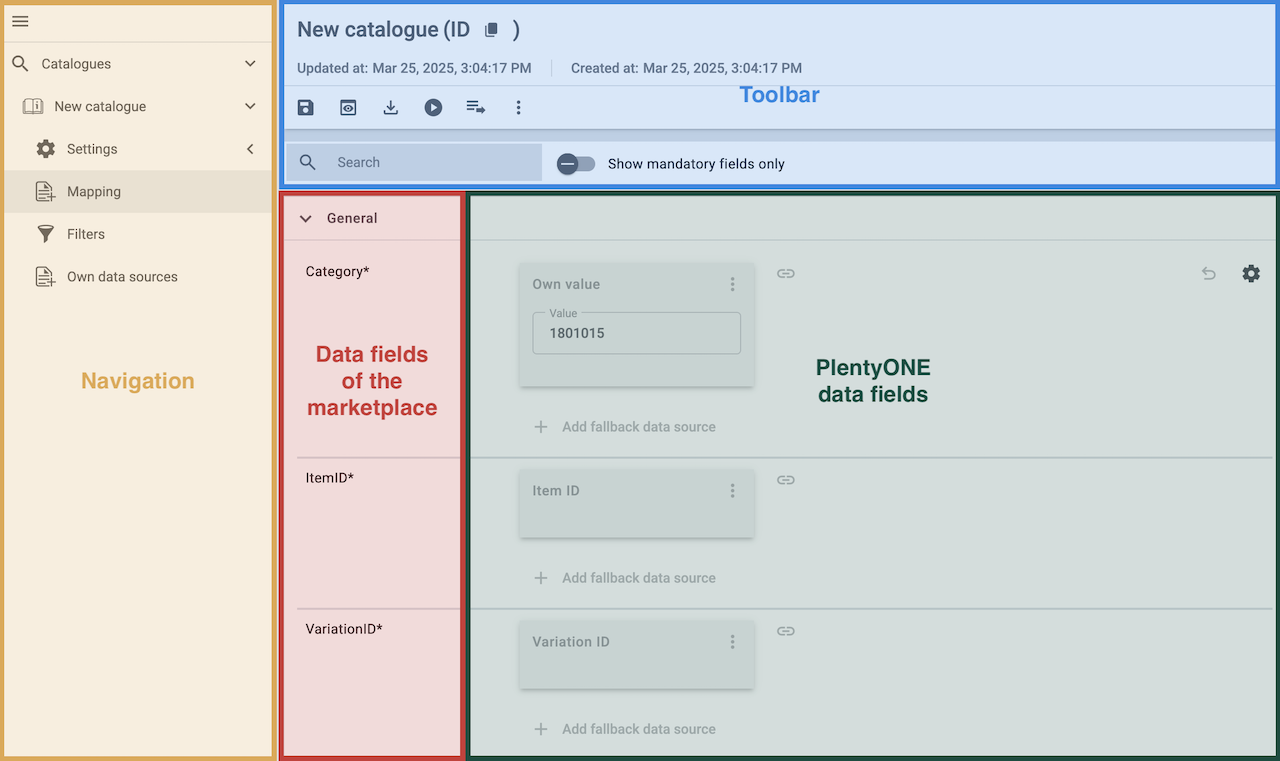
Tip: Your catalogue looks different? Then you probably opened a catalogue with a standard format instead. Standard formats are used to export data to a file and are elaborated on here instead.
1.1. Toolbar
The toolbar provides quick access to various actions you can perform with the currently opened catalogue:
save Save |
Saves any changes you made to the current view of the catalogue. |
||||
preview Preview |
Creates a preview of the export data. The preview contains the first 5 data rows of the export file. Important: The preview function is not available for all catalogue formats. |
||||
Asynchronous download |
Starts a manual download of the catalogue data. The export is carried out as a background process, and the export file is available for download in your system’s Notifications once the process is finished. Important: This option does not export any data to a marketplace. |
||||
play_circle Live download |
Starts a manual download of the catalogue data. The download starts immediately in a new tab, and the file is automatically saved to your computer if you allowed your system to display popups in your browser. Important: This option does not export any data to a marketplace. |
||||
playlist_play Status |
Opens the menu Data & Plugins » Catalogue export status and filters the list for this catalogue. This view allows you to check the status of all exports of the catalogue that have been initiated so far. |
||||
more_vert More |
Shows additional actions:
|
1.2. Navigation
When you open a catalogue, the view Mapping is shown by default. Use the navigation to switch to other views of the catalogue. Every catalogue using a marketplace format has the following views to switch between:
Settings |
This menu contains all settings for the catalogue. The settings are grouped into four sections:
Important: These settings are only necessary if you want to use a catalogue. in order to export data to a file. Otherwise you may ignore them. |
Mapping |
This menu is shown when you open the catalogue. Here, you map suitable PlentyONE data sources to the marketplace data fields. |
filter_alt Filter |
Add filters to only export specific records. Tip: The number of filters that you activated for a catalogue is always displayed next to this menu item. Template filters, i.e. filters that are applied by default, are not included in the count.
|
Own data sources |
Own data sources are currently not available for most exports. |
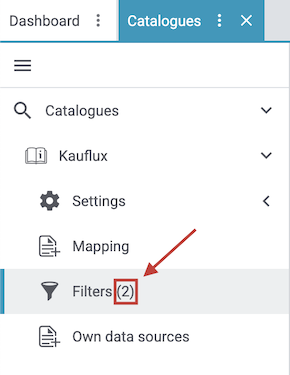
1.3. The View bar
The View bar allows you to customise the appearance and behavior of the mapping list. It contains the following options:
search Search |
You can search for the names of marketplace data fields and the values that you have selected in marketplace fields with an input field. |
toggle_off Show mandatory fields only |
Use the toggle button in order to decide whether you want to display all fields (toggle_off) or mandatory fields only (toggle_on). |
All / Mapped / Unmapped |
Select one of the three tabs depending on whether you want to see all fields (default), only mapped fields or only unmapped fields. Note that the tab selection also affects the search. |
Live preview |
You can use the Live preview feature to display which values of a given variation would be exported to the marketplace by each mapping. Simply activate the toggle and enter the ID of the variation you want to use in order to show live previews for that variation. |
1.4. Marketplace data fields
In the left-hand section of the mapping menu, all data fields available for the market are listed. Marketplace data fields are the fields for which you can export data to the market. Because every market structures and processes item data differently, each market also has different marketplace data fields.
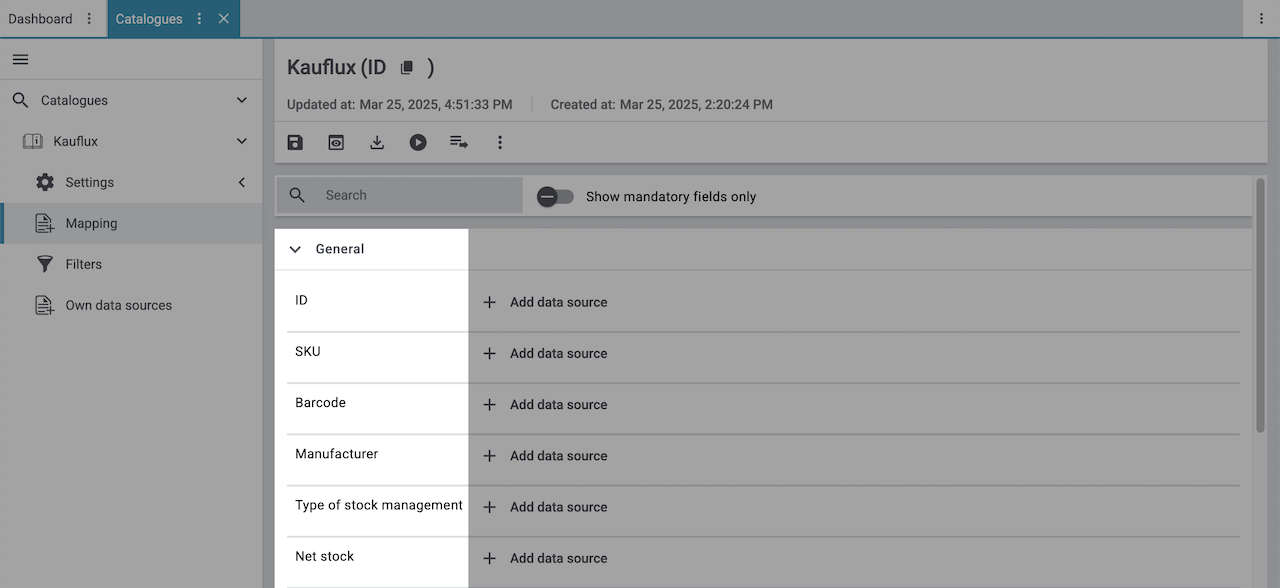
What you should know about marketplace data fields:
-
In the catalogue, mandatory fields are flagged with an asterisk (*). You must map PlentyONE data sources for these mandatory fields and ensure that your selected data sources contain fitting data for each variation you want to sell on the marketplace. Otherwise, the variation will not be exported to the market.
-
All other data fields are optional but will likely increase your sales performance. If no data is saved for one or more of these optional fields is saved for a variation, the variation is still exported to the market.
-
The best information about marketplace data fields is provided by the market itself. Check the market’s documentation to find out exactly what data is expected. When in doubt, ask your contact person at the market.
1.5. PlentyONE data sources
On the right-hand side of the mapping list, you map the marketplace data fields to appropriate PlentyONE data sources.
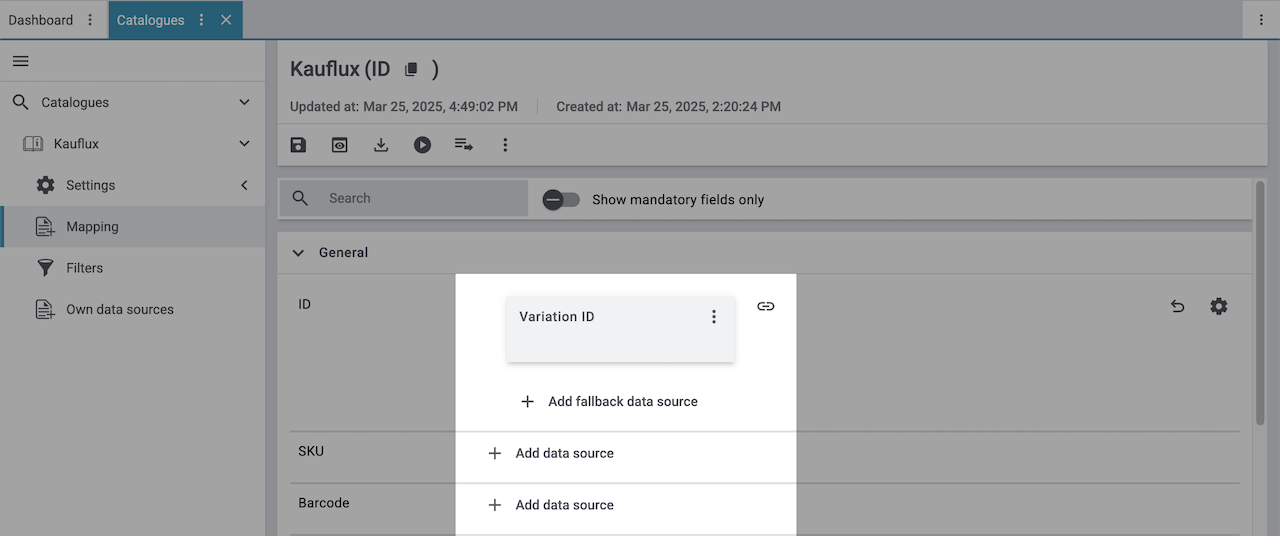
Tip: One field was already mapped in the screenshot.
You can use the following data sources to map your data:
-
Own values
-
Formulas
-
Variation data fields saved in the Items menu
What you should know about PlentyONE data sources:
-
A market expects product data that cannot be saved for a variation directly? Then create a property, link this property with your variations and save the product data as the values for this property instead.
-
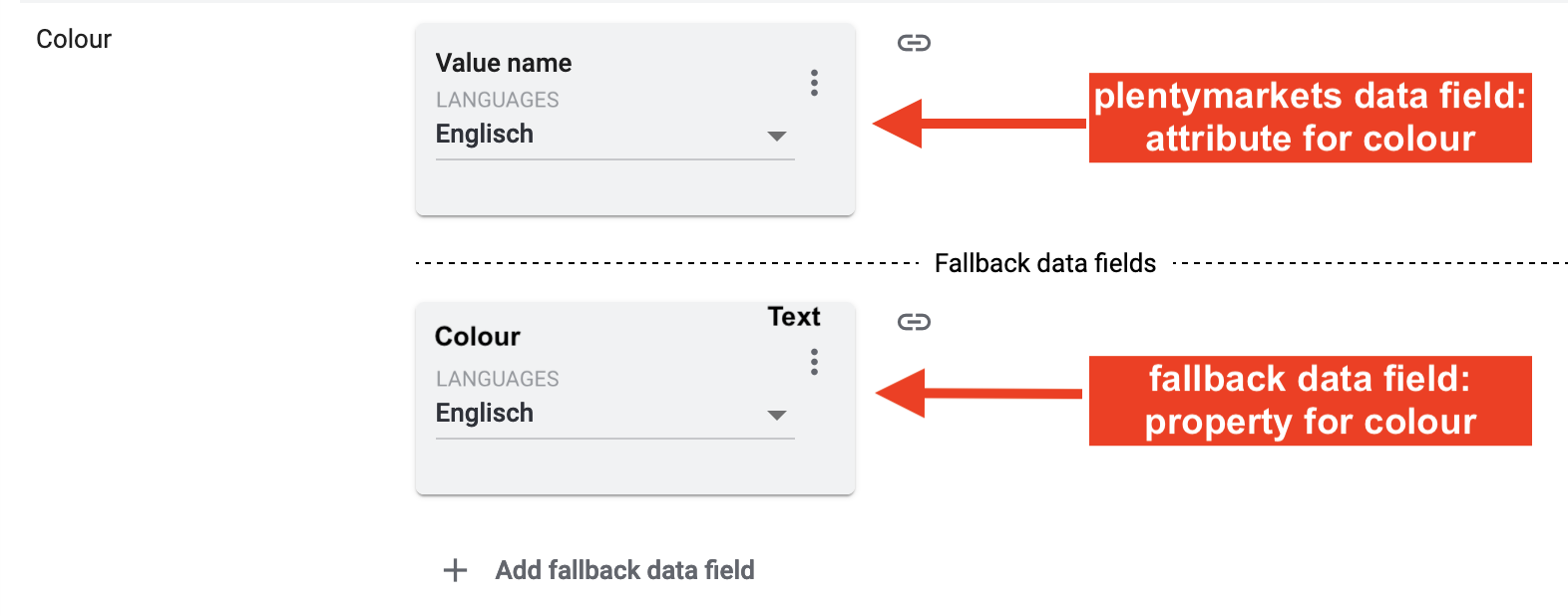
You can map a fallback data source in addition to a PlentyONE data source. The content of the fallback data field is only exported if the first mapped PlentyONE data field does not return a value.
2. What are catalogues with marketplace formats?
Every market structures product data differently. Often, you even need different product information for different product categories of the same market. For example, your product data for shoes will be different from that for cat food. For shoes, you specify the shoe size and the material. For cat food, you need to specify the base price, a list of ingredients and so on.
Catalogues with marketplace formats allow you to tailor your item information exactly to the needs of the market. Because here, you assign a suitable PlentyONE data field to each of the data fields of the market. When your variation data is exported to the market, the market’s data fields are then filled with the correct PlentyONE data.
-
A marketplace format contains a matrix of the data fields that a market can process. As such, marketplace formats tell you what data can be exported to the market. The asterisks also help you to see straight away which data is obligatory and which is option.
-
One market can offer several marketplace formats. For example, there might be different formats for different product categories (pet food, food, non-food, etc.) or for different languages. However, for some market you export all item data in a single catalogue. An example for this is Etsy.
What are the advantages of these catalogues?
-
Every format is based on the data structure of a specific market. As such, you know exactly which variation data is necessary to sell your products on the market.
-
You choose for each market and sometimes even for each market category which variation data is going to be published on the market. For example, you can use properties to export different variation names and descriptions to different markets.
-
You can easily copy and adjust well configured catalogues.
|
Map your data carefully!
There are very few limits to how you can map your data in a catalogue. However, this also means that there are no safeguards against incorrect mapping. In other words, your system will not prevent you from creating mappings that export incorrect data to a marketplace. As such, you should always make sure that the mappings you set up would export your item data as intended. |
3. Which mappings are available?
In this chapter, we give you the lowdown of the available mappings.
This information is structured like this:
|
Simplify mappings with Channel maps
With Channel maps, you can create cross-category mappings for a marketplace and apply them to your catalogues afterwards. All linked catalogues will automatically inherit the mapping from the Channel map. For more information, refer to the Channel maps manual page. |
3.1. What is "mapping"?
Mapping means that you link a marketplace data field with a PlentyONE data source. You can create a mapping by clicking on Add data source next to the marketplace data field you want to map your data to.
But what happens when you map a field? Let us assume the following use case:
-
For this marketplace data field, I want to export the data to the market that is saved in this PlentyONE item data field for the variation.
Example:
You map the PlentyONE data field Item text » Name 1 to the marketplace data field Item name:
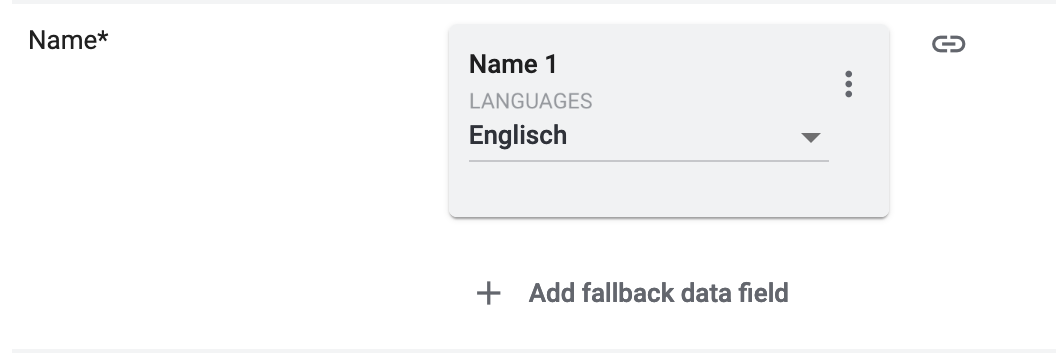
As such, the name that is saved in the menu Items & Stock » All items » [Open variation] » Tab: Description for the setting Name 1 is exported to the market for all variations.
For the variation you can see in the screenshot below, that means that the name Sessel »New York« Echtlederbezug in braun is exported to the market.
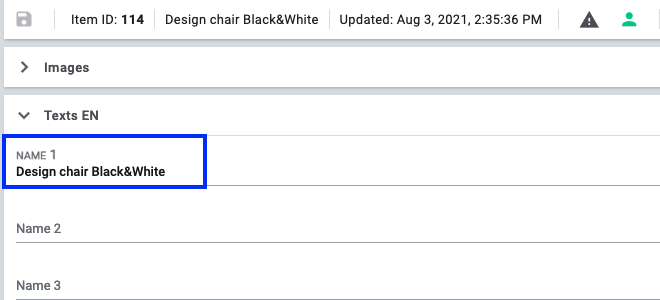
| You can use the Live preview feature to immediately see what data would be exported to the marketplace for a particular variation. |
3.2. Simple 1:1 mappings
Map 1 marketplace data field to the PlentyONE data source
In a 1:1 mapping, you map a PlentyONE data source to the marketplace data field. If no suitable setting exists in PlentyONE, you can map a property instead.
In other words, this mapping specifies:
-
I want to fill this marketplace data field with the data from this PlentyONE data source.
-
If the PlentyONE data field does not return a value, no value is exported for this variation.
-
Next to the marketplace data field, click on + Add data source.
→ To the left, the list of available PlentyONE data sources are shown in groups. -
Select a PlentyONE data source in the list.
→ The data source is added to the right, but not yet confirmed or saved. -
Click on Confirm.
3.3. Complex 1:1 mappings
Map the value of one marketplace data field to the value of 1 PlentyONE data field
Complex mappings are necessary whenever a marketplace data field only has a select number of possible values. Like the name implies, they cannot be resolved by simply mapping the whole data field to one of your PlentyONE data sources. Instead, you map the individual values that can be entered in the data field to PlentyONE data sources.
For example, a marketplace may only allow for the color of an item to be described using a limited selection of terms such as "Blue", while the variations saved in your system may use more distinct terms such as "Sky blue" or "Royal blue". In such cases the marketplace data field for item colors will be a complex mapping that allows you to map the colors "Sky blue" and "Royal blue" saved in your variations to the value "Blue" used by the marketplace.
| Do not enter own values for complex mappings. All values that you enter must be saved for the variations, either in a setting or as a property value. This also applies if the value Comparative value is shown. You still need to enter exactly the value of the setting or property that you mapped. |
A complex mapping will always export the value selected for the marketplace data field, regardless of what kind of data source you mapped it to. The only exception are own values, which will be exported as-is.
You can recognise complex mappings from the field that is shown below the name of the marketplace data field. Click on the field to show the values available for the marketplace data field.

Examples for complex 1:1 mappings are:
-
Categories
-
Brands
-
Shipping settings
Important: For complex mappings, do not map own values or properties of the type None.
-
Click on the field for the marketplace data field.
→ A list of the available values is shown. -
Select the value that you want to map a PlentyONE data source to.
→ The value is added as a mappable field. -
Next to the added field, click on + Add data source.
→ To the left, the available PlentyONE data sources are listed in groups. -
Select the PlentyONE data source you want to map tho the marketplace value.
Important: Do not map own values or properties of the type None. -
Your next steps depend on the PlentyONE data source you selected:
-
Alternative 1: The available values for the PlentyONE data value are shown on the left.
-
Next to the value you want to select, click on the plus.
→ The value is added to the field on the right. -
Click on Confirm.
-
-
Alternative 2: The PlentyONE data source is inserted and the field Comparative value is shown.
-
In the field Comparative value, enter a value that is saved in the setting or the property of the mapped PlentyONE data source.
-
Click on Confirm.
-
-
Alternative 3: The PlentyONE data source is inserted and a drop-down list is shown.
-
Select a value from the drop-down list.
-
Click on Confirm.
→ The value of the marketplace data field is exported, not the value of the PlentyONE data source.
Exception: If you map an own value to a marketplace data field, the own value that you enter is exported directly.
-
-
3.4. 1:1 mappings with fallback data fields
Map 1 marketplace data field to the PlentyONE data field and specify an alternative
You specify:
-
I want to fill this marketplace data field with the data from this PlentyONE setting.
-
If the PlentyONE data field does not return a value for a variation, the fallback data field is checked and the value of that fallback data field is exported instead.
All PlentyONE data field are available as fallback data fields. However, the content of the fallback data field is only exported if the first mapped PlentyONE data field does not return a value.
Workflow for fallback data fields:
-
During the export, the mapped PlentyONE data field of each variation is checked for content.
-
If data is saved for a variation for that PlentyONE data field, then this data is exported.
-
If the PlentyONE data field does not return any data, the system jumps to the first fallback data field and checks if this returns any data.
-
Example 1: You mapped Name 3 as the first PlentyONE data field. However, in the variation date a name is only saved in the field Name 1. The field Name 3 is empty.
-
Example 2: You mapped a property as the first PlentyONE data field. However, this property is not linked to the variation.
-
-
If the fallback data field also does not contain data for the variation, the second fallback data field is checked and so on.
-
If no data is found for a marketplace data field for a variation, what happens next depends on whether or not the data field is mandatory or not. If so, the variation is not exported. If not, the variation is exported. The variation is exported but the marketplace data field is not filled on the market.
-
Next to the marketplace data field, click on + Add data source.
→ To the left, the list of available PlentyONE data sources are shown in groups. -
Click on the plus to the right of the PlentyONE data source you want to use as the primary data source.
→ The PlentyONE data source is added to the right. -
Click on + Add fallback data source below the primary data source.
→ The fallback data source is added with the fallback condition Null. -
(Optional) If you want to use the fallback condition Empty instead:
-
Hover over the fallback data source with your cursor and click on the Settings () option that appears to the right.
→ The window Data column settings is shown. -
For the setting Fallback condition, select the option Empty.
-
Click on Save.
→ The fallback data source’s fallback condition is changed to Empty.
-
-
Click on Confirm.
→ The fallback data source is exported if the fallback condition is fulfilled.
3.5. 1:n mappings
Map SEVERAL PlentyONE data fields to the marketplace data field
In a 1:n mapping, you map several PlentyONE data fields to the marketplace data field. You can link these settings with a separator.
So this mapping specifies:
-
I want to combine these PlentyONE data fields during export so that the marketplace data field is filled with the data of these two or more PlentyONE settings.
-
Next to the marketplace data field, click on + Add data source.
→ To the left, the list of available PlentyONE data sources are shown in groups. -
Click on the plus to the right of the PlentyONE data source you want to select.
→ The PlentyONE data source is added to the right. -
Click on Confirm.
-
To the right of the mapped PlentyONE data source, click on Add data source ().
→ To the left, the list of available PlentyONE data sources again are shown in groups. -
Map the desired number of additional PlentyONE data sources to the marketplace data field as described above.
-
Click on Confirm.
-
To the very right of the row, click on Settings ().
-
Select a separator from the drop-down list Separator or add a custom separator.
-
Click on Save.
-
Save () the catalogue.
→ The mappings are saved.
→ During the export, the content of the PlentyONE data sources is combined and exported as one field.
3.6. Own value mappings
Map the same value for all variations to the marketplace data field
You are sure that you want to export the same value for all variations of a catalogue for a marketplace data field? Then specify an own value. This own value is then exported for all variations.
So this mapping specifies:
-
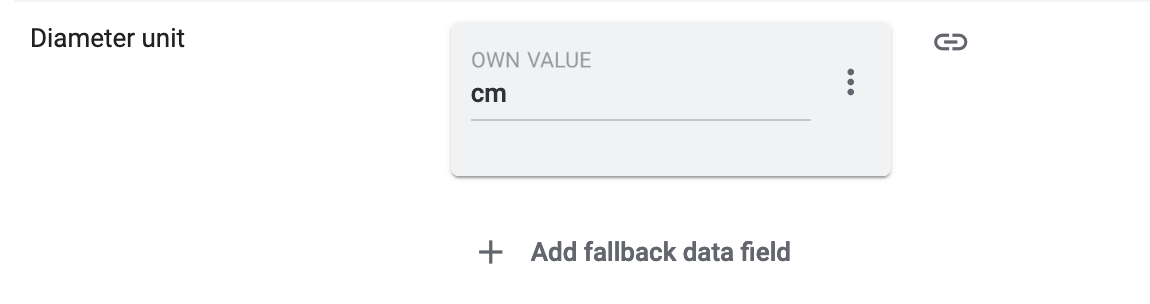
I want to export the value that I entered in the field Own value for all variations of this catalogue.
Example:
You want to export diameter information for some of your variations. The diameter is saved in centimetres for all your variations. Instead of creating a property for the unit and linking this property to every variations, you can enter the own value cm.
-
Next to the marketplace data field, click on + Add data source.
→ To the left, the list of available PlentyONE data sources are shown in groups. -
Select the Own value option at the top of the list.
→ The data source Own value is mapped to the data field. -
Enter a value into the input field in the Own value.
-
Click on Confirm.
→ The entered value is exported for all variations.
3.7. Recalculating numerical values (Formula)
You save a mathematical formula. This formula is applied to numerical values during the export.
Mathematical calculations allow you to change numerical values automatically during the export.
-
This function is new and has not been implemented for all marketplace formats yet.
-
This function only works for data fields that contain numerical values.
So this mapping specifies:
-
I want the numerical value of a PlentyONE data field to be recalculated during the export. Basic arithmetic operations are available for the formulas.
Mathematical formulas allow you to change numerical values automatically during the export. In other words, this mapping specifies:
-
I want the numerical value of a PlentyONE data source to be recalculated during the export. Basic arithmetic operations are available for the formulas.
Recalculating numerical values:
-
Next to the marketplace data field, click on + Add data source.
→ To the left, the list of available PlentyONE data sources are shown in groups. -
At the very top of the list, click on the + icon next to Formula (calculate).
→ The data field Formula is added to the field on the right. -
Click into the data field.
→ The window Modify value is shown. -
Enter a numerical value or select a PlentyONE data source at the bottom right of the window to add it to the calculation (add).
Tip: Use the search function. This helps you to find data fields quickly. -
Optional: If the symbol more_vert is shown in the data field, select the correct assignment for the data field.
Tip: A number tells you how many assignments are necessary for the data field.-
Click on the icon more_vert.
-
In the window shown, select the assignments from the drop-down list.
-
Save the settings.
-
-
Enter numbers and mathematical operators with the on-screen calculator or the keyboard.
-
Save the settings.
→ The entered formula is displayed in the overview.
→ When an export is carried out, the formula is used to calculate the value that is exported for each variation.
4. Optional: File export (no market export)
Catalogues with marketplace formats are automatically exported to markets if all your settings are correct. That means you can ignore the catalogue settings for Format settings, Export settings and Download settings.
However, you can also export a file that contains the data that is also exported to the market.
4.1. One-time catalogue export to a file
Use these instructions to create a one-time export of the catalogue data. The catalogue data is not exported to the market.
There are two ways to manually export the catalogue data:
Asynchronous download |
The export runs in the background. Once the download is completed, you download the export file from the Notifications (notifications). |
Live download |
The file is downloaded to your computer automatically. You can follow the export progress in real time.
|
For asynchronous downloads, the export runs in the background. So note that there will be no window for downloading the file straight away. Even exporting small amounts of data will take around 30 minutes. When the export is completed, you can download the export file from the Notifications (notifications).
Starting an asynchronous download:
-
Go to Data & Plugins » Catalogues.
→ The catalogue overview opens. -
Open the catalogue.
-
In the toolbar at the top, click on Download data (file_download).
Or: Even quicker: Start the download from the Additional actions (more_vert) in the catalogue overview.
→ The export starts.
Important: The export runs in the background. Note that there will be no window for downloading the file straight away. Even exporting small amounts of data will take around 30 minutes.
Once the export is finished, you will be notified (notifications_none) that the export file can be downloaded. -
In the notification centre, click on link Download.
Tip: The notification is no longer shown? Use the URL shown in the Download settings to access the file at any time. -
Save the file on your computer.
The live download creates the file and automatically downloads it to your computer. In the tab Data export, you can follow the download progress in real time. However:
-
When you start the live download, a new browser tab opens. In this browser tab, the PlentyONE tab Data export is shown. Do not close or reload the browser tab and the PlentyONE tab Data export while the export is in progress. If you do, the export stops and is cancelled.
-
You can start live downloads for several catalogues at the same time. However, you can only start a new live download for the same catalogue once the current export is complete.
-
The import can run into a timeout if you try to import large amounts of data. If that happens, the download is cancelled. For lots of data or if a timeout occurs, use the asynchronous download instead.
Starting a live download:
-
Go to Data & Plugins » Catalogues.
→ The catalogue overview opens. -
Open the catalogue.
-
In the toolbar at the top, click on Live download (play_circle_outline).
Or: Even quicker: Start the download from the Additional actions (more_vert) in the catalogue overview.
→ A new browser tab opens. PlentyONE and the tab Data export are shown.
No new tab was opened? Then your browser is probably blocking pop-ups by PlentyONE. Allow pop-ups for your system to continue.
→ The export starts.
Important: Do not close or reload the browser tab or the PlentyONE tab Data export while the export is in progress. If you do, the export stops and is cancelled.
→ The progress is shown in real time.
→ The file is automatically saved on your computer when the export is done.
|
Stopping a live download
Do you want to stop a live download? No problem:
|
4.2. Regular catalogue export to a file
Use these instructions to save the variation data of the catalogue regularly to a specified storage location. You can set the frequency of the export yourself. The catalogue data is not exported to the market.
Setting up regular file exports:
-
Go to Data & Plugins » Catalogues.
→ The catalogue overview opens. -
Click on the catalogue.
→ The catalogue opens. -
Click on the Settings tab () on the left.
→ The different settings options are shown. -
Carry out the settings. Note Table 1.
-
Save () the settings.
→ The catalogue data is exported to a file in the specified intervals.
→ The file is saved at the specified storage location.
| Setting | Explanation | ||||||||||||||||||||||||||||||||||||||||||||
|---|---|---|---|---|---|---|---|---|---|---|---|---|---|---|---|---|---|---|---|---|---|---|---|---|---|---|---|---|---|---|---|---|---|---|---|---|---|---|---|---|---|---|---|---|---|
Format settings |
|||||||||||||||||||||||||||||||||||||||||||||
File name |
Enter a file name. The exported file is saved with this name. Tip: You can use placeholders in the file name. Placeholders are automatically replaced by additional information relating to the file name during export. List of available placeholders
The following placeholders are available:
Examples for using placeholders:
|
||||||||||||||||||||||||||||||||||||||||||||
Format |
Select the file format for the export. Possible values:
|
||||||||||||||||||||||||||||||||||||||||||||
Field separator |
Specify which character should be used to separate the contents of the file into individual data fields. Possible values:
|
||||||||||||||||||||||||||||||||||||||||||||
Text delimiter |
Specify which character should be used to separate text strings into individual values. Possible values:
|
||||||||||||||||||||||||||||||||||||||||||||
Encode special characters () |
If you activate this option, unicode characters (e.g. umlauts: ä, ö, ü) will be exported in encrypted form. |
||||||||||||||||||||||||||||||||||||||||||||
Line break |
How do you want to handle line brakes in the export file? Possible values:
|
||||||||||||||||||||||||||||||||||||||||||||
Header is included |
Activate the option if you want the export file to contain a header line. The export keys are used as headings for the columns. |
||||||||||||||||||||||||||||||||||||||||||||
Decimal separator |
Select the character that is used to separate the decimal part of a number from its integer part. Possible values:
|
||||||||||||||||||||||||||||||||||||||||||||
Export settings |
|||||||||||||||||||||||||||||||||||||||||||||
Limit |
In this field you can optionally enter an upper limit for the amount of data sets that are included in the export. |
||||||||||||||||||||||||||||||||||||||||||||
Skip empty files |
If this toggle is activated, then empty files will not be exported to the target location. |
||||||||||||||||||||||||||||||||||||||||||||
Provisioning |
Where do you want to save the export?
|
||||||||||||||||||||||||||||||||||||||||||||
Server |
Enter the server where you want to save the export. |
||||||||||||||||||||||||||||||||||||||||||||
Port |
Enter a port or use the default setting. Recommended port settings:
|
||||||||||||||||||||||||||||||||||||||||||||
User name |
Enter the user name for the server. |
||||||||||||||||||||||||||||||||||||||||||||
Password |
Enter the password for the server. |
||||||||||||||||||||||||||||||||||||||||||||
Path |
Enter the path to a location on your server where the export files should be saved. |
||||||||||||||||||||||||||||||||||||||||||||
Test connection |
Tests the server settings that you entered:
Tip: A test file is saved at the storage location. This test file is called Note: This only tests if an export file can be saved to the specified server. The option does not check if a connection can be established to a market. |
||||||||||||||||||||||||||||||||||||||||||||
Transfer |
Select an interval in which the export should be carried out automatically.
|
||||||||||||||||||||||||||||||||||||||||||||
Schedule: times |
Click into the field. In the drop-down list shown, select one or more points in time. The export is carried out at these times. |
||||||||||||||||||||||||||||||||||||||||||||
Weekdays |
By default, all weekdays are selected. To deactivate exports for specific days of the week:
Tip: The setting Weekdays is only shown if you select an interval or schedule for the setting Transfer. |
||||||||||||||||||||||||||||||||||||||||||||
5. FAQ: Questions and answers
Users with back end access rights can only see catalogues if an admin gave them access.
-
Find someone who has administrator rights for the PlentyONE system.
-
This person will open the menu Setup » Settings » User » Rights » User.
-
Then they will open your user account and activate the necessary rights:
-
Data > Data exchange > Export > Catalogue > Show
-
-
Save () the settings.
You can find information on how to manage your catalogues here: