Galaxus.de (Setup » Markets)
The Galaxus Deutschland GmbH is a German subsidiary of the Swiss e-commerce market leader Digitec Galaxus AG. The Galaxus online shop offers customers a wide range of IT, consumer electronics and telecommunications products at consistently attractive prices.
|
Setup
This page explains the setup process for GalaxusDE via the Setup menu. If your system features the Sales Channels » Channel Control Centre menu, then you can find instructions on how to set up GalaxusDE via that menu here. |
1. Registering with Galaxus
Register online for the Digitec Galaxus Merchant Program or contact Galaxus using the email address start@galaxus.de.
2. Installing the plugins
To export item data to Galaxus using the Elastic Export, you need the following plugins:
You can download the plugins in the plentyMarketplace.
Important: Install the plugin in the plugin set of the main client.
Adding plugin to the system:
-
Go to Plugins » plentyMarketplace.
→ The marketplace opens in a new tab. -
Navigate to the plugin Elastic Export.
Tip: Either use the search function or open the category Plugins » Sales » Marketplaces. -
Open the detail view of the plugin.
-
In the column to the right, click Go to checkout.
→ The Checkout window opens. -
Read and accept the General Terms and Conditions.
-
Click Order now.
→ Wait a few minutes before installing the plugin.
Installing plugins:
-
Go to Plugins » Plugin set overview.
-
Click on the plugin set of your main client.
Important: In other words: The plugin set must be linked to the main client.
→ The plugin set opens. -
Click add Add plugin.
-
Select Elastic Export from the plugin list.
-
Click Install.
→ The plugin is installed.
→ The plugin set is shown. -
Switch the plugin to active (toggle_on).
-
Save (save) the plugin set.
Tip: Problems saving the plugin set? Click Open details to show additional information.
Important: Install the plugin in the plugin set of the main client.
Adding plugin to the system:
-
Go to Plugins » plentyMarketplace.
→ The marketplace opens in a new tab. -
Navigate to the plugin Galaxus.de.
Tip: Either use the search function or open the category Plugins » Sales » Marketplaces. -
Open the detail view of the plugin.
-
In the column to the right, click Go to checkout.
→ The Checkout window opens. -
Read and accept the General Terms and Conditions.
-
Click Order now.
→ Wait a few minutes before installing the plugin.
Installing plugins:
-
Go to Plugins » Plugin set overview.
-
Click on the plugin set of your main client.
Important: In other words: The plugin set must be linked to the main client.
→ The plugin set opens. -
Click add Add plugin.
-
Select Galaxus.de from the plugin list.
-
Click Install.
→ The plugin is installed.
→ The plugin set is shown. -
Switch the plugin to active (toggle_on).
-
Save (save) the plugin set.
Tip: Problems saving the plugin set? Click Open details to show additional information.
3. Activating the order referrer
Go to Setup » Orders » Order referrer to activate the order referrer. This ensures that orders are assigned to the correct sales channel.
An order referrer tags an order with the sales channel on which the order was generated. Sales channels can be e.g. your online shop or markets on which you sell your items. Each sales channel has an individual order referrer. Some order referrers are available by default in your PlentyONE system. Further order referrers are added e.g. if you install a new plugin. For further information about the order referrer, see the page Order referrer of the PlentyONE manual.
Activating the order referrer for GalaxusDE:
-
Go to Setup » Orders » Order referrer.
-
Click Search (search).
-
In the list, navigate to the option GalaxusDE.
Tip: The order referrer is not in the list? Then you probably have not installed the plugin yet. -
On the right of the referrer’s line, click Edit (edit).
→ The window Edit referrer opens. -
Activate the option Visible in selection (toggle_on).
-
Click SAVE (save).
→ The referrer is active.
4. Setting up the order interface in PlentyONE
Carry out the following settings in PlentyONE in order to set up the order interface to Galaxus. Keep the FTP connection details ready that Galaxus emails you after your registration.
The menu Setup » Markets » GalaxusDE is only shown after you carry out the following steps:
-
The plugin is installed in the plugin set in which the default client is linked.
-
The plugin set was successfully deployed to your system.
-
The order referrer GalaxusDE is active in the menu Setup » Orders » Order referrer.
Setting up the order interface to Galaxus:
-
Go to Setup » Markets » GalaxusDE » Order import.
-
Carry out the settings. Note the explanations in Table 1.
-
Save (save) the settings.
| Setting | Explanation |
|---|---|
Client |
Allows you to attach clients to imported orders. |
General settings |
|
Activate Order Interface |
Activate to enable data exchange with Galaxus for orders. |
Add customer reference number after external order number |
Activate if you need the customer reference number for customs documents (EU-HUB USER). Note: When this option is active, you can only search order numbers by entering the complete string *GalaxusOrderNumber |
Host |
Enter the host name based on the pattern ftp.dg.ch. |
User |
Enter the user name and password that you received from Galaxus. |
Port number |
Enter the port number. |
Plenty2DG folder |
Select the Plenty2DG folder for the selected host. |
DG2Plenty folder |
Select the DG2Plenty folder for the selected host. → From this FTP path, the plugin will read new orders and requests from Galaxus. |
Order status configuration |
|
Order status for cancellation requests |
Which order status do you want to assign to new cancellation requests during import? |
Order status for return requests |
Which order status do you want to assign to new return requests during import? |
Automatically reject cancellation requests for orders from this status |
From which order status do you want to reject cancellation requests automatically? Important: If you do not select a status, the status [5] Cleared for shipping is used. |
5. Setting up the item export
The following Elastic Export formats are used for the item export. When you provision the plugin, these formats are installed automatically.
-
GalaxusDeProductDataExport
-
GalaxusDeProductPropertiesExport
-
GalaxusDeProductStockPricingExport
For format relevant setup options, go to Setup » Markets » GalaxusDE » Item export.
Setting up the item export to Galaxus:
-
Go to Setup » Markets » GalaxusDE » Item export » Product data.
-
Carry out the settings. Note the explanations in Table 2.
-
Save (save) the settings.
| Setting | Explanation |
|---|---|
Product Data (Format GalaxusDeProductDataExport) |
|
Description |
Possible options:
|
Export Customs tariff number as |
Possible options:
|
Composition |
Select a description of a product’s composition or ingredients. This compliance-relevant description is required by law for specific product groups. |
Application |
Select an application description for a product. This compliance-relevant description is required by law for specific product groups. |
WEEE number |
Select a WEEE number. This manufacturer number is assigned to the first distributors of electrical and electronic equipment following successful registration with EAR foundation. It consists of a country code and an eight-characters-long sequence of digits. |
Product Properties » Item Characteristics (Format GalaxusDeProductPropertiesExport) |
|
Export activated characteristics |
Possible options:
Note: Characteristics are no longer officially supported in PlentyONE. As such, do not select any characteristics if you did not use them previously. |
Whitelist |
Creating a whitelist element:
|
Product Properties » Variation Properties (Format GalaxusDeProductPropertiesExport) |
|
Export activated properties |
Possible options:
|
Whitelist |
Creating a whitelist element:
|
Product Stock Pricing (Format GalaxusDeProductStockPricingExport) |
|
Currency |
Possible settings for exporting the currency:
|
Calculate "Sales price excl. VAT" based on Elastic Export format setting "Target country" |
Activate if the Elastic Export format setting for Target country should be considered (menu Data » Elastic Export » [Open Galaxus export] » Section: Format settings). |
Positive stock quantities are always exported, independent of the average delivery period |
Possible options:
Note: To clarify, check the default export matrix for active variations in Table 3. |
Sales price that is exported as purchase price excl. VAT |
Select a sales price that you have set up in your PlentyONE system. This price will be transferred to Galaxus without VAT. |
Sales price that is exported as purchase price excl. fees and VAT |
Select a sales price that you have set up in your PlentyONE system. This price will be transferred to Galaxus without VAT as purchase price without fees. |
Export stock from: |
Possible options:
|
List of mapped warehouses |
|
PlentyONE warehouse |
The PlentyONE warehouse the products originate from. |
Galaxus GLN |
The GLN provided by Galaxus or the postcode of the respective warehouse. |
5.1. Mapping a PlentyONE warehouse to a Galaxus GLN
In the Product Stock Pricing section of the item export settings, you can map your PlentyONE warehouses to the respective Galaxus GLN. To do so, proceed as follows.
Mapping a PlentyONE warehouse to a Galaxus GLN:
-
Go to Setup » Markets » Galaxus » Item export » Product Stock Pricing.
→ The settings for the Product Stock Pricing section of the item export open. -
In the List of mapped warehouses section, click Create mapping (add).
-
The window Mapping a PlentyONE warehouse to a Galaxus GLN opens.
-
In the Warehouse field, select a warehouse from the drop-down list.
-
In the Galaxus GLN field, enter the GLN for the warehouse that was provided by Galaxus.
-
Click Save.
→ The mapping is saved and added to the overview.
5.2. Default export matrix for active variations
The basic logic of Galaxus is like this:
If positive stock is transmitted, Galaxus uses the default delivery time that is saved for the account in the Galaxus back end. If an item does not have positive stock, the reorder time is used instead.
Notes:
-
Galaxus assumes an average delivery time of 2 days for items that are in stock. If an item has stock and an availability that results in a delivery time of 2 or more days, the item is exported with a stock of 0\. The delivery time is exported as the reorder time. For items with 0 or negative stock and an average delivery time of two days or less, the system assumes a configuration error and the item is not exported.
-
Item data is processed irrespective of the stock export conditions for export.
-
Bundles are not exported if one of the items in it are not in stock. Also, the exported stock amount is based on the bundle component with the highest stock.
The following table shows a default export matrix for active variations.
| Net stock | Average delivery period | Result |
|---|---|---|
Positive stock |
Delivery time ⇐ 2 |
Stock is exported. |
Positive stock |
Delivery time > 2 |
Only delivery time is exported. |
Positive stock |
No Delivery time |
Stock is exported. |
Stock 0/negative |
Delivery time ⇐ 2 |
No export. |
Stock 0/negative |
Delivery time > 2 |
Only delivery time is exported. |
Stock 0/negative |
No delivery time |
No export. |
|
Log entries for the export matrix
You filter for notifications regarding the export matrix in the data log. Use the following filter settings for this:
|
6. Mapping shipping profiles
In the Setup » Markets » GalaxusDE » Shipping profile mapping menu, you can map shipping profiles saved in PlentyONE to Galaxus carriers.
Tip: If the shipping profiles are mapped, the carrier (and no longer the tracking URL) will be sent to Galaxus whenever a shipping confirmation is sent.
Mapping shipping profiles:
-
Go to Setup » Markets » GalaxusDE » Shipping profile mapping.
-
Click add Create mapping.
→ The Shipping profile mapping window opens. -
Select a PlentyONE shipping profile.
-
Select a Galaxus carrier.
-
Save the settings.
7. Setting up a sales price
Sales prices define the conditions under which a variation is sold at a specific price and on a specific sales channel.
-
Go to Setup » Item » Sales prices.
-
Click add New.
-
Enter a position number.
-
Enter an Internal and an External name.
-
Enter a value for Minimum quantity.
-
Select EUR as the currency.
-
Select the Client.
-
Select the sales countries.
-
Select the referrer GalaxusDE.
-
Save the settings.
Note: Alternatively, you can activate the referrer GalaxusDE in an existing sales price.
8. Preparing a category for the export
On Galaxus, your variations are offered for each of your clients (store) individually. Hence you can activate categories for each of your clients individually if desired.
Activating a category for a client:
-
Go to Item » Category.
-
Click on the category in the directory tree on the left.
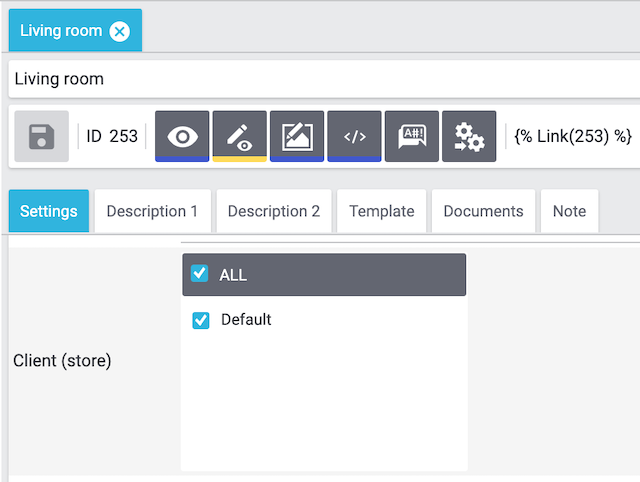
→ The category opens. The Settings tab is shown. -
Navigate to the setting Client (store).
-
Activate (check_box) the category for the client of your choice.
-
Save (save) the settings.
9. Preparing variations for the export
| Setting | Explanation |
|---|---|
Selecting the default category |
The default category of the variation is exported to Galaxus in all cases. As such, define a default category for the variation. You can link the default category to any client of your choice. Selecting the default category:
|
Add SKU |
An SKU for the referrer GalaxusDE must be assigned to the variation. Adding SKU:
|
Activate the variation |
The variation must be active. Activating a variation:
|
Add sales channel |
The sales channel GalaxusDE must be added to the variation. Adding a sales channel:
|
Link sales price |
The sales price must be linked to the variation. Linking the sales price:
|
Link properties |
Permitted properties must be linked to the variations. Linking properties:
|
Save availability |
The Availabilities 1-10 must be saved for the variation.
|
Set image availability |
To transfer images to Galaxus, you need to enable them for the referrer GalaxusDE. Set image availability:
|
10. Exporting items to Galaxus
The GalaxusDE plugin exports the item data using the Elastic Export plugin. For more information on the Elastic Export Plugin, visit the Elastic Export page.
10.1. Setting up Elastic Export formats
The following Elastic Export formats are used for the item export. When you provision the plugin, these formats are installed automatically.
-
GalaxusDeProductDataExport
-
GalaxusDeProductPropertiesExport
-
GalaxusDeProductStockPricingExport
Setting up Elastic Export formats:
-
Go to Data » Elastic Export » New export add.
→ Each format works for a specific part of the item export. -
Select a Galaxus format:
-
GalaxusDeProductDataExport
-
GalaxusDeProductPropertiesExport
-
GalaxusDeProductStockPricingExport
-
-
Set up the export formats.
-
Save the settings.
| Galaxus output | PlentyONE input field |
|---|---|
ProductKey, Mandatory, string(100) |
Item » Items » Variation ID |
GTIN, mandatory, integer (8-14) |
Item » Items » [Open variation] » Section: Barcodes Corresponds to barcode type Selection in the elastic export filter of this format |
ManufacturerKey, string(200) |
Item » Items » [Open variation] » Section: Settings » Input field: Model |
BrandName, mandatory, string(100) |
Go to*Item » Items » [Open item] » Section: Settings » Drop-down list: Manufacturer* |
ProductTypeIdDigitecGalaxus, Integer(200) |
- |
Category, mandatory, string(200) |
Item » Items » [Open variation] » Section: Categories |
CategoryGroup_1, string(200) |
- |
CategoryGroup_2, string(200) |
- |
CategoryGroup_3, string(200) |
- |
CategoryGroup_4, string(200) |
- |
TARESCode, string(20) |
Item » Items » [Open variation] » Section: Costs » Input field: Customs tariff number |
TARICCode, string(20) |
Item » Items » [Open variation] » Section: Costs » Input field: Customs tariff number |
CountryOfOrigin, string(20) |
Item » Items » [Open item] » Section: Settings » Drop-down list: Manufacturing country |
SuggestedRetailPriceIncludingVat, Mandatory, float(14,4) |
Item » Items » [Open variation] » Section: Sales prices PPP Galaxus Salesprice |
VatRatePercentage, mandatory, float(2.4) |
Item » Items » [Open variation] » Section: Costs » Drop-down list: VAT |
ImageURL (1 to 10), mandatory, text(300) |
Item » Items » [Open item] » Section: Images |
VideoURL (1 to 3), string(300) |
- |
ProductLink (1 to 3), string(300) |
- |
WeightG, EU-Hub mandatory, integer(10) |
Item » Items » [Open variation] » Section: Content / Dimensions » Input field: Gross weight in grams |
WidthM, float(14,4) |
Item » Items » [Open variation] » Section: Content / Dimensions » Input field: Width in mm |
HeightM, float(14,4) |
Item » Items » [Open variation] » Section: Content / Dimensions » Input field: Height in mm |
LengthM, float(14,4) |
Item » Items » [Open variation] » Section: Content / Dimensions » Input field: Length in mm |
ReleaseDate, Format (YYYY-MM-DD) |
- |
GlobalSalesRank_integer(10)_ |
- |
MinimumAge, integer(10) |
Item » Items » [Open item] » Section: Settings » Drop-down list: Age restriction |
ProductTitle_DE, Mandatory (at least one of four languages), (Text100) |
Item » Items » [Open item] » Left navigation: Texts » Input field: Name 1 DE, Name 2 DE, or Name 3 DE |
ProductTitle_EN, (Text100) |
Item » Items » [Open item] » Left navigation: Texts » Input field: Name 1 EN, Name 2 EN, or Name 3 EN |
ProductTitle_FR, (Text100) |
Item » Items » [Open item] » Left navigation: Texts » Input field: Name 1 FR, Name 2 FR, or Name 3 FR |
ProductTitle_IT, (Text100) |
Item » Items » [Open item] » Left navigation: Texts » Input field: Name 1 IT, Name 2 IT, or Name 3 IT |
ProductTitleTagLine_DE, Text |
- |
ProductTitleTagLine_EN, Text |
- |
ProductTitleTagLine_FR, Text |
- |
ProductTitleTagLine_IT, Text |
- |
ProductDescription_DE, mandatory (at least one of four languages), Text |
Standard: Item » Items » [Open item] » Left navigation: Texts » Input field: Item text DE |
ProductDescription_EN, Text |
Standard: Item » Items » [Open item] » Left navigation: Texts » Input field: Item text EN |
ProductDescription_FR, Text |
Standard: Item » Items » [Open item] » Left navigation: Texts » Input field: Item text FR |
ProductDescription_IT, Text |
Standard: Item » Items » [Open item] » Left navigation: Texts » Input field: Item text IT |
MinimumOrderQuantity, mandatory, integer(10) |
Item » Items » [Open variation] » Section: Availability and visibility » Input field: Minimum order quantity |
RetailUnitQuantityInPackingUnit, integer(10) |
- |
RetailUnitQuantityOnPallet, integer(10) |
- |
RetailUnitQuantity, mandatory, integer(10) |
Item » Items » [Open variation] » Section: Shipping » Input field: Packing quantity |
ProductSuperType |
Item » Items » Item ID |
WEEE number |
This manufacturer number is assigned to the first distributors of electrical and electronic equipment following successful registration with EAR foundation. It consists of a country code and an eight-characters-long sequence of digits. |
Composition |
Describes a product’s composition or ingredients. This compliance-relevant description is required by law for specific product groups. |
Application |
Describes a product’s application. These are compliance-relevant descriptions that are by law required for specific product groups. |
| Galaxus output | PlentyONE input field |
|---|---|
ProductKey, Mandatory, string(100) |
Item » Items » Variation ID |
QuantityOnStock, mandatory, integer(10) |
Item » Items » [Open variation] » Section: Stock » Column: Net stock |
IsOnStock, mandatory, boolean(0/1) |
Item » Items » [Open variation] » Section: Stock » Column: Net stock |
DeliveryDate, integer(10) |
Item » Items » [Open variation] » Section: Availability and visibility » Drop-down list: Displayed delivery time This selection is equivalent to the settings in the menu Setup » Item » Availability » Average delivery time. |
PurchasePriceExcludingVat, mandatory, float(14,4) |
Settings » Markets » GalaxusDE » Item Export » Product Stock Pricing » Choose Sales Price to export as Purchase Price Excluding Vat |
SalesPriceExcludingVat, mandatory, float(14,4) |
Item » Items » [Open variation] » Section: Sales prices » Column: Price (Net) |
Currency, mandatory, string(3) |
Setup » Item » Sales prices » [Open Galaxus sales price] » Currency EUR / CHF |
PurchasePriceExcludingFee, decimal number(14,4) |
Settings » Markets » GalaxusDE » Item Export » Product Stock Pricing » Choose Sales Price to export as Purchase Price Excluding Vat |
WarehouseCountry, string(2) |
Setup » Stock » Warehouse » [Open warehouse] » Settings » Location |
WarehouseId, mandatory, integer(1) |
The identification number of the warehouse at Galaxus. Galaxus uses a GLN (Global Location Number) or the postcode of the warehouse. |
ExpectedRestockQuantity, mandatory, integer(10) |
Stock » Reorder management » Reorder » [Open reorder] » Ordered items Note: If you don’t use reorders, the value 0 is transferred. |
| Galaxus output | PlentyONE input field |
|---|---|
ProductKey, Mandatory, string(100) |
Item » Items » Variation ID |
SpecificationKey, mandatory, string(80) |
- |
SpecificationGroup_DE, string(80) |
Property group name / Attribute (DE) Note: The plugin selects the first group from the list of property groups in the order in which they were added to the property. The following workaround should set GroupWeWantExported as the first in the list for the export: For example, the property Property1 is to exist in the 3 groups GroupA, GroupWeWantExported and GroupB
|
SpecificationGroup_EN, string(80) |
Property group name / Attribute (EN) |
SpecificationGroup_FR, string(80) |
Property group name / Attribute (FR) |
SpecificationGroup_IT, string(80) |
Property group name / Attribute (IT) |
SpecificationKey_DE, mandatory, string(80) |
Property designation / Attribute (DE) |
SpecificationKey_EN, mandatory, string(80) |
Property designation / Attribute (EN) |
SpecificationKey_FR, mandatory, string(80) |
Property designation / Attribute (FR) |
SpecificationKey_IT, mandatory, string(80) |
Property designation / Attribute (IT) |
SpecificationValue_DE, mandatory, string(80) |
Property value / Attribute (DE) |
SpecificationValue_EN, mandatory, string(80) |
Property value / Attribute (EN) |
SpecificationValue_FR, mandatory, string(80) |
Property value / Attribute (FR) |
SpecificationValue_IT, mandatory, string(80) |
Property value / Attribute (IT) |
|
Fields for item data export
For the correct export of item data in the Data » Elastic export menu, the following two fields must be included in the CSV file:
|
10.2. Configuring formats in the elastic export
Configuring the Elastic Export:
-
Go to Data » Elastic Export.
-
Click New export.
-
Configure the export as described in Table 8.
-
Save the settings.
| Setting | Explanation |
|---|---|
Name |
Enter a name
|
Type |
Select the type item from the drop-down list. |
Format |
Select one of the three relevant data export formats.
|
Limit |
Enter a whole number. This number determines how many items are exported at maximum. Enter an integer between 0 and 9999. |
Generate cache file |
Place a check mark if you want to export more than 9999 data records to the interface. We recommend that you do not activate this setting for more than 20 export formats. This is to ensure a high performance of the Elastic Export. Depending on the user configuration and amount of data, it can take more than 24 hours to update the cache file. |
Provisioning |
You need to provide the data via SFTP. Using this option, you must also enter the SFTP credentials and the path to the SFTP folder where the data should be exported. |
File name |
Name your export files as follows:
|
Item filter |
Allow you to set up the export more granularly and thus ensure that only a specific subset of items is exported to Galaxus. Note that the plugin cannot use the following Elastic Export filters:
|
Add item filters |
Plugin relevant item filters are Active and Markets » GalaxusDE Select an item filter from the drop-down list and click Add. There are no filters selected by default. |
Client |
Select the client of your choice from the drop-down list. |
Order referrer |
Select the order referrer that should be assigned during the order import from the drop-down list. In this case, this is: GalaxusDE |
Target country |
Select a target country for the export. |
Barcode |
Select the ASIN, ISBN or an EAN from the drop-down list. Selection must be linked to the referrer GalaxusDE. Otherwise, the barcode selection is not exported |
Sales price |
The exported sales price is always the Sales price net. The select Sales price gross is ignored during export. |
11. Providing information on manufacturer and EU-responsible person (GPSR)
The General Product Safety Regulation of the EU (GPSR) requires manufacturers and sellers to ensure the product safety of certain goods and to provide certain information for this purpose. This information includes details about the manufacturer and, in the case of manufacturers without an establishment in the EU, details about the responsible person within the EU. The GPSR regulation ensures that products are safe and comply with consumer protection requirements before being placed on the market.
In the following chapters, you will learn how to add information on the manufacturer and the responsible person within the EU in PlentyONE to comply with the GPSR regulation.
11.1. Galaxus fields for EU responsible person
The following table lists the required fields for information on the EU responsible person.
11.2. Requirements
-
You have filled in the required fields for the EU-responsible person for each of your manufacturers. You can find the required fields here: Setup » Item » Manufacturers » Tab Manufacturers: [Open Manufacturer] » Tab: Settings.
-
You have selected the manufacturer at item level to transfer the manufacturer data to Galaxus.
| Field name | Description |
|---|---|
EU Responsible Name |
Enter the name of the EU-responsible person. |
EU Responsible Street |
Enter the street of the EU-responsible person. |
EU Responsible House No |
Enter the house number of the EU-responsible person. |
EU Responsible Post Code |
Enter the postcode of the EU-responsible person. |
EU Responsible Town |
Enter the town of the EU-responsible person. |
EU Responsible Country |
Enter the country of the EU-responsible person. |
EU Responsible Email |
Enter the email address of the EU-responsible person. |
EU Responsible Phone number |
Enter the telephone number of the EU-responsible person. |
12. Preparing order documents
You need the following order documents for Galaxus:
-
Invoice
-
Delivery note
You must adapt these order documents to the requirements of GalaxusDE. Check the following chapters to find out how:
Tip: Are you new to order documents? Then read up on order documents first.
12.1. Preparing invoices
To find out which details must be included on invoices for Galaxus, refer to the official Digitex Galaxus AG documentation.
Note: You prepare invoices for GalaxusDE in the same way as delivery notes. Use either a copy of the default template for invoices or a custom template and add all mandatory details required by Galaxus.
12.2. Preparing delivery notes
Delivery notes for GalaxusDE orders must contain specific mandatory information. To find out which details must be included on invoices for Galaxus, refer to the official Digitex Galaxus AG documentation.
The following chapters explain how to prepare your delivery note template for GalaxusDE in four steps.
| The following steps are examples showing how to display two of the mandatory details on the delivery note. Delivery notes for GalaxusDE must contain all mandatory information required by Galaxus. Therefore, always check the latest Galaxus documentation and make sure you fully implement the requirements described there. |
12.2.1. Step 1: Adjusting the delivery note template
Adjust the delivery note template so that it contains all required details, for example:
-
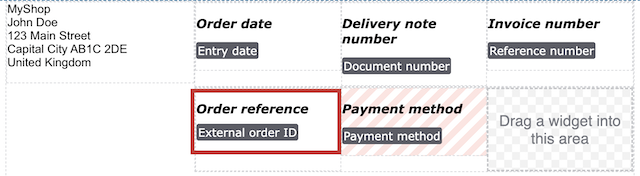
Order reference (Galaxus order number)
-
Legal notices
Note: The following example uses a copy of the default template for delivery notes. If you have already created your own template for GalaxusDE delivery notes, you may need to add the required widgets via drag-and-drop.
Adjusting template for delivery notes:
-
Go to Setup » Documents » DocumentBuilder.
-
Open the template you use for GalaxusDE delivery notes.
-
Click Open Editor (edit).
→ The editor opens and the widgets are loaded. -
Carry out the settings described in Table 10.
-
Check the Galaxus documentation to see if further adjustments to your template are required.
-
Save (save) the settings.
→ The necessary information is shown on delivery notes.
| Setting | Option |
|---|---|
Order reference (Galaxus order number) |
|
Legal notices |
Legal notices
Payment has already been made directly to Galaxus Deutschland GmbH.
|
12.2.2. Step 2: Enabling the template for GalaxusDE
To ensure the delivery note template is only used for GalaxusDE orders, you only enable it for the GalaxusDE order referrer.
Enabling the delivery note template for GalaxusDE:
-
Go to Setup » Documents » DocumentBuilder.
-
Open the template you use for GalaxusDE delivery notes.
-
Click Referrer in the Order settings section.
→ A drop-down list with all active referrers opens. -
Deselect all referrers except GalaxusDE.
-
Save () the settings.
→ The delivery note template will only be used for delivery notes with the GalaxusDE order referrer.
12.2.3. Optional: Step 3: Checking the preview
Before activation, check whether all information is displayed correctly on the delivery note.
Displaying the preview:
-
Go to Setup » Documents » DocumentBuilder.
-
Open the template you use for GalaxusDE delivery notes.
-
Click Show preview (visibility) at the top.
12.2.4. Step 4: Activating the template
Activate the template so that it can be used for GalaxusDE orders.
Activating the template:
-
Go to Setup » Documents » DocumentBuilder.
-
Click the context menu (more_vert) on the far right side in the row of your GalaxusDE delivery note template.
-
Click task Activate template.
-
Confirm your decision.
Or: Open the template and click the Activate Template toggle (toggle_off) at the top.
→ The template is activated.
Note: You can only activate a template if no other template in DocumentBuilder has exactly the same settings. Moreover, if a template is in an activated state, you cannot make changes to it (except to the name).
13. Automating order processing
You can automatically inform GalaxusDE about changes to the order status. Two options are available for this purpose:
-
Option 1: PlentyONE Flow (recommended)
-
Option 2: Event procedures (old method)
13.1. Option 1: PlentyONE Flow (recommended)
Create event-based flows to automatically inform GalaxusDE about changes to the order status. The following actions are available for GalaxusDE in the PlentyONE Flow Studio:
-
Automatically inform GalaxusDE that the order was confirmed. (How?)
-
Automatically inform GalaxusDE that the items have been shipped. (How?)
-
Automatically inform GalaxusDE that a cancellation request has been accepted. (How?)
-
Automatically inform GalaxusDE that a cancellation request has been rejected. (How?)
-
Automatically inform GalaxusDE that an order has been cancelled by the seller. (How?)
-
Automatically inform GalaxusDE that a return request has been accepted. (How?)
-
Automatically inform GalaxusDE that a return request has been rejected. (How?)
-
Automatically inform GalaxusDE that a return to the seller has been accepted. (How?)
-
Automatically inform GalaxusDE that a return has been rejected by the seller. (How?)
-
Automatically send invoices to GalaxusDE. (How?)
With PlentyONE Flow (short: "Flow"), you can automate workflows for your business processes. Flow provides you with two functions in the Automation menu:
-
In Flow Studio, you create and configure automated workflows. Depending on the trigger type, there are three types of flows: event-based, time-based or manual.
-
In the Flow Tracker, you can monitor running or completed workflows.
The central element in both functions is the Canvas – a graphical interface on which the workflows are visualised with Actions and Controls. In Flow Studio the canvas can be edited, in Flow Tracker it is only used for visualisation and is therefore read-only.
-
Is this your first time working with PlentyONE Flow? Then read up on the basic concept of Flow first.
13.1.1. Sending order confirmation to Galaxus
Create an event-based flow to automatically inform GalaxusDE about the order confirmation.
-
Go to Automation » Flow Studio.
-
Click Create flow (add).
→ A stepper opens and guides you through the following three steps.-
General
-
Enter a unique name and, if necessary, a description for the new flow.
-
Click Next.
-
-
Trigger
-
Select Event-based as the trigger.
-
Click Next.
-
-
Settings
-
If desired, select a UI from the optional drop-down list Flow available in.
→ The option to manually trigger the flow directly from the selected UI is added to the group functions in that UI.
Note: UIs currently selectable: Order UI. -
From the drop-down list Trigger selection, select the event according to Table 11.
Note: If the trigger event has additional settings, then these are invariably mandatory. Without performing these settings, you will not be able to save the flow. -
Save () the settings.
→ The flow is created.
→ The Flow Studio Canvas appears, on which two elements are already displayed: The trigger type and the placeholder for the next step.
Note: With some event-based flows you cannot save the flow if it consists of only a trigger. In such cases, you need to add at least one further step.
-
-
-
Configure the new flow according to Table 11.
-
Save () the settings.
Note: The selected statuses, controls and filters in Table 11 only serve as an example. Select the statuses, controls and filters for the flow which best suit your workflow.
| Setting | Option | Selection | ||||||
|---|---|---|---|---|---|---|---|---|
Trigger selection |
Select a trigger, for example:
|
For Order types, select the type Sales order. |
||||||
Control element |
Branch |
Note: If there is more than one filter, add the others as conditions (playlist_add). Select AND as the relationship between the conditions.
|
||||||
Actions |
Plugin (Legacy) > Galaxus |
GalaxusDE: Send an order confirmation notification to Galaxus Important: The delivery date is either based on availability of the item or it is not sent if the UI option "Do not send delivery date" is active. |
13.1.2. Sending shipping confirmation to Galaxus
Create an event-based flow to automatically inform GalaxusDE when you have shipped the items of an order.
-
Go to Automation » Flow Studio.
-
Click Create flow (add).
→ A stepper opens and guides you through the following three steps.-
General
-
Enter a unique name and, if necessary, a description for the new flow.
-
Click Next.
-
-
Trigger
-
Select Event-based as the trigger.
-
Click Next.
-
-
Settings
-
If desired, select a UI from the optional drop-down list Flow available in.
→ The option to manually trigger the flow directly from the selected UI is added to the group functions in that UI.
Note: UIs currently selectable: Order UI. -
From the drop-down list Trigger selection, select the event according to Table 12.
Note: If the trigger event has additional settings, then these are invariably mandatory. Without performing these settings, you will not be able to save the flow. -
Save () the settings.
→ The flow is created.
→ The Flow Studio Canvas appears, on which two elements are already displayed: The trigger type and the placeholder for the next step.
Note: With some event-based flows you cannot save the flow if it consists of only a trigger. In such cases, you need to add at least one further step.
-
-
-
Configure the new flow according to Table 12.
-
Save () the settings.
Note: The selected statuses, controls and filters in Table 12 only serve as an example. Select the statuses, controls and filters for the flow which best suit your workflow.
| Setting | Option | Selection | |||||||||
|---|---|---|---|---|---|---|---|---|---|---|---|
Trigger selection |
Select a trigger, for example:
|
Select an order status, for example:
|
|||||||||
Control element |
Branch |
Note: If there is more than one filter, add the others as conditions (playlist_add). Select AND as the relationship between the conditions.
|
|||||||||
Actions |
Plugin (Legacy) > Galaxus |
GalaxusDE: Send a shipping confirmation notification to Galaxus |
13.1.3. Reporting acceptance of a cancellation request to Galaxus
Create an event-based flow to automatically inform GalaxusDE when you have accepted a cancellation request.
-
Go to Automation » Flow Studio.
-
Click Create flow (add).
→ A stepper opens and guides you through the following three steps.-
General
-
Enter a unique name and, if necessary, a description for the new flow.
-
Click Next.
-
-
Trigger
-
Select Event-based as the trigger.
-
Click Next.
-
-
Settings
-
If desired, select a UI from the optional drop-down list Flow available in.
→ The option to manually trigger the flow directly from the selected UI is added to the group functions in that UI.
Note: UIs currently selectable: Order UI. -
From the drop-down list Trigger selection, select the event according to Table 13.
Note: If the trigger event has additional settings, then these are invariably mandatory. Without performing these settings, you will not be able to save the flow. -
Save () the settings.
→ The flow is created.
→ The Flow Studio Canvas appears, on which two elements are already displayed: The trigger type and the placeholder for the next step.
Note: With some event-based flows you cannot save the flow if it consists of only a trigger. In such cases, you need to add at least one further step.
-
-
-
Configure the new flow according to Table 13.
-
Save () the settings.
Note: The selected statuses, controls and filters in Table 13 only serve as an example. Select the statuses, controls and filters for the flow which best suit your workflow.
| Setting | Option | Selection | |||||||||
|---|---|---|---|---|---|---|---|---|---|---|---|
Trigger selection |
Select a trigger, for example:
|
Select an order status, for example:
|
|||||||||
Control element |
Branch |
Note: If there is more than one filter, add the others as conditions (playlist_add). Select AND as the relationship between the conditions.
|
|||||||||
Actions |
Plugin (Legacy) > Galaxus |
GalaxusDE: Send a cancel request accepted notification to Galaxus Important: Cancellations for individual order items are rejected automatically (Reason given for auto rejection: Non-refundable). Cancellations of complete orders are accepted automatically if the initial order does not yet have the status Shipped. |
13.1.4. Reporting rejection of a cancellation request to Galaxus
Create an event-based flow to automatically inform GalaxusDE when you have rejected a cancellation request.
-
Go to Automation » Flow Studio.
-
Click Create flow (add).
→ A stepper opens and guides you through the following three steps.-
General
-
Enter a unique name and, if necessary, a description for the new flow.
-
Click Next.
-
-
Trigger
-
Select Event-based as the trigger.
-
Click Next.
-
-
Settings
-
If desired, select a UI from the optional drop-down list Flow available in.
→ The option to manually trigger the flow directly from the selected UI is added to the group functions in that UI.
Note: UIs currently selectable: Order UI. -
From the drop-down list Trigger selection, select the event according to Table 14.
Note: If the trigger event has additional settings, then these are invariably mandatory. Without performing these settings, you will not be able to save the flow. -
Save () the settings.
→ The flow is created.
→ The Flow Studio Canvas appears, on which two elements are already displayed: The trigger type and the placeholder for the next step.
Note: With some event-based flows you cannot save the flow if it consists of only a trigger. In such cases, you need to add at least one further step.
-
-
-
Configure the new flow according to Table 14.
-
Save () the settings.
Note: The selected statuses, controls and filters in Table 14 only serve as an example. Select the statuses, controls and filters for the flow which best suit your workflow.
| Setting | Option | Selection | |||||||||
|---|---|---|---|---|---|---|---|---|---|---|---|
Trigger selection |
Select a trigger, for example:
|
Select the status that best suits your workflow. For example, you can create a new status for this:
|
|||||||||
Control element |
Branch |
Note: If there is more than one filter, add the others as conditions (playlist_add). Select AND as the relationship between the conditions.
|
|||||||||
Actions |
Plugin (Legacy) > Galaxus |
GalaxusDE: Send a cancel request not accepted notification to Galaxus Note: A reason for the rejection can be entered in the order note before executing this flow. |
13.1.5. Reporting cancellation by the seller to Galaxus
Create an event-based flow to automatically inform GalaxusDE that the order has been cancelled by the seller.
-
Go to Automation » Flow Studio.
-
Click Create flow (add).
→ A stepper opens and guides you through the following three steps.-
General
-
Enter a unique name and, if necessary, a description for the new flow.
-
Click Next.
-
-
Trigger
-
Select Event-based as the trigger.
-
Click Next.
-
-
Settings
-
If desired, select a UI from the optional drop-down list Flow available in.
→ The option to manually trigger the flow directly from the selected UI is added to the group functions in that UI.
Note: UIs currently selectable: Order UI. -
From the drop-down list Trigger selection, select the event according to Table 15.
Note: If the trigger event has additional settings, then these are invariably mandatory. Without performing these settings, you will not be able to save the flow. -
Save () the settings.
→ The flow is created.
→ The Flow Studio Canvas appears, on which two elements are already displayed: The trigger type and the placeholder for the next step.
Note: With some event-based flows you cannot save the flow if it consists of only a trigger. In such cases, you need to add at least one further step.
-
-
-
Configure the new flow according to Table 15.
-
Save () the settings.
Note: The selected statuses, controls and filters in Table 15 only serve as an example. Select the statuses, controls and filters for the flow which best suit your workflow.
| Setting | Option | Selection | |||||||||
|---|---|---|---|---|---|---|---|---|---|---|---|
Trigger selection |
Select a trigger, for example:
|
Select an order status, for example:
|
|||||||||
Control element |
Branch |
Note: If there is more than one filter, add the others as conditions (playlist_add). Select AND as the relationship between the conditions.
|
|||||||||
Actions |
Plugin (Legacy) > Galaxus |
GalaxusDE: Send a ‘merchant cancels' notification to Galaxus |
13.1.6. Reporting acceptance of a return request to Galaxus
Create an event-based flow to automatically inform GalaxusDE when you have accepted a return request.
-
Go to Automation » Flow Studio.
-
Click Create flow (add).
→ A stepper opens and guides you through the following three steps.-
General
-
Enter a unique name and, if necessary, a description for the new flow.
-
Click Next.
-
-
Trigger
-
Select Event-based as the trigger.
-
Click Next.
-
-
Settings
-
If desired, select a UI from the optional drop-down list Flow available in.
→ The option to manually trigger the flow directly from the selected UI is added to the group functions in that UI.
Note: UIs currently selectable: Order UI. -
From the drop-down list Trigger selection, select the event according to Table 16.
Note: If the trigger event has additional settings, then these are invariably mandatory. Without performing these settings, you will not be able to save the flow. -
Save () the settings.
→ The flow is created.
→ The Flow Studio Canvas appears, on which two elements are already displayed: The trigger type and the placeholder for the next step.
Note: With some event-based flows you cannot save the flow if it consists of only a trigger. In such cases, you need to add at least one further step.
-
-
-
Configure the new flow according to Table 16.
-
Save () the settings.
Note: The selected statuses, controls and filters in Table 16 only serve as an example. Select the statuses, controls and filters for the flow which best suit your workflow.
| Setting | Option | Selection | ||||||
|---|---|---|---|---|---|---|---|---|
Trigger selection |
Select a trigger, for example:
|
Select the status that you specified in the Galaxus settings as Order Status For Return Requests. |
||||||
Control element |
Branch |
Note: If there is more than one filter, add the others as conditions (playlist_add). Select AND as the relationship between the conditions.
|
||||||
Actions |
Plugin (Legacy) > Galaxus |
GalaxusDE: Send a 'return registration accepted' response to Galaxus |
13.1.7. Reporting rejection of a return request to Galaxus
Create an event-based flow to automatically inform GalaxusDE when you have rejected a return request.
-
Go to Automation » Flow Studio.
-
Click Create flow (add).
→ A stepper opens and guides you through the following three steps.-
General
-
Enter a unique name and, if necessary, a description for the new flow.
-
Click Next.
-
-
Trigger
-
Select Event-based as the trigger.
-
Click Next.
-
-
Settings
-
If desired, select a UI from the optional drop-down list Flow available in.
→ The option to manually trigger the flow directly from the selected UI is added to the group functions in that UI.
Note: UIs currently selectable: Order UI. -
From the drop-down list Trigger selection, select the event according to Table 17.
Note: If the trigger event has additional settings, then these are invariably mandatory. Without performing these settings, you will not be able to save the flow. -
Save () the settings.
→ The flow is created.
→ The Flow Studio Canvas appears, on which two elements are already displayed: The trigger type and the placeholder for the next step.
Note: With some event-based flows you cannot save the flow if it consists of only a trigger. In such cases, you need to add at least one further step.
-
-
-
Configure the new flow according to Table 17.
-
Save () the settings.
Note: The selected statuses, controls and filters in Table 17 only serve as an example. Select the statuses, controls and filters for the flow which best suit your workflow.
| Setting | Option | Selection | ||||||
|---|---|---|---|---|---|---|---|---|
Trigger selection |
Select a trigger, for example:
|
Select the status that you specified in the Galaxus settings as Order Status For Return Requests. |
||||||
Control element |
Branch |
Note: If there is more than one filter, add the others as conditions (playlist_add). Select AND as the relationship between the conditions.
|
||||||
Actions |
Plugin (Legacy) > Galaxus |
GalaxusDE: Send a 'return registration not accepted' response to Galaxus Note: A reason for the rejection can be entered in the order note before executing this flow. |
13.1.8. Reporting acceptance of a return to Galaxus
Create an event-based flow to automatically inform GalaxusDE when you have accepted a return to the seller.
-
Go to Automation » Flow Studio.
-
Click Create flow (add).
→ A stepper opens and guides you through the following three steps.-
General
-
Enter a unique name and, if necessary, a description for the new flow.
-
Click Next.
-
-
Trigger
-
Select Event-based as the trigger.
-
Click Next.
-
-
Settings
-
If desired, select a UI from the optional drop-down list Flow available in.
→ The option to manually trigger the flow directly from the selected UI is added to the group functions in that UI.
Note: UIs currently selectable: Order UI. -
From the drop-down list Trigger selection, select the event according to Table 18.
Note: If the trigger event has additional settings, then these are invariably mandatory. Without performing these settings, you will not be able to save the flow. -
Save () the settings.
→ The flow is created.
→ The Flow Studio Canvas appears, on which two elements are already displayed: The trigger type and the placeholder for the next step.
Note: With some event-based flows you cannot save the flow if it consists of only a trigger. In such cases, you need to add at least one further step.
-
-
-
Configure the new flow according to Table 18.
-
Save () the settings.
Note: The selected statuses, controls and filters in Table 18 only serve as an example. Select the statuses, controls and filters for the flow which best suit your workflow.
| Setting | Option | Selection | ||||||
|---|---|---|---|---|---|---|---|---|
Trigger selection |
Select a trigger, for example:
|
Select the status that best suits your workflow. For example, you can create a new status for this:
|
||||||
Control element |
Branch |
Note: If there is more than one filter, add the others as conditions (playlist_add). Select AND as the relationship between the conditions.
|
||||||
Actions |
Plugin (Legacy) > Galaxus |
GalaxusDE: Send a 'Return to merchant accepted' notification to Galaxus |
13.1.9. Reporting rejection of a return to Galaxus
Create an event-based flow to automatically inform GalaxusDE when you have rejected a return to the seller.
-
Go to Automation » Flow Studio.
-
Click Create flow (add).
→ A stepper opens and guides you through the following three steps.-
General
-
Enter a unique name and, if necessary, a description for the new flow.
-
Click Next.
-
-
Trigger
-
Select Event-based as the trigger.
-
Click Next.
-
-
Settings
-
If desired, select a UI from the optional drop-down list Flow available in.
→ The option to manually trigger the flow directly from the selected UI is added to the group functions in that UI.
Note: UIs currently selectable: Order UI. -
From the drop-down list Trigger selection, select the event according to Table 19.
Note: If the trigger event has additional settings, then these are invariably mandatory. Without performing these settings, you will not be able to save the flow. -
Save () the settings.
→ The flow is created.
→ The Flow Studio Canvas appears, on which two elements are already displayed: The trigger type and the placeholder for the next step.
Note: With some event-based flows you cannot save the flow if it consists of only a trigger. In such cases, you need to add at least one further step.
-
-
-
Configure the new flow according to Table 19.
-
Save () the settings.
Note: The selected statuses, controls and filters in Table 19 only serve as an example. Select the statuses, controls and filters for the flow which best suit your workflow.
| Setting | Option | Selection | ||||||
|---|---|---|---|---|---|---|---|---|
Trigger selection |
Select a trigger, for example:
|
Select the status that best suits your workflow. For example, you can create a new status for this:
|
||||||
Control element |
Branch |
Note: If there is more than one filter, add the others as conditions (playlist_add). Select AND as the relationship between the conditions.
|
||||||
Actions |
Plugin (Legacy) > Galaxus |
GalaxusDE: Send a 'Return to merchant denied' notification to Galaxus Note: A reason for the rejection can be entered in the order note before executing this flow. |
13.1.10. Sending invoices to Galaxus
Create an event-based flow to automatically send the invoice contained in the order to GalaxusDE.
-
Go to Automation » Flow Studio.
-
Click Create flow (add).
→ A stepper opens and guides you through the following three steps.-
General
-
Enter a unique name and, if necessary, a description for the new flow.
-
Click Next.
-
-
Trigger
-
Select Event-based as the trigger.
-
Click Next.
-
-
Settings
-
If desired, select a UI from the optional drop-down list Flow available in.
→ The option to manually trigger the flow directly from the selected UI is added to the group functions in that UI.
Note: UIs currently selectable: Order UI. -
From the drop-down list Trigger selection, select the event according to Table 20.
Note: If the trigger event has additional settings, then these are invariably mandatory. Without performing these settings, you will not be able to save the flow. -
Save () the settings.
→ The flow is created.
→ The Flow Studio Canvas appears, on which two elements are already displayed: The trigger type and the placeholder for the next step.
Note: With some event-based flows you cannot save the flow if it consists of only a trigger. In such cases, you need to add at least one further step.
-
-
-
Configure the new flow according to Table 20.
-
Save () the settings.
Note: The selected statuses, controls and filters in Table 20 only serve as an example. Select the statuses, controls and filters for the flow which best suit your workflow.
| Setting | Option | Selection | ||||||
|---|---|---|---|---|---|---|---|---|
Trigger selection |
Select a trigger, for example:
|
Select a document type, for example:
|
||||||
Control element |
Branch |
Note: If there is more than one filter, add the others as conditions (playlist_add). Select AND as the relationship between the conditions.
|
||||||
Actions |
Plugin (Legacy) > Galaxus |
GalaxusDE: Send invoice to Galaxus |
13.2. Option 2: Event procedures (old method)
Set up event procedures to automatically inform GalaxusDE about changes to the order status. The following event procedures are available for GalaxusDE:
-
Automatically inform GalaxusDE that the order was confirmed. (How?)
-
Automatically inform GalaxusDE that the items have been shipped. (How?)
-
Automatically inform GalaxusDE that a cancellation request has been accepted. (How?)
-
Automatically inform GalaxusDE that a cancellation request has been rejected. (How?)
-
Automatically inform GalaxusDE that an order has been cancelled by the seller. (How?)
-
Automatically inform GalaxusDE that a return request has been accepted. (How?)
-
Automatically inform GalaxusDE that a return request has been rejected. (How?)
-
Automatically inform GalaxusDE that a return to the seller has been accepted. (How?)
-
Automatically inform GalaxusDE that a return has been rejected by the seller. (How?)
-
Automatically send invoices to GalaxusDE. (How?)
13.2.1. Sending order confirmation to Galaxus
Set up an event procedure to automatically inform GalaxusDE about the order confirmation.
-
Go to Setup » Orders » Events.
-
Click on Add event procedure ().
→ The Create new event procedure window opens. -
Enter a distinct name for the event procedure.
-
Select the event according to Table 21.
-
Save () the settings.
-
Carry out the additional settings according to Table 21.
-
Select the setting Active ().
-
Save () the settings.
Note: The selected statuses and filters in Table 21 only serve as an example. Select filters and statuses for the event procedure which best suit your workflow.
| Setting | Option | Selection |
|---|---|---|
Event |
Order generation: New order |
|
Filter |
Order > Referrer |
GalaxusDE |
Procedure |
Plugins |
GalaxusDE: Send an order confirmation notification to Galaxus Important: The delivery date is either based on availability of the item or it is not sent if the UI option "Do not send delivery date" is active. |
13.2.2. Sending shipping confirmation to Galaxus
Set up an event procedure to automatically inform GalaxusDE when you have shipped the items of an order.
-
Go to Setup » Orders » Events.
-
Click on Add event procedure ().
→ The Create new event procedure window opens. -
Enter a distinct name for the event procedure.
-
Select the event according to Table 22.
-
Save () the settings.
-
Carry out the additional settings according to Table 22.
-
Select the setting Active ().
-
Save () the settings.
Note: The selected statuses and filters in Table 22 only serve as an example. Select filters and statuses for the event procedure which best suit your workflow.
| Setting | Option | Selection |
|---|---|---|
Event |
Select a trigger, for example:
|
Select a status, for example:
|
Filter 1 |
Order > Order type |
Order |
Filter 2 |
Order > Referrer |
GalaxusDE |
Procedure |
Plugins |
GalaxusDE: Send a shipping confirmation notification to Galaxus |
13.2.3. Reporting acceptance of a cancellation request to Galaxus
Set up an event procedure to automatically inform GalaxusDE when you have accepted a cancellation request.
-
Go to Setup » Orders » Events.
-
Click on Add event procedure ().
→ The Create new event procedure window opens. -
Enter a distinct name for the event procedure.
-
Select the event according to Table 23.
-
Save () the settings.
-
Carry out the additional settings according to Table 23.
-
Select the setting Active ().
-
Save () the settings.
Note: The selected statuses and filters in Table 23 only serve as an example. Select filters and statuses for the event procedure which best suit your workflow.
| Setting | Option | Selection |
|---|---|---|
Event |
Select a trigger, for example:
|
Select a status, for example:
|
Filter 1 |
Order > Order type |
Order |
Filter 2 |
Order > Referrer |
GalaxusDE |
Procedure |
Plugins |
GalaxusDE: Send a cancel request accepted notification to Galaxus Important: Cancellations for individual order items are rejected automatically (Reason given for auto rejection: Non-refundable). Cancellations of complete orders are accepted automatically if the initial order does not yet have the status Shipped. |
13.2.4. Reporting rejection of a cancellation request to Galaxus
Set up an event procedure to automatically inform GalaxusDE when you have rejected a cancellation request.
-
Go to Setup » Orders » Events.
-
Click on Add event procedure ().
→ The Create new event procedure window opens. -
Enter a distinct name for the event procedure.
-
Select the event according to Table 24.
-
Save () the settings.
-
Carry out the additional settings according to Table 24.
-
Select the setting Active ().
-
Save () the settings.
Note: The selected statuses and filters in Table 24 only serve as an example. Select filters and statuses for the event procedure which best suit your workflow.
| Setting | Option | Selection |
|---|---|---|
Event |
Select a trigger, for example:
|
Select the status that best suits your workflow. For example, you can create a new status for this:
|
Filter 1 |
Order > Order type |
Order |
Filter 2 |
Order > Referrer |
GalaxusDE |
Procedure |
Plugins |
GalaxusDE: Send a cancel request not accepted notification to Galaxus Note: A reason for the rejection can be entered in the order note before executing this procedure. |
13.2.5. Reporting cancellation by the seller to Galaxus
Set up an event procedure to automatically inform GalaxusDE that the order has been cancelled by the seller.
-
Go to Setup » Orders » Events.
-
Click on Add event procedure ().
→ The Create new event procedure window opens. -
Enter a distinct name for the event procedure.
-
Select the event according to Table 25.
-
Save () the settings.
-
Carry out the additional settings according to Table 25.
-
Select the setting Active ().
-
Save () the settings.
Note: The selected statuses and filters in Table 25 only serve as an example. Select filters and statuses for the event procedure which best suit your workflow.
| Setting | Option | Selection |
|---|---|---|
Event |
Select a trigger, for example:
|
Select a status, for example:
|
Filter 1 |
Order > Order type |
Order |
Filter 2 |
Order > Referrer |
GalaxusDE |
Procedure |
Plugins |
GalaxusDE: Send a ‘merchant cancels' notification to Galaxus |
13.2.6. Reporting acceptance of a return request to Galaxus
Set up an event procedure to automatically inform GalaxusDE when you have accepted a return request.
-
Go to Setup » Orders » Events.
-
Click on Add event procedure ().
→ The Create new event procedure window opens. -
Enter a distinct name for the event procedure.
-
Select the event according to Table 26.
-
Save () the settings.
-
Carry out the additional settings according to Table 26.
-
Select the setting Active ().
-
Save () the settings.
Note: The selected statuses and filters in Table 26 only serve as an example. Select filters and statuses for the event procedure which best suit your workflow.
| Setting | Option | Selection |
|---|---|---|
Event |
Select a trigger, for example:
|
Select the status that you specified in the Galaxus settings as Order Status For Return Requests. |
Filter |
Order > Referrer |
GalaxusDE |
Procedure |
Plugins |
GalaxusDE: Send a 'return registration accepted' response to Galaxus |
13.2.7. Reporting rejection of a return request to Galaxus
Set up an event procedure to automatically inform GalaxusDE when you have rejected a return request.
-
Go to Setup » Orders » Events.
-
Click on Add event procedure ().
→ The Create new event procedure window opens. -
Enter a distinct name for the event procedure.
-
Select the event according to Table 27.
-
Save () the settings.
-
Carry out the additional settings according to Table 27.
-
Select the setting Active ().
-
Save () the settings.
Note: The selected statuses and filters in Table 27 only serve as an example. Select filters and statuses for the event procedure which best suit your workflow.
| Setting | Option | Selection |
|---|---|---|
Event |
Select a trigger, for example:
|
Select the status that you specified in the Galaxus settings as Order Status For Return Requests. |
Filter |
Order > Referrer |
GalaxusDE |
Procedure |
Plugins |
GalaxusDE: Send a 'return registration not accepted' response to Galaxus Note: A reason for the rejection can be entered in the order note before executing this procedure. |
13.2.8. Reporting acceptance of a return to Galaxus
Set up an event procedure to automatically inform GalaxusDE when you have accepted a return to the seller.
-
Go to Setup » Orders » Events.
-
Click on Add event procedure ().
→ The Create new event procedure window opens. -
Enter a distinct name for the event procedure.
-
Select the event according to Table 28.
-
Save () the settings.
-
Carry out the additional settings according to Table 28.
-
Select the setting Active ().
-
Save () the settings.
Note: The selected statuses and filters in Table 28 only serve as an example. Select filters and statuses for the event procedure which best suit your workflow.
| Setting | Option | Selection |
|---|---|---|
Event |
Select a trigger, for example:
|
Select the status that best suits your workflow. For example, you can create a new status for this:
|
Filter |
Order > Referrer |
GalaxusDE |
Procedure |
Plugins |
GalaxusDE: Send a 'Return to merchant accepted' notification to Galaxus |
13.2.9. Reporting rejection of a return to Galaxus
Set up an event procedure to automatically inform GalaxusDE when you have rejected a return to the seller.
-
Go to Setup » Orders » Events.
-
Click on Add event procedure ().
→ The Create new event procedure window opens. -
Enter a distinct name for the event procedure.
-
Select the event according to Table 29.
-
Save () the settings.
-
Carry out the additional settings according to Table 29.
-
Select the setting Active ().
-
Save () the settings.
Note: The selected statuses and filters in Table 29 only serve as an example. Select filters and statuses for the event procedure which best suit your workflow.
| Setting | Option | Selection |
|---|---|---|
Event |
Select a trigger, for example:
|
Select the status that best suits your workflow. For example, you can create a new status for this:
|
Filter |
Order > Referrer |
GalaxusDE |
Procedure |
Plugins |
GalaxusDE: Send a 'Return to merchant denied' notification to Galaxus Note: A reason for the rejection can be entered in the order note before executing this procedure. |
13.2.10. Sending invoices to Galaxus
Set up an event procedure to automatically send the invoice contained in the order to GalaxusDE.
-
Go to Setup » Orders » Events.
-
Click on Add event procedure ().
→ The Create new event procedure window opens. -
Enter a distinct name for the event procedure.
-
Select the event according to Table 30.
-
Save () the settings.
-
Carry out the additional settings according to Table 30.
-
Select the setting Active ().
-
Save () the settings.
Note: The selected statuses and filters in Table 30 only serve as an example. Select filters and statuses for the event procedure which best suit your workflow.
| Setting | Option | Selection |
|---|---|---|
Event |
Select a trigger, for example:
|
|
Filter |
Order > Referrer |
GalaxusDE |
Procedure |
Plugins |
GalaxusDE: Send invoice to Galaxus |
14. Particularities of the Galaxus order processing
-
During order import, variations are assigned to the order based on their partner product key at Galaxus (supplier_pid). PlentyONE first checks whether a variation with a matching variation ID exists for this supplier_pid.
-
If a matching variation ID is found, this variation is assigned to the order.
-
If no matching variation ID is found, PlentyONE instead checks whether a variation with a corresponding SKU for the referrer GalaxusDE exists for this supplier_pid. If a variation with a matching SKU is found, this variation is assigned to the order based on its variation ID.
-
-
Galaxus return requests generate new PlentyONE orders of the type Return. These orders are linked to the initial order. The resulting orders must be processed separately.
-
Go to Order » Overview » Item » Edit » Delivery date to enter the delivery date. If no delivery date is saved, a delivery date is calculated based on the following formula:
[Day the flow or the event procedure GalaxusDE: Send an order confirmation notification to Galaxus was triggered] + average delivery period corresponding to item availability -
A shipping date is also not set if the item quantity needed to fulfil the order is not available as net stock. The planned delivery date can change based on the plugin option Positive stock quantities are always exported, independent of the average delivery period in the menu Setup » Markets » GalaxusDE » Tab: Product Stock Price.
-
In all scenarios where only a part of the order is to be processed (return/shipping), the imported order must be split. The resulting orders must be processed separately.
How to split an order:-
Open the order in the Orders » Orders menu.
-
In the toolbar, click more_vert and then call_split Split order.
-
Select the item quantities for the new order.
Important: The shipping costs of the original order will not be changed.
→ After splitting an order, the plugin can inform Galaxus without any additional user input.
-
15. Order data exchange: scenarios
The Galaxus plugin supports the following scenarios.
Important: All scenarios except cancellation requests can be applied to both complete orders and partial orders. As such and to avoid duplicate content, scenarios for entire orders are not described separately.
15.1. The imported order is ready for shipping
The imported order contains all required information and is ready to be shipped:
-
Automatically report the order import by triggering either:
-
When the order is ready for shipping, trigger either:
15.2. Only part of the imported order can be fulfilled
Only part of the imported order can be fulfilled at this time. The customer agrees to receive half of the order now. The other half will be sent at a later date:
-
Open the order in the Orders » Orders menu.
-
In the toolbar, click more_vert and then call_split Split order.
-
If desired, enter a shipping date in the new order.
-
Save (save) the settings.
-
Inform Galaxus of the new delivery date by either triggering:
-
When the items are ready for shipping, either trigger:
15.3. Parts of an order cannot be fulfilled
You realised that part of the order cannot be fulfilled, for example because the item is out of stock.
-
Open the order in the Orders » Orders menu.
-
In the toolbar, click more_vert and then call_split Split order.
-
Either trigger:
-
Afterwards, either trigger:
→ Galaxus automatically replies with a cancellation request.
-
You can either:
-
accept the cancellation request:
or
-
reject the cancellation request:
-
15.4. The customer has requested a partial return
The customer wants to return parts of the order.
-
Galaxus receives the return request.
-
PlentyONE creates a new order of the type Return that is linked to the initial order.
-
You can either:
-
accept the return request:
or
-
reject the return request:
-
trigger the flow GalaxusDE: Send a 'return registration not accepted' response to Galaxus
Note: A reason for the rejection can be entered in the order note before executing this flow.
or -
trigger the event procedure GalaxusDE: Send a 'return registration not accepted' response to Galaxus
Note: A reason for the rejection can be entered in the order note before executing this procedure.
-
-
15.5. The customer has rejected the package
The customer did not accept your delivery for an unjustified reason. The package has now been returned to you.
-
Open the order in the Orders » Orders menu.
-
Create a new order of the type Return.
-
To do so, click Create orders (shopping_cart arrow_drop_down) and select Return » For all order items.
-
-
You can either:
-
accept the return:
or
-
reject the return:
-
trigger the flow GalaxusDE: Send a 'Return to merchant denied' notification to Galaxus
Note: A reason for the rejection can be entered in the order note before executing this flow.
or -
trigger the event procedure GalaxusDE: Send a 'Return to merchant denied' notification to Galaxus
Note: A reason for the rejection can be entered in the order note before executing this procedure.
-
-
Note:
-
Partial cancellation requests and cancellation requests for orders with a status higher than [5] In preparation for shipping are automatically rejected with the reason Non-refundable.
-
Go to Setup » Markets » GalaxusDE » Order status configuration to select a different status for rejecting such requests automatically.
16. FAQ and troubleshooting
The menu Setup » Markets » GalaxusDE is only shown after you carry out the following steps:
-
The plugin is installed in the plugin set in which the default client is linked.
-
The plugin set was successfully deployed to your system.
-
The order referrer GalaxusDE is active in the menu Setup » Orders » Order referrer.
The plugin can export default category for any client, if in the ProductDataExport Format Settings, in Client setting, he selects the client for which he wants the category exported.