ManoMano (Setup via Accounts) (Open beta)
ManoMano is an online retailer specialising in DIY and gardening products. Originally based in France, it soon expanded to other parts of Europe and is now available in France, Belgium, Spain, Italy, the United Kingdom and Germany.
|
Sales Channels » Accounts
This page explains the setup process for ManoMano via the menu Sales Channels » Accounts. If your system features the Sales Channels » Channel Control Centre menu instead, then you can find instructions on how to set up ManoMano via this menu here. |
| The ManoMano integration is currently in an open beta phase. |
1. Becoming a seller on ManoMano
First, apply to become a seller on ManoMano in order to offer your items on ManoMano. Afterwards, you will receive your ManoMano API key and a set of Contract IDs. These credentials are required for the setup in PlentyONE.
2. Frequency of data exchange
After setting up ManoMano in PlentyONE, the automatic processes described in Table 1 are available:
| Data | Interval | ||
|---|---|---|---|
Item export |
Once a day
|
||
Offer export |
Every 15 minutes |
||
Stock synchronisation |
Every 15 minutes |
||
Price synchronisation |
Every 15 minutes |
||
Order import |
Every 15 minutes |
3. Setting up the data exchange
In order for the interface to successfully carry out the different data exchange routines for ManoMano, at least the settings in the following table are required.
| Settings section | Settings | ||
|---|---|---|---|
Item export |
|||
Basic settings for the sales channel in the menu Sales Channels » Accounts |
|
||
Catalogue settings |
|
||
Listing settings |
|
||
Variation settings |
|
||
Offer export |
|||
Basic settings for the sales channel in the menu Sales Channels » Accounts |
|
||
Catalogue settings |
|
||
Listing settings |
|
||
Variation settings |
|
||
Order import |
|||
Basic settings for the sales channel in the menu Sales Channels » Accounts |
|
||
4. Workflow of an order
-
Your items are listed on ManoMano.
-
Customers place an order on ManoMano.
-
The incomplete order is imported into PlentyONE.
→ At this point, the invoice and delivery address for the order are still missing and the order has not yet been paid for. -
If the order is accepted, customers make their payment to ManoMano.
-
With the payment confirmation, the invoice and delivery address on the order are updated in PlentyONE.
→ The order is complete. -
The order is shipped.
-
The shipping confirmation must be sent to ManoMano by flow.
-
The invoice must be uploaded to ManoMano by flow.
-
Cancellations, returns and refunds are reported via flow. For cancellations and refunds you need to select a reason.
-
Credit notes must be uploaded to ManoMano by flow.
Note: You cannot partially refund orders on ManoMano. Only full refunds are possible.
5. Setting up ManoMano in PlentyONE
First, create an account and carry out the basic settings to set up the sales channel in PlentyONE. To do so, proceed as described below.
5.1. Creating an account
In the Sales Channels » Accounts menu, create an account for ManoMano.
Creating an account:
-
Open the Sales Channels » Accounts menu.
-
Click on Create account (add).
→ The window Create account opens. -
Select ManoMano from the drop-down list Platform.
-
Select the Client (Shop) from the drop-down list.
-
Enter a name for the account.
-
Click on add CREATE.
→ The account for ManoMano is created.
5.2. Account overview
In the Sales Channels » Accounts menu, you can create your ManoMano account. In addition, you can find an overview of the account here.
Table 3 contains an overview of the accounts in the Sales Channels » Accounts menu.
| Setting | Explanation | ||||||||||
|---|---|---|---|---|---|---|---|---|---|---|---|
bigtop_updates Connection |
Connection status of the account.
|
||||||||||
Name |
Account name. |
||||||||||
more_vert More |
Click here to display more actions.
|
||||||||||
Listings online |
Hover over Listings online to see the number of product listings and offer listings that are listed on sales channels for this account. |
||||||||||
Errors |
Hover over Errors to see the number of errors that occurred for product listings and offer listings. |
5.3. Carrying out the channel settings for ManoMano
Next, carry out the channel settings for ManoMano.
Carrying out the channel settings for ManoMano:
-
Open the Sales Channels » Accounts menu.
-
Click on the tile for ManoMano.
→ The tab Channel settings opens. -
Carry out the settings. Pay attention to the explanations given in Table 4.
Note: You can only configure the settings in the General, Contract IDs, and Data exchange sections once you have correctly entered the client API key correctly and saved the settings. -
Save () the settings.
| Setting | Explanation | ||
|---|---|---|---|
download Download product export |
Download the CSV file to manually transfer product data to ManoMano. |
||
content_copy Copy product export URL |
Copy the URL to set up the transfer of product data to ManoMano. |
||
API credentials |
|||
Client API key |
Enter the client API key that you have received from ManoMano.
|
||
Production mode |
Activate to enable production mode. Note: In production mode, data is exchanged with your live system on ManoMano and affects real user data. In sandbox mode, data is used for testing purposes only and has no impact on the live system. Sandbox mode allows you to safely try out actions without affecting real user data. |
||
General |
|||
Sales channels |
Select the sales channel(s) on which you want to sell your items with this ManoMano account.
|
||
Contract IDs |
|||
[Any selected sales channels] |
Enter the matching contract ID for each sales channel you selected in the previous section. Note: While a contract ID is entered into a PlentyONE system, the "price" and "stock" values of offer listings associated with this contract ID are "frozen". In other words, they cannot be edited by sources other than the PlentyONE system until the contract ID is removed from the system. |
||
Data exchange |
|||
Order import |
Activate to automatically import ManoMano orders into PlentyONE every 15 minutes. |
||
Offer export cron |
Activate to automatically update offers on ManoMano every 15 minutes. |
||
Product export cron |
Activate to update product data once a day. Note: The product data is provided once a day as a CSV file and via a URL. The export to ManoMano must then be performed manually. |
||
Map shipping profiles |
|||
Add mapping (add) |
Click Add mapping (add) to create mappings for shipping profiles. |
||
5.4. Modifying the account settings
In the General settings tab, you can edit the account name and enable or disable data exchange with the relevant sales channel. In the following chapters, these functions will be further explained.
5.4.1. Renaming the sales channel
You can rename the sales channel anytime. To do so, proceed as follows.
Renaming the sales channel:
-
Open the Sales Channels » Accounts menu.
-
Open the account for ManoMano.
→ The menu Channel settings opens. -
Open the menu General settings.
-
Enter a name for the sales channel.
-
Save () the settings.
5.4.2. (De)Activating the data exchange
You can fully activate or deactivate data exchange between a sales channel and its corresponding online marketplace at any time using a button in the general settings. To delete multiple mappings, proceed as follows:
(De)activating the data exchange:
-
Go to Sales Channels » Accounts.
-
Open the account for ManoMano.
→ The menu Channel settings opens. -
Open the menu General settings.
-
Activate the toggle Data sync enabled to activate the data exchange with the respective market.
OR: Deactivate the toggle Data sync enabled to deactivate the data exchange with the respective market. -
Save () the settings.
5.5. Activating the account
In the Sales Channels » Accounts menu, activate the account to enable the data exchange with ManoMano.
Activating the account for ManoMano:
-
Open the Sales Channels » Accounts menu.
-
Click More (more_vert) in the tile for ManoMano.
→ A drop-down list with further options appears. -
Select the Activate account (toggle_on) option from the drop-down list.
→ The account is activated and data can be exchanged with ManoMano.
5.6. Activating the order referrer
Go to Setup » Orders » Order referrer to activate the order referrer. This ensures that orders are assigned to the correct sales channel.
An order referrer tags an order with the sales channel on which the order was generated. Sales channels can be e.g. your online shop or markets on which you sell your items. Each sales channel has an individual order referrer. Some order referrers are available by default in your PlentyONE system. Further order referrers are added e.g. if you install a new plugin. For further information about the order referrer, see the page Order referrer of the PlentyONE manual.
Activating the order referrer for ManoMano:
-
Go to Setup » Orders » Order referrer.
-
Click Search (search).
-
In the list, navigate to the option ManoMano with the ID 187.00.
-
On the right of the referrer’s line, click Edit (edit).
→ The window Edit referrer opens. -
Activate the option Visible in selection (toggle_on).
-
Click SAVE (save).
→ The referrer is active.
Note: If you want to sell your items on ManoMano, then the parent referrer for ManoMano must also be activated (187.00 ManoMano). Additionally, you have to activate the referrers that correspond to the ManoMano sales channels you want to use to sell your items.
| With the order referrer ManoMano France, your items will also be listed on ManoMano Belgium. The fulfilment process and customer class selected for the order referrer also apply to orders from Belgium. |
| Referrer name | Country platform | Fulfillment by ManoMano? | Contact class |
|---|---|---|---|
187.00 ManoMano |
This is the parent referrer for ManoMano. It is always required. |
||
187.01 ManoMano MF b2b DE |
ManoMano Germany |
check |
Business to Business |
187.02 ManoMano MF b2b FR |
ManoMano France |
check |
Business to Business |
187.03 ManoMano MF b2b IT |
ManoMano Italy |
check |
Business to Business |
187.04 ManoMano MF b2b ES |
ManoMano Spain |
check |
Business to Business |
187.05 ManoMano MF b2c DE |
ManoMano Germany |
check |
Business to Consumer |
187.06 ManoMano MF b2c FR |
ManoMano France |
check |
Business to Consumer |
187.07 ManoMano MF b2c IT |
ManoMano Italy |
check |
Business to Consumer |
187.08 ManoMano MF b2c ES |
ManoMano Spain |
check |
Business to Consumer |
187.09 ManoMano NMF b2b DE |
ManoMano Germany |
close |
Business to Business |
187.10 ManoMano NMF b2b FR |
ManoMano France |
close |
Business to Business |
187.11 ManoMano NMF b2b GB |
ManoMano Great Britain |
close |
Business to Business |
187.12 ManoMano NMF b2b IT |
ManoMano Italy |
close |
Business to Business |
187.13 ManoMano NMF b2b ES |
ManoMano Spain |
close |
Business to Business |
187.14 ManoMano NMF b2c DE |
ManoMano Germany |
close |
Business to Consumer |
187.15 ManoMano NMF b2c FR |
ManoMano France |
close |
Business to Consumer |
187.16 ManoMano NMF b2c GB |
ManoMano Great Britain |
close |
Business to Consumer |
187.17 ManoMano NMF b2c IT |
ManoMano Italy |
close |
Business to Consumer |
187.18 ManoMano NMF b2c ES |
ManoMano Spain |
close |
Business to Consumer |
Example: You want to sell your items to business customers on ManoMano Italy with ManoMano handling fulfillment. In order to set this up in PlentyONE you have to first activate the parent referrer for ManoMano (187.00 ManoMano). Then, activate the referrer that is required for your specific sales situation (in this case 187.03 ManoMano MF b2b IT).
6. Exporting product data
Item data is exported to ManoMano using catalogues. Go to Data » Catalogues to create catalogues for ManoMano.
Catalogues are used to export data from your PlentyONE system. There are two different catalogue formats:
-
Marketplace formats are used to export item data to markets.
-
Standard formats are used to export data from your PlentyONE system into a file.
Catalogues with marketplace formats allow you to tailor your item information exactly to the needs of the market. Because here, you assign a suitable PlentyONE data field to each of the data fields of the market. When your variation data is exported to the market, the market’s data fields are then filled with the correct PlentyONE data.
-
Is this your first time working with catalogues? Then read up on the basic concept of catalogues first.
6.1. Creating a product catalogue
Item data is exported to ManoMano using catalogues. To export your items to ManoMano, create a product catalogue in the Data » Catalogues menu. Afterwards, link the ManoMano data fields with item data saved in PlentyONE in the catalogue.
Once you have activated the product catalogue, the account, the product listing and the variations, the product data will be provided once a day as a CSV file and via a URL in the Sales Channels » Accounts » [Open ManoMano account] » Channel settings menu. The export to ManoMano must then be performed manually.
Note: You need to set up a separate catalogue for each product category you want to sell on ManoMano.
The sales channel ManoMano also supports Channel maps for a quick mapping of your product data. With Channel maps, you can create cross-category mappings for a sales channel and apply them to catalogues afterwards. All linked catalogues automatically inherit the mapping from the Channel map. This will save you a lot of time as you don’t need to carry out the mappings for each catalogue.
You can find more information on how to create Channel maps in the Channel maps section.
Creating a catalogue:
-
Go to Data » Catalogues.
-
Click Create catalogue (add).
-
Enter a name for the catalogue.
-
In the drop-down list Marketplace, select the option ManoMano Products.
-
In the drop-down list Export type, select the option Listing.
-
In the drop-down list Category, select the ManoMano category.
-
Save () the settings.
→ The catalogue is created.
→ The catalogue is opened for editing.
Other catalogue settings
Other catalogue settings are optional. Once you carried out the settings described on this page, your catalogue is automatically exported to ManoMano Products. That means you can ignore the catalogue settings for Format settings, Export settings and Download settings.
The Format settings, Export settings, and Download settings allow you to create a file with the variation data contained in the catalogue. However, this file does not contain information about whether the data export to ManoMano Products was successful.
|
Do not change the format in the catalogue’s Format settings. To ensure that the export to the sales channel works, all required settings are already configured when you create a catalogue. If you change the settings, errors might occur during the export. |
6.1.1. Mapping data fields in the catalogue
After you have created a catalogue, map the sales channel’s data fields to item data saved in PlentyONE. This chapter describes how you map data fields and what particularities apply for item exports to ManoMano.
-
The market expects product data that cannot be saved in the PlentyONE item menu? Then create a property for this data. Link this property with your variations. The actual values are saved as property values for this property. Is this your first time working with properties? Then read up on the principles of properties first.
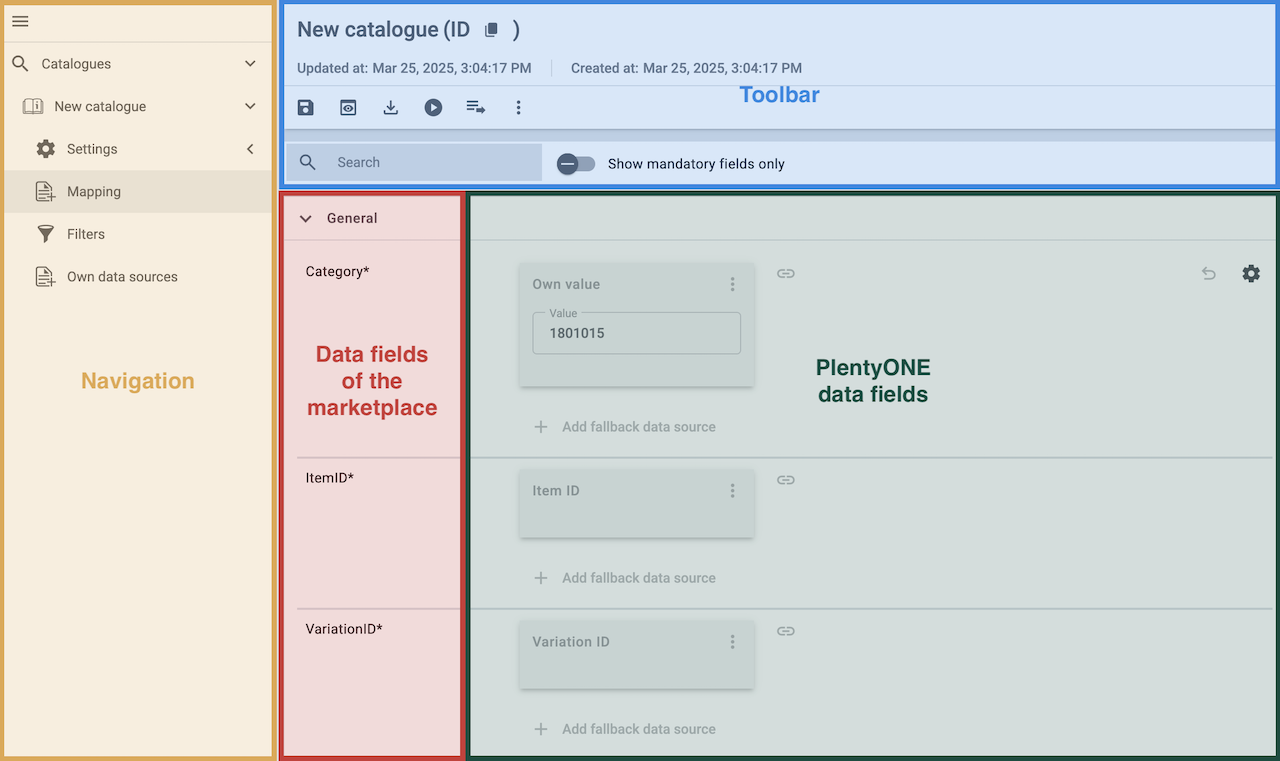
| Availability | Explanation |
|---|---|
Navigation |
When you open a catalogue, the view Mapping is shown. On the very left is the navigation.
|
Toolbar |
The toolbar provides actions for the catalogue. For example, save your mappings, restore an older version of the catalogue or hide or show optional marketplace data fields. |
Live preview |
You can use the Live preview feature to display which values of a given variation would be exported to the marketplace by each mapping. Simply activate the toggle and enter the ID of the variation you want to use in order to show live previews for that variation. |
Marketplace data field |
To the right of the navigation, all data fields available for the market are listed. Mandatory fields are marked with an asterisk (✱). |
PlentyONE data sources |
On the right side of the catalogue, you map the marketplace data fields to appropriate PlentyONE data sources. In the screenshot above, a few of the fields are already mapped. |
Mapping catalogue fields:
-
Go to Data » Catalogues.
-
Click on the catalogue.
→ The Mapping tab opens.
→ In the left-hand column, the market’s data fields are listed.
Tip: Mandatory fields are flagged with an asterisk (*).
→ In the right-hand column, you can map your PlentyONE data sources. Any PlentyONE data sources that you already mapped are also shown in this column. -
Map suitable PlentyONE data sources to the market data fields.
For each marketplace data field, you have a number of mapping options. Expand the info boxes below to get more information about each of these mapping options.-
Simple 1:1 mapping
-
Simple 1:1 mapping with properties
-
Complex 1:1 mapping
-
1:1 mapping with fallback data sources
-
1:n mapping
-
Own value mapping
-
Mapping with mathematical calculations
-
-
Save () the catalogue.
→ The mappings are saved.
In a simple 1:1 mapping, you map a PlentyONE data source to the marketplace data field. If no suitable setting exists in PlentyONE. you can map a property instead.
As such, simple 1:1 mappings are useful if you want to achieve the following:
-
I want to fill this marketplace data field with the data from this PlentyONE setting.
-
If the data field is empty for a variation, no value is exported for this variation.
Creating a simple 1:1 mapping:
-
Next to the marketplace data field, click on + Add data source.
→ To the left, the list of available PlentyONE data sources are shown in groups. -
Select a PlentyONE data source in the list.
→ The data source is added to the right, but not yet confirmed or saved. -
Click on Confirm.
In a simple 1:1 mapping, you map a PlentyONE data source to the marketplace data field. But PlentyONE does not always offer a suitable data source. In such cases you can create the data source in your system yourself by setting up a property. Properties allow you to save any kind of information in your properties.
-
Is this your first time working with properties? Then read up on the principles of properties first.
Creating a simple 1:1 mapping with properties:
-
Next to the marketplace data field, click on + Add data source.
→ To the left, the list of available PlentyONE data sources are shown in groups. -
Expand the group Property.
→ The property groups are shown. -
Expand the group you need.
-
Click on the Plus sign on the right of the property you want. → The property is added as a data source, but not yet confirmed or saved.
-
From the drop-down list Language, select the language in which you send the data to the market.
-
Click on Confirm.
→ The property is mapped to the marketplace data field.
Complex mappings are necessary whenever a marketplace data field only has a select number of possible values. Like the name implies, they cannot be resolved by simply mapping the whole data field to one of your PlentyONE data sources. Instead, you map the individual values that can be entered in the data field to PlentyONE data sources.
For example, a marketplace may only allow for the color of an item to be described using a limited selection of terms such as "Blue", while the variations saved in your system may use more distinct terms such as "Sky blue" or "Royal blue". In such cases the marketplace data field for item colors will be a complex mapping that allows you to map the colors "Sky blue" and "Royal blue" saved in your variations to the value "Blue" used by the marketplace.
| Do not enter own values for complex mappings. All values that you enter must be saved for the variations, either in a setting or as a property value. This also applies if the value Comparative value is shown. You still need to enter exactly the value of the setting or property that you mapped. |
A complex mapping will always export the value selected for the marketplace data field, regardless of what kind of data source you mapped it to. The only exception are own values, which will be exported as-is.
You can recognise complex mappings from the field that is shown below the name of the marketplace data field. Click on the field to show the values available for the marketplace data field.

Examples for complex 1:1 mappings are:
-
Categories
-
Brands
-
Shipping settings
Important: For complex mappings, do not map own values or properties of the type None.
Creating a complex 1:1:n mapping:
-
Click on the field for the marketplace data field.
→ A list of the available values is shown. -
Select the value that you want to map a PlentyONE data source to.
→ The value is added as a mappable field. -
Next to the added field, click on + Add data source.
→ To the left, the available PlentyONE data sources are listed in groups. -
Select the PlentyONE data source you want to map tho the marketplace value.
Important: Do not map own values or properties of the type None. -
Your next steps depend on the PlentyONE data source you selected:
-
Alternative 1: The available values for the PlentyONE data value are shown on the left.
-
Next to the value you want to select, click on the plus.
→ The value is added to the field on the right. -
Click on Confirm.
-
-
Alternative 2: The PlentyONE data source is inserted and the field Comparative value is shown.
-
In the field Comparative value, enter a value that is saved in the setting or the property of the mapped PlentyONE data source.
-
Click on Confirm.
-
-
Alternative 3: The PlentyONE data source is inserted and a drop-down list is shown.
-
Select a value from the drop-down list.
-
Click on Confirm.
→ The value of the marketplace data field is exported, not the value of the PlentyONE data source.
Exception: If you map an own value to a marketplace data field, the own value that you enter is exported directly.
-
-
You can use fallback data sources in a 1:1 mapping to ensure that a value is provided for a marketplace data field even when the preferred data source is missing or empty.
In other words, this mapping specifies:
-
I want to fill the marketplace data field with the data from the selected primary PlentyONE data source.
-
If that data source is missing or empty for a variation, then the first fallback data source for this field is checked. If this fallback data source contains usable data, then that data is used to fill the marketplace data field.
-
If the first fallback data source is also missing or empty and other fallback data sources are mapped to this data field, then this process is repeated for the other fallback data sources in sequence until either usable data is found or all fallback data sources have been checked.
Two separate fallback conditions are available:
Null (default) |
The fallback data source is used if the data field above is mapped in the catalogue but not linked to the variation. The condition "Null" is useful when you want to map fallback data sources for the following types of PlentyONE data sources:
|
Empty |
The fallback data source is used if the data field above is mapped in the catalogue and linked to the variation, but is empty. The condition "Empty" is useful when you want to map fallback data sources for the following type of PlentyONE data sources:
Important: When you add a fallback data source, the fallback condition "Null" is selected automatically. To apply the fallback condition "Empty", you need to change the default setting. |
Note: If you assign multiple fallback data sources to a single data field, the value of only one of those fallback data sources is exported, i.e. the first mapped fallback data source that provides a usable value.
Creating a 1:1 mapping with fallback data sources:
-
Next to the marketplace data field, click on + Add data source.
→ To the left, the list of available PlentyONE data sources are shown in groups. -
Click on the plus to the right of the PlentyONE data source you want to use as the primary data source.
→ The PlentyONE data source is added to the right. -
Click on + Add fallback data source below the primary data source.
→ The fallback data source is added with the fallback condition Null. -
(Optional) If you want to use the fallback condition Empty instead:
-
Hover over the fallback data source with your cursor and click on the Settings () option that appears to the right.
→ The window Data column settings is shown. -
For the setting Fallback condition, select the option Empty.
-
Click on Save.
→ The fallback data source’s fallback condition is changed to Empty.
-
-
Click on Confirm.
→ The fallback data source is exported if the fallback condition is fulfilled.
In a 1:n mapping, you map several PlentyONE data sources to the same marketplace data field. Unlike fallback data sources, these data sources are combined using a specified separator and used as a single value.
In other words, this mapping specifies:
-
I want to combine these PlentyONE data sources during export so that the marketplace data field is filled with the data of these two or more PlentyONE settings.
Creating a 1:n mapping:
-
Next to the marketplace data field, click on + Add data source.
→ To the left, the list of available PlentyONE data sources are shown in groups. -
Click on the plus to the right of the PlentyONE data source you want to select.
→ The PlentyONE data source is added to the right. -
Click on Confirm.
-
To the right of the mapped PlentyONE data source, click on Add data source ().
→ To the left, the list of available PlentyONE data sources again are shown in groups. -
Map the desired number of additional PlentyONE data sources to the marketplace data field as described above.
-
Click on Confirm.
-
To the very right of the row, click on Settings ().
-
Select a separator from the drop-down list Separator or add a custom separator.
-
Click on Save.
-
Save () the catalogue.
→ The mappings are saved.
→ During the export, the content of the PlentyONE data sources is combined and exported as one field.
If you want to export the exact same value for all of your variations to a particular marketplace data field, then you can map this value to the data field using the Own value data source.
This kind of mapping specifies:
-
For this marketplace data field, I want to export the value that I entered in the data source Own value for all variations of this catalogue.
Creating an own value mapping:
-
Next to the marketplace data field, click on + Add data source.
→ To the left, the list of available PlentyONE data sources are shown in groups. -
Select the Own value option at the top of the list.
→ The data source Own value is mapped to the data field. -
Enter a value into the input field in the Own value.
-
Click on Confirm.
→ The entered value is exported for all variations.
|
Be especially careful when using Own value mappings
The value you enter in an Own value mapping is always exported for every variation tied to the catalogue. The value also overwrites the market value in complex mappings where usually the value of the market would be exported. As such, only use an Own value mapping for a marketplace data field when you are certain that the value you entered will be accepted for that data field by the marketplace for all of your variations in order to ensure that your variations are exported to the marketplace successfully. |
Mathematical formulas allow you to change numerical values automatically during the export. In other words, this mapping specifies:
-
I want the numerical value of a PlentyONE data source to be recalculated during the export. Basic arithmetic operations are available for the formulas.
Recalculating numerical values:
-
Next to the marketplace data field, click on + Add data source.
→ To the left, the list of available PlentyONE data sources are shown in groups. -
At the very top of the list, click on the + icon next to Formula (calculate).
→ The data field Formula is added to the field on the right. -
Click into the data field.
→ The window Modify value is shown. -
Enter a numerical value or select a PlentyONE data source at the bottom right of the window to add it to the calculation (add).
Tip: Use the search function. This helps you to find data fields quickly. -
Optional: If the symbol more_vert is shown in the data field, select the correct assignment for the data field.
Tip: A number tells you how many assignments are necessary for the data field.-
Click on the icon more_vert.
-
In the window shown, select the assignments from the drop-down list.
-
Save the settings.
-
-
Enter numbers and mathematical operators with the on-screen calculator or the keyboard.
-
Save the settings.
→ The entered formula is displayed in the overview.
→ When an export is carried out, the formula is used to calculate the value that is exported for each variation.
Keep in mind that this mapping type only works with PlentyONE data sources that provide numerical values and for marketplace data fields that accept numerical values. Additionally, this mapping type is relatively new and not available for all catalogue formats yet.
6.1.2. Activating the catalogue export
You have set up ManoMano in PlentyONE and created a catalogue for exporting your item data? Then start the export of your item data. To do so, activate the catalogues which should be exported to ManoMano in the Data » Catalogues menu.
You have set up ManoMano in PlentyONE and created a catalogue for exporting your item data? Then activate the catalogues you want to export to ManoMano in the Data » Catalogues menu and continue with creating product listings.
Once you have activated the product catalogue, the ManoMano account, the product listing and the variations, the product data will be provided once a day as a CSV file and via a URL in the Sales Channels » Accounts » [Open ManoMano account] » Channel settings menu. The export to ManoMano must then be performed manually.
Activating the catalogue export to ManoMano:
-
Go to Data » Catalogues.
→ The catalogues are listed. -
Scroll to the ManoMano catalogue.
-
In the Active column, move the toggle button to the right (toggle_on).
→ The catalogue is active.
→ The catalogue data is exported to ManoMano once a day.
Tip: Go to Data » Catalogue export status for information about the status of the export.
7. Exporting offer data
Offer data is exported to ManoMano using catalogues. Go to Data » Catalogues to create catalogues for ManoMano.
Catalogues are used to export data from your PlentyONE system. There are two different catalogue formats:
-
Marketplace formats are used to export item data to markets.
-
Standard formats are used to export data from your PlentyONE system into a file.
Catalogues with marketplace formats allow you to tailor your item information exactly to the needs of the market. Because here, you assign a suitable PlentyONE data field to each of the data fields of the market. When your variation data is exported to the market, the market’s data fields are then filled with the correct PlentyONE data.
-
Is this your first time working with catalogues? Then read up on the basic concept of catalogues first.
7.1. Creating an offer catalogue
Offer data is exported to ManoMano using catalogues. Go to Data » Catalogues to create catalogues for ManoMano. Afterwards, link the ManoMano data fields with offer data saved in PlentyONE in the catalogue. Once you have activated the offer catalogue, the account, the offer listing and the variations, the offer data is automatically exported to ManoMano every 15 minutes.
Note: You need to set up a separate catalogue for each product category you want to sell on ManoMano.
Creating a catalogue:
-
Go to Data » Catalogues.
-
Click Create catalogue (add).
-
Enter a name for the catalogue.
-
In the drop-down list Marketplace, select the option ManoMano Offers.
-
In the drop-down list Export type, select the option Listing.
-
In the drop-down list Category, select ManoMano Offers.
-
Save () the settings.
→ The catalogue is created.
→ The catalogue is opened for editing.
Other catalogue settings
Other catalogue settings are optional. Once you carried out the settings described on this page, your catalogue is automatically exported to ManoMano Offers. That means you can ignore the catalogue settings for Format settings, Export settings and Download settings.
The Format settings, Export settings, and Download settings allow you to create a file with the variation data contained in the catalogue. However, this file does not contain information about whether the data export to ManoMano Offers was successful.
|
Do not change the format in the catalogue’s Format settings. To ensure that the export to the sales channel works, all required settings are already configured when you create a catalogue. If you change the settings, errors might occur during the export. |
7.1.1. Mapping data fields in the offer catalogue
After you have created an offer catalogue, map the channel’s data fields to item data saved in PlentyONE. This chapter describes how you map data fields and what particularities apply for item exports to ManoMano.
-
The market expects product data that cannot be saved in the PlentyONE item menu? Then create a property for this data. Link this property with your variations. The actual values are saved as property values for this property. Is this your first time working with properties? Then read up on the principles of properties first.
| Availability | Explanation |
|---|---|
Navigation |
When you open a catalogue, the view Mapping is shown. On the very left is the navigation.
|
Toolbar |
The toolbar provides actions for the catalogue. For example, save your mappings, restore an older version of the catalogue or hide or show optional marketplace data fields. |
Live preview |
You can use the Live preview feature to display which values of a given variation would be exported to the marketplace by each mapping. Simply activate the toggle and enter the ID of the variation you want to use in order to show live previews for that variation. |
Marketplace data field |
To the right of the navigation, all data fields available for the market are listed. Mandatory fields are marked with an asterisk (✱). |
PlentyONE data sources |
On the right side of the catalogue, you map the marketplace data fields to appropriate PlentyONE data sources. In the screenshot above, a few of the fields are already mapped. |
Mapping catalogue fields:
-
Go to Data » Catalogues.
-
Click on the catalogue.
→ The Mapping tab opens.
→ In the left-hand column, the market’s data fields are listed.
Tip: Mandatory fields are flagged with an asterisk (*).
→ In the right-hand column, you can map your PlentyONE data sources. Any PlentyONE data sources that you already mapped are also shown in this column. -
Map suitable PlentyONE data sources to the market data fields.
For each marketplace data field, you have a number of mapping options. Expand the info boxes below to get more information about each of these mapping options.-
Simple 1:1 mapping
-
Simple 1:1 mapping with properties
-
Complex 1:1 mapping
-
1:1 mapping with fallback data sources
-
1:n mapping
-
Own value mapping
-
Mapping with mathematical calculations
-
-
Save () the catalogue.
→ The mappings are saved.
In a simple 1:1 mapping, you map a PlentyONE data source to the marketplace data field. If no suitable setting exists in PlentyONE. you can map a property instead.
As such, simple 1:1 mappings are useful if you want to achieve the following:
-
I want to fill this marketplace data field with the data from this PlentyONE setting.
-
If the data field is empty for a variation, no value is exported for this variation.
Creating a simple 1:1 mapping:
-
Next to the marketplace data field, click on + Add data source.
→ To the left, the list of available PlentyONE data sources are shown in groups. -
Select a PlentyONE data source in the list.
→ The data source is added to the right, but not yet confirmed or saved. -
Click on Confirm.
In a simple 1:1 mapping, you map a PlentyONE data source to the marketplace data field. But PlentyONE does not always offer a suitable data source. In such cases you can create the data source in your system yourself by setting up a property. Properties allow you to save any kind of information in your properties.
-
Is this your first time working with properties? Then read up on the principles of properties first.
Creating a simple 1:1 mapping with properties:
-
Next to the marketplace data field, click on + Add data source.
→ To the left, the list of available PlentyONE data sources are shown in groups. -
Expand the group Property.
→ The property groups are shown. -
Expand the group you need.
-
Click on the Plus sign on the right of the property you want. → The property is added as a data source, but not yet confirmed or saved.
-
From the drop-down list Language, select the language in which you send the data to the market.
-
Click on Confirm.
→ The property is mapped to the marketplace data field.
Complex mappings are necessary whenever a marketplace data field only has a select number of possible values. Like the name implies, they cannot be resolved by simply mapping the whole data field to one of your PlentyONE data sources. Instead, you map the individual values that can be entered in the data field to PlentyONE data sources.
For example, a marketplace may only allow for the color of an item to be described using a limited selection of terms such as "Blue", while the variations saved in your system may use more distinct terms such as "Sky blue" or "Royal blue". In such cases the marketplace data field for item colors will be a complex mapping that allows you to map the colors "Sky blue" and "Royal blue" saved in your variations to the value "Blue" used by the marketplace.
| Do not enter own values for complex mappings. All values that you enter must be saved for the variations, either in a setting or as a property value. This also applies if the value Comparative value is shown. You still need to enter exactly the value of the setting or property that you mapped. |
A complex mapping will always export the value selected for the marketplace data field, regardless of what kind of data source you mapped it to. The only exception are own values, which will be exported as-is.
You can recognise complex mappings from the field that is shown below the name of the marketplace data field. Click on the field to show the values available for the marketplace data field.
Examples for complex 1:1 mappings are:
-
Categories
-
Brands
-
Shipping settings
Important: For complex mappings, do not map own values or properties of the type None.
Creating a complex 1:1:n mapping:
-
Click on the field for the marketplace data field.
→ A list of the available values is shown. -
Select the value that you want to map a PlentyONE data source to.
→ The value is added as a mappable field. -
Next to the added field, click on + Add data source.
→ To the left, the available PlentyONE data sources are listed in groups. -
Select the PlentyONE data source you want to map tho the marketplace value.
Important: Do not map own values or properties of the type None. -
Your next steps depend on the PlentyONE data source you selected:
-
Alternative 1: The available values for the PlentyONE data value are shown on the left.
-
Next to the value you want to select, click on the plus.
→ The value is added to the field on the right. -
Click on Confirm.
-
-
Alternative 2: The PlentyONE data source is inserted and the field Comparative value is shown.
-
In the field Comparative value, enter a value that is saved in the setting or the property of the mapped PlentyONE data source.
-
Click on Confirm.
-
-
Alternative 3: The PlentyONE data source is inserted and a drop-down list is shown.
-
Select a value from the drop-down list.
-
Click on Confirm.
→ The value of the marketplace data field is exported, not the value of the PlentyONE data source.
Exception: If you map an own value to a marketplace data field, the own value that you enter is exported directly.
-
-
You can use fallback data sources in a 1:1 mapping to ensure that a value is provided for a marketplace data field even when the preferred data source is missing or empty.
In other words, this mapping specifies:
-
I want to fill the marketplace data field with the data from the selected primary PlentyONE data source.
-
If that data source is missing or empty for a variation, then the first fallback data source for this field is checked. If this fallback data source contains usable data, then that data is used to fill the marketplace data field.
-
If the first fallback data source is also missing or empty and other fallback data sources are mapped to this data field, then this process is repeated for the other fallback data sources in sequence until either usable data is found or all fallback data sources have been checked.
Two separate fallback conditions are available:
Null (default) |
The fallback data source is used if the data field above is mapped in the catalogue but not linked to the variation. The condition "Null" is useful when you want to map fallback data sources for the following types of PlentyONE data sources:
|
Empty |
The fallback data source is used if the data field above is mapped in the catalogue and linked to the variation, but is empty. The condition "Empty" is useful when you want to map fallback data sources for the following type of PlentyONE data sources:
Important: When you add a fallback data source, the fallback condition "Null" is selected automatically. To apply the fallback condition "Empty", you need to change the default setting. |
Note: If you assign multiple fallback data sources to a single data field, the value of only one of those fallback data sources is exported, i.e. the first mapped fallback data source that provides a usable value.
Creating a 1:1 mapping with fallback data sources:
-
Next to the marketplace data field, click on + Add data source.
→ To the left, the list of available PlentyONE data sources are shown in groups. -
Click on the plus to the right of the PlentyONE data source you want to use as the primary data source.
→ The PlentyONE data source is added to the right. -
Click on + Add fallback data source below the primary data source.
→ The fallback data source is added with the fallback condition Null. -
(Optional) If you want to use the fallback condition Empty instead:
-
Hover over the fallback data source with your cursor and click on the Settings () option that appears to the right.
→ The window Data column settings is shown. -
For the setting Fallback condition, select the option Empty.
-
Click on Save.
→ The fallback data source’s fallback condition is changed to Empty.
-
-
Click on Confirm.
→ The fallback data source is exported if the fallback condition is fulfilled.
In a 1:n mapping, you map several PlentyONE data sources to the same marketplace data field. Unlike fallback data sources, these data sources are combined using a specified separator and used as a single value.
In other words, this mapping specifies:
-
I want to combine these PlentyONE data sources during export so that the marketplace data field is filled with the data of these two or more PlentyONE settings.
Creating a 1:n mapping:
-
Next to the marketplace data field, click on + Add data source.
→ To the left, the list of available PlentyONE data sources are shown in groups. -
Click on the plus to the right of the PlentyONE data source you want to select.
→ The PlentyONE data source is added to the right. -
Click on Confirm.
-
To the right of the mapped PlentyONE data source, click on Add data source ().
→ To the left, the list of available PlentyONE data sources again are shown in groups. -
Map the desired number of additional PlentyONE data sources to the marketplace data field as described above.
-
Click on Confirm.
-
To the very right of the row, click on Settings ().
-
Select a separator from the drop-down list Separator or add a custom separator.
-
Click on Save.
-
Save () the catalogue.
→ The mappings are saved.
→ During the export, the content of the PlentyONE data sources is combined and exported as one field.
If you want to export the exact same value for all of your variations to a particular marketplace data field, then you can map this value to the data field using the Own value data source.
This kind of mapping specifies:
-
For this marketplace data field, I want to export the value that I entered in the data source Own value for all variations of this catalogue.
Creating an own value mapping:
-
Next to the marketplace data field, click on + Add data source.
→ To the left, the list of available PlentyONE data sources are shown in groups. -
Select the Own value option at the top of the list.
→ The data source Own value is mapped to the data field. -
Enter a value into the input field in the Own value.
-
Click on Confirm.
→ The entered value is exported for all variations.
|
Be especially careful when using Own value mappings
The value you enter in an Own value mapping is always exported for every variation tied to the catalogue. The value also overwrites the market value in complex mappings where usually the value of the market would be exported. As such, only use an Own value mapping for a marketplace data field when you are certain that the value you entered will be accepted for that data field by the marketplace for all of your variations in order to ensure that your variations are exported to the marketplace successfully. |
Mathematical formulas allow you to change numerical values automatically during the export. In other words, this mapping specifies:
-
I want the numerical value of a PlentyONE data source to be recalculated during the export. Basic arithmetic operations are available for the formulas.
Recalculating numerical values:
-
Next to the marketplace data field, click on + Add data source.
→ To the left, the list of available PlentyONE data sources are shown in groups. -
At the very top of the list, click on the + icon next to Formula (calculate).
→ The data field Formula is added to the field on the right. -
Click into the data field.
→ The window Modify value is shown. -
Enter a numerical value or select a PlentyONE data source at the bottom right of the window to add it to the calculation (add).
Tip: Use the search function. This helps you to find data fields quickly. -
Optional: If the symbol more_vert is shown in the data field, select the correct assignment for the data field.
Tip: A number tells you how many assignments are necessary for the data field.-
Click on the icon more_vert.
-
In the window shown, select the assignments from the drop-down list.
-
Save the settings.
-
-
Enter numbers and mathematical operators with the on-screen calculator or the keyboard.
-
Save the settings.
→ The entered formula is displayed in the overview.
→ When an export is carried out, the formula is used to calculate the value that is exported for each variation.
Keep in mind that this mapping type only works with PlentyONE data sources that provide numerical values and for marketplace data fields that accept numerical values. Additionally, this mapping type is relatively new and not available for all catalogue formats yet.
7.1.2. Activating the catalogue export
You have set up ManoMano in PlentyONE and created a catalogue for exporting your offer data? Then activate the catalogues you want to export to ManoMano in the Data » Catalogues menu and continue with creating offer listings.
Once you have activated the offer catalogue, the ManoMano account, the offer listing and the variations, the offer data will be automatically exported to ManoMano every 15 minutes.
Activating the catalogue export to ManoMano:
-
Go to Data » Catalogues.
→ The catalogues are listed. -
Scroll to the ManoMano catalogue.
-
In the Active column, move the toggle button to the right (toggle_on).
→ The catalogue is active.
→ The catalogue data is exported to ManoMano every 15 minutes.
Tip: Go to Data » Catalogue export status for information about the status of the export.
8. Managing listings
You create and manage offers for ManoMano via listings. The Sales channels » Accounts » [Open account] menu offers you an overview of your listings. Here you can create and manage product listings and offer listings. Click on the tile for ManoMano to create product listings or offer listings for ManoMano.
8.1. Offer listings
In the list Offer listings menu of the account you gain an overview of your offer listings.
Tip: You can switch between specific views of offers and the listing group view via the menu button and folder.
-
menu gives you an overview of all the offer listings.
-
folder shows you the listing groups of the offer listings. Extend a listing group by clicking chevron_right, to see all listings within the group.
| If you only want to take a look at certain offer listings, apply filters and narrow down the listings which are displayed. To do so, click on Filters (tune) at the top of the menu. |
Applying filters:
-
Open the Sales Channels » Accounts » [Open account] » Offer listings menu.
-
Click Filters (tune) at the top of the menu.
-
Select one or multiple filters.
-
Click Search (search).
→ The selected filters are applied and the appropriate offer listings are displayed.
→ The filters that were applied are displayed at the top of the menu.
Tip: You can also reset (refresh) the selected filters. Then all offer listings will be displayed again.
Table 6 offers an overview of the single listing view of offer listings.
| Column | Explanation | ||||||
|---|---|---|---|---|---|---|---|
Data sync |
This column indicates whether data exchange for the offer listing is active or paused. |
||||||
Group ID |
The ID of the listing group to which the offer listing is assigned. By clicking on the ID, you can open the listing group view. |
||||||
Listing Name |
Name of the offer listing. |
||||||
SKU |
SKU of the offer listing. |
||||||
Variation ID |
ID of the variation. |
||||||
Channel |
The sales channel to which the listing is exported. |
||||||
Status on Channel |
Displays the listing status on the sales channel, for example if the listing is already listed on the sales channel. Possible status are:
Note: For platforms with multiple sales channels, the number after the status icon indicates on how many sales channels the offer listing has this status. |
||||||
List on |
The sales channels on which the offer listing is to be offered are displayed here. |
||||||
Errors |
Indicates whether the listing is incorrect. Click to open the overview of listing errors. |
||||||
Template |
The template selected for the listing. |
||||||
Catalogue |
The catalogue selected for the listing. |
||||||
Creation date |
The date and time on which the listing was created. |
||||||
more_vert |
Click here to display more actions.
|
Table 7 offers an overview of the group view of offer listings.
| Column | Explanation | ||||||
|---|---|---|---|---|---|---|---|
Data sync |
This column indicates whether data exchange for the listing group is active or paused. |
||||||
Group name |
Name of the listing group |
||||||
SKU |
SKU of the listing group. |
||||||
Channel |
The sales channel to which the listing group is exported. |
||||||
Errors |
The error overview. |
||||||
Template |
The template selected for the listing group. |
||||||
Catalogue |
The catalogue selected for the listing group. |
||||||
Creation date |
The date and time on which the listing group was created. |
||||||
more_vert |
Click here to display more actions.
|
8.2. Product listings
In the list Product listings menu of the account you gain an overview of your product listings.
Tip: menu You can switch between specific views of product listings and the listing group view via the folder button.
-
menu gives you an overview of all the product listings.
-
folder shows you the listing groups of the product listings. Extend a listing group by clicking chevron_right, to see all listings within the group.
| If you only want to take a look at certain product listings, apply filters and narrow down the listings which are displayed. To do so, click on Filters (tune) at the top of the menu. |
Applying filters:
-
Open the Sales Channels » Accounts » [Open accounts] » Product listings:.
-
Click Filters (tune) at the top of the menu.
-
Select one or multiple filters.
-
Click Search (search).
→ The selected filters are applied and the appropriate product listings are displayed.
→ The filters that were applied are displayed at the top of the menu.
Tip: You can also reset (refresh) the selected filters. Then all product listings will be displayed again.
Table 8 offers an overview of the single listing view of product listings.
| Column | Explanation | ||||||
|---|---|---|---|---|---|---|---|
Data sync |
This column indicates whether data exchange for the product listing is active or paused. |
||||||
Group ID |
The ID of the listing group to which the product listing is assigned. By clicking on the ID, you can open the listing group view. |
||||||
Listing Name |
Name of the listing. |
||||||
Variation ID |
ID of the variation. |
||||||
Channel |
The sales channel to which the listing is exported. |
||||||
Status on Channel |
Displays the listing status on the sales channel, for example if the listing is already listed on the sales channel. Possible status are:
Note: For platforms with multiple sales channels, the number after the status icon indicates on how many sales channels the offer listing has this status. |
||||||
List on |
The sales channels on which the product listing is to be offered are displayed here. |
||||||
Errors |
Indicates whether the listing is incorrect. Click to open the overview of listing errors. |
||||||
Template |
The template selected for the listing. |
||||||
Catalogue |
The catalogue selected for the listing. |
||||||
Creation date |
The date and time on which the listing was created. |
||||||
more_vert |
Click here to display more actions.
|
Table 9 offers an overview of the group view of product listings.
| Column | Explanation | ||||||
|---|---|---|---|---|---|---|---|
Data sync |
This column indicates whether data exchange for the listing group is active or paused. |
||||||
Group name |
Name of the listing group |
||||||
Channel |
The sales channel to which the listing group is exported. |
||||||
Errors |
The error overview. |
||||||
Template |
The template selected for the listing group. |
||||||
Catalogue |
The catalogue selected for the listing group. |
||||||
Creation date |
The date and time on which the listing group was created. |
||||||
more_vert |
Click here to display more actions.
|
8.3. Creating listings
Items are transferred to ManoMano as listings. Carry out the following steps to create listings for ManoMano.
-
If the item you want to sell is not listed on the sales channel yet you will need to create a product listing for it first. Creating a product listing sends the product data to the sales channel and allows for the item to be listed.
In order to actually be able to sell the item on the sales channel you will need to additionally create an offer listing. The offer listing contains data related to the sale of the item, such as its price and stock. In other words, a product listing allows you to list an item on a sales channel that did not previously exist on that sales channel, but in order to sell that item on that sales channel you also need an offer listing for that item. -
If the item you want to sell is already listed on the sales channel you only need to create an offer listing. Offer listings send the data related to your offer, such as the price, stock, shipping costs etc., to the sales channel.
In most cases you will only need an offer listing in order to offer a product on a sales channel. Many sales channels do not differentiate between product and offer listings. You only need to send offer listings to these kinds of sales channels.
8.3.1. Creating offer listings
Offer listings are created in three steps:
-
First, you enter listing details, meaning you select the platform, template, sales channel and catalogue for the listing.
-
Next, you select the variations from which the offer listings are created.
-
Lastly, check and confirm your selection and create the listings.
| You can also create offer listings directly from your product listings. Here you can learn how to do that. |
Step 1: Specify listing details:
-
Open the Sales Channels » Accounts menu.
-
Open the account for ManoMano.
→ The menu Channel settings opens. -
Open the menu format_list_bulleted Offer listings.
-
Click add arrow_drop_down and select Create offers.
→ The Create offers view opens. -
Select the platform ManoMano.
-
Select the template for the catalogue.
Tip: Only templates that are available for the platform ManoMano are displayed. -
Select the sales channel on which the listing should be offered.
-
Select a catalogue with your mappings for offer data.
Tip: If you have no fitting catalogue yet, click on add Create catalogue. You will be forwarded to the Data » Catalogues menu and can create a catalogue. -
Optional: Activate Automatically activate listings after creation, if listing data should be automatically transferred to ManoMano after the listing is created.
-
Click arrow_forward NEXT.
→ The Select variations view opens. Next, select the variations you want to add to the listing.
Step 2: Select variations:
-
Select the variations you want to create the offer listing for.
Tip: Use the search to filter for variations.
Note: Only variations that are linked to ManoMano in the Item » Items » [Open item] » [Open variation] menu are displayed.
Tip: If you want to create offer listings for all available variations, click on Click here to create listings for all [] variations above. You will be automatically redirected to the Preview and confirmation step. Offer listings can be created for a maximum of 50,000 variations at a time. -
Click add ADD TO SELECTED VARIATIONS.
→ The selected variations are displayed in the Selected variations section.
Note: If you check a variation in the Selected variations section, you can remove the variation from the selection by clicking Remove from list. -
Click arrow_forward NEXT.
→ The selected variations will be displayed in a new view. In the last step, you preview and confirm your selection.
Step 3: Preview and confirm selection:
-
Preview your settings in the Listing details section.
-
Preview your selected variations in the Listing preview section. The listings are grouped by items. Extend a listing group (chevron_right) to see which variations are contained in the respective listing group.
-
If everything is set and done, click CREATE OFFER LISTINGS.
Note: If you activated Automatically activate listings after creation a window with a summary of your settings opens. Click check CONFIRM to create the offer listings.
8.3.2. Activating offer listings
After you have created the offer listings, you have to activate the listings so that they can be transferred to ManoMano.
To do so, activate the individual listings and the listing group. The listing can only be transferred to the sales channel if both the listing and the listing group are activated.
Note: You can also activate listings immediately after creation by activating the option Automatically activate listings after creation. If you activate the option to automatically activate listings after creation, you still have to activate the data exchange for the listing group.
Activating offer listings:
-
Open the menu Sales Channels » Accounts » [Open ManoMano account].
→ The menu Channel settings opens. -
Open the Offer listings menu.
-
In the line of the offer listing you want to activate, click more_vert.
-
Click toggle_on Activate data sync.
Tip: If you want to activate multiple offer listings at once, place a check mark next to the desired offer listings and click toggle_on arrow_drop_down » Activate data sync at the top of the toolbar.
→ The data exchange for the listing is activated. The listing can only be transferred to the sales channel if the listing group is also activated.
Activating a listing group:
-
Open the menu Sales Channels » Accounts » [Open ManoMano account].
→ The menu Channel settings opens. -
Open the Offer listings menu.
-
Open the listing group view (folder).
-
In the line of the listing group you want to activate, click more_vert.
-
Click toggle_on Activate data sync.
Tip: If you want to activate multiple listing groups at once, place a check mark next to the desired listing groups and click toggle_on arrow_drop_down » Activate data sync at the top of the toolbar.
→ The data exchange for the listing group is activated.
8.3.3. Creating product listings
Product listings are created in three steps:
-
First, you enter listing details, meaning you select the platform, template, sales channel and catalogue for the listing.
-
Next, you select the variations from which the product listings are created.
-
Lastly, check and confirm your selection and create the listings.
|
Create product listings using the group function
You can also create product listings directly in the Items menu using the variation group function. You can find more information about the variation group function here. |
Step 1: Specify listing details:
-
Open the Sales Channels » Accounts menu.
-
Open the account for ManoMano.
→ The menu Channel settings opens. -
Open the menu format_list_bulleted Product listings.
-
Click on add Create products.
→ The view Create products opens. -
Select the platform ManoMano.
-
Select the sales channel on which the listing should be offered.
-
Select the template for the catalogue.
-
Select a catalogue with your mapping for item data.
Tip: If you have no fitting catalogue yet, click on add Create catalogue. You will be forwarded to the Data » Catalogues menu and can create a catalogue. -
Optional: Activate Automatically activate listings after creation, if listing data should be automatically transferred to ManoMano after the listing is created.
-
Click arrow_forward NEXT.
→ The Select variations view opens. Next, select the variations you want to add to the listing.
Step 2: Select variations:
-
Select the variations you want to create the product listing for.
Tip: Use the search to filter for variations.
Note: Only variations that are linked to ManoMano in the Item » Items » [Open item] » [Open variation] menu are displayed.
Tip: If you want to create a product listing for all available variations, click on Click here to create listings for all [] variations above. You will be automatically redirected to the Preview and confirmation step. Product listings can be created for a maximum of 50,000 variations at a time. -
Click add ADD TO SELECTED VARIATIONS.
→ The selected variations are displayed in the Selected variations section.
Note: If you check a variation in the Selected variations section, you can remove the variation from the selection by clicking Remove from list. -
Click arrow_forward NEXT.
→ The selected variations will be displayed in a new view. In the last step, you preview and confirm your selection.
Step 3: Preview and confirm selection:
-
Preview your settings in the Listing details section.
-
Preview your selected variations in the Listing preview section. The listings are grouped by items. Extend a listing group (chevron_right) to see which variations are contained in the respective listing group.
-
If everything is set and done, click CREATE PRODUCT LISTINGS.
Note: If you activated Automatically activate listings after creation a window with a summary of your settings opens. Click check CONFIRM to create the product listings.
8.3.4. Activating product listings
After you have created the product listings, you have to activate the listings so that they can be transferred to ManoMano.
To do so, activate the individual listings and the listing group. The listing can only be transferred to the sales channel if both the listing and the listing group are activated.
Note: You can also activate listings immediately after creation by activating the option Automatically activate listings after creation. If you activate the option to automatically activate listings after creation, you still have to activate the data exchange for the listing group.
Activating product listings:
-
Open the menu Sales Channels » Accounts » [Open ManoMano account].
→ The menu Channel settings opens. -
Open the Product listings menu.
-
In the line of the product listing you want to activate, click more_vert.
-
Click toggle_on Activate data sync.
Tip: If you want to activate multiple product listings at once, place a check mark next to the desired product listings and click toggle_on arrow_drop_down » Activate data sync at the top of the toolbar.
→ The data exchange for the listing is activated. The listing can only be transferred to the sales channel if the listing group is also activated.
Activating a listing group:
-
Open the menu Sales Channels » Accounts » [Open ManoMano account].
→ The menu Channel settings opens. -
Open the Product listings menu.
-
Open the listing group view (folder).
-
In the line of the listing group you want to activate, click more_vert.
-
Click toggle_on Activate data sync.
Tip: If you want to activate multiple listing groups at once, place a check mark next to the desired listing groups and click toggle_on arrow_drop_down » Activate data sync at the top of the toolbar.
→ The data exchange for the listing group is activated.
Important: Once you have activated the product catalogue, the account, the product listing and the variations, the product data will be provided once a day as a CSV file and via a URL in the Sales Channels » Accounts » [Open ManoMano account] » Channel settings menu. The export to ManoMano must then be performed manually.
8.4. Viewing listing errors
The Errors tab of the Sales Channels » Accounts » [Open account] » Offer listings / Product listings menu provides an overview of all errors that occurred in PlentyONE when exporting your product and offer listings.
Tip: The overview of listing errors is only displayed if at least one error has occurred when exporting the listings.
Here you can see:
-
the affected listings
-
error details
For each error, you can download a CSV file containing the affected listings by clicking the download button. You can correct the errors directly in the CSV file. You can then re-import the corrected CSV file.
Table 10 contains an overview of listing errors.
| Column | Explanation |
|---|---|
keyboard_arrow_down [Information about the error] |
Information about the error is provided here. It contains the affected field of the data record, a brief description of the error and the number of listings for which this error has occurred. |
download Download data as CSV |
The CSV file with the data records is downloaded. |
Listing name |
The name of the listing. |
Parent SKU |
The parent SKU of the main variation. |
SKU |
The SKU of the sub-variation. |
Variation ID |
The ID of the variation. |
Channel |
The sales channel to which the listing is exported. |
Export activity |
Shows whether the variation is being exported.
|
Status |
The listing’s status on the sales channel. Possible statuses are:
|
Errors |
The error overview. |
Template |
The template selected for the listing. |
Catalogue |
The catalogue selected for the listing. |
9. Manually exporting product data
Once the product catalogue, the account, the product listing and the variations are activated, your product data will be provided once a day as a CSV file and via a URL. You can find both in the Sales Channels » Accounts » [Open ManoMano account] » Channel settings menu.
Product data are transferred manually to ManoMano. Two options are available for this purpose:
-
Option 1: Uploading the CSV file
-
You upload the CSV file manually in the ManoMano backend.
-
The CSV file in PlentyONE is updated whenever your product data changes. After making changes to your product data, you must download the updated CSV file again and upload it to ManoMano.
-
-
Option 2: Using the URL for automatic export
-
A new product export URL is generated every Monday at 12:00 midnight.
-
Every Monday, you copy the new URL and enter it in the ManoMano back end.
-
Whenever your product data changes, the data in PlentyONE is updated once per day and automatically retrieved by ManoMano via the URL once a day.
-
|
Use the URL export if you want to minimise manual effort. With the CSV method, manual uploads may be required daily (depending on changes to your product data). With the URL method, only a weekly update of the product export URL is necessary. |
Proceed as follows to transfer your product data either via a CSV file or via a URL:
-
Go to Sales Channels » Accounts » [Open ManoMano account] » Channel settings.
-
Click download Download product export in the toolbar at the top.
→ The product data is downloaded as a CSV file. -
Log in to the ManoMano back end.
-
Go to Catalog » Manual Import.
-
Under Select action, select Add and/or Edit Products and Images.
-
Under Upload file click add Select file.
-
Select the CSV file downloaded in step 2.
-
Carry out the following settings:
-
Encoding: UTF-8
-
Separator: Comma
-
-
Carry out additional settings, if necessary.
-
Start the import.
-
Go to Sales Channels » Accounts » [Open ManoMano account] » Channel settings.
-
Click content_copy Copy product export URL in the toolbar at the top.
→ The currently valid URL is copied to your clipboard. -
Log in to the ManoMano back end.
-
Go to Catalogue » Automatic Import.
-
In the Product URL data import section, paste the URL copied from PlentyONE.
-
Carry out the following settings:
-
File type: CSV
-
Encoding: UTF-8
-
Separator: Comma
-
-
Save the changes.
Important: Repeat this process every Monday after a new URL has been generated. The previously used URL becomes invalid and can no longer be used to retrieve product data.
10. Adding additional sales channels
If you already sell on ManoMano and would now like to offer your items in another country, you have to carry out the following settings:
Note: You can only sell your items on sales channels for which you have been provided contract IDs by ManoMano.
-
Add the sales channel and enter its contract ID in the ManoMano channel settings.
-
Activate the matching order referrer for the new sales channel in the Setup » Orders » Order referrer menu.
-
In the offer catalogue for ManoMano, map the data fields for prices for the new sales channel.
-
Make the offer listings that you want to offer on the new sales channel available for the sales channel. To do so, open the offer listing view in the Sales Channels » Accounts » [Open account] menu and activate the new sales channel in the column List on of an offer listing. To do this, activate the editing mode via the pencil icon (edit) and make sure to save the changes.
11. Automating order processing
Create event-based flows to automatically inform ManoMano about changes to the order status. The following actions are available for ManoMano in the PlentyONE Flow Studio:
-
Automatically inform ManoMano that the order was accepted. (How?)
-
Automatically inform ManoMano that the order was rejected. (How?)
-
Automatically inform ManoMano that the items have been shipped. (How?)
-
Automatically upload invoices to ManoMano. (How?)
-
Automatically inform ManoMano that an item was refunded. (How?)
-
Automatically upload credit notes to ManoMano. (How?)
With PlentyONE Flow (short: "Flow"), you can automate workflows for your business processes. Flow provides you with two functions in the Automation menu:
-
In Flow Studio, you create and configure automated workflows. Depending on the trigger type, there are three flow types: event-based, time-based or manual.
-
In the Flow Tracker, you can monitor running or completed workflows.
The central element in both functions is the Canvas – a graphical interface on which the workflows are visualised with Actions and Controls. In Flow Studio the canvas can be edited, in Flow Tracker it is only used for visualisation and is therefore read-only.
-
Is this your first time working with PlentyONE Flow? Then read up on the basic concept of Flow first.
11.1. Reporting order confirmation to ManoMano
Create an event-based flow to automatically inform ManoMano about the order confirmation.
-
Go to Automation » Flow Studio.
-
Click Create flow (add).
→ A stepper opens and guides you through the following three steps.-
General
-
Enter a unique name and, if necessary, a description for the new flow.
-
Click Next.
-
-
Trigger
-
Select Event-based as the trigger.
-
Click Next.
-
-
Settings
-
If desired, select a UI from the optional drop-down list Flow available in.
→ The option to manually trigger the flow directly from the selected UI is added to the group functions in that UI.
Note: UIs currently selectable: Order UI. -
From the drop-down list Trigger selection, select the event according to Table 11.
Note: If the trigger event has additional settings, then these are invariably mandatory. Without performing these settings, you will not be able to save the flow. -
Save () the settings.
→ The flow is created.
→ The Flow Studio Canvas appears, on which two elements are already displayed: The trigger type and the placeholder for the next step.
Note: With some event-based flows you cannot save the flow if it consists of only a trigger. In such cases, you need to add at least one further step.
-
-
-
Configure the new flow according to Table 11.
-
Save () the settings.
Note: The selected statuses, controls and filters in Table 11 only serve as an example. Select the statuses, controls and filters for the flow which best suit your workflow.
| Setting | Option | Selection | |||||||||
|---|---|---|---|---|---|---|---|---|---|---|---|
Trigger selection |
Select a trigger, for example:
|
For Order status, select a status between Status 1 and Status 2, for example: [1.0.1] Accept order, waiting for update. |
|||||||||
Controls |
Branch |
|
|||||||||
Actions |
Multichannel > ManoMano |
Send order confirmation to ManoMano |
11.2. Reporting order rejection to ManoMano
Create an event-based flow to automatically inform ManoMano about the rejection of an order.
-
Go to Automation » Flow Studio.
-
Click Create flow (add).
→ A stepper opens and guides you through the following three steps.-
General
-
Enter a unique name and, if necessary, a description for the new flow.
-
Click Next.
-
-
Trigger
-
Select Event-based as the trigger.
-
Click Next.
-
-
Settings
-
If desired, select a UI from the optional drop-down list Flow available in.
→ The option to manually trigger the flow directly from the selected UI is added to the group functions in that UI.
Note: UIs currently selectable: Order UI. -
From the drop-down list Trigger selection, select the event according to Table 12.
Note: If the trigger event has additional settings, then these are invariably mandatory. Without performing these settings, you will not be able to save the flow. -
Save () the settings.
→ The flow is created.
→ The Flow Studio Canvas appears, on which two elements are already displayed: The trigger type and the placeholder for the next step.
Note: With some event-based flows you cannot save the flow if it consists of only a trigger. In such cases, you need to add at least one further step.
-
-
-
Configure the new flow according to Table 12.
-
Save () the settings.
Note: The selected statuses, controls and filters in Table 12 only serve as an example. Select the statuses, controls and filters for the flow which best suit your workflow.
| Setting | Option | Selection | |||||||||
|---|---|---|---|---|---|---|---|---|---|---|---|
Trigger selection |
Select a trigger, for example:
|
For Order types, select the type Incomplete order. |
|||||||||
Controls |
Branch |
|
|||||||||
Actions |
Multichannel > ManoMano |
Send order rejection to ManoMano |
11.3. Sending shipping confirmations to ManoMano
Create an event-based flow to automatically inform ManoMano when you have shipped the items of an order.
-
Go to Automation » Flow Studio.
-
Click Create flow (add).
→ A stepper opens and guides you through the following three steps.-
General
-
Enter a unique name and, if necessary, a description for the new flow.
-
Click Next.
-
-
Trigger
-
Select Event-based as the trigger.
-
Click Next.
-
-
Settings
-
If desired, select a UI from the optional drop-down list Flow available in.
→ The option to manually trigger the flow directly from the selected UI is added to the group functions in that UI.
Note: UIs currently selectable: Order UI. -
From the drop-down list Trigger selection, select the event according to Table 13.
Note: If the trigger event has additional settings, then these are invariably mandatory. Without performing these settings, you will not be able to save the flow. -
Save () the settings.
→ The flow is created.
→ The Flow Studio Canvas appears, on which two elements are already displayed: The trigger type and the placeholder for the next step.
Note: With some event-based flows you cannot save the flow if it consists of only a trigger. In such cases, you need to add at least one further step.
-
-
-
Configure the new flow according to Table 13.
-
Save () the settings.
Note: The selected statuses, controls and filters in Table 13 only serve as an example. Select the statuses, controls and filters for the flow which best suit your workflow.
| Setting | Option | Selection | ||||||
|---|---|---|---|---|---|---|---|---|
Trigger selection |
Select a trigger, for example:
or
|
Select an order status, for example:
|
||||||
Controls |
Branch |
|
||||||
Actions |
Multichannel > ManoMano |
Send shipping confirmation to ManoMano |
11.4. Automatically uploading invoices to ManoMano
Create an event-based flow to automatically upload invoices to ManoMano.
-
Go to Automation » Flow Studio.
-
Click Create flow (add).
→ A stepper opens and guides you through the following three steps.-
General
-
Enter a unique name and, if necessary, a description for the new flow.
-
Click Next.
-
-
Trigger
-
Select Event-based as the trigger.
-
Click Next.
-
-
Settings
-
If desired, select a UI from the optional drop-down list Flow available in.
→ The option to manually trigger the flow directly from the selected UI is added to the group functions in that UI.
Note: UIs currently selectable: Order UI. -
From the drop-down list Trigger selection, select the event according to Table 14.
Note: If the trigger event has additional settings, then these are invariably mandatory. Without performing these settings, you will not be able to save the flow. -
Save () the settings.
→ The flow is created.
→ The Flow Studio Canvas appears, on which two elements are already displayed: The trigger type and the placeholder for the next step.
Note: With some event-based flows you cannot save the flow if it consists of only a trigger. In such cases, you need to add at least one further step.
-
-
-
Configure the new flow according to Table 14.
-
Save () the settings.
Note: The selected statuses, controls and filters in Table 14 only serve as an example. Select the statuses, controls and filters for the flow which best suit your workflow.
| Setting | Option | Selection | ||||||
|---|---|---|---|---|---|---|---|---|
Trigger selection |
Select a trigger, for example:
Note: Select an event after which the items have already been shipped. |
Select a document type, for example:
|
||||||
Controls |
Branch |
|
||||||
Actions |
Multichannel > ManoMano |
Send invoice to ManoMano |
11.5. Reporting refunds to ManoMano
Create an event-based flow to automatically inform ManoMano about refunds.
Whenever you are dealing with refunds, you need to send ManoMano a reason for the refund. The following refund reasons can be transferred to ManoMano:
-
No stock
-
Cancelled by customer
Note: By selecting Cancelled by customer as the refund reason you can inform ManoMano that an order has been cancelled by the customer and fully refunded in the same step.
To report refunds to ManoMano, a credit note must be created.
Note: ManoMano only accepts full refunds, not partial refunds. For a full refund, a credit note for all order items of the parent order must be created.
-
Go to Orders » Orders.
-
Open the order for which a credit note should be created.
-
At the top, click Create orders (shopping_cart) > Credit note.
-
Select the option For all order items.
-
Save (save) the settings.
→ The credit note order is created. -
Carry out the appropriate flow for this order.
-
Go to Automation » Flow Studio.
-
Click Create flow (add).
→ A stepper opens and guides you through the following three steps.-
General
-
Enter a unique name and, if necessary, a description for the new flow.
-
Click Next.
-
-
Trigger
-
Select Event-based as the trigger.
-
Click Next.
-
-
Settings
-
If desired, select a UI from the optional drop-down list Flow available in.
→ The option to manually trigger the flow directly from the selected UI is added to the group functions in that UI.
Note: UIs currently selectable: Order UI. -
From the drop-down list Trigger selection, select the event according to Table 15.
Note: If the trigger event has additional settings, then these are invariably mandatory. Without performing these settings, you will not be able to save the flow. -
Save () the settings.
→ The flow is created.
→ The Flow Studio Canvas appears, on which two elements are already displayed: The trigger type and the placeholder for the next step.
Note: With some event-based flows you cannot save the flow if it consists of only a trigger. In such cases, you need to add at least one further step.
-
-
-
Configure the new flow according to Table 15.
-
Save () the settings.
Note: The selected statuses, controls and filters in Table 15 only serve as an example. Select the statuses, controls and filters for the flow which best suit your workflow.
| Setting | Option | Selection | ||||||
|---|---|---|---|---|---|---|---|---|
Trigger selection |
Select a trigger, for example:
|
Select an order type, for example:
|
||||||
Controls |
Branch |
|
||||||
Actions |
Multichannel > ManoMano |
Select the action Send refund notification to ManoMano and an appropriate reason. |
11.6. Automatically uploading credit notes to ManoMano
Create an event-based flow to automatically upload credit notes to ManoMano.
-
Go to Automation » Flow Studio.
-
Click Create flow (add).
→ A stepper opens and guides you through the following three steps.-
General
-
Enter a unique name and, if necessary, a description for the new flow.
-
Click Next.
-
-
Trigger
-
Select Event-based as the trigger.
-
Click Next.
-
-
Settings
-
If desired, select a UI from the optional drop-down list Flow available in.
→ The option to manually trigger the flow directly from the selected UI is added to the group functions in that UI.
Note: UIs currently selectable: Order UI. -
From the drop-down list Trigger selection, select the event according to Table 16.
Note: If the trigger event has additional settings, then these are invariably mandatory. Without performing these settings, you will not be able to save the flow. -
Save () the settings.
→ The flow is created.
→ The Flow Studio Canvas appears, on which two elements are already displayed: The trigger type and the placeholder for the next step.
Note: With some event-based flows you cannot save the flow if it consists of only a trigger. In such cases, you need to add at least one further step.
-
-
-
Configure the new flow according to Table 16.
-
Save () the settings.
Note: The selected statuses, controls and filters in Table 16 only serve as an example. Select the statuses, controls and filters for the flow which best suit your workflow.
| Setting | Option | Selection | ||||||
|---|---|---|---|---|---|---|---|---|
Trigger selection |
Select a trigger, for example:
|
Select a document type, for example:
|
||||||
Controls |
Branch |
|
||||||
Actions |
Multichannel > ManoMano |
Send credit note to ManoMano |
12. Deleting an account
In the account overview of the Sales Channels » Accounts menu, you can delete a ManoMano account. Before deleting a ManoMano account, make sure that no orders exist anymore and that the account is deactivated.
Deleting an account:
-
Open the Sales Channels » Accounts menu.
-
In the tile of the ManoMano account that should be deleted, click Delete account (delete).
→ A pop-up for deleting the account opens. If you want to delete the account, confirm the pop-up by clicking on delete Delete account.
→ The account is deleted.
13. Viewing the data log
Error reports of the export are logged in the Data » Log menu. In order to view the data log and search for specific errors, proceed as follows.
Viewing the data log:
-
Go to Data » Log.
→ The data log overview opens. -
At the top, click on Filter (tune).
-
In the Identifier field, enter the option MANOMANO to display all error reports for your ManoMano account.
Tip: Select a date if you only want to see entries for a specific day. -
Optional: In the Integration field, additionally enter a path to refine the search further. E.g. the path
Plenty\Modules\ManoMano\Services\Order\OrderImportServicesto display only error reports for the order import. -
Click Search (search).
→ The error reports are shown according to the filter settings.