The Dashboard
In the constantly changing world of e-commerce, it is essential to keep an overview of the numbers and data of your online business. Thus, PlentyONE offers you a dashboard that enables you to access the current key figures of your company and decide if further action is needed.
A default view with most of the information is pre-configured on all systems. The default view can be used as a template to configure other views according to your needs, both in terms of content and display options.
You can also create your individual dashboard by combining various key figures, statistics, graph types and format options. The dashboard allows you to be as flexible and creative as you like.
1. Dashboard structure
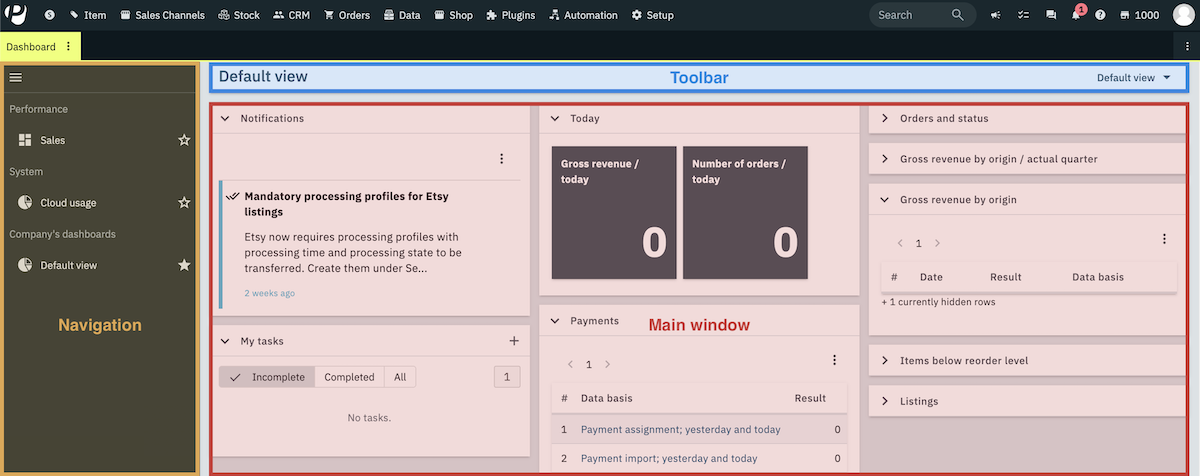
The Dashboard is structured as follows:
-
Navigation: Here you can navigate through different parts of the menu. The currently selected section is displayed in the main window on the right. Click menu to expand or collapse the navigation bar.
-
Toolbar: Click arrow_drop_down on the right-hand side of the toolbar to switch between different views, add new views, or edit the current view.
-
Main window: Here you can see whichever section is currently open.
2. Default view
Your system comes pre-configured with a default dashboard view, equipped with familiar functionalities from the old dashboard. This serves as a starting point for tailoring your dashboard to meet your specific needs in terms of content and display options.
2.1. Exploring the default view
In the default view of the dashboard you can find important business data conveniently displayed. Some of the key elements found in the default view can be seen in Table 1.
| Element | Explanation |
|---|---|
Payment overview |
This element gives you an overview of the quantity and the status of the payments in your system. If you click on the entries highlighted in blue in the Dimension column, the respective orders are displayed in a new tab in the Orders » Payments menu. |
Orders and status |
Expand this element () to view orders separated by order status. Click on blue entries in the Dimension column to access specific orders in the Orders » Orders menu. |
Item(s) below reorder level |
Expand this element () to see which items and variations are below the determined reorder level and should thus be reordered soon. If you click on the entries highlighted in blue in the Dimension column, the respective items or variations are opened in a new tab in the Stock » Stocks menu. |