Store specials
| === Store specials are only available for plentyShop LTS. === |
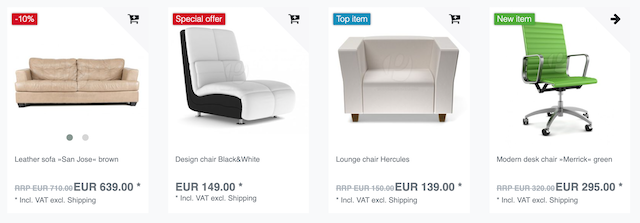
Do you want to highlight specific items in your plentyShop? For example, do you want to label new products, special offers or best sellers on the category page? Store specials help you do just that.
1. Which items are part of the special?
1.1. Manual selection
-
Go to Item » Edit item.
-
Search for and open the item that should be included in the store special.
-
Click on the Global tab.
-
Find the Online store area. Use the Store special drop-down list to specify whether you want to call this item a special offer, a new item or a top item.
-
Save () the settings.
|
Other ways to select items
The instructions above are useful if you only want to select a few items. But what if you need to edit hundreds of items?
|
2. Appearance in the plentyShop
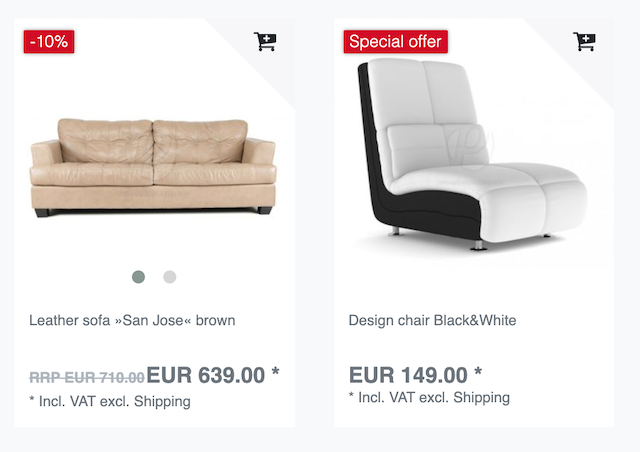
Store specials are highlighted in the plentyShop with a colourful label.
2.1. Renaming the default texts
You can change the texts to meet your needs. For example, you could change the text from “Top item” to “Best seller”.
Renaming texts:
-
Go to Shop » Multilingualism.
-
Choose a source language and a target language from the drop-down lists.
Note: You can select the same language from both lists. -
Expand the area plentyShop LTS » Store specials ().
-
Rename the text on the right side.
Example: Find the field STORESPECIALTOP and change the text from “Top item” to “Best seller”. -
Save () the settings.
-
Deploy the plentyShop LTS plugin to apply the changes.
3. Frequently Asked Questions (FAQ)
Yes. You can change the texts to meet your needs. For example, you could change the text from “Top item” to “Best seller”. Further information.
Store specials can only be used to highlight entire items. Store specials can not be applied to individual variations.
Possible workaround: Would you consider using tags instead? Tags are buzz words or phrases that you can use to highlight specific variations. However, in contrast to store specials, tags do not appear on the category page. Rather, they appear in the product details page or in an item list.
Workflow:
Item list in the plentyShop:
-
Go to Shop » ShopBuilder » [Open category] » [Open content].
-
Add the ShopBuilder widget Item » Item list to the layout.
-
Click on and select the widget settings as follows:
-
Find the drop-down list Item list type and select the option Items with tags. The entry field Tags will appear.
-
Enter the tag ID into the entry field Tags. Example: Enter the ID of the tag "bestseller". Tip: You can find the tag ID in the menu Setup » Settings » Tags.
-
Customise the remaining design settings as needed, e.g. decide how many items should be displayed at maximum or choose a different colour scheme.
-
-
Save () the settings.
→ The variations that were linked to the tag will be displayed in the item list in the plentyShop.
Yes. However, you will have to use tags for this rather than a store special. Tags are buzz words or phrases that you can use to highlight specific variations.
Workflow:
Item list in the plentyShop:
-
Go to Shop » ShopBuilder » [Open category] » [Open content].
-
Add the ShopBuilder widget Item » Item list to the layout.
-
Click on and select the widget settings as follows:
-
Find the drop-down list Item list type and select the option Items with tags. The entry field Tags will appear.
-
Enter the tag ID into the entry field Tags. Example: Enter the ID of the tag "bestseller". Tip: You can find the tag ID in the menu Setup » Settings » Tags.
-
Customise the remaining design settings as needed, e.g. decide how many items should be displayed at maximum or choose a different colour scheme.
-
-
Save () the settings.
→ The variations that were linked to the tag will be displayed in the item list in the plentyShop.